Computer Science Notes

Flowchart

Flowchart

What is a Flowchart?

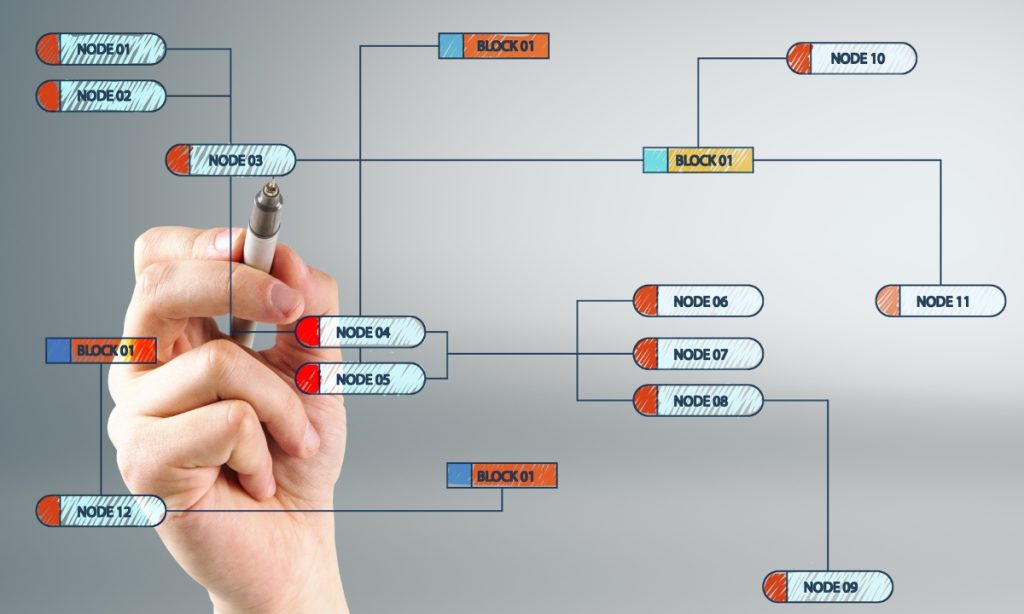
A flowchart is a diagrammatic representation of an algorithm or process that shows the sequence of steps needed to solve a problem.

It uses standard symbols connected by arrows to show the flow of control.

👉 Simply put:
A flowchart is a visual roadmap of how a program or process works.

Why Flowcharts Are Used

Flowcharts help to:

  • Understand program logic easily
  • Plan problem-solving steps
  • Detect errors before coding
  • Improve communication
  • Simplify complex processes

Basic Flowchart Symbols and Their Meaning

1. Terminal Symbol (Start/End)

Shape: Oval

 ( START )

Purpose:
Shows the beginning or end of a program/process.

2. Process Symbol

Shape: Rectangle

+-----------+
| Process |
+-----------+

Purpose:
Represents calculations or instructions.

Example:
Sum = A + B

3. Input/Output Symbol

Shape: Parallelogram

 /---------/
| Input |
\---------\

Purpose:
Used for reading input or displaying output.

Example:
“Enter number”

4. Decision Symbol

Shape: Diamond

    /\
/ \
\ /
\/

Purpose:
Represents a condition or decision.

Example:
Is number > 0?

Branches into Yes/No paths.

5. Flow Line (Arrow)

------→

Purpose:
Shows the direction of execution.

6. Connector Symbol

Shape: Circle

 (•)

Purpose:
Connects different parts of a flowchart.

Simple Example Flow (Concept)

Start → Input number → Check condition → Display result → End

This shows how steps move logically.

Advantages of Flowcharts

  • Easy to understand
  • Helps debugging
  • Improves planning
  • Saves coding time
  • Visual clarity

Exam-Perfect Definition (One Line)

A flowchart is a graphical representation of a process or algorithm using standard symbols connected by arrows.
Computer Virus: Definition, Types, Causes & Prevention

Flowchart Read More »

Units of Memory

Units of Memory

What is Memory in a Computer?

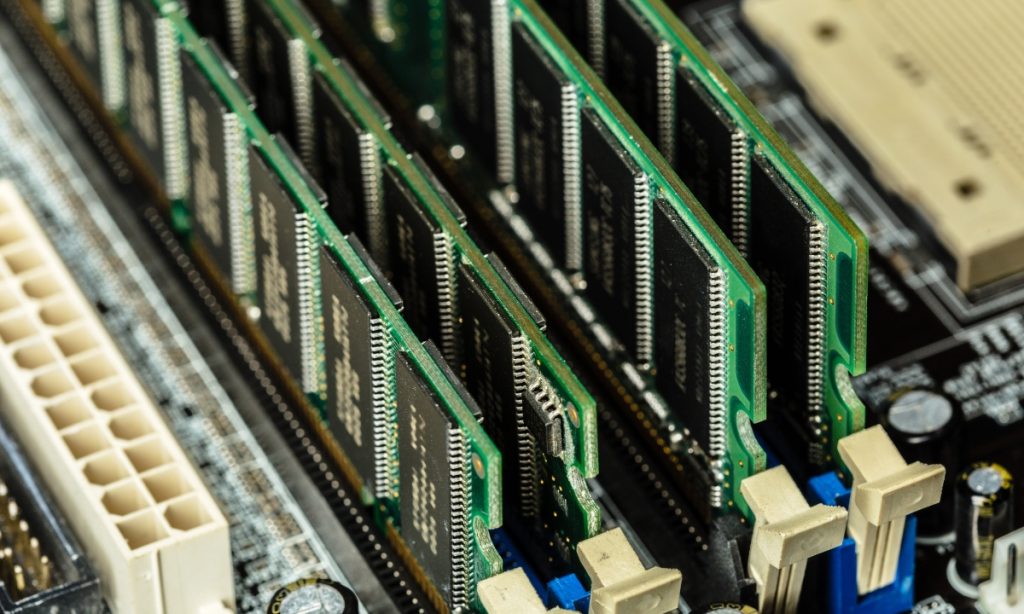
Computer memory is used to store data and instructions. Since computers work in binary form (0s and 1s), memory is measured in units that represent storage capacity.

👉 Memory units show how much data a computer can hold.

Basic Unit of Memory

1. Bit (Binary Digit)

A bit is the smallest unit of memory.

  • It can store only 0 or 1

Example:
1 bit = 0 or 1

2. Nibble

A nibble consists of 4 bits.

1 nibble = 4 bits

Used to represent a single hexadecimal digit.

3. Byte

A byte consists of 8 bits.

1 byte = 8 bits

A byte usually stores one character (like A, B, 1, @).

Larger Units of Memory

4. Kilobyte (KB)

1 KB = 1024 bytes

Stores small files or text.

5. Megabyte (MB)

1 MB = 1024 KB

Stores images and documents.

6. Gigabyte (GB)

1 GB = 1024 MB

Stores videos and software.

7. Terabyte (TB)

1 TB = 1024 GB

Used in large storage systems.

Memory Unit Table (Important for Exams ⭐)

UnitEquivalent
1 bitBinary digit (0 or 1)
1 nibble4 bits
1 byte8 bits
1 KB1024 bytes
1 MB1024 KB
1 GB1024 MB
1 TB1024 GB

Easy Memory Trick ⭐

👉 Bit → Nibble → Byte → KB → MB → GB → TB

Think:
“Big New Boys Keep Making Good Tea”

Why Memory Units Matter

  • Helps measure storage capacity
  • Important for file sizes
  • Used in hardware specifications

Exam-Perfect Definition

Units of memory are standard measurements used to represent the storage capacity of a computer.

Boolean Algebra Laws: Identity, DeMorgan & Simplification

Units of Memory Read More »

Boolean Algebra Laws

Boolean Algebra Laws: Identity, DeMorgan & Simplification

Introduction

Boolean Algebra is a branch of mathematics used in digital electronics and computer science. It deals with only two values:

👉 0 (False)
👉 1 (True)

These laws help simplify logical expressions and design circuits.

Basic Boolean Laws

1. Identity Law

  • A + 0 = A
  • A · 1 = A

👉 Meaning: Adding 0 or multiplying by 1 does not change the value.

Example:
If A = 1
→ 1 + 0 = 1
→ 1 · 1 = 1

2. Null Law (Domination Law)

  • A + 1 = 1
  • A · 0 = 0

👉 Meaning:

  • OR with 1 always gives 1
  • AND with 0 always gives 0

3. Idempotent Law

  • A + A = A
  • A · A = A

👉 Meaning: Repeating the same variable does not change the result.

4. Complement Law

  • A + A′ = 1
  • A · A′ = 0

👉 Meaning: A variable and its complement always give fixed results.

5. Double Negation Law

  • (A′)′ = A

👉 Meaning: Double NOT returns the original value.

6. Commutative Law

  • A + B = B + A
  • A · B = B · A

👉 Meaning: Order does not matter.

7. Associative Law

  • (A + B) + C = A + (B + C)
  • (A · B) · C = A · (B · C)

👉 Meaning: Grouping does not matter.

8. Distributive Law

  • A · (B + C) = (A · B) + (A · C)
  • A + (B · C) = (A + B) · (A + C)

👉 Very important for simplification.

9. Absorption Law

  • A + (A · B) = A
  • A · (A + B) = A

👉 Meaning: Extra terms can be absorbed.

10. De Morgan’s Theorems ⭐ (Very Important)

  • (A · B)′ = A′ + B′
  • (A + B)′ = A′ · B′

👉 Used in logic circuit design.

Summary Table

LawExpression
IdentityA + 0 = A
NullA + 1 = 1
IdempotentA + A = A
ComplementA + A′ = 1
Double Negation(A′)′ = A
CommutativeA + B = B + A
Associative(A + B) + C = A + (B + C)
DistributiveA(B + C) = AB + AC
AbsorptionA + AB = A
De Morgan(AB)’ = A’ + B’

Example for Practice

Simplify:

A + (A · B)

Using Absorption Law:
👉 Answer = A

Computer Virus: Definition, Types, Causes & Prevention

Boolean Algebra Laws: Identity, DeMorgan & Simplification Read More »

Computer Virus

Computer Virus: Definition, Types, Causes & Prevention

Introduction

A computer virus is a type of malicious software (malware) that is designed to infect, damage, or disrupt a computer system.

It spreads from one computer to another without the user’s knowledge.

👉 In simple words:
A computer virus is a harmful program that enters a computer and damages files or slows down the system.

Definition (Exam-Ready)

A computer virus is a malicious program that replicates itself and spreads to other computers, causing damage to data and system performance.

Characteristics of a Computer Virus

  • It attaches itself to files or programs
  • It spreads from one system to another
  • It can replicate itself
  • It may damage files or delete data
  • It slows down the computer

How Computer Viruses Work

  1. The virus enters the computer.
  2. It attaches itself to a file or program.
  3. When the file is opened, the virus activates.
  4. It replicates and spreads to other files.
  5. It may corrupt or delete important data.

Types of Computer Viruses

1. Boot Sector Virus

  • Attacks the boot sector of the hard disk.
  • Activates when the computer starts.

2. File Virus

  • Infects executable files (.exe, .com).

3. Macro Virus

  • Infects documents like MS Word or Excel files.

4. Worm

  • Spreads automatically through networks.
  • Does not need user action.

5. Trojan Horse

  • Appears as useful software.
  • Steals information secretly.

Symptoms of Virus Infection

  • Computer becomes slow
  • Frequent crashes
  • Files get deleted automatically
  • Strange pop-up messages
  • Programs stop working properly

Causes of Virus Spread in Computer

Viruses spread due to unsafe practices. Below are the main causes:

1. Using Infected USB Drives

  • Inserting unknown or infected pen drives.
  • Virus transfers automatically.

Example:
Using a friend’s infected USB in your computer.

2. Downloading Software from Untrusted Websites

  • Free cracked software may contain viruses.

Example:
Downloading games from illegal websites.

3. Opening Suspicious Email Attachments

  • Email attachments may contain harmful files.

Example:
Opening an unknown “lottery winner” attachment.

4. Visiting Unsafe Websites

  • Some websites automatically download malware.

5. Lack of Antivirus Software

  • No protection increases risk.

6. Not Updating Operating System

  • Old systems have security weaknesses.

7. File Sharing in Network

  • Infected files can spread in LAN.

Effects of Computer Virus

  • Data loss
  • System slowdown
  • File corruption
  • Theft of personal information
  • Financial loss

Prevention of Computer Viruses

1. Install Antivirus Software

Use trusted antivirus programs like:

  • Quick Heal
  • Norton Antivirus
  • McAfee

2. Do Not Open Unknown Emails

3. Avoid Pirated Software

4. Scan USB Drives Before Use

5. Keep System Updated

6. Use Firewall Protection

Difference Between Virus, Worm and Trojan

FeatureVirusWormTrojan
Needs Host FileYesNoNo
Self-ReplicatingYesYesNo
Spreads AutomaticallySometimesYesNo
Disguised as Useful ProgramNoNoYes

Real-Life Example

Imagine a virus like a biological virus:

  • It enters the body (computer),
  • Multiplies,
  • Spreads to others,
  • Causes damage.

Relational Operators Explained with Examples

Computer Virus: Definition, Types, Causes & Prevention Read More »

Function of Plotters

Function of Plotters

What is a Plotter?

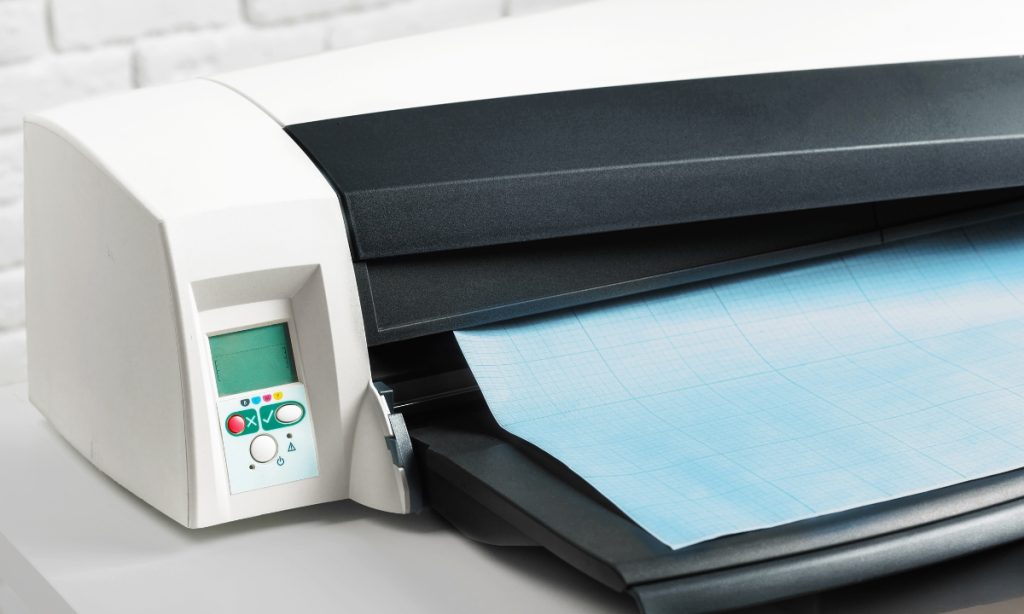
A plotter is a specialized output device used to produce high-quality, large-scale graphics and drawings on paper or other materials. Unlike standard printers that print using dots, a plotter creates images using continuous lines drawn with pens, blades, or ink jets, which results in extremely precise and smooth output.

Plotters are mainly used in fields where accuracy, scale, and detail are more important than speed.

Main Function of a Plotter

The primary function of a plotter is to convert digital data from a computer into accurate graphical representations such as technical drawings, maps, charts, and architectural plans.

It reads instructions from software (like CAD programs) and physically draws the output with high precision,

Key Functions of Plotters

1. Drawing precise line graphics

Plotters are designed to draw clean, continuous, and highly accurate lines, making them ideal for technical illustrations and engineering drawings.

2. Printing large-size documents

They can produce oversized outputs such as architectural blueprints, engineering layouts, posters, and banners that normal printers cannot handle effectively.

3. Creating engineering and architectural designs

Plotters are widely used in civil, mechanical, and electrical engineering to produce detailed design plans and structural layouts with exact measurements.

4. Producing detailed charts and graphs

They are useful in scientific research, business analytics, and education for creating accurate graphs, diagrams, and statistical charts.

5. Maintaining high accuracy and scale

Plotters ensure true-to-scale reproduction, which is critical in fields where even small measurement errors can cause major design issues.

6. Supporting vector-based output

Most plotters work with vector graphics, which means images are drawn using mathematical paths instead of pixels, ensuring clarity at any size.

Where Plotters Are Used

Plotters are commonly used in professional and technical environments such as:

  • Architecture and construction – for building blueprints and site plans
  • Engineering fields – mechanical, civil, and electrical diagrams
  • CAD (Computer-Aided Design) – designing machines, parts, and structures
  • Cartography – creating detailed geographic maps
  • Fashion design – producing garment patterns and layouts
  • Graphic design studios – large posters and precision artwork

Simple Exam Definition (One Line)

A plotter is an output device used to produce precise, large-scale graphical drawings and designs.

Easy Example to Remember ⭐

👉 A plotter is like a robotic pen that draws exact designs on paper.

Difference Between Command Line Interface and Graphical User Interface

Function of Plotters Read More »

Command Line Interface and Graphical User Interface

Difference Between Command Line Interface and Graphical User Interface

Command Line Interface and Graphical User Interface allow users to interact with computers through different types of interfaces, each with its own features, advantages, and limitations.

Command Line Interface (CLI)

A Command Line Interface (CLI) is a type of user interface in which the user communicates with the computer by typing text commands using the keyboard.

In CLI, the user must remember specific commands and follow correct syntax. The computer executes the command only if it is typed correctly.

Characteristics of CLI:

  • Text-based interface
  • Uses keyboard only
  • Requires command knowledge
  • Fast execution
  • Consumes less memory

Examples of CLI:

  • MS-DOS
  • UNIX Shell
  • Linux Terminal
  • Windows Command Prompt

Advantages of CLI:

  1. Uses very little memory
  2. Faster for expert users
  3. Highly powerful and flexible
  4. Suitable for system administration

Disadvantages of CLI:

  1. Difficult for beginners
  2. Commands must be memorized
  3. Errors occur easily due to wrong syntax
  4. Not visually attractive

Graphical User Interface (GUI)

A Graphical User Interface (GUI) is a user-friendly interface that allows users to interact with the computer using icons, windows, menus, buttons, and pointers.

GUI does not require memorizing commands. Users can perform tasks by clicking icons or selecting options from menus.

Characteristics of GUI:

  • Graphics-based interface
  • Uses mouse, keyboard, or touch
  • Easy to learn
  • Visually attractive
  • Requires more system resources

Examples of GUI:

  • Microsoft Windows
  • macOS
  • Linux GUI (Ubuntu, Fedora)
  • Android and iOS

Advantages of GUI:

  1. Easy to use and learn
  2. No need to remember commands
  3. Low chance of errors
  4. Supports multitasking
  5. Attractive and interactive

Disadvantages of GUI:

  1. Uses more memory
  2. Slower than CLI for advanced tasks
  3. Limited customization
  4. Less powerful for system-level operations

Difference Between Command Line Interface and Graphical User Interface

BasisCommand Line Interface (CLI)Graphical User Interface (GUI)
1. DefinitionUser interacts using text commandsUser interacts using graphics
2. Input MethodKeyboard onlyMouse, keyboard, touch
3. Ease of UseDifficult for beginnersEasy to use
4. User FriendlyLess user-friendlyHighly user-friendly
5. SpeedFaster for experienced usersSlower than CLI
6. Memory UsageUses less memoryUses more memory
7. Learning CurveRequires memorizing commandsNo need to memorize commands
8. Error ChancesHigh (syntax errors)Low
9. Interface StyleText-basedIcon-based
10. MultitaskingLimited visual multitaskingEasy multitasking
11. CustomizationHighly customizableLimited customization
12. ExamplesMS-DOS, Unix Shell, Command PromptWindows, macOS, Linux GUI

Real-Life Example (Easy to Remember)

  • CLI: Typing a command like del file.txt
  • GUI: Deleting a file by dragging it to the recycle bin

Key Differences in One Paragraph (Exam Perfect)

The Command Line Interface is a text-based interface where users interact with the computer by typing commands, whereas the Graphical User Interface is a visual interface that allows interaction using icons, windows, and menus. CLI is faster and uses less memory but is difficult for beginners, while GUI is easy to use and visually attractive but consumes more system resources.

Logic Gates

Difference Between Command Line Interface and Graphical User Interface Read More »

Logic Gates

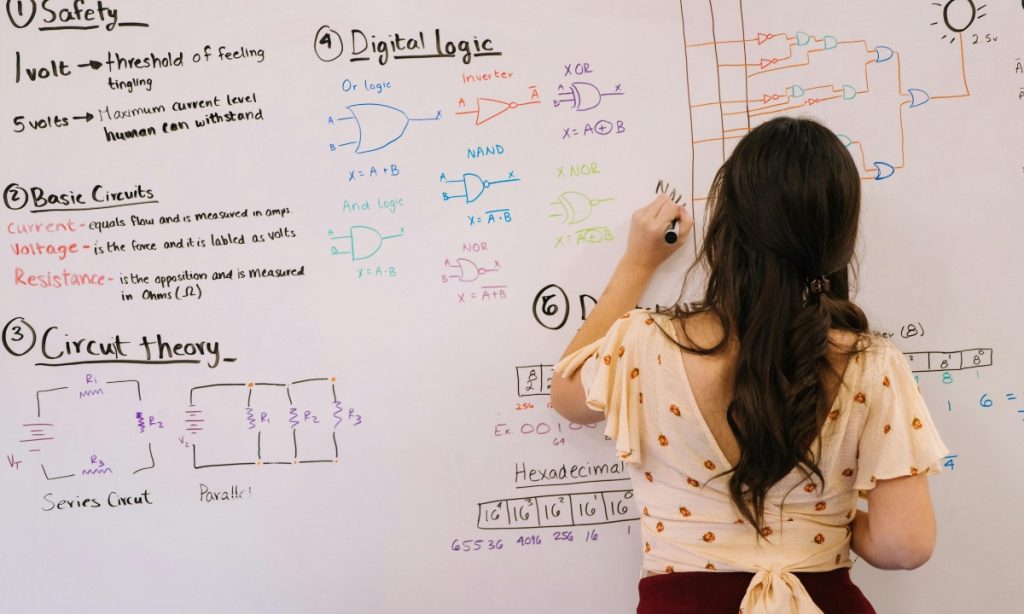
LOGIC GATES

1. What is a Logic Gate?

A logic gate is an electronic circuit that:

  • Takes one or more binary inputs (0 or 1)
  • Produces a single binary output

Logic gates are the building blocks of digital computers.

2. Binary Digits

  • 0 → LOW / FALSE / OFF
  • 1 → HIGH / TRUE / ON

3. Types of Logic Gates

Logic gates are divided into:

  1. Basic Gates
    • AND
    • OR
    • NOT
  2. Universal Gates
    • NAND
    • NOR
  3. Derived / Special Gates
    • XOR
    • XNOR

BASIC LOGIC GATES

4. AND Gate

Symbol:
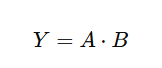
Operation: Output is 1 only if all inputs are 1

Boolean Expression:

Truth Table:

AB
000
010
100
111

Example:
A security system opens only when all conditions are true.

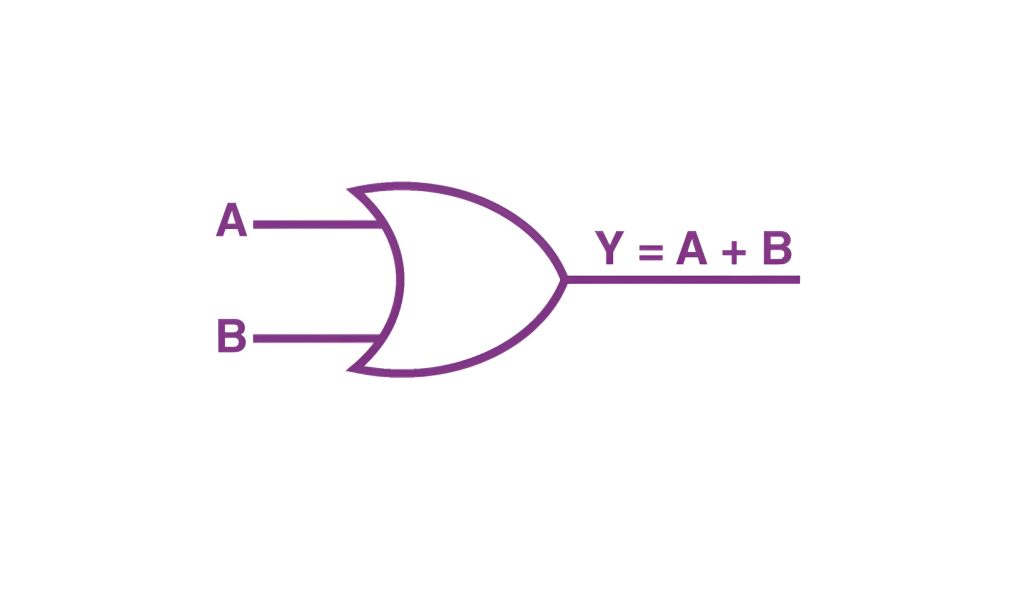
5. OR Gate

Symbol: +
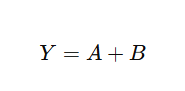
Operation: Output is 1 if any input is 1

Boolean Expression:

Truth Table:

ABY
000
011
101
111

Example:
A bulb turns on if any switch is on.

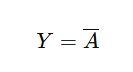
6. NOT Gate (Inverter)

Operation: Output is the opposite of input

Boolean Expression:

Truth Table:

AY
01
10

Example:
Used to invert signals.

UNIVERSAL LOGIC GATES

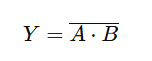
7. NAND Gate

Combination: AND + NOT
Operation: Output is 0 only when all inputs are 1

Boolean Expression:

Truth Table:

ABY
001
011
101
110

Important:
✔ NAND is a Universal Gate (can create all other gates).

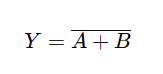
8. NOR Gate

Combination: OR + NOT
Operation: Output is 1 only when all inputs are 0

Boolean Expression:

Truth Table:

ABY
001
010
100
110

Important:
✔ NOR is also a Universal Gate.

SPECIAL LOGIC GATES

9. XOR Gate (Exclusive OR)

Operation: Output is 1 when inputs are different

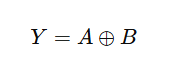
Boolean Expression:

Truth Table:

ABY
000
011
101
110

Example:
Used in adders and comparators.

10. XNOR Gate

Operation: Output is 1 when inputs are same

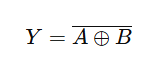
Boolean Expression:

Truth Table:

ABY
001
010
100
111

11. Universal Gates Concept

A Universal Gate is one that can be used to make all other gates.

NAND
NOR

12. Summary Table

GateOutput Condition
ANDAll inputs = 1
ORAny input = 1
NOTInverts input
NANDNOT of AND
NORNOT of OR
XORInputs different
XNORInputs same

Difference Between Analog and Digital Computer

LOGIC GATES Read More »

analog and digital computer

Difference Between Analog and Digital Computer

Analog Computer

An analog computer processes data in continuous form and represents information using physical quantities.

Digital Computer

A digital computer processes data in discrete form using binary digits (0 and 1).

Real-Life Example (Easy to Remember)

  • Analog: Car speedometer needle moving continuously
  • Digital: Digital speed reading (60 km/h)

Difference Between Analog and Digital Computer

BasisAnalog ComputerDigital Computer
1. Data TypeWorks with continuous dataWorks with discrete (binary) data
2. RepresentationData represented by physical quantities (voltage, pressure, speed)Data represented by 0s and 1s
3. AccuracyLess accurateHighly accurate
4. SpeedFast for specific tasksGenerally faster and more versatile
5. PrecisionLimited precisionHigh precision
6. ProgrammingDifficult to programEasy to program
7. StorageVery limited or noneLarge data storage available
8. Error HandlingErrors difficult to detectErrors easy to detect and correct
9. FlexibilityUsed for specific purposesUsed for multiple purposes
10. OutputContinuous valuesDiscrete values
11. ExamplesSpeedometer, thermometer, analog clockPC, laptop, calculator, smartphone
12. CostExpensive to maintainMore cost-effective

Examples of Analog Computers

Analog computers work with continuous values.

  1. Thermometer (Mercury/Alcohol) – Measures temperature continuously
  2. Analog Clock – Shows time using moving hands
  3. Speedometer (Analog) – Shows vehicle speed with a needle
  4. Voltmeter – Measures electrical voltage
  5. Ammeter – Measures electric current
  6. Pressure Gauge – Measures pressure
  7. Seismograph – Measures earthquake vibrations
  8. Analog Weighing Scale – Measures weight using a needle
  9. Fuel Gauge – Shows fuel level in vehicles
  10. Heart Rate Monitor (Analog) – Measures heartbeat waves

Examples of Digital Computers

Digital computers work with discrete (binary) values.

  1. Desktop Computer
  2. Laptop
  3. Smartphone
  4. Tablet
  5. Digital Calculator
  6. ATM Machine
  7. Digital Clock
  8. Smart Watch
  9. Digital Camera
  10. Game Console (PlayStation, Xbox)
  11. Digital Thermometer
  12. POS (Point of Sale) System
  13. Traffic Signal Controller
  14. Washing Machine (Digital Control)
  15. Microwave Oven (Digital Display)

Easy Trick to Remember ⭐

  • Needle / Continuous movement → Analog
  • Numbers / Screen / Display → Digital

Magnetic Tape

Difference Between Analog and Digital Computer Read More »

Relational Operators

Relational Operators Explained with Examples

What Are Relational Operators?

Relational operators are used to compare two values or expressions.

  • They check relationships between values
  • The result is always Boolean
    • True (1)
    • False (0)

Purpose of Relational Operators

Relational operators are mainly used in:

  • Decision making
  • Conditional statements
  • Loops
  • Logical expressions

List of Relational Operators

OperatorNameMeaning
>Greater thanLeft value is greater
<Less thanLeft value is smaller
>=Greater than or equal toGreater or equal
<=Less than or equal toSmaller or equal
==Equal toValues are equal
!=Not equal toValues are not equal

Explanation with Examples

(a) Greater Than >

Returns true if the first value is greater.

Example:

10 > 5   → True
4 > 9    → False

(b) Less Than <

Returns true if the first value is smaller.

Example:

3 < 8   → True
10 < 2  → False

(c) Greater Than or Equal To >=

True if the value is greater than OR equal.

Example:

7 >= 7  → True
5 >= 9  → False

(d) Less Than or Equal To <=

True if the value is less than OR equal.

Example:

6 <= 8  → True
9 <= 4  → False

(e) Equal To ==

Checks whether two values are equal.

⚠️ Important:
== is comparison, not assignment.

Example:

5 == 5   → True
4 == 6   → False

(f) Not Equal To !=

True when values are different.

Example:

5 != 3   → True
7 != 7   → False

Output of Relational Operators

  • Output is Boolean
  • Either:
    • True / False
    • 1 / 0 (in some languages)

Use in Conditional Statements

Example (if statement):

if (marks >= 40)
    print("Pass");
else
    print("Fail");

Here, >= is a relational operator.

Use with Variables

a = 10
b = 20

a < b   → True
a == b  → False

Relation with Logical Operators

Relational operators are often used before logical operators.

Example:

(a > 5) AND (b < 10)

Common Student Mistakes (Exam Tip ⭐)

❌ Using = instead of ==
❌ Forgetting that output is Boolean
❌ Mixing assignment and comparison

One-Line Definition (Exam-Perfect)

Relational operators are operators used to compare two values and return a Boolean result.

Cables and Types Used in Physical Transmission Media

Relational Operators Explained with Examples Read More »

cables

Cables and Types Used in Physical Transmission Media

Introduction

In data communication, transmission media refers to the path or channel through which data is transmitted from one device to another.
When the data signals are transmitted through physical cables or wires, it is called guided transmission media or wired transmission media.

Cables act as the physical medium that carries electrical or optical signals from one point to another, ensuring reliable communication between computers, routers, switches, and other network devices.

Importance of Cables

  • They serve as the foundation of networking systems.
  • Provide a secure path for transmitting data.
  • Help reduce signal interference and loss.
  • Different cables are used based on speed, distance, and cost requirements.

Types of Cables Used in Physical Transmission Media

1. Twisted Pair Cable

The twisted pair cable is the most commonly used medium in computer networks, especially in LAN (Local Area Network) connections and telephone lines.

Structure:

It consists of two insulated copper wires twisted together in pairs.
The twisting reduces electromagnetic interference (EMI) from nearby wires and external sources.
The more twists per inch, the better the noise resistance.

Working:

Electrical signals are transmitted through the copper wires. The twisting ensures that interference affects both wires equally and cancels out the noise, improving data quality.

Types of Twisted Pair Cable:

a. Unshielded Twisted Pair (UTP):

  • No metallic shield around the wire pairs.
  • Light, flexible, and easy to install.
  • Commonly used in Ethernet networks.
  • Examples: Cat5, Cat5e, Cat6, Cat6a cables.

b. Shielded Twisted Pair (STP):

  • Has a metallic shield (foil or braided mesh) around the twisted pairs to reduce interference.
  • Used in industrial environments where electrical noise is high.

Advantages:

  • Inexpensive and widely available.
  • Easy to handle and install.
  • Suitable for short-distance data transmission.

Disadvantages:

  • Limited distance and bandwidth.
  • Prone to signal attenuation over long distances.
  • Not suitable for very high-speed networks.

Uses:

  • Telephone networks.
  • LANs (Ethernet connections).
  • Connecting computers to routers and switches.

2. Coaxial Cable

The coaxial cable (or coax cable) was widely used before fiber optics and is still used in television and broadband connections.

Structure:

It has four layers:

  1. Central Copper Conductor – carries electrical signals.
  2. Insulating Layer – separates the conductor from the shield.
  3. Metallic Shield (mesh or foil) – prevents external interference.
  4. Outer Plastic Covering – provides physical protection.

Because of the shield, coaxial cables are less affected by noise and can carry signals over longer distances than twisted pair cables.

Working:

The signal travels through the central conductor, while the surrounding shield prevents signal leakage and external interference.

Advantages:

  • Supports higher bandwidth than twisted pair.
  • More reliable for medium-distance transmission.
  • Resistant to electromagnetic interference.

Disadvantages:

  • Bulkier and more difficult to install.
  • More expensive than twisted pair.
  • Not suitable for very high-speed networks like optical fiber.

Uses:

  • Cable television connections (TV antenna to TV).
  • Broadband internet services.
  • CCTV camera systems.

3. Optical Fiber Cable

The optical fiber cable is the most advanced and fastest transmission medium used today.
It transmits data in the form of light pulses instead of electrical signals.

Structure:

  1. Core: The central glass or plastic fiber that carries light signals.
  2. Cladding: A reflective coating around the core that reflects light back into the core (based on total internal reflection).
  3. Buffer Coating: Protects the fiber from physical damage.
  4. Outer Jacket: The outer covering for protection.

Working:

Light signals (generated by laser or LED) enter the core and are transmitted through it by the principle of Total Internal Reflection.
This allows the data to travel long distances with very low signal loss.

Types of Optical Fiber:

a. Single-Mode Fiber (SMF):

  • Very thin core (around 9 micrometers).
  • Allows only one light signal at a time.
  • Used for long-distance data communication (e.g., between cities).

b. Multi-Mode Fiber (MMF):

  • Thicker core (around 50–62.5 micrometers).
  • Allows multiple light rays at different angles.
  • Used for short-distance communication (e.g., within buildings or campuses).

Advantages:

  • Very high data transfer rate.
  • Can transmit over long distances without loss.
  • Immune to electrical interference.
  • Lightweight and secure (difficult to tap).

Disadvantages:

  • Expensive to install and maintain.
  • Fragile and requires specialized handling.
  • Complex to connect and repair.

Uses:

  • Internet backbone networks.
  • Undersea cables for international communication.
  • Data centers and large organizations.
  • Hospitals and research institutions for fast data transfer.

Comparison Table

FeatureTwisted Pair CableCoaxial CableOptical Fiber Cable
Transmission SignalElectricalElectricalLight
SpeedModerateHighVery High
BandwidthUp to 1 GbpsUp to 10 GbpsUp to 100+ Gbps
DistanceShortMediumLong
CostLowMediumHigh
InterferenceHighMediumNone
InstallationEasyModerateDifficult
UsesLANs, TelephonesTV, BroadbandInternet backbone, ISPs

Summary

  • Cables are the backbone of wired communication systems.
  • Twisted Pair Cables are cheap and easy to install, suitable for LANs.
  • Coaxial Cables offer better shielding and are used for TV and broadband.
  • Optical Fiber Cables are the fastest, most secure, and best for long-distance communication.

Microprocessor (CPU)

Cables and Types Used in Physical Transmission Media Read More »

error: Content is protected !!
Scroll to Top