April 2026

Ubersuggest SEO Tool

Ubersuggest SEO Tool: Complete Guide to Keyword Research, Backlinks and Traffic Growth

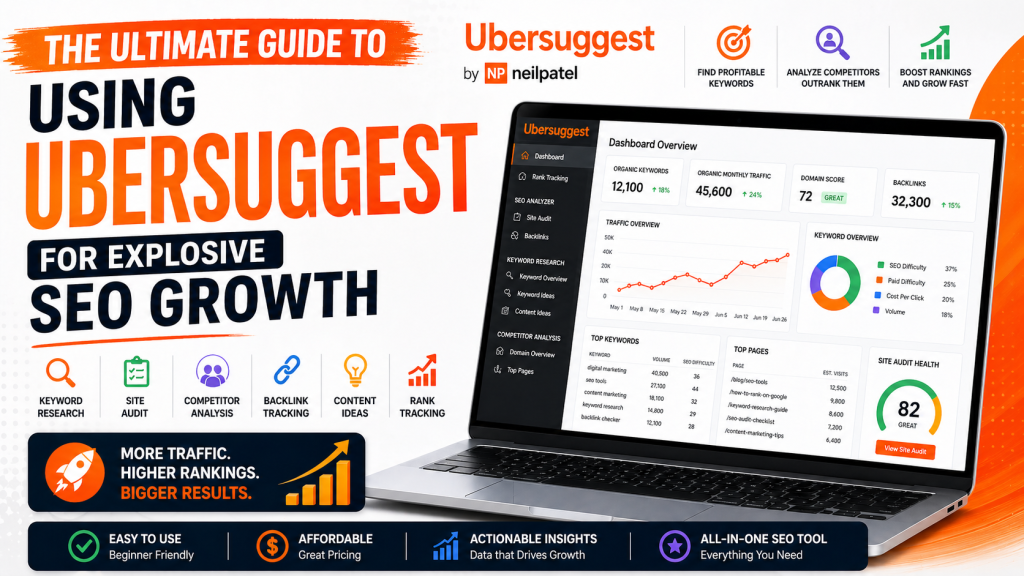
UberSuggest Dashboard
Ubersuggest Keyword Overview
Ubersuggest Graph

Ubersuggest SEO tool is one of the most powerful and beginner-friendly platforms for improving your website’s search engine rankings. Search engine optimization (SEO) is no longer optional—it’s the backbone of online visibility. Whether you’re running a blog, an eCommerce store, or a corporate website, ranking on search engines like Google Search determines your success.

That’s where Ubersuggest comes in—a powerful, user-friendly SEO tool designed to help you uncover keywords, analyze competitors, and grow your organic traffic without needing a massive budget.

In this comprehensive guide, you’ll learn everything you need to know about Ubersuggest—from features and benefits to practical strategies you can apply today.

What is Ubersuggest?

Ubersuggest
Neil Patel Keyword Ideas
Site Audit

Ubersuggest is an all-in-one SEO platform created by Neil Patel. Originally launched as a simple keyword suggestion tool, it has evolved into a full-fledged SEO suite.

Core Capabilities:

  • Keyword research
  • Site audits
  • Competitor analysis
  • Backlink tracking
  • Content ideas
  • Rank tracking

Unlike many expensive SEO tools, Ubersuggest is designed to be accessible for beginners while still powerful enough for professionals.

Why Ubersuggest is a Game-Changer for SEO

Average SEO Traffic Growth Over Time
Ranking Distribution
Issues Ubersuggest

1. Affordable SEO Solution

Compared to tools like Ahrefs or SEMrush, Ubersuggest offers a much more budget-friendly pricing structure, including a free tier.

2. Beginner-Friendly Interface

You don’t need to be an SEO expert. The dashboard is clean, intuitive, and easy to navigate.

3. Actionable Insights

Ubersuggest doesn’t just give data—it tells you what to do next.

Key Features of Ubersuggest (Deep Dive)

🔍 1. Keyword Research

Key Features Ubersuggest
Ubersuggest Keyword Ideas
Ubersuggest Keyword Overview Digital Marketing

Keyword research is the foundation of SEO, and Ubersuggest excels at it.

What You Get:

  • Search volume
  • SEO difficulty
  • Paid difficulty
  • Cost-per-click (CPC)
  • Keyword suggestions (long-tail & short-tail)

Pro Tip:

Focus on low-difficulty, high-volume keywords to rank faster.

📊 2. Site Audit

Ubersuggest Site Health Overview
Ubersuggest Site Health
Ubersuggest SEO Content Checklist

The Site Audit feature scans your website for SEO issues.

It Identifies:

  • Broken links
  • Slow-loading pages
  • Missing meta tags
  • Duplicate content
  • Mobile usability issues

Fixing these can dramatically improve your rankings.

🧠 3. Competitor Analysis

Ubersuggest Competitor Analysis
Ubersuggest Competitors in organic search
Ubersuggest keyword overlap

Want to outrank competitors? Ubersuggest shows you exactly what they’re doing.

You Can Discover:

  • Their top-performing pages
  • Keywords they rank for
  • Estimated traffic
  • Backlinks

This allows you to reverse-engineer their success.

🔗 4. Backlink Data

Ubersuggest Backlink Data
Ubersuggest Backlink Analytics
Ubersuggest Domain Prospects

Backlinks remain a major ranking factor.

Ubersuggest Helps You:

  • Analyze your backlink profile
  • Discover new link opportunities
  • Track referring domains

✍️ 5. Content Ideas

SEO Blog Platforms

Struggling with content ideas? This feature shows:

  • Popular blog posts
  • Social shares
  • Estimated visits

You can quickly identify what content works in your niche.

How to Use Ubersuggest Effectively (Step-by-Step)

Step 1: Start with Keyword Research

Find keywords relevant to your niche.

Step 2: Analyze Competitors

Look at what top-ranking websites are doing.

Step 3: Create Optimized Content

Use your keywords naturally in:

  • Titles
  • Headings
  • Meta descriptions

Step 4: Perform Site Audit

Fix technical issues that hurt rankings.

Step 5: Build Backlinks

Reach out to websites for guest posts or collaborations.

Ubersuggest vs Other SEO Tools

FeatureUbersuggestAhrefsSEMrush
PriceLowHighHigh
Ease of UseEasyMediumMedium
Keyword ResearchYesYesYes
Site AuditYesYesYes
BacklinksYesAdvancedAdvanced

👉 Ubersuggest is ideal for small businesses, bloggers, and startups.

SEO Strategies Using Ubersuggest

🚀 1. Target Long-Tail Keywords

They are easier to rank and bring highly targeted traffic.

📈 2. Update Old Content

Use Ubersuggest to find new keywords and refresh existing posts.

🔗 3. Steal Competitor Backlinks (Ethically)

Find where competitors get links and pitch your content there.

📝 4. Create Data-Driven Content

Use content ideas to produce articles people already love.

Pros and Cons of the Ubersuggest SEO Tool

✅ Pros

  • Affordable pricing
  • Easy to use
  • Comprehensive features
  • Great for beginners

❌ Cons

  • Limited data compared to premium tools
  • Fewer advanced features for experts

Final Thoughts for Ubersuggest SEO Tool

If you’re serious about growing your website traffic, Ubersuggest is one of the best tools to start with. It combines simplicity with powerful insights, making SEO accessible to everyone.

Whether you’re a beginner or an experienced marketer, using Ubersuggest strategically can help you:

  • Rank higher on search engines
  • Drive more organic traffic
  • Outperform competitors

FAQs

Is Ubersuggest free?

Yes, it offers a free version with limited daily searches.

Is it good for beginners?

Absolutely. It’s one of the easiest SEO tools to learn.

Can it replace premium tools?

For many users—yes. But advanced SEOs may still prefer tools like Ahrefs or SEMrush.

Best SEO Tools for Beginners in 2025

Ubersuggest SEO Tool: Complete Guide to Keyword Research, Backlinks and Traffic Growth Read More »
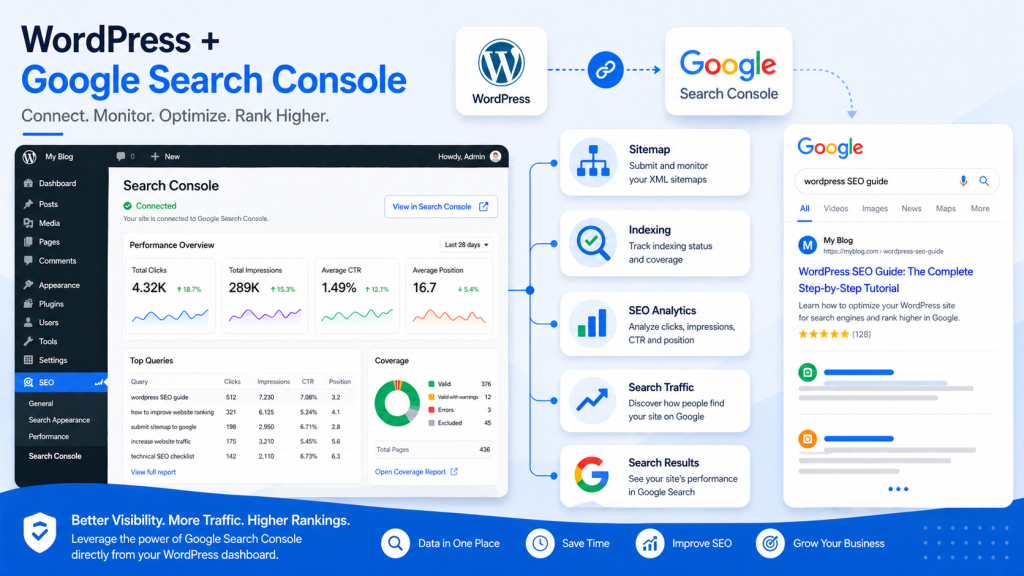
Google Search Console Guide How to Improve SEO and Traffic

Google Search Console Guide: How to Improve SEO and Traffic

Google Search Console Guide
Google Search Console Performance
Google Search Console Page Indexing

If you’re serious about improving your website’s visibility on search engines, there’s one tool you simply can’t ignore: Google Search Console (GSC). Whether you’re a beginner blogger, an SEO professional, or a business owner, this powerful (and free) tool provides deep insights into how your site performs on Google Search.

In this comprehensive guide, you’ll learn what Google Search Console is, why it matters, and how to use it effectively to boost rankings, traffic, and overall SEO health.

What is Google Search Console?

Google Search Console is a free web service offered by Google that helps website owners monitor, maintain, and troubleshoot their site’s presence in search results.

Unlike analytics tools that focus on user behavior, GSC focuses on search performance and technical SEO—giving you direct data from Google itself.

Key Functions:

  • Monitor search traffic and keyword performance
  • Identify indexing issues
  • Submit sitemaps
  • Detect technical SEO problems
  • Improve mobile usability and Core Web Vitals

Why Google Search Console is Essential for SEO

Why Google Search Console is Essential for SEO
Google Search Console Known Pages
Google Search Console Core Web Vitals

1. Understand How Users Find You

GSC shows which keywords bring users to your site, along with impressions, clicks, and click-through rate (CTR).

2. Fix Indexing Problems

If your pages aren’t appearing on Google, GSC tells you why—and how to fix it.

3. Improve Technical SEO

From mobile usability to page experience signals, GSC highlights issues that impact rankings.

4. Monitor Website Health

You’ll get alerts about:

  • Crawl errors
  • Security issues
  • Manual penalties

Key Features of Google Search Console

🔍 Performance Report

This is the heart of GSC.

It shows:

  • Total clicks
  • Total impressions
  • Average CTR
  • Average position

You can filter by:

  • Keywords
  • Pages
  • Countries
  • Devices

👉 Pro Tip: Look for keywords with high impressions but low CTR—these are optimization opportunities.

📄 URL Inspection Tool

Check how Google views a specific page.

You can:

  • See if a page is indexed
  • Request indexing
  • View crawl status

Perfect for debugging SEO issues quickly.

🧭 Index Coverage Report

This report tells you which pages are:

  • Indexed
  • Excluded
  • Having errors

Common issues include:

  • “Crawled – currently not indexed”
  • “Duplicate without user-selected canonical”

Fixing these improves your visibility dramatically.

📱 Mobile Usability Report

Google prioritizes mobile-first indexing, so this feature is crucial.

It identifies:

  • Text too small to read
  • Clickable elements too close
  • Content wider than screen

⚡ Core Web Vitals

These metrics measure user experience:

  • LCP (Largest Contentful Paint) – loading speed
  • FID (First Input Delay) – interactivity
  • CLS (Cumulative Layout Shift) – visual stability

Improving these can boost rankings and user satisfaction.

How to Set Up Google Search Console

How to Set Up Google Search Console
How to Set Up Google Search Console: Verify Domain Ownership
Add a new sitemap

Step-by-Step Guide:

  1. Go to Google Search Console
  2. Add your website (property)
  3. Verify ownership using one of these methods:
    • DNS record
    • HTML file upload
    • Google Analytics
  4. Submit your XML sitemap
  5. Start analyzing data

Best Practices for Using Google Search Console

✅ Optimize Underperforming Keywords

Find keywords with:

  • High impressions
  • Low CTR

Then improve:

  • Titles
  • Meta descriptions

✅ Fix Coverage Errors Regularly

Don’t ignore indexing issues—these directly affect your visibility.

✅ Monitor Backlinks

GSC shows:

  • External links
  • Top linking sites

This helps you evaluate your link-building strategy.

✅ Use Data for Content Strategy

Identify:

  • Top-performing pages
  • High-ranking keywords

Then create more content around those topics.

Common Mistakes to Avoid

  • Ignoring alerts from Google
  • Not submitting a sitemap
  • Overlooking mobile usability issues
  • Focusing only on rankings, not CTR

Advanced Tips for Power Users

🔧 Combine with Analytics Tools

Pair GSC with tools like Google Analytics for deeper insights.

📊 Export Data for Analysis

Download performance data and analyze trends over time.

🔄 Re-optimize Old Content

Use GSC data to refresh outdated pages and regain rankings.

Final Thoughts

Google Search Console isn’t just a tool—it’s your direct communication line with Google. If you’re not using it effectively, you’re leaving valuable SEO insights (and traffic) on the table.

By regularly monitoring your site, fixing issues, and optimizing based on real data, you can significantly improve your search visibility and grow your organic traffic.

Best SEO Tools for Beginners in 2025

Image SEO Optimization Guide (2026): How to Optimize Images for Higher Rankings

Google Search Console Guide: How to Improve SEO and Traffic Read More »

How to Use AI to Write Emails Faster

How to Use AI to Write Emails Faster (Daily Work Hack)

🚀 Introduction: Why AI Email Writing Is a Game-Changer

https://images.openai.com/static-rsc-4/QxuekKbz2oY2aV47_8_LOSUCbk0MH8JSxTwS6jyUudlXHXMX36lhOg_F37Biko8N0queKDRuZzvLnC7y5PvnaLVqqGoHLPz9jfVzkEv17Vb8U5zvLBQhJaEOanI-aC2N6an7NBTJUXOmyGsdUMkY9V7Zv9vaGvIs2L-xJMpvX4Ih-OL2X7rYMHBSat6sJkbl?purpose=fullsize
https://images.openai.com/static-rsc-4/8rR_Djib_t6mGr6whBGElNjQohO4dQ2uLCBzynDDglGfDITFlpS8aV9kQjsbZeYS8fSZyqTSrHajdVp7IYMbxqsPdzs3KI_vmue5EYaB3a1mPcjWTc0vYhjUCnVNaxOjjdr5aWJEo197jsoLppC1zaDb3OpJmasJLk18vBlASYZR2bKdcxTDFYV4xGbDIrfy?purpose=fullsize
https://images.openai.com/static-rsc-4/j4qnSc8WVDZV1P9faTnZr0YPJEkfgEMPrryOhHecNIAig7OjyYK18hWgniH6UDmd2SA7MIyd2ODSj4aoMHRiE5azHk5OLeuIbY4lf2-QedfY_p5Ek-TBNdmxGNWXgK3ja1blM-J1HEazb8dAFyz5YhD_Q-6aHaMnWsmfsHBOJV4fb6IDVMj-OXvOv2UXlYCr?purpose=fullsize

Use AI to write emails faster and transform the way you handle daily communication at work.

Email is still one of the most important tools for professional communication—but it’s also one of the biggest time drains.

Most professionals spend hours every week:

  • Writing replies
  • Drafting new emails
  • Editing tone and structure

AI changes that completely.

Instead of starting from scratch, you can now generate polished, professional emails in seconds—and just refine them before sending.

This guide shows you exactly how to use AI to write emails faster in your daily workflow.

🧠 What Is AI Email Writing?

AI email writing means using tools like ChatGPT, Microsoft Copilot, or Google Gemini to help you:

  • Draft complete emails
  • Improve grammar and tone
  • Summarize long email threads
  • Generate quick replies
  • Personalize communication

These tools understand your intent and generate human-like text based on your instructions.

⚡ Benefits of Using AI for Email Writing

1. Saves a Huge Amount of Time

Instead of spending 15–30 minutes per email, AI can create a draft in seconds.

2. Improves Writing Quality

AI helps with:

  • Grammar
  • Clarity
  • Professional tone

3. Eliminates Writer’s Block

You never have to stare at a blank screen again. AI gives you a starting point instantly.

4. Helps You Stay Consistent

Whether you’re emailing a client or a colleague, AI helps maintain a consistent tone and structure.

5. Makes Repetitive Work Easier

Common emails like follow-ups, confirmations, and updates can be generated quickly.

🛠️ Step-by-Step: How to Use AI to Write Emails Faster

Step 1: Start with a Clear Prompt

https://images.openai.com/static-rsc-4/Lk5q8Hp_Hz39KOalSbV3J-eAKChc-DUQtUHKCORl8StbNoKIZvDlp07ZcCcplLFgh8_zWPG2EjApUnzlf3NVpQhY59aAiVmqOp6CtHT4X7jzw77zBwKWXQ5FBcGqChCWq1zQXZOaU9qc4dyHh5n2scJp8kObTJQzewFAhLpIW4gbTMoekGEhJolOeyCcfMe7?purpose=fullsize
https://images.openai.com/static-rsc-4/lUqKQDoA3-APoIb8HHb2tlvV__WpqOPKeWvKZWJuVBqPAsY4V3nQZPlaThR8q0c7-MNVBYmGuu5CSPSVJnsjm3sXV6TO9XuFMyymEedmQWRM21WzGMFcFWBDAeMKzzGb0yrEF4a3eoBr-gl1e6EXeM8WnuoLIM1XsGbs5pbaw9g5fyiPwTZuBwsUJ5jmHpZ5?purpose=fullsize
https://images.openai.com/static-rsc-4/sPtLWm9pQ-gCZBud30KWnKSWFv9I3yfVf1Othe3B6FsoD_tn6mafu0MmMlRR_ElTbrOfazUG74YcVHyLRV_WO4kJo53mUinaMQ_8JJDhn6Zmqk-dF8QMmUvrkjpW9Aw0P14y9Cw8Rcc12EDYVCm-uJGyK0E0vojmOrAwoCYj2A2kcDaBEVPrzmYWu4AX4fEY?purpose=fullsize

The quality of your email depends on how you ask.

❌ Weak Prompt:

“Write email”

✅ Strong Prompt:

“Write a professional email to a client apologizing for a delayed delivery and offering a solution.”

💡 Include:

  • Purpose
  • Tone (formal, friendly, persuasive)
  • Key details

Step 2: Generate the Draft

Once you enter your prompt, AI will produce:

  • A full email
  • A subject line
  • Proper structure

Example:

Prompt:
“Write a follow-up email after a meeting about project timelines.”

Result:
A clean, structured email ready to use.

Step 3: Edit and Personalize

AI drafts are a starting point—not the final version.

Always:

  • Adjust wording to match your voice
  • Add personal context
  • Verify accuracy

Step 4: Improve Existing Emails

You don’t always need a new draft.

Paste your email and ask AI to:

  • “Make this shorter”
  • “Make this more polite”
  • “Make this more persuasive”

This is one of the fastest ways to improve communication.

Step 5: Automate Repetitive Emails

https://images.openai.com/static-rsc-4/8U44w47TGTaOL_4XCcQ4SmuROVKViQEslmmGaxO_v46i8YeiOdnlpKEYmsMfusSp7F7uOcBX9TMDVszjih-GqprPLDCkN1hdXN6MgOQ_hwzeYeZNwztdN8_QKmNqVkmp9QeQLhunDsvpsibi860fvrVES0gT0aPJGmnimE1fkSAslaKW3knZFUwkYKtBVOnk?purpose=fullsize
https://images.openai.com/static-rsc-4/8rR_Djib_t6mGr6whBGElNjQohO4dQ2uLCBzynDDglGfDITFlpS8aV9kQjsbZeYS8fSZyqTSrHajdVp7IYMbxqsPdzs3KI_vmue5EYaB3a1mPcjWTc0vYhjUCnVNaxOjjdr5aWJEo197jsoLppC1zaDb3OpJmasJLk18vBlASYZR2bKdcxTDFYV4xGbDIrfy?purpose=fullsize
https://images.openai.com/static-rsc-4/YD4j3ED6QS0vIlPF_tsN4ly4UvifhpCv6o0GJwe8IyWf8m16VOoDV1ICR1Mc-bRj0oNpMjsCxUyVgIc4llNDgGnKh9vXzEhrTfyFPGY68lrBrkUTEI3e1Ap8kEyujB5YhD44Vbx6rCMpNQr0-SL-0koL6-g6jWlhjtxk27D9Dp8vQ0CrsDD08z-O5irCcdKC?purpose=fullsize

If you send similar emails daily, AI can save even more time.

Examples:

  • Customer support replies
  • Meeting scheduling emails
  • Status updates

You can create templates and let AI customize them instantly.

🔥 Advanced AI Email Workflows

1. Quick Replies

AI suggests responses so you can reply in seconds.

2. Email Summarization

Long threads are condensed into short summaries.

3. Smart Follow-Ups

AI helps you draft follow-ups without overthinking.

4. Multilingual Emails

You can write emails in different languages effortlessly.

✍️ Real Example: Before vs After AI

Without AI:

  • Start from scratch
  • Rewrite multiple times
  • Takes 20–30 minutes

With AI:

  • Draft in seconds
  • Minor edits
  • Done in 2–5 minutes

🧩 Useful AI Prompts for Email Writing

Professional Email

“Write a formal email to [recipient] about [topic]. Keep it clear and polite.”

Follow-Up Email

“Write a friendly follow-up email after no response for 3 days.”

Apology Email

“Write an apology email for [issue] and include a solution.”

Sales Email

“Write a persuasive email offering [product/service] with a strong call-to-action.”

⚠️ Common Mistakes to Avoid

  • Sending AI-generated emails without editing
  • Using vague prompts
  • Over-automating everything
  • Ignoring personalization

🧠 Practical Tips for Daily Use

  • Use AI as a helper, not a replacement
  • Save your best prompts for reuse
  • Combine AI with your email platform
  • Process emails in batches for efficiency

❓ FAQs

1. Can AI really help write emails faster?

Yes. It can generate drafts instantly, reducing writing time significantly.

2. Do I still need to edit AI emails?

Yes. Always review and personalize before sending.

3. Is AI email writing suitable for professional use?

Yes, as long as you verify accuracy and maintain your tone.

4. Will AI make my emails sound generic?

Only if you don’t customize them. Good prompts and edits solve this.

5. Can AI handle daily work emails?

Absolutely. It’s especially useful for repetitive communication.

🏁 Final Thoughts

Using AI for email writing is one of the simplest ways to improve daily productivity.

Instead of spending unnecessary time drafting messages, you can:

  • Write faster
  • Communicate better
  • Focus on more important work

The key is simple:
Let AI handle the first draft, and you handle the final touch.

Top Writing Tools to Sound Professional in 2025

How to Use AI to Write Emails Faster (Daily Work Hack) Read More »

Image SEO Optimization Guide

Image SEO Optimization Guide (2026): How to Optimize Images for Higher Rankings

Image SEO Optimization Guide
https://images.openai.com/static-rsc-4/llQXmr7wS7BA1ObU46JwXgViL8X-4dcEssJmQVUzCDHpj99JiZBCBc2z156gXBXa_X3RSydSR9PMlMbSkQY2zPUJtWmpODIQqLny10GPutZEoyFzcXPcz83oP_luZraUvI-DVaQkxCJfVUncrvlrht9fNjvUL53uFbxx7c5GORYpjJOw3nxHehi1nVuBj_5u?purpose=fullsize
https://images.openai.com/static-rsc-4/GrS7SBbjE7EHiVfV4Mcjqe2MEwbxp7qHHdYvxyTaRFxzvXBikfl4U928nTKYUjqJfuZUhRtTfDMmHKju4NYTN1_TheVxkkfoHzM431q4Vp6v12f8Ul_aMSnJkw_mNSICzQNwBVGNopMoLFgU9EkVLD-bO1b7MK7BpyQ6Y3xVC1wJ5CrhjDVDl6Umdve3quyJ?purpose=fullsize

📌 Quick Answer (Snippet Optimized)

Image SEO Optimization is the process of optimizing images to improve website speed, search rankings, and visibility in search engines like Google Images.

🧠 Why Image SEO Matters

  • Improves page speed
  • Boosts Google rankings
  • Increases traffic from image search
  • Enhances user experience

🔧 7 Best Image SEO Optimization Practices

1. Use High-Quality Images

Clear images improve engagement and rankings.

👉 You can enhance images using
AI Image Enhancer

2. Compress Images

Reduce file size without losing quality.

3. Use Proper File Names

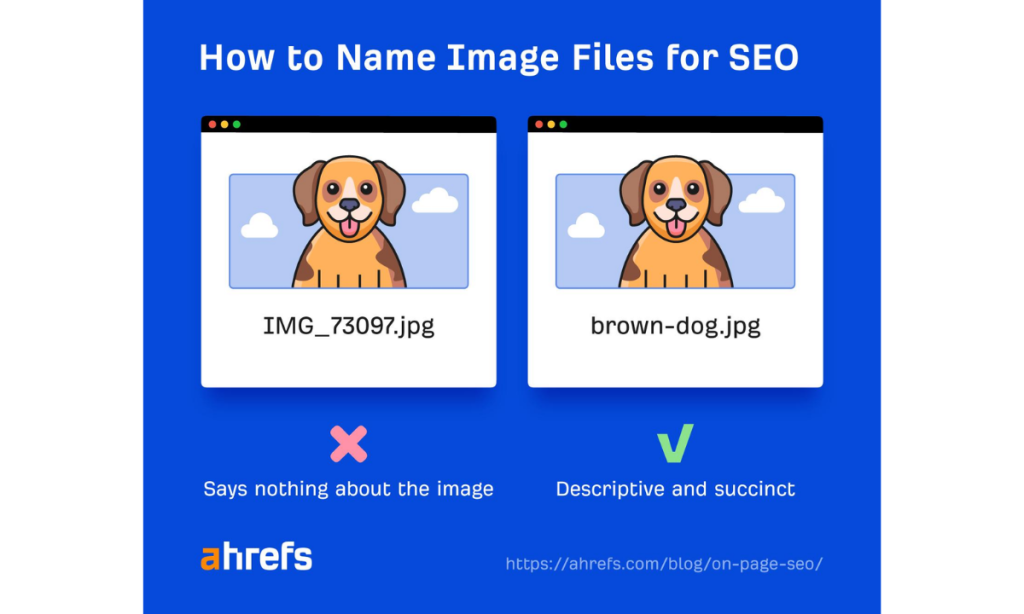
Example:

  • ❌ IMG1234.jpg
  • ✅ ai-image-enhancer-before-after.jpg

4. Add Alt Text (VERY IMPORTANT)

Describe your image using keywords.

Example:

“AI image enhancer improving blurry photo to HD”

5. Use Responsive Images

Ensure images work on mobile devices.

6. Choose the Right Format

  • JPEG → photos
  • PNG → graphics
  • WebP → best performance

7. Add Image Captions

Captions increase engagement and context.

📊 Common Image SEO Optimization Mistakes

  • Using low-quality images
  • Missing alt text
  • Large file sizes
  • Irrelevant file names

Want to improve image quality before optimizing?
👉 Read: Picsart AI Image Enhancer

🏆 Final Thoughts

Image SEO is one of the easiest ways to improve rankings — yet most bloggers ignore it.

Start by improving image quality and optimizing properly.

🧩 FAQs for Image SEO Optimization Guide (2026)

❓ What is Image SEO Optimization?

Image SEO Optimization is the process of optimizing images to improve website rankings, page speed, and visibility in search engines.

❓ How do I optimize images for SEO?

To optimize images:

  1. Use high-quality images
  2. Compress file size
  3. Add alt text
  4. Use descriptive file names
  5. Choose the right format

❓ Does image quality affect SEO?

Yes, high-quality images improve user engagement and reduce bounce rates, which can positively impact SEO rankings.

❓ What is alt text in image SEO?

Alt text is a description of an image that helps search engines understand its content and improves accessibility.

❓ How can I improve image quality before SEO?

You can enhance images using tools like Picsart AI Image Enhancer before optimizing them for SEO.

❓ What is the best image format for SEO?

WebP is the best format for SEO because it offers high quality with smaller file sizes, improving page speed.

Image SEO Optimization Guide (2026): How to Optimize Images for Higher Rankings Read More »

Top Free AI Tools for Bloggers

Top Free AI Tools for Bloggers (2026): Boost Content, SEO & Productivity

Free AI Tools for Bloggers
Free AI Tools
AI Tools for Bloggers

📌 Introduction

AI tools for bloggers are transforming how content is created in 2026. Instead of spending hours on writing, design, and SEO, bloggers can now use AI to work faster and more efficiently.

From generating content to enhancing images and optimizing search rankings, these tools can save time and boost results.

In this guide, we’ll explore the best free AI tools for bloggers you should start using today.

🏆 Best Free AI Tools for Bloggers

1. AI Image Enhancer (For Visual Quality)

  • Turns blurry images into HD
  • Perfect for blog thumbnails & Pinterest
  • Free version available

📌 Read full guide: Picsart AI Image Enhancer

2. AI Writing Assistants

  • Generate blog ideas
  • Improve readability
  • Save time on content creation

3. AI SEO Tools

  • Keyword research
  • Content optimization
  • Ranking suggestions

4. AI Graphic Design Tools

  • Create blog banners
  • Design Pinterest pins
  • Build thumbnails

5. AI Video Tools

  • Turn blogs into videos
  • Boost engagement
  • Grow traffic from multiple platforms

📊 Why Bloggers Should Use AI Tools

  • Save time (hours → minutes)
  • Improve content quality
  • Increase traffic potential
  • Automate repetitive tasks

🔗 Internal Linking Opportunity

If you want to improve your blog visuals, check our detailed guide on
👉 Picsart AI Image Enhancer

🧠 Pro Tips for Bloggers

  • Combine AI tools (don’t rely on one)
  • Focus on quality over quantity
  • Use AI to assist — not replace your creativity

🏆 Final Thoughts

AI tools are no longer optional — they are essential for modern blogging success.

Start with simple tools like Picsart Image Enhancer and expand your workflow gradually.

🧩 FAQs for Top Free AI Tools for Bloggers (2026)

❓ What are the best free AI tools for bloggers?

The best free AI tools for bloggers include writing assistants, SEO tools, design platforms, and image enhancers like Picsart AI Image Enhancer, which helps improve image quality instantly.

❓ How can AI help bloggers grow faster?

AI helps bloggers by automating tasks like content writing, keyword research, image editing, and design, allowing them to publish faster and focus on strategy.

❓ Are AI tools good for SEO?

Yes, AI tools can improve SEO by helping with keyword optimization, content structuring, internal linking, and image enhancement.

❓ Which AI tool is best for blog images?

Picsart AI Image Enhancer is one of the best tools for improving blog images by increasing resolution and removing blur automatically.

❓ Can beginners use AI tools for blogging?

Yes, most AI tools are beginner-friendly and require no technical skills, making them ideal for new bloggers.

❓ Do AI tools replace human bloggers?

No, AI tools assist with tasks but creativity, strategy, and originality still depend on the blogger.

Top Free AI Tools for Bloggers (2026): Boost Content, SEO & Productivity Read More »

Picsart vs Remini: Which AI Image Enhancer is Better?

Picsart vs Remini Comparison
Picsart vs Remini Before & After Comparison
Before & After Comparison

📌 Quick Answer (Snippet Ready)

Picsart is better for general image enhancement, while Remini is better for face-focused photo restoration.

⚔️ Comparison Overview

FeaturePicsartRemini
Best UseGeneral imagesFace enhancement
Ease of UseVery EasyEasy
Free VersionYesLimited
SpeedFastFast

🧠 Detailed Comparison

🔹 Picsart AI Image Enhancer

  • Works on all types of images
  • Great for blogs, thumbnails, products

👉 Full review here: Picsart AI Image Enhancer guide

🔹 Remini AI

  • Focuses on faces
  • Best for portraits and selfies

🏆 Final Verdict

  • Choose Picsart → for blogging, design, general use
  • Choose Remini → for portraits and face enhancement

🧩 FAQs for Picsart vs Remini Comparison

❓ Which is better: Picsart or Remini?

Picsart AI Image Enhancer is better for general image enhancement, while Remini is better for enhancing faces and portraits.

❓ Is Remini better than Picsart for faces?

Yes, Remini specializes in facial detail enhancement, making it better for portraits and selfies.

❓ Can Picsart enhance faces?

Yes, Picsart can enhance faces, but it is more focused on overall image quality rather than just facial details.

❓ Which app is best for photo clarity?

For overall clarity, Picsart is a strong choice, while Remini excels in face-specific improvements.

❓ Are Picsart and Remini free to use?

Both tools offer free versions, but premium features require a subscription.

Picsart vs Remini: Which AI Image Enhancer is Better? Read More »

How to Fix Blurry Images Online

How to Fix Blurry Images Online (Free AI Tools Guide)

Fix Blurry Images
Before and After AI Image Enhancer
Video Enhancer

📌 Quick Answer (Snippet Optimized)

You can fix blurry images online using AI tools that sharpen details, remove noise, and increase resolution automatically.

🔧 Best Ways to Fix Blurry Images

✔ Use AI Image Enhancers

AI tools can restore lost details automatically.

👉 Example: Picsart AI Image Enhancer

✔ Increase Image Resolution

Upscaling helps improve clarity without distortion.

✔ Sharpen Details

AI detects edges and enhances them for better visibility.

🧩 Step-by-Step Guide

  1. Upload your blurry image
  2. Choose an AI enhancer tool
  3. Click “Enhance”
  4. Download the improved image

⚡ Best Free Tools

  • Picsart AI Enhancer
  • Remini
  • Fotor

🏆 Pro Tip

For best results, use images that are not extremely damaged — AI works best with moderate blur.

🧩 FAQs for How to Fix Blurry Images Online

❓ How can I fix a blurry picture online for free?

You can use AI tools like Picsart AI Image Enhancer to upload your image and enhance it instantly without manual editing.

❓ Why do images become blurry?

Images become blurry due to:

  • Low resolution
  • Camera shake
  • Poor focus
  • Compression

❓ Can you unblur a photo completely?

AI can significantly improve clarity, but extremely blurry images may not be restored perfectly.

❓ What is the easiest way to sharpen an image?

Using an AI enhancer is the easiest method — it automatically detects and improves details.

❓ Does increasing resolution fix blur?

Increasing resolution helps, but combining it with AI sharpening gives the best results.

How to Fix Blurry Images Online (Free AI Tools Guide) Read More »

Best AI Image Enhancers

Best AI Image Enhancers (2026): Top Free & Paid Tools Compared

AI Image Enhancer
Comparing Upscaling Tools
Instant AI Photo Editing

📌 Introduction

Low-quality images can ruin your content — but AI tools have changed everything.

In this guide, we’ll explore the best AI image enhancers in 2026 that can turn blurry photos into HD instantly.

👉 If you want a detailed breakdown of one of the best tools, check our full review of Picsart AI Image Enhancer

🏆 Top AI Image Enhancers

1. Picsart AI Image Enhancer

  • Best for beginners
  • One-click enhancement
  • Free version available

👉 Read full guide: Picsart AI Image Enhancer review

2. Remini AI

  • Best for face enhancement
  • Strong detail recovery
  • Mobile-friendly

3. Let’s Enhance

  • Professional-grade upscaling
  • Ideal for prints

4. VanceAI

  • Multiple AI tools in one
  • Batch processing

5. Fotor AI Enhancer

  • Easy interface
  • Good for quick edits

📊 Comparison Table

ToolBest ForFree VersionEase of Use
PicsartBeginnersYesVery Easy
ReminiFacesLimitedEasy
Let’s EnhanceProfessionalsLimitedMedium
VanceAIBulk editingLimitedMedium
FotorQuick editsYesEasy

🧠 Final Verdict

If you want simplicity + strong results, Picsart AI Image Enhancer is the best starting point.

Best AI Image Enhancers (2026): Top Free & Paid Tools Compared Read More »

Picsart AI Image Enhancer

Picsart AI Image Enhancer (2026 Review): Turn Low-Quality Images into HD in Seconds

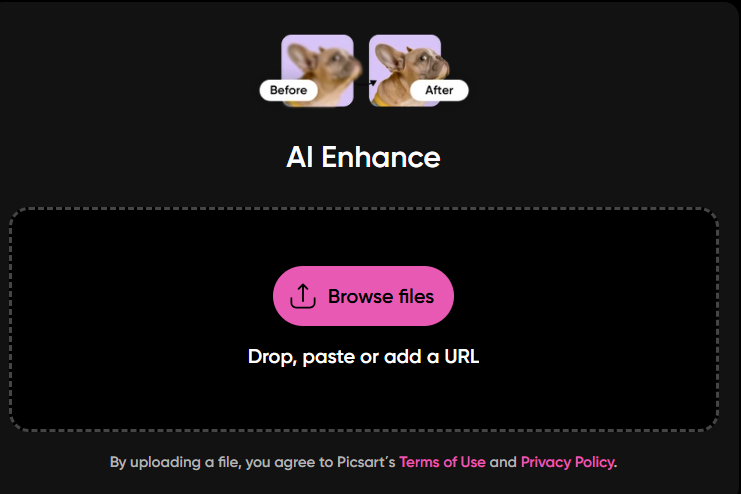
AI Enhance
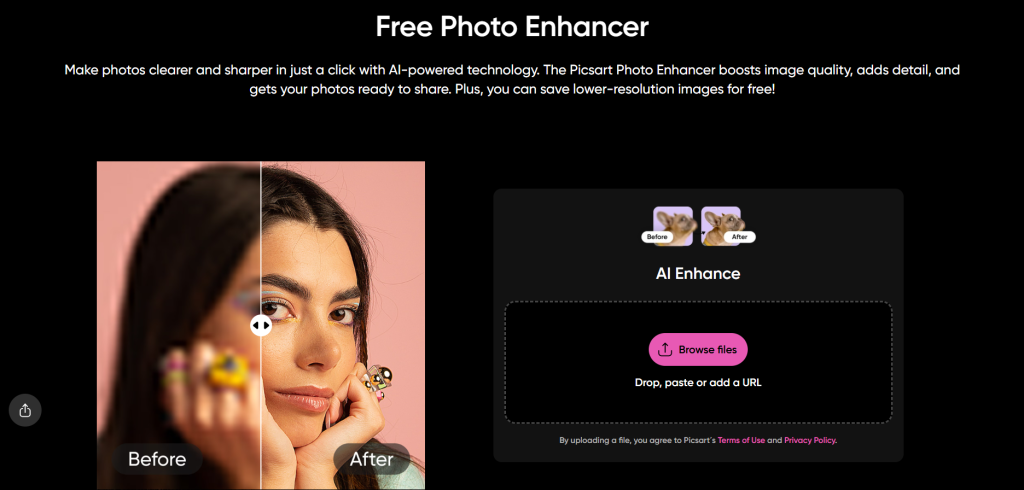
Free Photo Enhancer
Before and After Images

If you’re still struggling with blurry or low-resolution images, you’re wasting content potential.

In 2026, visual quality directly impacts SEO rankings, engagement, and conversions. Whether you run a blog, eCommerce store, or social media page, one tool stands out:

👉 Picsart AI Image Enhancer

This AI-powered tool can upgrade image quality, remove blur, and generate HD visuals instantly — even in the free version.

If you’re exploring more tools, check out our guide on Best AI Image Enhancers

Picsart AI Image Enhancer is an AI-powered tool that improves image quality by increasing resolution, removing blur, and enhancing details automatically.

It uses artificial intelligence to reconstruct missing pixels, making low-quality images look sharp and high-definition.

⚡ How Does Picsart AI Image Enhancer Work? (Snippet Block)

How Does Picsart AI Image Enhancer Work?
Traditional vs AI Upscaling
AI Image Upscaling Technology

Picsart AI Image Enhancer works in 4 simple steps:

  1. Upload your image
  2. AI scans for blur and low-resolution areas
  3. Missing details are reconstructed
  4. Enhanced HD image is generated

👉 The AI doesn’t just stretch pixels — it rebuilds image details intelligently.

You can also compare this with other tools in our Picsart vs Remini comparison guide

🧠 What Does Picsart AI Enhancer Do? (Quick Answer Section)

Picsart AI Enhancer can:

  • Increase image resolution
  • Remove blur and noise
  • Sharpen details
  • Improve overall clarity
  • Restore old or low-quality photos
  • One-click image enhancement
  • No editing skills required
  • Free version available
  • Fast processing (seconds)
  • Works for all types of images

🧩 How to Use Picsart AI Image Enhancer (Step-by-Step Snippet)

Follow these steps to enhance an image using Picsart:

  1. Go to the Picsart AI Image Enhancer page
  2. Upload your image
  3. Click on “Enhance”
  4. Download the improved image

💡 Key Features

✔ AI Upscaling

  • Boost resolution without losing quality

✔ Blur Removal

  • Fix pixelated or blurry images

✔ Detail Enhancement

  • Sharpen textures and edges

✔ Batch Processing

  • Enhance multiple images

✔ Free Access

  • Try basic enhancement without cost

📊 Picsart AI Enhancer vs Manual Editing (Snippet Table)

FeaturePicsart AI EnhancerManual Editing
TimeSecondsHours
Skill RequiredNoneHigh
CostFree / LowExpensive
Output QualityConsistent HDSkill-dependent

📈 Best Use Cases (List Snippet Opportunity)

Picsart AI Image Enhancer is best for:

  • Bloggers improving thumbnails
  • eCommerce product images
  • Social media posts
  • Restoring old photos
  • Freelancers & designers

For bloggers, image quality also affects SEO — read our full guide on Image SEO optimization

✅ Pros and Cons (Snippet Friendly)

Pros:

  • Easy to use
  • Fast results
  • Free version available
  • High-quality output

Cons:

  • Premium needed for full resolution
  • Limited improvement for extremely damaged images

🏆 Final Verdict (Short Answer Snippet)

Picsart AI Image Enhancer is one of the best free AI tools for improving image quality instantly, making it ideal for beginners and professionals alike.

🧠 FAQs for Picsart AI Image Enhancer

❓ What is Picsart AI Image Enhancer?

Picsart AI Image Enhancer is an AI-powered tool that improves image quality by increasing resolution, reducing blur, and enhancing details automatically. It can turn low-quality images into HD in seconds.

❓ Is Picsart AI Image Enhancer free?

Yes, Picsart offers a free version that allows users to enhance images. However, higher-resolution downloads and advanced features may require a premium plan.

❓ How do I make a blurry image clear using AI?

To fix a blurry image:

  1. Upload your image to an AI enhancer
  2. Click “Enhance”
  3. Let AI process the image
  4. Download the improved version

❓ Does AI image enhancer really work?

Yes, AI image enhancers use machine learning to reconstruct missing details, sharpen edges, and improve resolution, producing significantly clearer images.

❓ What is the best free AI image enhancer?

Picsart AI Image Enhancer is considered one of the best free tools due to its ease of use, fast results, and strong enhancement quality.

❓ Can AI increase image resolution without losing quality?

Yes, AI upscaling increases resolution by intelligently adding pixels, maintaining quality better than traditional resizing methods.

Want more tools like this? Explore our curated list of Top Free AI Tools for Bloggers

Picsart AI Image Enhancer (2026 Review): Turn Low-Quality Images into HD in Seconds Read More »

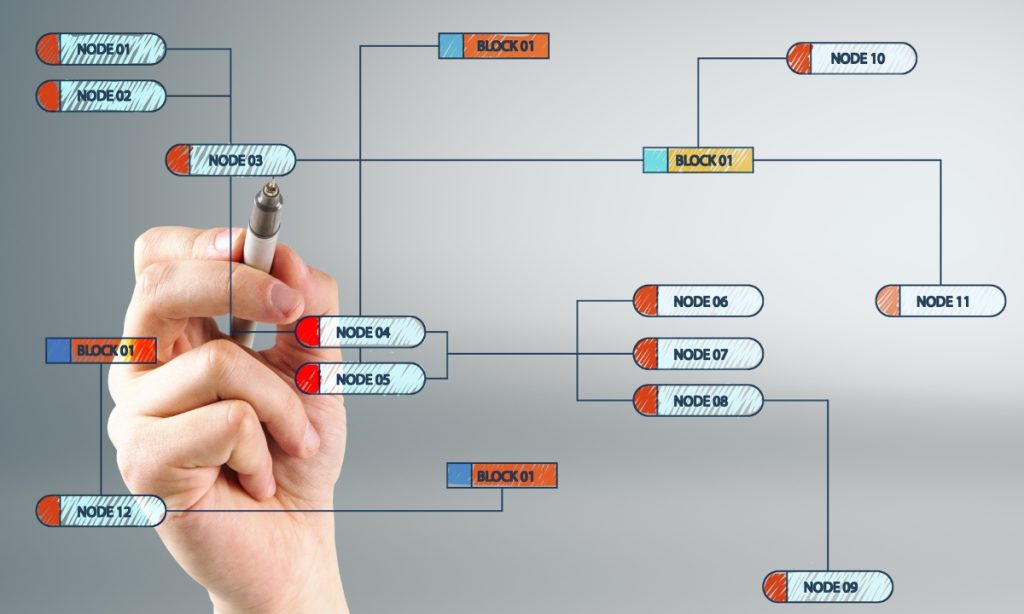
Flowchart

Flowchart

What is a Flowchart?

A flowchart is a diagrammatic representation of an algorithm or process that shows the sequence of steps needed to solve a problem.

It uses standard symbols connected by arrows to show the flow of control.

👉 Simply put:
A flowchart is a visual roadmap of how a program or process works.

Why Flowcharts Are Used

Flowcharts help to:

  • Understand program logic easily
  • Plan problem-solving steps
  • Detect errors before coding
  • Improve communication
  • Simplify complex processes

Basic Flowchart Symbols and Their Meaning

1. Terminal Symbol (Start/End)

Shape: Oval

 ( START )

Purpose:
Shows the beginning or end of a program/process.

2. Process Symbol

Shape: Rectangle

+-----------+
| Process |
+-----------+

Purpose:
Represents calculations or instructions.

Example:
Sum = A + B

3. Input/Output Symbol

Shape: Parallelogram

 /---------/
| Input |
\---------\

Purpose:
Used for reading input or displaying output.

Example:
“Enter number”

4. Decision Symbol

Shape: Diamond

    /\
/ \
\ /
\/

Purpose:
Represents a condition or decision.

Example:
Is number > 0?

Branches into Yes/No paths.

5. Flow Line (Arrow)

------→

Purpose:
Shows the direction of execution.

6. Connector Symbol

Shape: Circle

 (•)

Purpose:
Connects different parts of a flowchart.

Simple Example Flow (Concept)

Start → Input number → Check condition → Display result → End

This shows how steps move logically.

Advantages of Flowcharts

  • Easy to understand
  • Helps debugging
  • Improves planning
  • Saves coding time
  • Visual clarity

Exam-Perfect Definition (One Line)

A flowchart is a graphical representation of a process or algorithm using standard symbols connected by arrows.

Computer Virus: Definition, Types, Causes & Prevention

Flowchart Read More »
error: Content is protected !!
Scroll to Top