April 2026

Units of Memory

Units of Memory

What is Memory in a Computer?

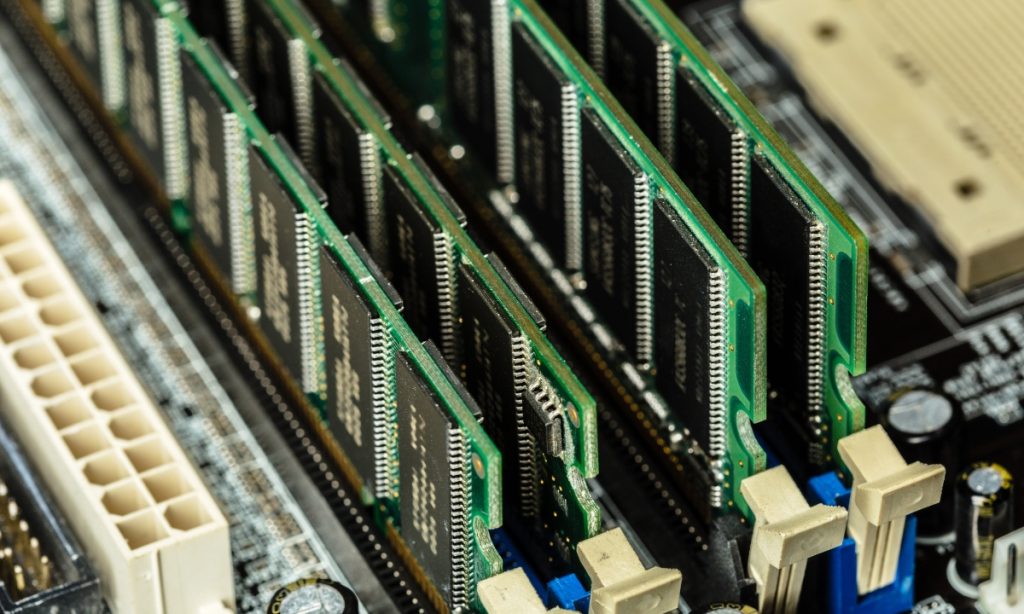
Computer memory is used to store data and instructions. Since computers work in binary form (0s and 1s), memory is measured in units that represent storage capacity.

👉 Memory units show how much data a computer can hold.

Basic Unit of Memory

1. Bit (Binary Digit)

A bit is the smallest unit of memory.

  • It can store only 0 or 1

Example:
1 bit = 0 or 1

2. Nibble

A nibble consists of 4 bits.

1 nibble = 4 bits

Used to represent a single hexadecimal digit.

3. Byte

A byte consists of 8 bits.

1 byte = 8 bits

A byte usually stores one character (like A, B, 1, @).

Larger Units of Memory

4. Kilobyte (KB)

1 KB = 1024 bytes

Stores small files or text.

5. Megabyte (MB)

1 MB = 1024 KB

Stores images and documents.

6. Gigabyte (GB)

1 GB = 1024 MB

Stores videos and software.

7. Terabyte (TB)

1 TB = 1024 GB

Used in large storage systems.

Memory Unit Table (Important for Exams ⭐)

UnitEquivalent
1 bitBinary digit (0 or 1)
1 nibble4 bits
1 byte8 bits
1 KB1024 bytes
1 MB1024 KB
1 GB1024 MB
1 TB1024 GB

Easy Memory Trick ⭐

👉 Bit → Nibble → Byte → KB → MB → GB → TB

Think:
“Big New Boys Keep Making Good Tea”

Why Memory Units Matter

  • Helps measure storage capacity
  • Important for file sizes
  • Used in hardware specifications

Exam-Perfect Definition

Units of memory are standard measurements used to represent the storage capacity of a computer.
Boolean Algebra Laws: Identity, DeMorgan & Simplification

Units of Memory Read More »

Boolean Algebra Laws

Boolean Algebra Laws: Identity, DeMorgan & Simplification

Introduction

Boolean Algebra is a branch of mathematics used in digital electronics and computer science. It deals with only two values:

👉 0 (False)
👉 1 (True)

These laws help simplify logical expressions and design circuits.

Basic Boolean Laws

1. Identity Law

  • A + 0 = A
  • A · 1 = A

👉 Meaning: Adding 0 or multiplying by 1 does not change the value.

Example:
If A = 1
→ 1 + 0 = 1
→ 1 · 1 = 1

2. Null Law (Domination Law)

  • A + 1 = 1
  • A · 0 = 0

👉 Meaning:

  • OR with 1 always gives 1
  • AND with 0 always gives 0

3. Idempotent Law

  • A + A = A
  • A · A = A

👉 Meaning: Repeating the same variable does not change the result.

4. Complement Law

  • A + A′ = 1
  • A · A′ = 0

👉 Meaning: A variable and its complement always give fixed results.

5. Double Negation Law

  • (A′)′ = A

👉 Meaning: Double NOT returns the original value.

6. Commutative Law

  • A + B = B + A
  • A · B = B · A

👉 Meaning: Order does not matter.

7. Associative Law

  • (A + B) + C = A + (B + C)
  • (A · B) · C = A · (B · C)

👉 Meaning: Grouping does not matter.

8. Distributive Law

  • A · (B + C) = (A · B) + (A · C)
  • A + (B · C) = (A + B) · (A + C)

👉 Very important for simplification.

9. Absorption Law

  • A + (A · B) = A
  • A · (A + B) = A

👉 Meaning: Extra terms can be absorbed.

10. De Morgan’s Theorems ⭐ (Very Important)

  • (A · B)′ = A′ + B′
  • (A + B)′ = A′ · B′

👉 Used in logic circuit design.

Summary Table

LawExpression
IdentityA + 0 = A
NullA + 1 = 1
IdempotentA + A = A
ComplementA + A′ = 1
Double Negation(A′)′ = A
CommutativeA + B = B + A
Associative(A + B) + C = A + (B + C)
DistributiveA(B + C) = AB + AC
AbsorptionA + AB = A
De Morgan(AB)’ = A’ + B’

Example for Practice

Simplify:

A + (A · B)

Using Absorption Law:
👉 Answer = A

Computer Virus: Definition, Types, Causes & Prevention

Boolean Algebra Laws: Identity, DeMorgan & Simplification Read More »

Computer Virus

Computer Virus: Definition, Types, Causes & Prevention

Introduction

A computer virus is a type of malicious software (malware) that is designed to infect, damage, or disrupt a computer system.

It spreads from one computer to another without the user’s knowledge.

👉 In simple words:
A computer virus is a harmful program that enters a computer and damages files or slows down the system.

Definition (Exam-Ready)

A computer virus is a malicious program that replicates itself and spreads to other computers, causing damage to data and system performance.

Characteristics of a Computer Virus

  • It attaches itself to files or programs
  • It spreads from one system to another
  • It can replicate itself
  • It may damage files or delete data
  • It slows down the computer

How Computer Viruses Work

  1. The virus enters the computer.
  2. It attaches itself to a file or program.
  3. When the file is opened, the virus activates.
  4. It replicates and spreads to other files.
  5. It may corrupt or delete important data.

Types of Computer Viruses

1. Boot Sector Virus

  • Attacks the boot sector of the hard disk.
  • Activates when the computer starts.

2. File Virus

  • Infects executable files (.exe, .com).

3. Macro Virus

  • Infects documents like MS Word or Excel files.

4. Worm

  • Spreads automatically through networks.
  • Does not need user action.

5. Trojan Horse

  • Appears as useful software.
  • Steals information secretly.

Symptoms of Virus Infection

  • Computer becomes slow
  • Frequent crashes
  • Files get deleted automatically
  • Strange pop-up messages
  • Programs stop working properly

Causes of Virus Spread in Computer

Viruses spread due to unsafe practices. Below are the main causes:

1. Using Infected USB Drives

  • Inserting unknown or infected pen drives.
  • Virus transfers automatically.

Example:
Using a friend’s infected USB in your computer.

2. Downloading Software from Untrusted Websites

  • Free cracked software may contain viruses.

Example:
Downloading games from illegal websites.

3. Opening Suspicious Email Attachments

  • Email attachments may contain harmful files.

Example:
Opening an unknown “lottery winner” attachment.

4. Visiting Unsafe Websites

  • Some websites automatically download malware.

5. Lack of Antivirus Software

  • No protection increases risk.

6. Not Updating Operating System

  • Old systems have security weaknesses.

7. File Sharing in Network

  • Infected files can spread in LAN.

Effects of Computer Virus

  • Data loss
  • System slowdown
  • File corruption
  • Theft of personal information
  • Financial loss

Prevention of Computer Viruses

1. Install Antivirus Software

Use trusted antivirus programs like:

  • Quick Heal
  • Norton Antivirus
  • McAfee

2. Do Not Open Unknown Emails

3. Avoid Pirated Software

4. Scan USB Drives Before Use

5. Keep System Updated

6. Use Firewall Protection

Difference Between Virus, Worm and Trojan

FeatureVirusWormTrojan
Needs Host FileYesNoNo
Self-ReplicatingYesYesNo
Spreads AutomaticallySometimesYesNo
Disguised as Useful ProgramNoNoYes

Real-Life Example

Imagine a virus like a biological virus:

  • It enters the body (computer),
  • Multiplies,
  • Spreads to others,
  • Causes damage.

Relational Operators Explained with Examples

Computer Virus: Definition, Types, Causes & Prevention Read More »

Function of Plotters

Function of Plotters

What is a Plotter?

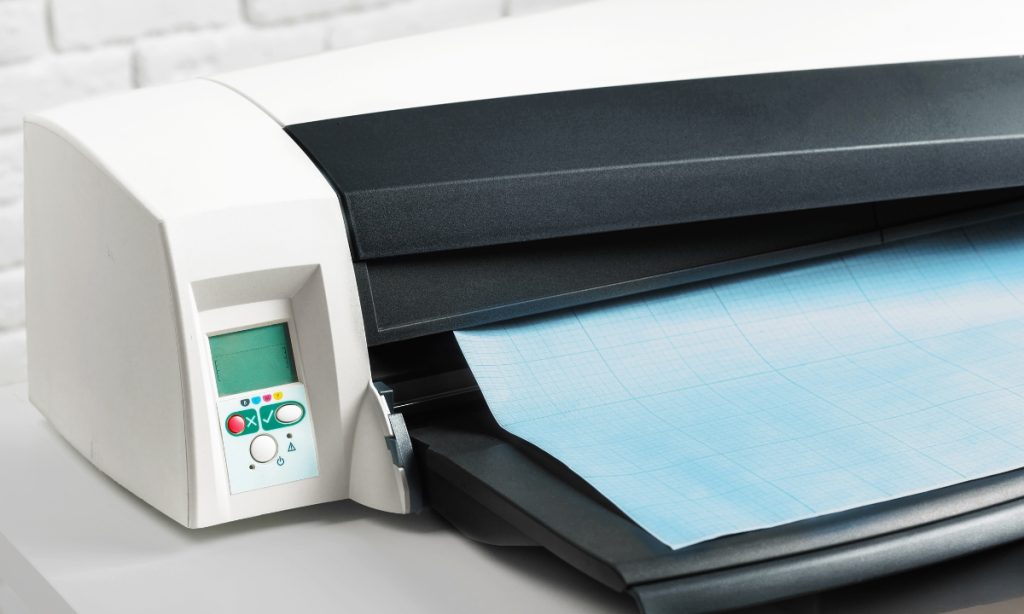
A plotter is a specialized output device used to produce high-quality, large-scale graphics and drawings on paper or other materials. Unlike standard printers that print using dots, a plotter creates images using continuous lines drawn with pens, blades, or ink jets, which results in extremely precise and smooth output.

Plotters are mainly used in fields where accuracy, scale, and detail are more important than speed.

Main Function of a Plotter

The primary function of a plotter is to convert digital data from a computer into accurate graphical representations such as technical drawings, maps, charts, and architectural plans.

It reads instructions from software (like CAD programs) and physically draws the output with high precision,

Key Functions of Plotters

1. Drawing precise line graphics

Plotters are designed to draw clean, continuous, and highly accurate lines, making them ideal for technical illustrations and engineering drawings.

2. Printing large-size documents

They can produce oversized outputs such as architectural blueprints, engineering layouts, posters, and banners that normal printers cannot handle effectively.

3. Creating engineering and architectural designs

Plotters are widely used in civil, mechanical, and electrical engineering to produce detailed design plans and structural layouts with exact measurements.

4. Producing detailed charts and graphs

They are useful in scientific research, business analytics, and education for creating accurate graphs, diagrams, and statistical charts.

5. Maintaining high accuracy and scale

Plotters ensure true-to-scale reproduction, which is critical in fields where even small measurement errors can cause major design issues.

6. Supporting vector-based output

Most plotters work with vector graphics, which means images are drawn using mathematical paths instead of pixels, ensuring clarity at any size.

Where Plotters Are Used

Plotters are commonly used in professional and technical environments such as:

  • Architecture and construction – for building blueprints and site plans
  • Engineering fields – mechanical, civil, and electrical diagrams
  • CAD (Computer-Aided Design) – designing machines, parts, and structures
  • Cartography – creating detailed geographic maps
  • Fashion design – producing garment patterns and layouts
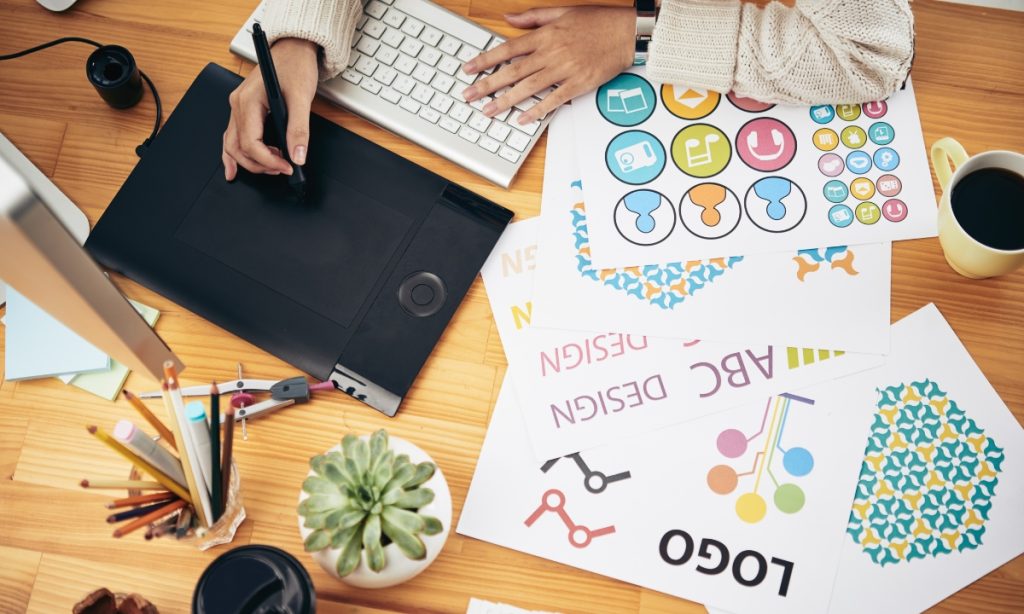
  • Graphic design studios – large posters and precision artwork

Simple Exam Definition (One Line)

A plotter is an output device used to produce precise, large-scale graphical drawings and designs.

Easy Example to Remember ⭐

👉 A plotter is like a robotic pen that draws exact designs on paper.

Difference Between Command Line Interface and Graphical User Interface

Function of Plotters Read More »

Design Logos and Posts Without Photoshop

Design Logos and Posts Without Photoshop in 2026

1. Introduction

Design Logos and Posts Without Photoshop has never been easier in 2026. Whether you’re building a brand, creating social media content, or designing marketing materials, compelling visuals make a huge difference in engagement and credibility.

Many beginners often hesitate because of expensive software, complex interfaces, or lack of design experience—but Photoshop isn’t always necessary.

With free and beginner-friendly tools, anyone can create professional-looking logos and social media posts quickly and efficiently.

2. Why You Don’t Always Need Photoshop

  • Cost Savings: Free alternatives let you design without paying for Adobe Creative Cloud subscriptions.
  • Ease of Use: Intuitive drag-and-drop interfaces are beginner-friendly and require no prior experience.
  • Quick Results: Templates, pre-made assets, and AI-powered features reduce design time drastically.
  • Cross-Platform Access: Most tools work on web, mobile, and desktop, giving flexibility wherever you are.

These advantages make it easy for small businesses, creators, and hobbyists to create professional designs efficiently.

3. Essential Features to Look for in Logo & Post Design Tools

When choosing a tool, ensure it includes:

  • Templates: Pre-designed layouts for logos, social posts, flyers, and ads.
  • Customization Options: Change colors, fonts, shapes, icons, and graphics to fit your brand.
  • Export Options: Download designs in PNG, JPEG, SVG, or PDF formats.
  • Collaboration & Sharing: Tools that allow team editing or easy sharing with clients.
  • Stock Assets: Access to free photos, icons, and vector graphics to enhance your designs.

These features help beginners achieve professional-quality results without a steep learning curve.

4. Top Tools to Design Logos Without Photoshop

  1. Canva (Free Plan)
    • Drag-and-drop editor with thousands of ready-made logo templates.
    • Best for beginners, marketers, and small businesses needing fast logos.
  2. Figma (Free Tier)
    • Vector-based design tool for UI/UX logos and detailed graphics.
    • Best for scalable logos, interface design, and collaboration.
  3. Gravit Designer (Free Version)
    • Advanced vector editing with shape and pen tools.
    • Ideal for creating precise, scalable illustrations and logos.
  4. Looka (Free Logo Maker)
    • AI-powered logo generation based on your style preferences.
    • Perfect for quick logo creation for startups and small brands.
  5. Hatchful by Shopify
    • Free AI logo maker with templates for multiple industries.
    • Beginner-friendly and ideal for online brand creation.

5. Top Tools to Design Social Media Posts Without Photoshop

  1. Canva (Free Plan)
    • Pre-made templates for Instagram, Facebook, YouTube, and TikTok.
    • Supports animated posts and custom branding kits.
  2. Crello / VistaCreate (Free Plan)
    • Similar to Canva with motion graphics and video posts.
    • Best for short videos and animated social media posts.
  3. Adobe Express (Free Tier)
    • Simplified Adobe platform for graphics and logos.
    • Easy template selection with branding kits for consistency.
  4. Snappa (Free Plan)
    • Drag-and-drop editor for social media and blog graphics.
    • Includes stock photos, icons, and ready-made templates.

6. Step-by-Step Guide to Designing Logos and Posts

  1. Choose the right tool based on your needs (logo vs social post).
  2. Pick a template or start with a blank canvas.
  3. Customize colors, fonts, shapes, and images to match your brand.
  4. Add branding elements: logo mark, tagline, or icons.
  5. Preview designs for different platforms (Instagram, website, YouTube).
  6. Export designs in the correct format (PNG for web, SVG for scalable logos).

7. Beginner Tips to Make Designs Look Professional

  • Stick to 2–3 complementary colors for cohesion.
  • Use readable and consistent fonts for clarity.
  • Keep logos simple and memorable, avoiding clutter.
  • Use high-quality images and vectors for clean visuals.
  • Test designs on multiple devices to ensure proper scaling.

8. Common Mistakes to Avoid

  • Overcomplicating logos with too many elements.
  • Using low-resolution images or icons.
  • Copying templates without customization (reduces originality).
  • Ignoring platform-specific design dimensions (causes cropping or stretching).

9. Conclusion: Design Logos and Posts Without Photoshop

Free design tools have made professional logos and social media posts achievable without Photoshop.

Experiment, practice consistently, and explore different tools to find your workflow.

Call to Action: “Pick one design tool today, start creating your logo or social media post, and elevate your brand without Photoshop in 2026.”

Best Free Design Tools for Beginners in 2025

Design Logos and Posts Without Photoshop in 2026 Read More »

Claude vs ChatGPT

Claude vs ChatGPT: Which AI Thinks Better in 2026?

1. Introduction

Claude vs ChatGPT: AI chatbots and large language models continue to redefine productivity, creativity, and research in 2026. With applications from content creation to coding assistance, these AI tools are now essential for students, professionals, and businesses.

When it comes to choosing the right AI assistant, many ask: which one thinks smarter, faster, and more effectively in 2026?

Preview: “This guide compares Claude and ChatGPT to help you determine which AI suits your workflow, whether for content, coding, or business automation.”

2. Overview of Claude and ChatGPT

Claude

  • Developed by Anthropic, designed with safety, reasoning, and helpfulness in mind.
  • Excels in context-aware conversations and structured responses.

ChatGPT

  • Developed by OpenAI, with GPT-4 and GPT-5 versions powering advanced AI capabilities.
  • Known for creativity, versatility, and fast responses across multiple domains.

Claude vs ChatGPT: The main difference is philosophy: Claude prioritizes logical consistency and ethical responses, while ChatGPT emphasizes adaptability and creative outputs.

3. Key Features Comparison

  • Conversational Abilities: Claude is structured and cautious; ChatGPT is dynamic and versatile.
  • Knowledge Base: ChatGPT is up-to-date with a wide range of datasets; Claude focuses on accurate reasoning and safe outputs.
  • Creativity & Problem-Solving: ChatGPT excels in brainstorming; Claude shines in step-by-step reasoning.
  • Integration Capabilities: ChatGPT supports plugins, APIs, and third-party tools; Claude’s integrations are growing steadily.
  • Customization & Fine-Tuning: ChatGPT allows advanced user fine-tuning; Claude guides outputs for safety and clarity.

4. Performance in Different Scenarios

  • Content Generation: ChatGPT is ideal for blogs, social media, and storytelling; Claude is strong for structured, coherent, and precise content.
  • Code Assistance: ChatGPT generates code and debugging solutions quickly; Claude explains logic thoroughly for better learning.
  • Research & Data Analysis: Claude provides accurate, reasoned insights; ChatGPT summarizes creatively and handles complex queries efficiently.
  • Customer Support & Automation: Both can automate replies; Claude ensures professional, ethical responses, while ChatGPT integrates easily across platforms.

5. User Experience and Accessibility

  • Ease of Use: Both are user-friendly; ChatGPT is more widely recognized.
  • Responsiveness: ChatGPT responds faster for general queries; Claude takes slightly longer for detailed reasoning.
  • Free vs Paid Plans: ChatGPT offers free and subscription tiers; Claude has limited free access with premium options.
  • Platform Support: Both support web, mobile, and API access, with ChatGPT having a broader ecosystem.

6. Strengths and Weaknesses

Claude

  • Pros: Safe, structured reasoning, consistent outputs.
  • Cons: Slower responses, fewer integrations.
  • Best For: Businesses, research tasks, and professional communication.

ChatGPT

  • Pros: Fast, creative, versatile, widely integrated.
  • Cons: Can occasionally generate inaccurate info, less cautious reasoning.
  • Best For: Content creators, developers, and general AI tasks.

Claude vs ChatGPT: The choice depends on whether you value structured reasoning or speed and creativity.

7. Cost and Value Comparison

  • Free Access: ChatGPT has limited free queries; Claude offers restricted free usage.
  • Subscription Plans: ChatGPT Plus (~$20/month) unlocks advanced features; Claude’s premium tiers vary.
  • Enterprise vs Individual: ChatGPT scales easily via APIs; Claude focuses on safe business applications.
  • ROI: ChatGPT is better for creative tasks; Claude is ideal for professional, risk-sensitive tasks.

8. Real-World Recommendations

  • Content Creators: ChatGPT for speed and creative writing; Claude for structured, polished content.
  • Developers & Coders: ChatGPT for coding and automation; Claude for step-by-step explanations and logic understanding.
  • Businesses & Customer Support: Claude ensures professional, safe replies; ChatGPT supports multi-channel engagement efficiently.

9. Conclusion: Claude vs ChatGPT

Claude vs ChatGPT each excel in different areas in 2026:

  • Claude focuses on accuracy, reasoning, and safe outputs.
  • ChatGPT focuses on creativity, versatility, and speed.

Final Verdict: Choose ChatGPT for creative tasks or fast outputs, and Claude for structured, high-quality reasoning.

Call to Action: “Test both Claude and ChatGPT in 2026 to see which AI best fits your workflow and needs.”

AI Tools for Content Creation: Your 2025 Guide to Smarter, Faster Output

How to Use ChatGPT for Research: A 2025 Guide to Smarter, Faster Insights

10 Best AI Tools for Students in 2025: Study Smarter, Save Time, and Boost Your Grades

Claude vs ChatGPT: Which AI Thinks Better in 2026? Read More »

error: Content is protected !!
Scroll to Top