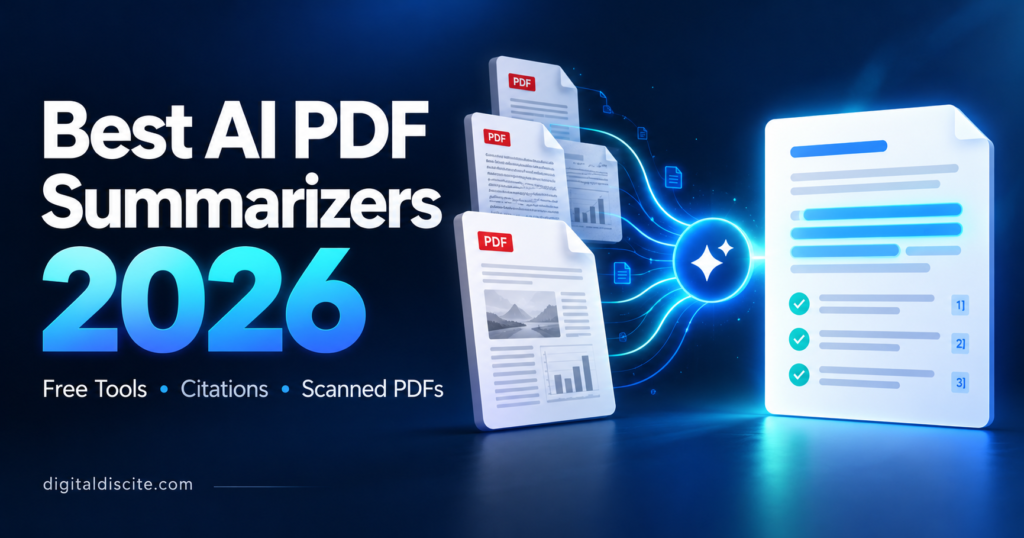
A 60-page PDF can contain exactly the information you need—and take far too long to search manually.
An AI PDF summarizer helps you get an overview, find important details and ask questions about a document. Some tools also link answers to supporting passages, making it easier to check what the AI says.
The best choice depends on your files. A scanned textbook chapter needs different handling from a searchable business report. Studying several papers also requires a different workflow from summarizing one short document.
This guide compares five useful options: ChatPDF, Smallpdf, Adobe Acrobat AI Assistant, ChatGPT and Gemini Notebook, the Google research tool many readers know as NotebookLM.
Editorial note: This comparison is based on official product documentation checked on October 24, 2026. It is not a hands-on accuracy benchmark. Features, pricing and usage limits can change.
Table of Contents
Best AI PDF Summarizers at a Glance
These are recommended starting points for different tasks, rather than a ranking of measured accuracy.
| Tool | Recommended use | Free access | Source-checking features |
|---|---|---|---|
| ChatPDF | Focused PDF questions and answers | Two documents daily, according to its website | Built-in citations and side-by-side document viewing |
| Smallpdf | Quick summaries and scanned-document workflows | Free entry access with usage limits | Clickable page references |
| Adobe Acrobat AI Assistant | Readers already working in Acrobat | Trial offers; ongoing access depends on subscription | Citations linked to supporting document content |
| ChatGPT | Summaries followed by explanations, comparisons and writing | File uploads on Free, with limits | Ask for references and verify them against the PDF |
| Gemini Notebook, formerly NotebookLM | Research across a selected collection of sources | Free tier with source limits | Source-based answers; check supporting references |
For broader research beyond uploaded files, see our best AI research tools.
1. ChatPDF: A Focused Starting Point for PDF Questions
ChatPDF offers a straightforward way to ask questions about documents.
Its useful features include built-in citations and a side-by-side view of your conversation and PDF. Instead of receiving a summary alone, you can follow references back to the document.
You might ask:
What are the main findings, and which passages support each one?
Its website also describes folders for conversations across multiple files. A free account unlocks features such as saved history and multi-document chats.
Free access and limitations
ChatPDF currently advertises two document analyses per day on its free plan. Check the upload interface for any additional file or usage restrictions.
Choose it when: You want a document-focused interface with references close to the answer.
Check before relying on it: Whether each cited passage supports the entire claim, including any numbers or exceptions.
2. Smallpdf: A Practical Option for Quick Summaries and Scans
Smallpdf’s AI PDF Summarizer combines an initial overview with follow-up chat.
Its product page advertises support for scanned PDFs, multiple document uploads and formats beyond PDF, including Word, PowerPoint and image files.
Smallpdf also offers clickable page references. These help you move from a summary back to the relevant material.
Free access and limitations
Smallpdf advertises free access without registration, but free usage is limited. Check the current allowance in the tool before starting a large batch of documents.
Scanned-document support does not guarantee accurate reading of every page. Blurry printing, handwriting and complicated layouts still need checking.
Choose it when: You want a quick overview or a starting point for summarizing scanned material.
Check before relying on it: Names, dates, numbers and text extracted from low-quality scans.
3. Adobe Acrobat AI Assistant: For Existing Acrobat Workflows
Adobe Acrobat AI Assistant is worth considering if Acrobat is already where you read and manage documents.
Adobe describes summaries and answers with citations linked to supporting content. That connection is useful when you want to move between an explanation and the original document.
For example, you could ask an assistant to identify a report’s recommendations, then inspect the passages behind them.
Free access and limitations
Adobe offers trial access, while ongoing AI access depends on the subscription or package. Free Acrobat Reader access should not be confused with unlimited AI Assistant access.
Check the current offer, renewal terms and supported document requirements before subscribing.
Choose it when: You prefer to work within Acrobat and need to verify answers against document passages.
Check before relying on it: Important qualifications, exclusions and details that a short overview could omit.
4. ChatGPT: For Turning PDF Content Into Useful Outputs
ChatGPT supports PDF uploads and can summarize, compare and explain document content.
Its appeal is what you can do after the summary. You can request a beginner-friendly explanation, a comparison table, revision questions or an email based on the document.
For example:
Summarize this report, then turn its recommendations into a checklist. Separate the report’s recommendations from any suggestions you add.
Our guide to using ChatGPT for research covers related research workflows.
Free access and limitations
OpenAI’s current upload documentation lists file uploads on Free and paid plans. Free users are limited to three file uploads per day, and limits may be reduced during peak hours.
The same documentation lists a 512 MB maximum for documents and a two-million-token limit for text and document files. Upload capacity does not guarantee that every detail will appear in a summary.
Choose it when: You need explanations and follow-up writing alongside document analysis.
Check before relying on it: Whether the answer comes from your file or includes outside knowledge. Requested page references should also be checked.
5. Gemini Notebook: For Research Across Several Sources
Google’s current help documentation uses the name Gemini Notebook for the tool many readers know as NotebookLM.
It lets you assemble sources and ask questions about that collection. Google documents support for PDFs, Word files, presentations, web pages and other source types.
This makes it a useful option to consider when one document is not enough. You might compare several reports or ask where different authors agree and disagree.
Free access and limitations
Google’s source documentation lists up to 50 sources for Free users, with a limit of 500,000 words per source or 200 MB for uploaded files. Other feature and usage limits also apply.
Keep the selected sources relevant. Adding more documents is not automatically helpful when you only need an answer from one chapter.
Choose it when: Your task involves a defined collection of research material.
Check before relying on it: Which source supports each point and whether the answer combines claims from different documents correctly.
Which AI PDF Summarizer Should You Choose?
Start with the task you need to complete:
- Questions about one document: Try ChatPDF.
- A quick overview or scanned-document workflow: Consider Smallpdf.
- Reading within Acrobat: Evaluate Adobe Acrobat AI Assistant.
- Explanations, rewriting and follow-up outputs: Consider ChatGPT.
- Research across several selected sources: Consider Gemini Notebook.
Try a representative file before paying. A tool that works well on a clean report may struggle with your scanned textbook or complex tables.
For broader subscription comparisons, see our AI tools pricing database.
How to Summarize a PDF More Accurately
1. Check that the file is readable
Try selecting text in the PDF. If you cannot, it may be an image-only scan and need optical character recognition, or OCR.
OCR turns images of text into machine-readable text. It can still make mistakes, especially in poor scans.
2. Give the summary a clear purpose
“Summarize this PDF” is a useful start, but a specific request gives you more control.
For studying, request concepts and definitions. For work, request findings, recommendations and action items.
3. Ask for supporting references
Request a citation or supporting passage for each important point. Then open several references yourself.
A reference is only useful if it supports the claim attached to it.
4. Check details separately
After the overview, ask targeted questions about figures, dates, exceptions and conclusions.
For tables, specify the page and ask the tool to preserve units, column headings and footnotes.
Useful AI PDF Summary Prompts
For a general overview
Summarize this PDF using only information in the document. Include its purpose, main arguments, findings and limitations. Provide supporting references where available. Say when information is missing or unreadable.
For study notes
Turn this chapter into revision notes with headings, definitions and examples. Separate examples stated in the chapter from examples you create to explain it.
For a business report
Extract the key findings, recommendations, dates and figures. Preserve units and reporting periods. Flag unclear or conflicting information.
For checking a summary
Review your summary against the PDF. Identify claims without clear support, check the figures and list important qualifications you may have omitted.
If your next step is turning notes into slides, explore our best free AI presentation makers.
Can AI Summarize Scanned PDFs?
Yes, some tools support scanned PDFs, but results depend on scan quality and the product’s capabilities.
Smallpdf explicitly advertises scanned-PDF support. For any tool, check that it has read the pages correctly before trusting the summary.
A useful first request is:
Identify any pages or sections you could not read clearly before summarizing this document.
For difficult scans, run OCR first and inspect a sample of the extracted text.
What About Privacy?
Before uploading a private file, check the provider’s retention, deletion, sharing and model-training policies.
Work documents may also be subject to your organization’s rules. Use an approved service and remove unnecessary personal information where possible.
Security features do not automatically mean that a document is processed only on your device.
Frequently Asked Questions
What is the best free AI PDF summarizer?
It depends on the task. ChatPDF offers a focused document-chat workflow, Smallpdf offers quick summaries, and ChatGPT supports summaries alongside explanations. Gemini Notebook is worth considering for a collection of sources. Free limits apply.
Which tools provide PDF citations?
ChatPDF, Smallpdf and Adobe Acrobat AI Assistant describe reference or citation features in their official product information. Always check whether the linked passage supports the answer.
Can ChatGPT summarize PDFs for free?
Yes. OpenAI lists document uploads on the Free plan, subject to usage limits. Its current documentation states three file uploads daily for Free users, with possible reductions during peak periods.
Can an AI PDF summarizer make mistakes?
Yes. It can omit exceptions, misread figures or combine information incorrectly. Check important claims against the original document.
Is a PDF summarizer the same as a PDF editor?
No. Summarizing explains content. Editing changes the document itself. Some platforms offer both, but access to one feature does not guarantee access to the other.
Can I summarize a whole textbook?
Check copyright permissions, file limits and tool restrictions first. Working chapter by chapter can make summaries easier to inspect and correct.
Find more practical guides on Digital Discite.