
September 2026

Best Personal AI Agents

Best Personal AI Agents in 2026: 10 Tools That Actually Do Tasks for You

AI assistants used to wait for questions.

Personal AI agents are starting to do the work instead.

You can now ask an AI agent to research a product, organize information, browse websites, prepare reports, monitor topics, automate repetitive tasks, manage parts of your inbox, or complete multi-step online work.

That is a major difference.

A chatbot might tell you how to organize a trip.

A personal AI agent can potentially research flights, compare hotels, build an itinerary, and help you work through the booking process.

But not every product marketed as an “AI agent” is equally autonomous.

Some are powerful task executors. Others are closer to traditional AI assistants with a few agentic features.

In this Digital Discite guide, we compare 10 of the best personal AI agents in 2026, what they can actually do, their free or entry-level access, and which type of user each one suits.

If your main priority is spending nothing, start with our guide to the 10 Best Free AI Agents You Can Use in 2026.

Table of Contents

Best Personal AI Agents in 2026: Quick Comparison

Personal AI AgentBest ForCan Take Actions?Free Access?Technical Skill
ManusGeneral autonomous tasksYesYesBeginner
Perplexity CometWeb browsing and researchYesBrowser is free; advanced agent usage variesBeginner
GeminiGoogle ecosystem and scheduled routinesYes, depending on feature/accessYes, with limitsBeginner
ChatGPT WorkComplex multi-step projectsYesNoBeginner
Zapier AgentsApp automationYesYesBeginner
Relevance AICustom personal/work agentsYesYesBeginner–Intermediate
GensparkResearch and content tasksYesYesBeginner
LindyEmail, meetings and daily workYesTrial/paid accessBeginner
n8nAdvanced personal automationYesSelf-hostedIntermediate
ClaudeKnowledge work and computer-assisted tasksDepending on environment/featuresYes for core ClaudeBeginner–Intermediate

Important: AI-agent features and limits are changing rapidly. A platform may offer a free chatbot while reserving its more autonomous features for paid plans.
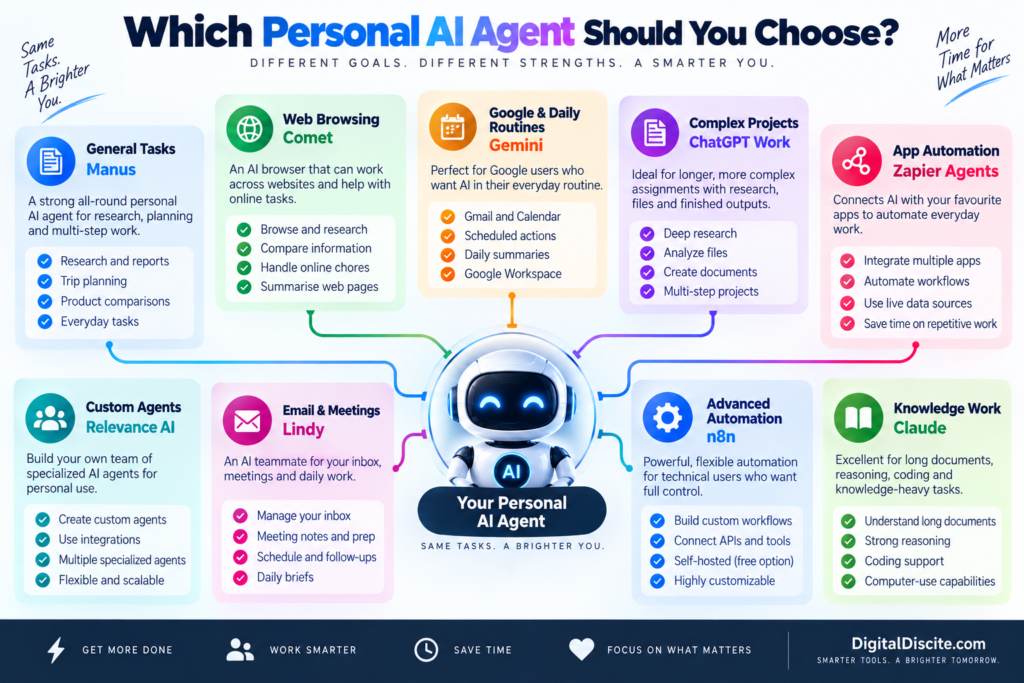
Personal AI Agent Decision Map

What Is a Personal AI Agent?

A personal AI agent is an AI system that can work toward a goal and perform multiple steps on your behalf.

Instead of requiring a new prompt after every step, an agent can often determine what needs to happen next.

For example, imagine giving this instruction:

“Find five highly rated hotels near Central Park for my dates, compare their prices and amenities, and prepare a shortlist.”

A traditional chatbot might explain where to search.

A capable personal AI agent can potentially:

  1. Search the web.
  2. Visit relevant pages.
  3. Gather hotel information.
  4. Compare options.
  5. Organize the results.
  6. Present a shortlist.

Depending on the agent and permissions you provide, some can go further and interact with websites or connected applications.

That is what separates agentic AI from ordinary AI chat.


Personal AI Agent vs AI Assistant

These terms are often used interchangeably, but there is an important difference.

FeatureAI AssistantPersonal AI Agent
Answers questionsYesYes
Writes contentYesYes
Researches informationYesYes
Breaks goals into stepsSometimesYes
Uses external toolsSometimesOften
Interacts with websitesLimitedOften
Performs actionsLimitedYes
Handles multi-step jobsLimitedCore capability
Can run scheduled workSometimesOften
Requires constant promptingUsually moreUsually less

The distinction is becoming less clear because major AI assistants are steadily gaining agentic capabilities.

The better question in 2026 is therefore:

What can this AI actually do for me after I give it a goal?

Let’s look at the options.


1. Manus — Strong General-Purpose Personal AI Agent

Best for: Research, planning, reports, web tasks and multi-step work

Manus is one of the clearest examples of the shift from AI chatbot to AI agent.

Instead of simply answering a question, Manus can work through a multi-step assignment.

You can give it a goal and allow it to determine many of the intermediate steps.

For example:

“Research the best destinations in Europe for a seven-day trip in October, compare approximate costs and weather, and create an itinerary.”

That type of request combines research, comparison, reasoning and organization.

What Can Manus Do?

Manus can be useful for:

  • Web research
  • Travel planning
  • Market research
  • Product comparisons
  • Data analysis
  • Report creation
  • Content research
  • File processing
  • Multi-step tasks
  • Scheduled work

Free Access

Manus currently provides free users with an initial credit allocation plus 300 daily refresh credits.

Credits are consumed when the agent is actively processing tasks.

This makes the free version useful for testing the platform before deciding whether autonomous AI is valuable enough for your workflow.

Why It Stands Out

The biggest advantage is that you don’t have to build the agent yourself.

There is no visual automation canvas to configure.

You describe the outcome you want.

That makes Manus particularly accessible for people experiencing autonomous AI for the first time.

Limitations

Complex jobs consume more credits.

You should also review important results before using them because autonomous research does not guarantee that every source or conclusion will be correct.

Best for: Students, researchers, creators, freelancers and professionals who want a general-purpose agent.


2. Perplexity Comet — Excellent for Agentic Web Browsing

Best for: Research, browsing, online chores and working across websites

Perplexity’s Comet turns the browser itself into an AI-assisted workspace.

Instead of copying information from multiple tabs into an AI chatbot, Comet Assistant can work alongside your browsing.

Perplexity describes Comet Assistant as agentic AI that can handle increasingly complex jobs across websites.

Potential use cases include:

  • Planning trips
  • Researching purchases
  • Job-search research
  • Comparing information
  • Working across multiple tabs
  • Handling repetitive online chores
  • Summarizing pages
  • Finding information while browsing

This makes Comet particularly interesting because much of our daily digital life already happens inside a browser.

Is Comet Free?

The Comet browser itself is available free.

However, Perplexity’s current plan comparison distinguishes the free Standard plan from paid access to Browser Agent/Comet Assistant queries. In other words, don’t assume that downloading the browser gives you unlimited autonomous agent usage.

Why It Stands Out

Comet reduces the gap between asking an AI a question and letting AI work with the websites you are already using.

Best for: Heavy web users, researchers, shoppers, travelers and professionals who spend much of their day in a browser.


3. Google Gemini — Great for Personal Routines and Google Users

Best for: Gmail, Calendar, Google services and recurring information tasks

Gemini becomes especially useful as a personal agent when your digital life already revolves around Google’s ecosystem.

One particularly useful feature is Scheduled Actions.

You can ask Gemini to prepare recurring information automatically.

Examples include:

  • Daily news digests
  • Calendar summaries
  • Email and task summaries
  • Weekly learning updates
  • Daily topic tracking
  • Creative prompts
  • Recurring research summaries

Google currently allows up to 10 active scheduled actions.

Gemini can also work with connected applications when appropriate permissions are provided.

Google has additionally been rolling out more advanced agentic capabilities, including browser-based task execution and its newer personal-agent experiences, although availability can depend on account, subscription and region.

Why It Stands Out

Gemini makes sense if the information needed to help you already lives in Google’s ecosystem.

You don’t necessarily need to create complicated workflows.

Limitations

Some of Google’s most advanced agent features are still being rolled out gradually and may be restricted by country, device or subscription.

Best for: Gmail, Google Calendar and Google Workspace users who want AI incorporated into everyday routines.


4. ChatGPT Work — Powerful for Longer Multi-Step Projects

Best for: Research, analysis, files and producing finished deliverables

ChatGPT’s agentic experience has evolved considerably.

OpenAI now positions ChatGPT Work for longer, more involved assignments.

It can research and analyze information, work across connected applications and files, navigate supported websites, and create finished outputs such as documents, spreadsheets, presentations and reports.

That changes the interaction from:

“Tell me how to make this report.”

to:

“Research this subject and produce the report.”

Examples of suitable tasks include:

  • Researching competitors
  • Analyzing files
  • Working across connected information
  • Preparing presentations
  • Building spreadsheets
  • Producing reports
  • Handling multi-step browser workflows
  • Running scheduled tasks

Is It Free?

No.

OpenAI’s current documentation says these longer-running agentic capabilities are rolling out on paid plans rather than the Free tier.

That is an important distinction if you’re comparing personal agents based on price.

For zero-cost options, see Digital Discite’s Best Free AI Agents in 2026.

Why It Stands Out

The biggest advantage is combining research, reasoning, files, applications and finished artifacts in one environment.

Limitations

Agentic features are plan-dependent, and users should still review important actions and outputs.

Best for: Professionals, researchers, creators and knowledge workers with complex multi-step assignments.


5. Zapier Agents — Best for Connecting Your Everyday Apps

Best for: Automating repetitive tasks across applications

Your personal work probably doesn’t happen in one application.

You may use:

  • Gmail
  • Google Sheets
  • Slack
  • Notion
  • Calendar
  • CRM software
  • Project-management tools
  • Cloud storage

Zapier Agents is designed for situations where AI needs to interact with this broader software ecosystem.

An agent can combine AI reasoning with connected data and automated actions.

For example, you might create an agent that helps research information, summarizes it and then uses another connected tool as part of the workflow.

Free Plan

Zapier currently provides an Agents Free plan with:

400 activities per month

It also includes web browsing, live data sources and Chrome-extension access.

Be careful with the word “activity.”

A single agent run can perform multiple activities, so 400 activities does not necessarily mean 400 complete jobs.

Why It Stands Out

Zapier’s strength is integrations.

If your personal agent needs to work across many apps, integrations can matter more than having the smartest chatbot.

Limitations

Complex workflows can consume your monthly activity allowance quickly.

Best for: Freelancers, marketers, creators and professionals who use multiple web applications.


6. Relevance AI — Best for Building Your Own Personal AI Workforce

Best for: Custom agents with specialized roles

What if you don’t want one general AI assistant?

You might want:

  • One research agent
  • One email agent
  • One marketing agent
  • One sales agent
  • One reporting agent

Relevance AI is built around creating specialized AI agents and workforces.

Its free plan currently includes 200 actions per month, unlimited agents and tools, access to integrations, one workforce, one user and one project.

That makes it particularly interesting if you want to experiment with building multiple specialized agents without immediately paying for the platform.

Example

A creator could theoretically build separate agents for:

Agent 1: Research new content ideas.

Agent 2: Organize research.

Agent 3: Prepare briefs.

Agent 4: Monitor recurring information.

Instead of asking one chatbot to behave differently every time, each agent can have a defined job.

Pros

  • Custom agents
  • Large integration ecosystem
  • Free entry tier
  • Multi-agent/workforce concept
  • No traditional programming required for many workflows

Limitations

The free plan’s 200 actions will not support unlimited automation.

Best for: Entrepreneurs, marketers, creators, agencies and people interested in building specialized AI workers.


7. Genspark — Useful All-in-One Agent Workspace

Best for: Research, content, information gathering and AI-created outputs

Genspark has expanded from AI search into a broader collection of AI agents and creation tools.

Its platform can help with research-oriented and content-oriented tasks, making it another interesting option for people who want more than simple conversational AI.

Depending on your plan and available features, Genspark includes tools around areas such as:

  • AI chat
  • Research
  • Slides
  • Content creation
  • Coding
  • Images
  • Agentic workflows

Free Access

Genspark currently lists a Free Plan providing basic access with standard features.

More extensive agent and creation capabilities are available on paid tiers with larger credit allocations.

Why It Stands Out

Genspark tries to bring several AI tasks into one environment rather than requiring a separate application for every type of output.

Limitations

You need to pay attention to which agents and features are included with your current tier.

Best for: Researchers, students, content creators and users who want several AI creation capabilities in one platform.


8. Lindy — Strong for Email, Meetings and Daily Administrative Work

Best for: Inbox management, meetings, scheduling and work routines

Lindy takes a different approach.

Its goal is closer to providing an AI teammate that handles parts of your everyday work.

Current capabilities include areas such as:

  • Inbox management
  • Drafting email replies
  • Meeting notes
  • Meeting scheduling
  • Meeting preparation
  • Follow-ups
  • Daily briefs
  • Scheduled routines
  • Connected tools
  • Computer use

This makes Lindy particularly interesting for people whose biggest problem isn’t writing content.

It is administrative overload.

Free Access

Lindy’s current pricing is primarily paid.

Its Plus plan is listed at $29.99 per user per month with 3,000 credits.

The company currently offers a limited free-trial route for eligible new teammates joining through Slack rather than a normal permanent free personal tier.

Approval Controls

One useful feature is approval for actions with outside impact.

For example, Lindy says actions such as sending an email or publishing a document wait for approval.

That type of human control is important for personal agents.

Best For

Busy professionals, founders and people who spend significant time managing meetings and email.


9. n8n — Best for Advanced Personal Automation

Best for: People who want complete control over their automated workflows

n8n is not the easiest personal AI agent on this list.

But it may be one of the most flexible.

It allows you to create automated workflows that connect:

  • AI models
  • APIs
  • Email
  • Databases
  • Web services
  • Business applications
  • Custom logic

With AI Agent nodes and integrations, technically inclined users can create powerful personal automation systems.

For example, you could build a workflow that:

  1. Receives information.
  2. Sends it to an AI model.
  3. Classifies it.
  4. Looks up additional data.
  5. Creates an output.
  6. Stores the result.
  7. Notifies you.

Is n8n Free?

n8n has a self-hosted Community Edition.

However, free software does not necessarily mean a zero-cost setup.

You may still pay for:

  • Hosting
  • AI API usage
  • Servers
  • External services

Why It Stands Out

Control.

Instead of accepting the restrictions of a closed AI assistant, technical users can design exactly how their automation should operate.

Limitations

It has a much steeper learning curve than Manus, Gemini or Comet.

Best for: Developers, automation enthusiasts, agencies and technically confident users.


10. Claude — Excellent for Knowledge Work With Growing Agentic Capabilities

Best for: Long documents, reasoning, coding and knowledge work

Claude remains particularly strong for tasks involving substantial amounts of information.

Anthropic has continued improving Claude’s abilities around:

  • Long-context reasoning
  • Coding
  • Agent planning
  • Computer use
  • Knowledge work
  • Complex documents

Claude’s computer-use technology is particularly important for agentic AI because it enables AI systems, in supported environments, to interact with graphical software more like a person.

Instead of requiring every service to provide a special API, an AI can potentially interpret what appears on a computer screen and interact with it.

Free Access

Claude provides a free consumer tier, although access to models, usage and specific agentic capabilities varies by plan and product.

Do not assume every computer-use or autonomous feature is included simply because basic Claude access is free.

Why It Stands Out

Claude is particularly compelling when the “task” involves understanding a large amount of information before taking the next step.

Limitations

Some agentic functionality depends on the environment and plan rather than being a universal one-click personal agent.

Best for: Writers, developers, researchers and knowledge workers.


Which Personal AI Agent Should You Choose?

There isn’t one correct choice because these tools solve different problems.

Choose Manus if…

You want to give an AI a multi-step assignment and let it work through much of the process for you.

Choose Comet if…

Most of the tasks you want AI to help with happen on websites.

Choose Gemini if…

Your personal digital life revolves around Gmail, Calendar and Google’s ecosystem.

Choose ChatGPT Work if…

You want AI to research, analyze files and produce substantial finished deliverables from complex assignments.

Choose Zapier Agents if…

Your biggest goal is connecting AI with the applications you already use.

Choose Relevance AI if…

You want to create several specialized agents instead of relying on one general assistant.

Choose Genspark if…

You want research and AI creation capabilities in one environment.

Choose Lindy if…

Email, meetings and administrative work consume too much of your day.

Choose n8n if…

You want maximum automation control and don’t mind a technical learning curve.

Choose Claude if…

Your workflow revolves around documents, coding, reasoning and knowledge-heavy work.


7 Real Tasks a Personal AI Agent Can Help With

The best way to understand agents is through actual tasks.

1. Research a Purchase

Instead of opening 20 tabs yourself, ask an agent to compare products based on your requirements.

It can potentially gather:

  • Prices
  • Specifications
  • Reviews
  • Advantages
  • Disadvantages

You still make the final buying decision.

2. Plan a Trip

An agent can research:

  • Destinations
  • Hotels
  • Transportation
  • Attractions
  • Restaurants
  • Estimated costs

It can then organize that information into an itinerary.

3. Prepare Your Morning Brief

A scheduled agent could gather:

  • Calendar events
  • Important emails
  • Tasks
  • News
  • Project updates

and prepare one morning summary.

4. Research a Topic

Instead of manually searching dozens of sources, an agent can collect information and organize findings into a report.

5. Manage Repetitive Email Work

With appropriate permissions, agents can help classify emails, summarize messages and prepare draft replies.

For important communication, keep human approval enabled.

6. Monitor Something for You

Agents and scheduled AI workflows can monitor recurring information such as:

  • Industry news
  • Competitors
  • Topics
  • Project updates
  • New content

and report meaningful changes.

7. Automate Repetitive Digital Work

The biggest opportunity may be boring work.

Copying information.

Formatting data.

Moving information between apps.

Preparing repetitive summaries.

Checking the same sources every day.

These tasks may not sound impressive in an AI demo, but automating them can save meaningful time.


What Personal AI Agents Still Cannot Reliably Do

The excitement around AI agents can create unrealistic expectations.

A personal AI agent is not a perfect digital employee.

Agents can still:

  • Misunderstand instructions
  • Use outdated information
  • Select the wrong website
  • Make reasoning errors
  • Misinterpret interfaces
  • Fail during long workflows
  • Produce incorrect summaries
  • Require human intervention

The consequences become more serious when the agent has permission to perform actions.

A chatbot giving you a wrong answer is one problem.

An agent taking the wrong action is another.

That is why important actions should still require confirmation.


Are Personal AI Agents Safe?

They can be useful, but permissions matter.

An agent becomes more powerful when you connect:

  • Email
  • Calendar
  • Cloud storage
  • Browsing history
  • Documents
  • Business applications
  • Personal accounts

Those connections also increase the amount of information the agent can potentially access.

Before connecting sensitive accounts:

  1. Review the provider’s privacy policy.
  2. Check what information the agent can access.
  3. Give it only the permissions it actually needs.
  4. Enable approval for external actions.
  5. Avoid providing unnecessary sensitive information.
  6. Periodically review connected applications.

The goal should be useful autonomy with sensible control.


Free vs Paid Personal AI Agents

Free plans are excellent for testing agentic AI.

However, autonomous tasks can consume substantially more computing resources than simple chatbot questions.

That is why agent platforms commonly limit:

  • Credits
  • Activities
  • Tasks
  • Agent runs
  • Browser actions
  • Monthly usage

A good strategy is to start free whenever possible.

Give the agent a real task from your everyday life.

Then ask:

Did it actually save me time?

If the answer is yes, paid access becomes much easier to evaluate.

For a dedicated zero-cost comparison, read 10 Best Free AI Agents You Can Use in 2026.

You can also compare broader AI subscription costs in Digital Discite’s AI Tools Pricing Database 2026.


Personal AI Agents vs AI Automation Tools

Another important distinction is between an agent and traditional automation.

Traditional automation usually follows predefined rules:

If X happens → do Y.

An AI agent can potentially evaluate the situation and decide what action should happen next.

For example:

Traditional Automation

New email arrives → copy attachment to cloud storage.

AI Agent

New email arrives → understand what the email is about → decide whether it requires action → summarize it → prepare an appropriate response → ask you for approval.

This ability to reason between steps is what makes agentic automation so interesting.

However, traditional automation remains preferable when the workflow needs to be completely predictable.


Frequently Asked Questions

What is the best personal AI agent in 2026?

There is no single best option for every use case. Manus focuses on general autonomous tasks, Comet on web-based work, Gemini on Google’s ecosystem, ChatGPT Work on longer multi-step projects, Zapier Agents on integrations, and Lindy on email and meeting workflows.

What AI can actually do tasks for you?

Modern AI agents can research information, interact with supported websites and applications, organize data, prepare reports, automate workflows and perform other multi-step tasks. Exact capabilities depend on the agent and the permissions you provide.

Are personal AI agents free?

Some are. Manus, Zapier Agents and Relevance AI currently provide free entry tiers. Other platforms provide free basic AI access while reserving advanced agent capabilities for paid subscriptions.

What is the best free personal AI agent?

The answer depends on the task. Manus is useful for general autonomous work, Zapier Agents is useful for application automation, and Relevance AI is useful for creating custom agents.

Can an AI agent control my computer?

Some AI systems have computer-use capabilities that can interpret interfaces and interact with them. Availability and implementation differ significantly between platforms.

Can AI agents send emails?

Some can, provided you connect a supported email service and give the required permission. For important messages, approval before sending is strongly recommended.

Can an AI agent browse websites for me?

Yes. Browser-oriented agents can research websites and, depending on the platform, interact with web interfaces. Comet and several general-purpose agents are designed around this type of workflow.

Can AI agents work while I am away?

Some platforms support scheduled or background tasks. Availability varies by product and subscription.

Are AI agents better than ChatGPT?

That comparison is increasingly outdated because ChatGPT itself has agentic capabilities. The more useful distinction is between AI that mainly responds and AI that can execute a multi-step task using tools.

Will personal AI agents replace normal apps?

Probably not in the near term. Agents are increasingly becoming a layer that works across apps rather than replacing every specialized application.


Final Thoughts

The most important AI shift in 2026 is not simply that models can produce better answers.

It is that AI is increasingly able to take action.

Personal AI agents can research, browse, organize information, work across applications, automate routines and complete parts of multi-step digital tasks.

But choosing the right tool depends on where you want the work to happen.

Manus is built around general autonomous tasks.

Comet brings agentic AI into web browsing.

Gemini fits naturally into Google’s ecosystem.

ChatGPT Work focuses on substantial multi-step projects and finished outputs.

Zapier Agents connects AI with everyday applications.

Relevance AI lets you create specialized agents.

Genspark combines research and AI creation.

Lindy targets email, meetings and administrative work.

n8n provides much deeper automation control.

And Claude is especially relevant for knowledge-heavy and computer-assisted workflows.

Don’t choose an AI agent because it looks impressive in a demonstration.

Give it one repetitive task that currently takes you 30 minutes.

See whether it can complete the task accurately, safely and with less effort.

That is the real test of a useful personal AI agent.

For more comparisons, explore Digital Discite’s Best Tech Tools.

Best Personal AI Agents in 2026: 10 Tools That Actually Do Tasks for You Read More »

Ethical Considerations in ICT

Ethical Considerations in ICT: Copyright, Plagiarism & Responsible Use

Table of Contents

1. Introduction

Ethical considerations in the use of ICT platforms and tools are the moral principles and standards that guide people when they create, access, modify, store and share digital information.

Ethical use of ICT requires users to:

  • Respect intellectual property
  • Follow copyright rules
  • Avoid plagiarism
  • Acknowledge information sources
  • Create original content
  • Verify information before sharing
  • Avoid misinformation and fake news
  • Maintain accuracy and integrity
  • Protect confidential information
  • Use artificial intelligence responsibly
  • Avoid manipulating data
  • Accept responsibility for digital actions

For BS Chemistry students, ICT ethics is important when preparing assignments, laboratory reports, presentations, research projects and scientific content.


2. Meaning of Ethics

2.1 Definition

Ethics refers to principles that help people decide what is right, fair, honest and responsible.

An action may be technically possible but ethically unacceptable.

For example, a student may be able to copy an online assignment, but doing so is dishonest and unethical.

2.2 ICT Ethics

ICT ethics, also called digital ethics, refers to responsible behaviour when using computers, mobile devices, software, networks, digital information and online platforms.

ICT ethics applies to:

  • Websites
  • Social media
  • Email
  • Learning Management Systems
  • Artificial intelligence tools
  • Cloud storage
  • Scientific databases
  • Online journals
  • Shared documents
  • Digital laboratories

Legal and ethical issues are related but not identical.

Legal issueEthical issue
Determined by lawDetermined by principles of right and responsible behaviour
Violation may result in legal punishmentViolation may result in loss of trust or academic discipline
Example: copyright infringementExample: taking credit for another person’s idea
Laws differ among countriesEthical values may be broader than legal requirements

An action may not lead to legal punishment but may still be academically or professionally unethical.


3. Importance of Ethics in ICT

Ethical use of ICT is important because digital information can be copied, changed and distributed rapidly.

ICT ethics helps:

  1. Protect creators’ rights.
  2. Maintain academic honesty.
  3. Improve trust in digital information.
  4. Prevent misinformation.
  5. Protect research data.
  6. Respect privacy.
  7. Encourage original work.
  8. Prevent unfair academic advantage.
  9. Support responsible scientific communication.
  10. Protect individuals and institutions from harm.

4. Intellectual Property

4.1 Definition

Intellectual property (IP) refers to creations of the human mind that may receive legal protection.

Examples include:

  • Books
  • Research papers
  • Inventions
  • Software
  • Photographs
  • Videos
  • Music
  • Designs
  • Scientific diagrams
  • Chemical processes
  • Databases
  • Educational presentations

4.2 Intellectual Property Rights

Intellectual Property Rights (IPR) are the legal rights given to creators or owners of intellectual work.

These rights allow the owner to control how the work is:

  • Used
  • Copied
  • Modified
  • Published
  • Distributed
  • Sold
  • Licensed

4.3 Importance in Education

Intellectual property rights encourage:

  • Creativity
  • Research
  • Innovation
  • Publication
  • Investment in new technologies
  • Fair recognition of creators

Students should respect the work of authors, researchers, teachers, software developers and other creators.


5. Major Types of Intellectual Property

Copyright protects original creative and intellectual works.

5.2 Patent

A patent provides legal protection for a new and useful invention or process for a limited period, subject to applicable law.

5.3 Trademark

A trademark protects a name, symbol, design, word or sign used to identify a business, product or service.

5.4 Trade Secret

A trade secret is valuable confidential information that gives an organisation a business advantage.

Examples include:

  • Manufacturing methods
  • Industrial formulas
  • Chemical processes
  • Customer information
  • Business strategies

5.5 Industrial Design

An industrial design protects the visual appearance or design of a product.


6.1 Definition

Copyright is the legal protection given to the creator or owner of an original work.

Copyright may protect:

  • Books
  • Articles
  • Research papers
  • Photographs
  • Videos
  • Audio recordings
  • Presentations
  • Diagrams
  • Computer programs
  • Websites
  • Databases
  • Educational notes

The copyright owner may control the right to:

  • Copy the work
  • Publish it
  • Distribute it
  • Display it publicly
  • Perform it
  • Adapt or modify it
  • Translate it
  • Permit others to use it

The copyright symbol is:

©

It may appear with:

  • Owner’s name
  • Year of publication
  • Rights statement

Example:

© 2026 Author Name. All rights reserved.

The availability of content on the internet does not automatically make it free to copy.

Copyright can apply to:

  • Google Images results
  • YouTube videos
  • Online articles
  • Blog posts
  • Social-media photographs
  • PDF books
  • Digital illustrations
  • Online course materials

7.1 Unauthorised Copying

Copying digital content without permission may violate copyright.

Examples include:

  • Downloading a paid book illegally
  • Copying an entire article
  • Reposting a photograph without permission
  • Sharing paid course videos
  • Installing unauthorised software copies

7.2 Unauthorised Distribution

A person may have lawful access to a digital resource but may not have permission to distribute it.

For example, a student may access an article through the university library but may not be permitted to upload it publicly.

7.3 Unauthorised Modification

Changing another person’s content does not automatically make it original.

Examples include:

  • Changing colours in an image
  • Removing a watermark
  • Rewording a few sentences
  • Cropping a copyrighted photograph
  • Translating content without permission

7.4 Piracy

Digital piracy means illegally copying, downloading, using or distributing protected digital material.

It may involve:

  • Software
  • E-books
  • Films
  • Music
  • Online courses
  • Subscription content

7.5 Software Licence Violation

Computer software is normally used under a licence.

Licence violations may include:

  • Installing one-user software on many devices
  • Sharing activation keys
  • Using cracked software
  • Removing licence protection
  • Distributing licensed software without permission

8.1 Student Work

A student’s original assignment, photograph, presentation or research writing may be protected as intellectual work.

However, institutional rules may affect how university-related work can be used or published.

8.2 Teacher’s Material

Lecture slides, recorded classes and course notes may belong to the teacher or institution.

Students should not publicly upload them without permission.

8.3 Group Projects

In a group project, ownership may be shared among group members.

The group should agree on:

  • Contribution
  • Authorship
  • Use of files
  • Publication
  • Presentation
  • Credit

8.4 Research-Supervisor Relationship

Students should follow institutional rules when publishing research conducted under supervision.

The work may involve rights belonging to:

  • Student
  • Supervisor
  • University
  • Research funder
  • Laboratory
  • Industry partner

9. Fair Use and Educational Use

9.1 General Idea

Some legal systems allow limited use of copyrighted work for purposes such as:

  • Education
  • Research
  • Criticism
  • Review
  • Reporting

However, educational use does not mean unlimited copying.

9.2 Factors to Consider

The acceptability of limited use may depend on:

  • Purpose of use
  • Nature of the original work
  • Amount copied
  • Effect on the original work’s market
  • National copyright laws
  • Institutional policies

9.3 Important Precaution

Students should not assume that adding a citation makes every form of copying legally acceptable.

Citation acknowledges the source, but permission may still be required for extensive reproduction.


10. Public Domain

10.1 Definition

A work is in the public domain when copyright protection does not apply or has expired under the relevant law.

Public-domain works may generally be used without requesting copyright permission.

10.2 Attribution

Even when a work is in the public domain, academic practice may still require acknowledgement of the original creator or source.


11. Open Licences and Creative Commons

11.1 Open Licence

An open licence allows others to use a work under stated conditions.

11.2 Creative Commons

Creative Commons (CC) licences provide standard ways for creators to permit particular uses of their work.

Common licence conditions include:

11.2.1 Attribution

The user must credit the creator.

11.2.2 ShareAlike

Modified work must be distributed under the same or a compatible licence.

11.2.3 NonCommercial

The work cannot be used for commercial purposes without additional permission.

11.2.4 NoDerivatives

The work may be shared but cannot be modified without permission.

11.3 Checking a Licence

Before using content, students should check:

  • Licence type
  • Attribution requirement
  • Permission to modify
  • Permission for commercial use
  • Required link to the licence
  • Name of the creator

12. Proper Attribution

12.1 Definition

Attribution means giving proper credit to the creator or source of information.

12.2 Basic Attribution Elements

An attribution may include:

  • Author or creator
  • Title
  • Source
  • Publication date
  • Website or publisher
  • Licence
  • Link
  • Date accessed, where required

12.3 Attribution and Citation

AttributionCitation
Gives credit to a creatorIdentifies the academic source of information
Commonly used for media and licensed contentCommonly used in assignments and research
May include licence detailsFollows a referencing style
Example: image creditExample: in-text research citation

13. Plagiarism

13.1 Definition

Plagiarism is presenting another person’s words, ideas, data, images or work as one’s own without proper acknowledgement.

Plagiarism is an ethical and academic violation.

13.2 Why Plagiarism Is Wrong

Plagiarism:

  • Is dishonest
  • Denies credit to the original creator
  • Misleads the reader
  • Produces an unfair academic advantage
  • Damages trust
  • Prevents genuine learning
  • Can damage academic and professional reputation

14. Types of Plagiarism

14.1 Direct Plagiarism

Copying text word for word without quotation marks or citation.

14.2 Mosaic Plagiarism

Combining copied phrases from different sources while making only small changes.

It is also called patchwork plagiarism.

14.3 Paraphrasing Plagiarism

Changing some words or sentence structure but using the original idea without citation.

14.4 Self-Plagiarism

Reusing one’s own previously submitted work without permission or acknowledgement.

14.5 Accidental Plagiarism

Failing to cite correctly because of carelessness or poor understanding.

Accidental plagiarism may still be treated as an academic violation.

14.6 Source-Based Plagiarism

Providing false, incomplete or misleading source information.

Examples include:

  • Inventing a reference
  • Citing a source that was not consulted
  • Citing a secondary source as if it were the original

14.7 Data Plagiarism

Using another person’s experimental data without permission or acknowledgement.

14.8 Image Plagiarism

Using photographs, graphs, diagrams or scientific images without credit or permission.

14.9 Idea Plagiarism

Using another person’s original idea, theory or research proposal without acknowledgement.

14.10 Contract Cheating

Paying or asking another person to produce an assignment and submitting it as one’s own.


15. Plagiarism in Chemistry

Chemistry students may commit plagiarism by:

  • Copying laboratory reports
  • Using another group’s observations
  • Reusing graphs without credit
  • Copying reaction mechanisms
  • Submitting another student’s calculations
  • Taking experimental photographs without permission
  • Copying research discussions
  • Inventing or copying references
  • Using published chemical structures without acknowledgement where required

15.1 Similar Results Are Not Automatically Plagiarism

Different students may obtain similar numerical results from the same experiment.

Plagiarism occurs when a student copies another person’s:

  • Data
  • Explanation
  • Calculation steps
  • Graph
  • Discussion
  • Conclusion

Students should record and report their own observations honestly.


16. Paraphrasing

16.1 Definition

Paraphrasing means expressing information from a source in one’s own words and sentence structure while preserving the original meaning.

A citation is still required.

16.2 Correct Paraphrasing Process

  1. Read the original source carefully.
  2. Understand the main idea.
  3. Close or set aside the source.
  4. Write the idea in your own words.
  5. Compare it with the original.
  6. Ensure the wording and structure are different.
  7. Add an appropriate citation.

16.3 Poor Paraphrasing

Poor paraphrasing involves replacing only a few words with synonyms while keeping the original sentence structure.

16.4 Paraphrasing and Summary

ParaphrasingSummary
Restates a specific idea in new wordsPresents the main points briefly
May have a similar length to the source passageIs normally shorter
Requires citationRequires citation
Preserves detailed meaningFocuses on central meaning

17. Quotations

17.1 Direct Quotation

A direct quotation uses the exact words of a source.

Exact words should normally be placed within quotation marks and followed by a citation.

17.2 When to Quote

A quotation may be used when:

  • The original wording is important.
  • A definition is being discussed.
  • A short authoritative statement is required.
  • The exact language is being analysed.

17.3 Avoid Excessive Quotation

An assignment should not consist mainly of quotations. Students must demonstrate their own understanding and analysis.


18. Citation and Referencing

18.1 Citation

A citation identifies the source of information within the text.

18.2 Reference

A reference provides complete publication information so that readers can locate the source.

18.3 Bibliography

A bibliography is a list of sources used or consulted in preparing a document.

18.4 Common Referencing Styles

Common styles include:

  • APA
  • Harvard
  • MLA
  • Chicago
  • Vancouver
  • ACS

The American Chemical Society (ACS) style is commonly associated with chemistry publications.

Students should use the style required by their teacher or institution.


19. When Citation Is Required

Citation is generally required for:

  • Direct quotations
  • Paraphrased ideas
  • Summarised information
  • Statistics
  • Research results
  • Theories
  • Methods from another source
  • Images
  • Tables
  • Graphs
  • Diagrams
  • Chemical data obtained from a database

Citation may not be required for widely known facts, but students should be careful about what counts as common knowledge.


20. Reference-Management Tools

Students can use reference-management applications such as:

  • Zotero
  • Mendeley
  • EndNote

These tools can help:

  • Store reference details
  • Organise research papers
  • Insert citations
  • Create bibliographies
  • Change referencing styles
  • Attach PDF files

Automatically generated references must still be checked for accuracy.


21. Plagiarism-Detection Tools

21.1 Purpose

Plagiarism-detection software compares submitted writing with available sources and identifies matching text.

21.2 Similarity Report

A similarity report shows text that matches other sources.

A similarity percentage does not automatically prove plagiarism.

Matched content may include:

  • Correctly quoted text
  • References
  • Common phrases
  • Standard terminology
  • Improperly copied material

21.3 Student Responsibility

Students should not try to “beat” a plagiarism checker through:

  • Hidden characters
  • Unnatural paraphrasing
  • Replacing letters
  • Translating copied work
  • Using automatic rewriting tools

The goal should be originality and honest citation.


22. Ensuring Originality in Content Creation

Original content reflects the student’s:

  • Understanding
  • Analysis
  • Reasoning
  • Interpretation
  • Experimental work
  • Writing style
  • Conclusions

22.1 Steps for Original Academic Work

  1. Understand the assignment.
  2. Collect information from reliable sources.
  3. Keep complete source details.
  4. Make notes in your own words.
  5. Separate quotations from personal notes.
  6. Create an original outline.
  7. Write the first draft independently.
  8. Cite borrowed ideas.
  9. Add your own analysis.
  10. Check references.
  11. Review the similarity report if available.
  12. Revise before submission.

22.2 Originality in Group Work

Group members should clearly identify:

  • Assigned tasks
  • Individual contributions
  • Shared data
  • Final authorship
  • Responsibility for editing
  • Approved use of group files

One student should not take full credit for work completed by the entire group.


23. Unauthorised Use of Information Sources

23.1 Definition

Unauthorised use means accessing, copying, sharing or modifying information without permission or beyond the permitted conditions.

Examples include:

  • Downloading subscription content illegally
  • Sharing paid course material
  • Using another student’s login
  • Copying confidential research
  • Accessing restricted university files
  • Removing watermarks
  • Distributing examination material
  • Reposting private messages

23.2 Password Sharing

Students should not share:

  • LMS passwords
  • University portal passwords
  • Journal database credentials
  • Email passwords
  • Software licence keys

Shared credentials can result in security breaches and violations of institutional agreements.

23.3 Unauthorised Database Access

Scientific databases may be licensed to a university. Students should use them according to institutional rules.

They should not:

  • Share access with unauthorised users.
  • Automatically download excessive content.
  • Upload subscription articles publicly.
  • Sell downloaded material.

24. Responsible Use of Images and Multimedia

Before using an image, video, diagram or audio file, students should:

  1. Identify the creator.
  2. Check copyright status.
  3. Review the licence.
  4. Request permission when required.
  5. Provide attribution.
  6. Avoid removing watermarks.
  7. Avoid misleading edits.
  8. Use the content only for the permitted purpose.

24.1 Scientific Images

Scientific images include:

  • Microscopy images
  • Spectra
  • Chromatograms
  • Molecular structures
  • Experimental photographs
  • Graphs
  • Instrument diagrams

These images should not be copied, modified or presented without proper acknowledgement.


25. Content Accuracy

25.1 Definition

Content accuracy means that information is correct, precise, evidence-based and free from avoidable errors.

Accurate content should:

  • Use correct facts
  • Provide reliable data
  • Use correct terminology
  • Represent sources fairly
  • Include appropriate units
  • Distinguish facts from opinions
  • Mention uncertainty where necessary

25.2 Accuracy in Chemistry

Chemistry content should correctly report:

  • Chemical names
  • Formulas
  • Equations
  • Units
  • Concentrations
  • Experimental conditions
  • Observations
  • Calculations
  • Safety information
  • References

A small error can completely change the scientific meaning.

For example:

  • CO is carbon monoxide.
  • CO₂ is carbon dioxide.

These are different compounds with different properties.


26. Content Integrity

26.1 Definition

Content integrity means that information remains complete, consistent, authentic and free from unauthorised or misleading changes.

Integrity requires:

  • Honest reporting
  • Accurate records
  • Proper source acknowledgement
  • Protection against unauthorised editing
  • Clear separation of facts and opinions
  • Preservation of original meaning

26.2 Data Integrity

Data integrity means that data remains accurate, complete and reliable throughout collection, processing, storage and sharing.

Data integrity can be damaged by:

  • Incorrect entry
  • Accidental deletion
  • Unauthorised modification
  • Software errors
  • Fabrication
  • Poor file management
  • Lack of backup

27. Scientific Integrity

27.1 Definition

Scientific integrity means conducting and communicating scientific work honestly, accurately and transparently.

It includes:

  • Accurate observations
  • Honest calculations
  • Proper methods
  • Reliable records
  • Fair interpretation
  • Correct authorship
  • Disclosure of limitations
  • Proper citation

27.2 Fabrication

Fabrication means inventing data or results that were never obtained.

Example:

A student did not complete an experiment but creates false titration readings.

27.3 Falsification

Falsification means changing, omitting or manipulating data to create a misleading result.

Example:

A student removes readings that do not support the expected conclusion without scientific justification.

27.4 Selective Reporting

Selective reporting means presenting only the data that support a desired conclusion while hiding relevant conflicting results.

27.5 Duplication

Duplication means publishing or submitting the same work more than once without proper disclosure.


28. Difference Between Fabrication, Falsification and Plagiarism

FabricationFalsificationPlagiarism
Inventing data or resultsManipulating real data or methodsTaking another person’s work
Data never existedData existed but was improperly changedSource existed but was not credited
Example: creating fake readingsExample: deleting inconvenient readingsExample: copying a report

All three are serious forms of academic and research misconduct.


29. Misinformation

29.1 Definition

Misinformation is incorrect or misleading information shared without necessarily intending to cause harm.

Examples include:

  • Sharing an outdated safety procedure
  • Posting an incorrect chemical formula
  • Forwarding an unverified health claim
  • Misunderstanding a research result
  • Sharing a false message believed to be true

29.2 Causes

Misinformation may result from:

  • Lack of knowledge
  • Poor source evaluation
  • Misreading scientific results
  • Outdated information
  • Translation errors
  • Careless sharing
  • AI-generated errors
  • Misleading headlines

30. Disinformation

30.1 Definition

Disinformation is false or misleading information deliberately created or shared to deceive people.

Examples include:

  • Fabricated scientific claims
  • Deliberately edited images
  • False information about a product
  • Fake medical advice
  • Invented research findings
  • Manipulated statistics

30.2 Misinformation and Disinformation

MisinformationDisinformation
Incorrect informationIncorrect or misleading information
May be shared accidentallyShared deliberately
Sender may believe it is trueSender intends to deceive
Corrected through education and verificationMay require investigation and reporting

31. Fake News

31.1 Definition

Fake news is false or misleading content presented in a way that resembles genuine news.

It may be created to:

  • Attract attention
  • Earn advertising income
  • Influence opinions
  • Damage reputations
  • Promote products
  • Create fear
  • Cause confusion

31.2 Signs of Fake News

Possible warning signs include:

  • Shocking headline
  • No named author
  • Unknown website
  • No evidence
  • Emotional language
  • Spelling mistakes
  • Manipulated photograph
  • Missing publication date
  • Requests to share urgently
  • Claims that reliable organisations are hiding the truth

32. Manipulated Digital Content

32.1 Edited Images

Images may be:

  • Cropped
  • Retouched
  • Combined
  • Recoloured
  • Removed from context
  • Given a false caption

32.2 Edited Videos

Video clips may be shortened or rearranged to change their meaning.

32.3 Deepfakes

A deepfake is synthetic or manipulated media created using artificial intelligence to make a person appear to say or do something that did not occur.

32.4 Manipulated Graphs

Graphs may mislead readers through:

  • Incorrect scales
  • Missing labels
  • Unequal intervals
  • Selective data
  • Truncated axes
  • Misleading colours
  • Three-dimensional effects

32.5 Manipulated Scientific Images

Scientific images may be improperly altered by:

  • Removing unwanted features
  • Copying areas
  • Changing contrast selectively
  • Combining results without disclosure
  • Hiding experimental errors

Adjustments must follow scientific and publication standards and should not change the meaning of the data.


33. Evaluating Information Sources

Students should evaluate sources before using or sharing information.

33.1 Authority

Ask:

  • Who is the author?
  • What are the author’s qualifications?
  • Which institution published the content?
  • Is the author experienced in the field?

33.2 Accuracy

Ask:

  • Is evidence provided?
  • Are references included?
  • Can the claims be verified?
  • Are chemical names, values and units correct?

33.3 Currency

Ask:

  • When was it published?
  • Has it been updated?
  • Is recent information required?

33.4 Relevance

Ask:

  • Does the source answer the research question?
  • Is it suitable for university-level work?
  • Is it directly related to the topic?

33.5 Purpose

Ask:

  • Is the content educational?
  • Is it advertising something?
  • Is it trying to persuade?
  • Is it expressing an opinion?
  • Is there a conflict of interest?

34. Reliable Sources for Chemistry

Reliable sources may include:

  • Peer-reviewed journals
  • University publications
  • Scientific textbooks
  • Government institutions
  • Recognised scientific organisations
  • Official chemical databases
  • Research institutions
  • Safety Data Sheets from reliable suppliers

Less reliable sources may include:

  • Anonymous social-media posts
  • Unreferenced blogs
  • Viral videos
  • Promotional content
  • AI-generated text without verification
  • Screenshots without context
  • Unverified online notes

35. Primary and Secondary Sources

35.1 Primary Source

A primary source presents original research or first-hand information.

Examples include:

  • Original research article
  • Experimental report
  • Thesis
  • Patent
  • Laboratory record
  • Original dataset

35.2 Secondary Source

A secondary source analyses, interprets or summarises primary sources.

Examples include:

  • Review article
  • Textbook
  • Encyclopedia
  • Literature review

35.3 Use in Academic Work

Primary sources are useful for detailed research evidence, while secondary sources help students understand the wider topic.


36. Peer Review

36.1 Definition

Peer review is the evaluation of academic work by qualified experts in the same field before publication.

36.2 Importance

Peer review may help identify:

  • Methodological weaknesses
  • Incorrect interpretation
  • Missing evidence
  • Ethical problems
  • Writing problems

Peer review improves quality but does not guarantee that every published statement is completely correct.


37. Fact-Checking Process

Before sharing information, students should:

  1. Read beyond the headline.
  2. Identify the original source.
  3. Check the author.
  4. Check the publication date.
  5. Examine supporting evidence.
  6. Compare with reliable sources.
  7. Check images and graphs.
  8. Distinguish fact from opinion.
  9. Identify possible bias.
  10. Avoid sharing if verification is not possible.

37.1 Cross-Verification

Cross-verification means confirming information through more than one reliable and independent source.


38. Verifying Scientific Claims

When evaluating a scientific claim, ask:

  • Was an experiment conducted?
  • Is the method explained?
  • Was the sample size sufficient?
  • Were results peer-reviewed?
  • Are limitations mentioned?
  • Can the result be repeated?
  • Is the conclusion supported by data?
  • Do other studies report similar findings?
  • Is the claim being exaggerated?

One study does not always provide a final scientific conclusion.


39. Statistics and Misleading Claims

Statistical information can be misleading when:

  • Sample size is too small.
  • Percentages are given without actual numbers.
  • Correlation is presented as causation.
  • Negative results are hidden.
  • Only selected time periods are shown.
  • Important variables are ignored.
  • Graphs use misleading scales.

39.1 Correlation and Causation

Correlation means two factors change together.

Causation means one factor directly causes another.

A correlation does not automatically prove causation.


40. Content Accuracy on Social Media

Before sharing scientific information on social media:

  • Verify the claim.
  • Read the complete source.
  • Avoid sensational language.
  • Mention uncertainty.
  • Provide a reliable reference.
  • Do not present personal opinion as fact.
  • Correct mistakes openly.
  • Avoid giving professional medical advice without qualification.

A short video or attractive infographic is not automatically scientifically accurate.


41. Responsible Use of Artificial Intelligence

41.1 AI-Generated Content

AI tools can generate:

  • Text
  • Images
  • Presentations
  • Summaries
  • Computer code
  • References
  • Data interpretations

41.2 Ethical Risks

AI-generated content may:

  • Contain factual errors
  • Invent references
  • Reproduce bias
  • Produce copied or similar wording
  • Misinterpret scientific data
  • Create false images
  • Reveal confidential information
  • Reduce genuine learning

41.3 Responsible Student Use

Students should:

  1. Follow institutional rules.
  2. Use AI as a support tool.
  3. Verify all scientific information.
  4. Check every reference.
  5. Rewrite only after understanding.
  6. Acknowledge AI assistance where required.
  7. Avoid uploading confidential data.
  8. Maintain personal responsibility for the final work.
  9. Never use AI to fabricate experimental results.
  10. Avoid submitting AI output as personal work where prohibited.

41.4 Responsibility Cannot Be Transferred

A student remains responsible for submitted content even if an AI system created part of it.

Saying “the AI made the error” does not remove academic responsibility.


42. AI-Generated Images and Manipulation

AI-generated images should not be presented as real scientific evidence.

Students should clearly label images as:

  • AI-generated
  • Illustration
  • Simulation
  • Artist’s representation
  • Edited image

An AI-generated laboratory image should never be used as proof that an experiment was performed.


43. Ethical Data Collection

When collecting data through digital tools, students should:

  • Obtain necessary permission.
  • Explain the purpose.
  • Collect only relevant information.
  • Protect participants’ identities.
  • Store data securely.
  • Avoid unauthorised sharing.
  • Report results honestly.
  • Delete data according to applicable rules.

Informed consent means a participant agrees after understanding:

  • Purpose of the activity
  • Information being collected
  • How it will be used
  • Possible risks
  • Right to withdraw
  • Privacy arrangements

44. Privacy and Confidentiality

44.1 Privacy

Privacy is a person’s right to control access to personal information.

44.2 Confidentiality

Confidentiality is the responsibility to protect information shared in confidence.

44.3 Confidential Academic Information

Examples include:

  • Student records
  • Grades
  • Examination material
  • Research proposals
  • Unpublished data
  • Personal details
  • Medical information
  • Account passwords

44.4 Ethical Practices

Students should:

  • Use secure passwords.
  • Share files only with authorised users.
  • Check cloud-sharing permissions.
  • Avoid public links for confidential documents.
  • Remove personal identifiers where appropriate.
  • Log out from shared computers.
  • Avoid sharing screenshots containing private data.

45. Authorship and Contribution

45.1 Authorship

Authorship means being recognised as a creator or contributor to academic work.

45.2 Ethical Authorship

Only people who made meaningful contributions should receive authorship credit.

45.3 Unethical Authorship Practices

These include:

  • Adding a person who did not contribute
  • Excluding a genuine contributor
  • Taking full credit for group work
  • Listing names without permission
  • Hiding the use of hired writers

45.4 Contribution Statement

A contribution statement may explain who:

  • Collected data
  • Performed experiments
  • Analysed results
  • Prepared figures
  • Wrote the report
  • Reviewed the final document

46. Conflict of Interest

46.1 Definition

A conflict of interest exists when personal, financial or professional interests may influence a person’s judgment.

Example:

A researcher evaluates a chemical product while receiving money from its manufacturer.

46.2 Ethical Requirement

Conflicts of interest should be disclosed so that readers can evaluate possible bias.


47. Correcting Digital Content

If incorrect information has been shared:

  1. Do not hide the mistake.
  2. Correct it quickly.
  3. Explain what was wrong.
  4. Provide accurate information.
  5. Add a reliable source.
  6. Notify affected users where necessary.
  7. Remove harmful content if appropriate.
  8. Keep a record of major corrections.

Correcting a mistake protects trust and content integrity.


48. Ethical Sharing of Chemistry Information

Before sharing chemistry-related information, students should check:

  • Chemical name
  • Molecular formula
  • Reaction equation
  • Units
  • Concentration
  • Safety instructions
  • Source reliability
  • Copyright status
  • Possible hazards
  • Intended audience

Dangerous experimental procedures should not be shared without proper safety context and supervision.


49. Safety Data Sheets and Ethical Use

A Safety Data Sheet (SDS) provides information about a chemical’s:

  • Hazards
  • Safe handling
  • Storage
  • First aid
  • Fire response
  • Disposal
  • Personal protective equipment

Students should use current and reliable Safety Data Sheets.

Editing an SDS or removing warnings is dangerous and unethical.


50. Ethical Laboratory Reporting

A laboratory report should contain:

  • Actual observations
  • Correct calculations
  • Honest limitations
  • Proper citations
  • Original discussion
  • Correct units
  • Accurate graphs
  • Reliable references

Students should not:

  • Copy readings
  • Invent data
  • Change results to match theory
  • Hide failed trials
  • Copy conclusions
  • Use another group’s photographs
  • Fabricate references

Unexpected results should be discussed, not hidden.


51. Example: Ethical Use of an Online Source

A student finds an explanation of acid-base titration on a scientific website.

The ethical process is:

  1. Check the author and institution.
  2. Confirm that the information is accurate.
  3. Understand the explanation.
  4. Write it in original words.
  5. Cite the source.
  6. Add the source to the reference list.
  7. Use any image only according to its licence.

52. Example: Unethical Use of an Online Source

A student:

  • Copies three paragraphs
  • Changes a few words
  • Removes the author’s name
  • Submits the content as original work

This is plagiarism because the wording and ideas were taken without proper acknowledgement.


53. Example: Misinformation in Chemistry

A social-media post claims that mixing two common household chemicals creates a completely safe cleaning solution.

The student should not immediately share the post.

Instead, the student should:

  1. Identify the chemicals.
  2. Check reliable chemical-safety sources.
  3. Examine possible reactions.
  4. Review hazard information.
  5. Avoid testing the mixture without supervision.
  6. Correct the false claim if necessary.

Some household chemical combinations can release dangerous gases.


54. Example: Manipulation of Experimental Data

A student obtains the following titration readings:

  • 24.7 mL
  • 24.8 mL
  • 27.5 mL

The student deletes 27.5 mL only because it does not match the other readings and gives no explanation.

This may be unethical selective reporting.

The correct approach is to:

  • Record all readings.
  • Examine whether a procedural error occurred.
  • Identify the reading as an outlier only with scientific justification.
  • Explain the decision in the report.
  • Repeat the experiment when possible.

55. Benefits of Ethical ICT Use

Ethical use of ICT:

  • Builds trust
  • Protects creators
  • Promotes original work
  • Improves information quality
  • Supports academic honesty
  • Protects privacy
  • Reduces misinformation
  • Strengthens scientific research
  • Improves professional reputation
  • Encourages responsible innovation

56. Consequences of Unethical ICT Use

Possible consequences include:

  • Loss of marks
  • Assignment rejection
  • Course failure
  • Disciplinary action
  • Loss of degree or position
  • Copyright complaints
  • Legal consequences
  • Damage to reputation
  • Withdrawal of a publication
  • Loss of public trust
  • Harm to individuals or society

57. Ethical Content-Creation Checklist

Before publishing or submitting digital content, check:

  1. Is the work original?
  2. Have all sources been cited?
  3. Do I have permission to use the images?
  4. Is the information accurate?
  5. Are the references genuine?
  6. Have I verified AI-generated content?
  7. Is the data complete and honest?
  8. Have I disclosed important limitations?
  9. Is confidential information protected?
  10. Could the content mislead or harm someone?
  11. Are facts separated from opinions?
  12. Have all contributors received credit?

58. Differences Between Important Concepts

Copyright infringementPlagiarism
Legal issue involving protected workEthical and academic issue involving lack of credit
Concerns permission to use contentConcerns presenting content as one’s own
Can occur even when the creator is creditedCan occur even when copyright has expired
May result in legal actionMay result in academic discipline

58.2 Plagiarism and Paraphrasing

PlagiarismCorrect paraphrasing
Copies ideas or wording without creditRestates the idea genuinely
Hides the original sourceClearly cites the source
Is academically dishonestIs an accepted academic practice
May make only minor word changesUses original wording and structure

58.3 Accuracy and Integrity

AccuracyIntegrity
Information is correctInformation is complete, authentic and honestly maintained
Focuses on factual correctnessFocuses on trustworthiness throughout the information process
Example: correct chemical formulaExample: formula was not improperly changed
May involve correcting errorsIncludes prevention of unauthorised manipulation

58.4 Misinformation and Fake News

MisinformationFake news
Any incorrect or misleading informationFalse content presented like genuine news
May be shared accidentallyOften designed to attract attention or influence opinion
Can occur in an assignment or postCommonly distributed through media platforms

59. Important Terms

Ethics: Principles used to determine right and responsible behaviour.

ICT ethics: Ethical use of digital technologies and information.

Intellectual property: Creations of the mind protected through legal rights.

Copyright: Protection given to original creative work.

Patent: Protection for an eligible invention or process.

Trademark: Protection for a brand name, sign or symbol.

Trade secret: Valuable confidential business information.

Public domain: Works not protected by copyright or whose protection has expired.

Open licence: Permission to use content under stated conditions.

Attribution: Giving credit to a creator.

Plagiarism: Presenting another person’s work as one’s own.

Paraphrasing: Restating information in original words while citing the source.

Citation: Identification of a source within academic work.

Reference: Complete information about a source.

Data integrity: Maintenance of accurate, complete and reliable data.

Scientific integrity: Honest and responsible scientific research and communication.

Fabrication: Inventing data or results.

Falsification: Manipulating methods, data or results.

Misinformation: Incorrect information shared without necessarily intending deception.

Disinformation: False information deliberately shared to deceive.

Fake news: False or misleading content presented as genuine news.

Deepfake: AI-generated or manipulated media that falsely represents a person or event.

Peer review: Evaluation of academic work by experts in the field.

Conflict of interest: A personal or financial interest that may influence judgment.


60. Short Questions for Examination Preparation

  1. Define ethics.
  2. What is ICT ethics?
  3. Define intellectual property.
  4. Name four types of intellectual property.
  5. What is copyright?
  6. What is digital piracy?
  7. Define public domain.
  8. What is an open licence?
  9. What is Creative Commons?
  10. Define attribution.
  11. What is plagiarism?
  12. Name five types of plagiarism.
  13. Define self-plagiarism.
  14. What is correct paraphrasing?
  15. Differentiate between quotation and paraphrasing.
  16. What is a citation?
  17. What is a reference?
  18. What is a similarity report?
  19. Define data integrity.
  20. What is scientific integrity?
  21. Define fabrication.
  22. Define falsification.
  23. Differentiate between misinformation and disinformation.
  24. What is fake news?
  25. Define a deepfake.
  26. What is peer review?
  27. What is cross-verification?
  28. What is a conflict of interest?
  29. State five rules for responsible AI use.
  30. Why is accuracy important in chemistry content?

61. Possible Long Questions

  1. Explain ethical considerations in the use of ICT platforms and tools.
  2. Discuss intellectual property and copyright issues in digital education.
  3. Define plagiarism and explain its major types.
  4. Explain how students can ensure originality in academic content.
  5. Discuss citation, referencing, paraphrasing and quotation.
  6. Explain misinformation, disinformation, fake news and manipulated content.
  7. Discuss methods for evaluating the accuracy and reliability of online sources.
  8. Explain scientific integrity, fabrication and falsification.
  9. Discuss the ethical use of AI in academic content creation.
  10. Explain copyright, open licences and Creative Commons.
  11. Discuss data accuracy and integrity in chemistry.
  12. Explain ethical laboratory reporting with suitable examples.
  13. Differentiate between copyright infringement and plagiarism.
  14. Discuss the consequences of unethical ICT use.
  15. Explain how BS Chemistry students can use ICT platforms ethically.

62. Summary

Ethical use of ICT requires honesty, responsibility, accuracy and respect for other people’s rights. Intellectual property protects creations such as books, software, research papers, images and inventions. Copyright gives creators control over the use and distribution of their original work.

Students must ensure originality by avoiding plagiarism, unauthorised copying and dishonest use of information sources. Proper paraphrasing, citation, referencing and attribution allow students to use existing knowledge while giving credit to its creators.

Content shared through ICT platforms must be accurate, complete and free from deliberate manipulation. Students should verify authors, evidence, publication dates and references before sharing information. They should distinguish misinformation from deliberate disinformation and should recognise fake news, deepfakes and manipulated graphs.

In chemistry, ethical ICT use is especially important because incorrect formulas, unsafe procedures, fabricated data and misleading scientific claims can cause serious academic and practical harm. Students must report actual observations, preserve data integrity, acknowledge sources and verify AI-generated content. Ethical digital behaviour builds trust and supports reliable education, research and scientific progress.

Ethical Considerations in ICT: Copyright, Plagiarism & Responsible Use Read More »

Digital Citizenship and Online Etiquette

Digital Citizenship and Online Etiquette: Complete Guide for Students

Table of Contents

1. Introduction

Digital citizenship means using digital technologies, online platforms and internet services safely, responsibly, ethically and respectfully.

A good digital citizen understands:

  • How to protect personal information
  • How to communicate respectfully
  • How online activities affect reputation
  • How to recognise false information
  • How to respect copyright
  • How to respond to cyberbullying
  • How to secure digital accounts
  • How to behave responsibly in online classes and groups

Online etiquette, also called netiquette, refers to the rules of polite and appropriate behaviour when communicating through the internet.

For BS Chemistry students, digital citizenship is important when using:

  • Learning Management Systems
  • Email
  • Google Classroom
  • Microsoft Teams
  • WhatsApp groups
  • Social media
  • Online research databases
  • Video-conferencing platforms
  • Shared documents
  • Virtual laboratories

2. Importance of Digital Citizenship

Digital technology is now part of education, employment, communication and everyday life. A person’s online behaviour can affect academic performance, relationships and future employment.

Digital citizenship helps students:

  1. Protect their personal information.
  2. Communicate professionally.
  3. Build a positive online reputation.
  4. Avoid online conflicts.
  5. Recognise cyberbullying.
  6. Respect intellectual property.
  7. Verify online information.
  8. Participate responsibly in digital communities.
  9. Protect academic and research data.
  10. Understand their digital rights and responsibilities.

3. Elements of Digital Citizenship

The major elements of digital citizenship include:

  • Digital identity
  • Digital reputation
  • Digital communication
  • Digital literacy
  • Online safety
  • Privacy
  • Security
  • Netiquette
  • Digital rights
  • Digital responsibilities
  • Academic integrity
  • Digital well-being

4. Digital Identity

4.1 Definition

Digital identity is the collection of information that represents a person on the internet.

A digital identity may include:

  • Name
  • Username
  • Profile picture
  • Email address
  • Social-media accounts
  • Online comments
  • Photographs
  • Videos
  • Academic profiles
  • Professional qualifications
  • Location information
  • Online purchases
  • Search and browsing activities

A person may intentionally provide some of this information, while websites and applications may collect other information automatically.

4.2 Components of Digital Identity

4.2.1 Personal Information

This may include:

  • Full name
  • Date of birth
  • Gender
  • Address
  • Mobile number
  • Email address
  • CNIC or identity information

Sensitive personal information should not be shared publicly.

4.2.2 Profile Information

Profile information may include:

  • Username
  • Biography
  • Profile photograph
  • Educational institution
  • Workplace
  • Skills
  • Interests

4.2.3 Online Activities

Online activities may include:

  • Posts
  • Likes
  • Comments
  • Searches
  • Reviews
  • Shared links
  • Group memberships
  • Online purchases

4.2.4 Academic Identity

A student’s academic digital identity may include:

  • University email
  • Learning-platform profile
  • Online assignments
  • Research work
  • Certificates
  • Academic presentations
  • Professional networking profile

4.3 Real and Anonymous Identities

Some online platforms require users to provide their actual identity. Others allow usernames or anonymous participation.

Anonymity does not remove responsibility. A user must still follow laws, platform rules and ethical standards.

4.4 Multiple Digital Identities

A person may use different online identities for different purposes.

For example:

  • Personal social-media profile
  • University account
  • Professional LinkedIn profile
  • Research-platform account
  • Online-shopping account

These identities should be managed carefully and consistently.


5. Digital Footprint

5.1 Definition

A digital footprint is the record or trail of information created by a person’s online activities.

It may include:

  • Social-media posts
  • Comments
  • Uploaded photographs
  • Website visits
  • Search history
  • Online forms
  • Email messages
  • App activity
  • Online purchases
  • Location records

5.2 Active Digital Footprint

An active digital footprint is created when a user intentionally shares information.

Examples include:

  • Posting a photograph
  • Writing a comment
  • Sending an email
  • Uploading an assignment
  • Completing an online form
  • Creating a profile

5.3 Passive Digital Footprint

A passive digital footprint is created when information is collected without the user actively posting it.

Examples include:

  • Location data
  • Website cookies
  • Device information
  • Browsing behaviour
  • Application usage
  • IP address records

5.4 Importance of Digital Footprint

A digital footprint may be viewed by:

  • Teachers
  • Universities
  • Employers
  • Professional organisations
  • Friends and family
  • Online platforms
  • Law-enforcement authorities

Information deleted from one account may still exist in screenshots, backups, archives or other users’ devices.


6. Online Reputation

6.1 Definition

Online reputation is the public opinion or impression created by a person’s digital identity and online behaviour.

A positive online reputation may show that a person is:

  • Responsible
  • Respectful
  • Honest
  • Skilled
  • Professional
  • Academically active

A negative online reputation may result from:

  • Offensive posts
  • False information
  • Cyberbullying
  • Public arguments
  • Inappropriate photographs
  • Plagiarism
  • Fake qualifications
  • Disrespectful comments

6.2 Importance for Students

Online reputation can affect:

  • University admission
  • Scholarships
  • Internships
  • Employment
  • Professional relationships
  • Research opportunities
  • Personal relationships

6.3 Building a Positive Online Reputation

Students should:

  1. Use an appropriate profile photograph.
  2. Provide accurate educational information.
  3. Share useful and respectful content.
  4. Avoid offensive comments.
  5. Show academic achievements honestly.
  6. Check grammar and spelling in professional posts.
  7. Participate positively in academic discussions.
  8. Remove unnecessary public information.
  9. Review old posts regularly.
  10. Separate professional and private content where appropriate.

6.4 Repairing a Negative Online Reputation

A person may:

  • Delete inappropriate content where possible.
  • Request others to remove harmful posts.
  • Correct false information.
  • Apologise for inappropriate behaviour.
  • Adjust privacy settings.
  • Report impersonation.
  • Publish accurate and constructive information.
  • Seek institutional or legal help when necessary.

Repair may take time because some online content cannot be completely removed.


7. Managing Digital Identity

7.1 Privacy Settings

Students should review privacy settings on:

  • Social media
  • Email
  • Cloud storage
  • Learning platforms
  • Mobile applications
  • Online-shopping accounts

7.2 Information That Should Not Be Publicly Shared

Users should avoid publicly sharing:

  • Passwords
  • One-time passwords
  • CNIC photographs
  • Bank details
  • Home address
  • Private medical records
  • Examination login details
  • Student portal passwords
  • Live travel location
  • Confidential research data

7.3 Strong Passwords

A strong password should:

  • Be long
  • Be difficult to guess
  • Contain different character types
  • Be unique for each important account
  • Avoid names and dates of birth

A password manager may help users create and store unique passwords securely.

7.4 Multi-Factor Authentication

Multi-Factor Authentication (MFA) requires an additional verification step besides a password.

Examples include:

  • One-time code
  • Authentication application
  • Fingerprint
  • Facial recognition
  • Security key

7.5 Regular Account Review

Users should regularly:

  • Check active login sessions.
  • Remove unknown devices.
  • Update recovery information.
  • Delete unused accounts.
  • Review connected applications.
  • Change compromised passwords.

8. Identity Theft and Impersonation

8.1 Identity Theft

Identity theft occurs when someone steals and uses another person’s personal information without permission.

The criminal may use stolen information to:

  • Access accounts
  • Create fake profiles
  • Conduct financial fraud
  • Damage reputation
  • Send harmful messages
  • Obtain services in another person’s name

8.2 Online Impersonation

Online impersonation means pretending to be another person on the internet.

An impersonator may copy:

  • Name
  • Photograph
  • Biography
  • Social-media content
  • Academic information

8.3 Signs of Impersonation

Signs may include:

  • Friends receiving strange messages
  • A duplicate profile
  • Unknown posts appearing
  • Unexpected password-reset messages
  • Login alerts from unfamiliar devices

8.4 Response to Impersonation

The affected person should:

  1. Take screenshots.
  2. Copy the profile link.
  3. Report the fake account.
  4. Inform friends and contacts.
  5. Change passwords.
  6. Enable MFA.
  7. Check email and account security.
  8. Contact the institution if an academic identity is involved.
  9. Seek legal help if serious harm occurs.

9. Netiquette

9.1 Definition

Netiquette is a combination of the words “network” and “etiquette.” It refers to the accepted rules of polite, respectful and responsible behaviour in digital communication.

Netiquette applies to:

  • Email
  • Social media
  • Discussion forums
  • Online classes
  • Group chats
  • Video conferences
  • Shared documents
  • Learning platforms

9.2 Basic Principles

Good netiquette requires users to:

  • Respect other people
  • Use polite language
  • Think before posting
  • Avoid unnecessary arguments
  • Protect privacy
  • Give credit to sources
  • Follow group rules
  • Communicate clearly
  • Avoid spreading misinformation
  • Accept differences of opinion

10. Respectful Online Communication

10.1 Use Clear Language

Messages should be easy to understand. Users should avoid unclear abbreviations in formal communication.

Poor:

Sir assignment send krden plz.

Better:

Dear Sir, could you please share the assignment instructions? Thank you.

10.2 Use a Respectful Tone

Written communication does not include facial expressions or tone of voice. A short message may sound rude even when the sender did not intend it.

Students should use:

  • Please
  • Thank you
  • Kindly
  • Could you please clarify?
  • I respectfully disagree.

10.3 Avoid Writing in All Capital Letters

Writing an entire message in capital letters can appear as shouting.

Poor:

SEND ME THE NOTES NOW.

Better:

Could you please share the notes when convenient?

10.4 Check Before Sending

Before sending a message, check:

  • Recipient
  • Tone
  • Grammar
  • Spelling
  • Attachments
  • Personal information
  • Accuracy

10.5 Avoid Unnecessary Messages

Students should not repeatedly send:

  • “Hello?”
  • “Are you there?”
  • “Reply.”
  • Unrelated stickers
  • Chain messages
  • Repeated reminders

A complete and polite message is more effective.


11. Email Netiquette

11.1 Use a Professional Email Address

An academic email should contain an appropriate version of the student’s name.

Appropriate:

noor.fatima25@example.com

Inappropriate:

crazygirl786@example.com

11.2 Write a Clear Subject

Good subject:

Submission of Chemistry Laboratory Report

Poor subject:

Important

11.3 Begin with a Greeting

Examples include:

  • Dear Sir,
  • Dear Madam,
  • Dear Professor Ahmed,
  • Respected Sir/Madam,

11.4 Introduce Yourself

If the teacher may not recognise the email address, include:

  • Full name
  • Class
  • Semester
  • Roll number

11.5 State the Purpose Clearly

The reason for writing should appear early in the message.

11.6 Use a Formal Closing

Suitable closings include:

  • Regards,
  • Kind regards,
  • Sincerely,

11.7 Mention Attachments

Write:

Please find attached my laboratory report.

Before sending, confirm that the correct file is attached.

11.8 Example of a Formal Email

Subject: Request for Clarification About Chemistry Assignment

Dear Madam,

I am Noor Fatima from BS Chemistry, First Semester. I would be grateful if you could clarify whether the assignment should be submitted in Word or PDF format.

Thank you for your guidance.

Regards,
Noor Fatima
Roll Number: 25


12. Online-Class Netiquette

Students should:

  1. Join on time.
  2. Use their correct name.
  3. Keep the microphone muted when not speaking.
  4. Use the camera according to class rules.
  5. Select a suitable background.
  6. Avoid eating or performing unrelated activities.
  7. Use the raise-hand feature.
  8. Do not interrupt.
  9. Use chat only for relevant discussion.
  10. Do not share the meeting link publicly.
  11. Do not record without permission.
  12. Avoid taking or sharing screenshots without consent.
  13. Leave the meeting properly.
  14. Follow the teacher’s instructions.

13. Group-Chat Netiquette

Academic WhatsApp, Teams or other group chats should be used responsibly.

Students should:

  • Follow the purpose of the group.
  • Avoid unrelated content.
  • Do not send messages late at night unless urgent.
  • Avoid large unnecessary files.
  • Do not share unverified news.
  • Respect administrators.
  • Avoid personal arguments.
  • Ask permission before adding new members.
  • Do not forward private messages.
  • Read earlier messages before asking repeated questions.

13.1 Appropriate Academic Group Message

Dear classmates, the deadline shown on Google Classroom is Monday at 5:00 p.m. Please check the platform for complete instructions.

13.2 Inappropriate Academic Group Message

Nobody knows anything here. Send me the assignment now!


14. Discussion-Forum Netiquette

In online academic forums, students should:

  • Read the question carefully.
  • Stay on topic.
  • Support claims with evidence.
  • Respect different opinions.
  • Avoid personal attacks.
  • Cite sources.
  • Do not copy another student’s answer.
  • Write meaningful responses.
  • Avoid posting the same content repeatedly.

A good response may respectfully disagree with an idea without insulting the person.

Example:

I understand your point; however, the experimental evidence suggests a different conclusion because the reaction rate increased with temperature.


15. Social-Media Netiquette

Students should:

  • Think before posting.
  • Avoid insulting comments.
  • Verify information.
  • Respect other people’s photographs.
  • Avoid sharing private conversations.
  • Credit original creators.
  • Do not tag people unnecessarily.
  • Avoid public arguments.
  • Report harmful content.
  • Follow platform rules.

Before posting, ask:

  • Is it true?
  • Is it respectful?
  • Is it necessary?
  • Could it harm someone?
  • Would I be comfortable if a teacher or employer saw it?

16. Respectful Academic Disagreement

Students may disagree with classmates or teachers, but disagreement should remain respectful.

Appropriate expressions include:

  • “I understand your point, but I interpret the result differently.”
  • “Could you please explain the evidence supporting this conclusion?”
  • “According to the reference I consulted, another explanation may be possible.”
  • “I respectfully disagree because the experimental data show a different trend.”

Inappropriate communication includes:

  • Insults
  • Mockery
  • Threats
  • Personal attacks
  • Offensive jokes
  • Public humiliation

17. Cultural Sensitivity

Online communication may involve people from different:

  • Countries
  • Languages
  • Religions
  • Cultures
  • Social backgrounds
  • Abilities
  • Age groups

Students should:

  • Avoid stereotypes.
  • Respect religious and cultural differences.
  • Avoid discriminatory jokes.
  • Use inclusive language.
  • Ask politely when uncertain.
  • Avoid assuming that everyone has the same experiences.

18. Emojis, Abbreviations and Humour

18.1 Emojis

Emojis can express emotion in informal communication, but they should be limited in formal academic messages.

18.2 Abbreviations

Informal abbreviations such as “u,” “plz,” “ASAP” and “thx” may be unsuitable in formal emails.

18.3 Humour

Humour can be misunderstood online because tone and facial expressions are absent.

Students should avoid jokes involving:

  • Religion
  • Race
  • Gender
  • Disability
  • Appearance
  • Illness
  • Personal difficulties

Consent means freely giving permission for something.

Students should obtain permission before:

  • Posting another person’s photograph
  • Sharing a private message
  • Recording a video call
  • Uploading a group presentation
  • Tagging someone in sensitive content
  • Sharing personal information

19.2 Confidentiality

Confidentiality means protecting information that should not be shared publicly.

Confidential information may include:

  • Examination material
  • Student records
  • Medical information
  • Research data
  • Account passwords
  • Unpublished experimental results
  • Private messages

Copyright legally protects original creative work.

Protected work may include:

  • Books
  • Articles
  • Photographs
  • Videos
  • Presentations
  • Software
  • Diagrams
  • Research papers

20.2 Intellectual Property

Intellectual property refers to creations of the mind, such as inventions, written work, designs and scientific discoveries.

20.3 Responsible Use

Students should:

  • Cite sources.
  • Use quotation marks for exact words.
  • Obtain permission where required.
  • Use openly licensed material when possible.
  • Avoid copying entire articles.
  • Credit photographs and diagrams.
  • Follow institutional referencing rules.

21. Plagiarism

21.1 Definition

Plagiarism means presenting another person’s words, ideas, data or work as one’s own.

21.2 Forms of Plagiarism

Plagiarism includes:

  • Copying text without citation
  • Submitting another student’s assignment
  • Using an image without acknowledgement
  • Presenting another person’s data as one’s own
  • Rewording material without citing the source
  • Submitting AI-generated content against institutional rules

21.3 Avoiding Plagiarism

Students should:

  1. Understand the source.
  2. Write in their own words.
  3. Cite the source.
  4. Use quotation marks for exact wording.
  5. Include a reference list.
  6. Keep careful research notes.
  7. Follow the required citation style.

22. Cyberbullying

22.1 Definition

Cyberbullying is the repeated use of digital technologies to threaten, embarrass, humiliate, frighten or harm another person.

It can occur through:

  • Social media
  • Messaging applications
  • Email
  • Online games
  • Group chats
  • Discussion forums
  • Video platforms
  • Fake profiles

22.2 Examples

Cyberbullying may include:

  • Sending insulting messages
  • Spreading rumours
  • Posting embarrassing photographs
  • Creating fake profiles
  • Excluding someone from online groups
  • Sharing private information
  • Repeatedly mocking someone
  • Sending threats
  • Encouraging others to attack a person
  • Editing photographs to humiliate someone

22.3 Characteristics

Cyberbullying may be:

  • Repeated
  • Public
  • Anonymous
  • Continuous
  • Difficult to escape
  • Rapidly spread
  • Preserved through screenshots

22.4 Cyberbullying and Disagreement

Not every online disagreement is cyberbullying.

Online disagreementCyberbullying
May happen onceOften repeated or part of continuing harm
Focuses on an issueTargets a person
Can remain respectfulInvolves humiliation, threats or abuse
May be resolved through discussionOften requires reporting or intervention

A single serious threat or harmful act should still be reported even if it is not repeated.


23. Forms of Cyberbullying

23.1 Harassment

Repeatedly sending insulting, abusive or threatening messages.

23.2 Denigration

Spreading false or harmful information to damage a person’s reputation.

23.3 Impersonation

Pretending to be another person online to damage their reputation or deceive others.

23.4 Outing

Sharing someone’s secrets, private messages, photographs or personal information without permission.

23.5 Exclusion

Intentionally leaving someone out of an online group to embarrass or isolate them.

23.6 Cyberstalking

Repeatedly monitoring, contacting, threatening or frightening someone through digital technology.

23.7 Doxxing

Publishing someone’s private identifying information, such as address or telephone number, without permission.

23.8 Trolling

Posting provocative or offensive content to upset people or create conflict.

23.9 Flaming

A hostile online argument involving angry, insulting or abusive messages.


24. Online Harassment

24.1 Definition

Online harassment is unwanted digital behaviour that causes fear, distress, humiliation or discomfort.

It may include:

  • Repeated unwanted messages
  • Sexual comments
  • Threats
  • Discriminatory language
  • Pressure to share photographs
  • Unwanted calls
  • Monitoring someone’s online activity
  • Sharing private information
  • Blackmail

24.2 Cyberbullying and Online Harassment

CyberbullyingOnline harassment
Commonly discussed in student and peer contextsCan occur in any personal, academic or professional context
Often involves repeated humiliation or intimidationIncludes a wider range of unwanted harmful behaviour
May occur between classmatesMay involve strangers, colleagues or other individuals
Often aims to embarrass or excludeMay involve threats, stalking or sexual harassment

25. Causes of Cyberbullying

Possible causes include:

  • Desire for attention
  • Peer pressure
  • Anger or jealousy
  • Revenge
  • Lack of empathy
  • Desire for control
  • Misuse of anonymity
  • Personal prejudice
  • Poor understanding of consequences
  • Group conflict
  • Belief that online behaviour is not serious

No cause justifies cyberbullying.


26. Effects of Cyberbullying

Cyberbullying can affect:

26.1 Emotional Health

It may cause:

  • Sadness
  • Fear
  • Anger
  • Shame
  • Anxiety
  • Loss of confidence
  • Emotional distress

26.2 Academic Performance

A student may experience:

  • Difficulty concentrating
  • Low attendance
  • Missed assignments
  • Reduced class participation
  • Falling grades
  • Avoidance of online learning

26.3 Social Life

It may lead to:

  • Isolation
  • Loss of friendships
  • Fear of communication
  • Withdrawal from groups
  • Distrust of others

26.4 Physical Health

Stress may contribute to:

  • Headaches
  • Sleep disturbance
  • Fatigue
  • Appetite changes
  • Physical discomfort

Severe distress, self-harm thoughts or immediate danger requires urgent help from trusted adults, qualified professionals or emergency services.


27. Recognising Cyberbullying

Possible warning signs include:

  • Sudden avoidance of devices
  • Fear after receiving messages
  • Deleting social-media accounts
  • Withdrawing from friends
  • Refusing to attend classes
  • Sudden mood changes
  • Poor academic performance
  • Difficulty sleeping
  • Secrecy about online activities
  • Repeated unknown messages or calls

These signs do not always prove cyberbullying, but they may indicate that support is needed.


28. Responding to Cyberbullying

28.1 Do Not Respond Emotionally

An angry response may increase the conflict.

28.2 Preserve Evidence

Save:

  • Screenshots
  • Usernames
  • Profile links
  • Dates and times
  • Messages
  • Emails
  • Audio or video evidence
  • Witness information

Evidence should be stored securely and should not be publicly reposted.

28.3 Block the Offender

Blocking can prevent further direct communication.

28.4 Report the Content

Use the platform’s reporting tools for:

  • Harassment
  • Threats
  • Fake accounts
  • Hate speech
  • Private-image sharing
  • Impersonation

28.5 Adjust Privacy Settings

Limit who can:

  • Message
  • Comment
  • Tag
  • Follow
  • View posts
  • See personal information

28.6 Tell a Trusted Person

Students should inform:

  • Parent or guardian
  • Teacher
  • Class adviser
  • Department head
  • Counsellor
  • Trusted friend
  • University administration

Serious threats, blackmail, stalking, identity theft or distribution of private material may require professional or legal assistance.


29. What Not to Do After Cyberbullying

A victim should avoid:

  • Deleting all evidence immediately
  • Responding with threats
  • Publicly revealing the offender’s private information
  • Forwarding humiliating content
  • Meeting the offender alone
  • Paying blackmail demands
  • Sharing passwords
  • Remaining completely silent when safety is at risk

30. Supporting a Victim of Cyberbullying

If a classmate reports cyberbullying:

  1. Listen without blaming.
  2. Take the complaint seriously.
  3. Do not spread the content.
  4. Help preserve evidence.
  5. Encourage reporting.
  6. Offer emotional support.
  7. Inform a responsible authority if safety is threatened.
  8. Respect the victim’s privacy.
  9. Do not confront the offender aggressively.
  10. Continue checking on the person’s well-being.

31. Role of Bystanders

A bystander is a person who sees harmful behaviour but is not directly involved.

Bystanders should:

  • Avoid liking or sharing harmful content.
  • Refuse to join abusive conversations.
  • Report the content.
  • Support the victim privately.
  • Save evidence where appropriate.
  • Inform a teacher or authority.
  • Challenge harmful behaviour safely.

A person who supports the victim and takes safe action is sometimes called an upstander.


32. Preventing Cyberbullying

Educational institutions can:

  • Develop anti-bullying policies.
  • Provide reporting procedures.
  • Teach digital citizenship.
  • Train teachers and students.
  • Protect complainants’ privacy.
  • Investigate reports fairly.
  • Apply appropriate disciplinary measures.
  • Provide counselling.
  • Promote respectful communication.
  • Monitor official digital platforms responsibly.

Students can help prevention by refusing to participate in harmful online behaviour.


33. Cyberbullying in Academic Settings

Cyberbullying in a university environment may include:

  • Mocking a student in a class group
  • Sharing a laboratory mistake to embarrass someone
  • Posting a classmate’s photograph without consent
  • Excluding someone from a project group
  • Spreading false rumours
  • Creating fake academic profiles
  • Insulting someone’s presentation
  • Sharing private grades
  • Misusing recorded lectures or screenshots

Academic criticism should focus on work, not the person.

Appropriate:

The calculation in Table 2 needs correction.

Inappropriate:

You are too stupid to understand this experiment.


34. Responsible Use of Class Groups

Students should not use academic groups to:

  • Shame classmates
  • Share grades
  • Post private messages
  • Spread rumours
  • Share examination material illegally
  • Upload embarrassing images
  • Pressure others
  • Conduct personal attacks

Administrators should establish clear rules and respond to serious violations.


35. Fake News and Misinformation

35.1 Misinformation

Misinformation is incorrect information shared without necessarily intending harm.

35.2 Disinformation

Disinformation is false information deliberately created or shared to mislead people.

35.3 Checking Information

Before sharing, ask:

  • Who published it?
  • Is the author qualified?
  • Is evidence provided?
  • Is the date current?
  • Do reliable sources confirm it?
  • Is the headline misleading?
  • Is the image genuine?
  • Is the content satire?

35.4 Scientific Misinformation

Chemistry students may encounter false claims about:

  • Medicines
  • Chemicals
  • Food additives
  • Vaccines
  • Cosmetics
  • Environmental pollution
  • Household products
  • Laboratory procedures

Scientific claims should be checked using reliable textbooks, peer-reviewed research and recognised institutions.


36. Digital Academic Integrity

Students must use digital technology honestly.

Academic misconduct may include:

  • Copying online assignments
  • Sharing answers during a test
  • Using unauthorised websites during an examination
  • Falsifying data
  • Editing experimental results
  • Inventing references
  • Submitting another student’s file
  • Misusing AI tools
  • Hiding group members’ contributions

36.1 Responsible Use of AI

Students should:

  • Follow university rules.
  • Verify generated information.
  • Check references.
  • Acknowledge AI use when required.
  • Avoid submitting generated work without understanding it.
  • Never enter confidential research data into unapproved tools.

37. Digital Rights

Digital citizens have rights such as:

  • Right to privacy
  • Right to security
  • Right to access information
  • Right to express opinions lawfully
  • Right to report abuse
  • Right to control personal information
  • Right to receive credit for original work
  • Right to access digital services fairly

Rights must be exercised without violating the rights of others.


38. Digital Responsibilities

Digital citizens are responsible for:

  • Respecting others
  • Protecting passwords
  • Following laws
  • Respecting copyright
  • Verifying information
  • Reporting harmful activity
  • Maintaining academic honesty
  • Protecting confidential data
  • Using secure platforms
  • Accepting responsibility for online actions

39. Freedom of Expression and Its Limits

Freedom of expression allows people to share ideas and opinions. It does not justify:

  • Threats
  • Defamation
  • Harassment
  • Hate speech
  • Disclosure of private information
  • Incitement to violence
  • Copyright violation
  • Academic dishonesty

A responsible digital citizen expresses disagreement without harming others.


40. Digital Well-Being

40.1 Definition

Digital well-being means maintaining a healthy and balanced relationship with technology.

40.2 Signs of Unhealthy Technology Use

  • Excessive screen time
  • Loss of sleep
  • Neglect of studies
  • Anxiety when offline
  • Constant notification checking
  • Reduced physical activity
  • Online arguments
  • Difficulty concentrating

40.3 Healthy Practices

Students should:

  • Take regular screen breaks.
  • Maintain a sleep schedule.
  • Turn off unnecessary notifications.
  • Avoid phones during focused study.
  • Limit social-media time.
  • Engage in physical activity.
  • Avoid screens immediately before sleep.
  • Seek support when online activity affects mental health.

41. Netiquette Checklist

Before posting or sending anything, check:

  1. Is the information accurate?
  2. Is the message necessary?
  3. Is the tone respectful?
  4. Does it contain private information?
  5. Do I have permission to share it?
  6. Have I credited the source?
  7. Could it harm or embarrass someone?
  8. Would I say the same thing face-to-face?
  9. Would I be comfortable if a teacher saw it?
  10. Have I checked spelling and attachments?

42. Examples of Good and Poor Netiquette

SituationPoor netiquetteGood netiquette
Asking for notes“Send notes now.”“Could you please share today’s notes when convenient?”
Disagreeing“You are completely wrong.”“I understand your view, but the evidence suggests another conclusion.”
Email subject“Hello”“Question About Chemistry Assignment”
Group chatSending repeated unrelated messagesSharing only relevant academic information
Using an imageCopying without creditMentioning the creator and source
Online classKeeping the microphone on in noiseMuting when not speaking
Private contentSharing a screenshot publiclyRequesting permission before sharing

43. Digital Citizenship in Chemistry Education

BS Chemistry students should apply digital citizenship when:

  • Searching for scientific information
  • Using chemical databases
  • Preparing laboratory reports
  • Sharing experimental results
  • Attending virtual classes
  • Communicating with teachers
  • Working on group projects
  • Uploading laboratory photographs
  • Using AI tools
  • Publishing research

43.1 Protecting Research Data

Research data should be:

  • Stored securely
  • Shared only with authorised people
  • Backed up
  • Labelled accurately
  • Protected from unauthorised editing
  • Reported honestly

43.2 Laboratory Photography

Before taking or sharing laboratory photographs, students should:

  • Obtain permission.
  • Avoid showing confidential information.
  • Follow laboratory safety rules.
  • Avoid photographing people without consent.
  • Avoid sharing unsafe practices as entertainment.

43.3 Scientific Communication

Scientific posts should:

  • Use correct terminology.
  • Provide evidence.
  • Avoid exaggerated claims.
  • Mention limitations.
  • Cite reliable sources.
  • Distinguish facts from opinions.

44. Example Scenario: Inappropriate Class-Group Message

A student makes an error during an experiment. Another student takes a photograph and shares it in the class group with an insulting caption.

This behaviour is inappropriate because:

  • The photograph was shared without consent.
  • The message humiliates the student.
  • It may damage the student’s reputation.
  • It discourages learning.
  • It may be considered cyberbullying.

The correct response is to:

  1. Avoid forwarding the image.
  2. Ask the sender to remove it.
  3. Support the affected student.
  4. Save evidence if necessary.
  5. Report serious or repeated behaviour.
  6. Discuss laboratory mistakes respectfully and educationally.

45. Example Scenario: Respectful Academic Correction

A student enters an incorrect formula in a shared report.

An appropriate comment would be:

Please review the molarity formula in Section 3. The volume should be converted from millilitres to litres before calculation.

An inappropriate comment would be:

You clearly know nothing about chemistry.

The first statement focuses on correcting the work. The second attacks the person.


46. Difference Between Digital Identity and Digital Footprint

Digital identityDigital footprint
Represents who a person is onlineRecords what a person does online
Includes profiles, names and accountsIncludes posts, searches and activities
Can be deliberately createdCan be active or passive
May be managed to present a professional imageMay continue to exist after content is deleted

47. Difference Between Netiquette and Digital Citizenship

NetiquetteDigital citizenship
Focuses on polite online behaviourCovers responsible use of technology generally
Mainly concerns communicationIncludes safety, privacy, ethics and rights
Applies to messages, email and discussionsApplies to all digital activities
Is one part of digital citizenshipIs the broader concept

48. Difference Between Cyberbullying and Trolling

CyberbullyingTrolling
Aims to harm, humiliate or threaten a personOften aims to provoke reactions or conflict
May repeatedly target one personMay target individuals or entire groups
Can seriously affect the victimMay range from irritating to seriously harmful
Requires evidence, reporting and supportShould be ignored, blocked or reported when abusive

49. Important Terms

Digital citizenship: Safe, responsible, ethical and respectful use of technology.

Digital identity: Information that represents a person online.

Digital footprint: Record of a person’s online activities.

Online reputation: Public impression created by online behaviour.

Netiquette: Rules of polite and respectful online communication.

Privacy: Control over personal information.

Consent: Permission freely given for an action.

Confidentiality: Protection of information from unauthorised disclosure.

Identity theft: Unauthorised use of another person’s personal information.

Impersonation: Pretending to be another person online.

Cyberbullying: Use of digital technologies to repeatedly harm, threaten or humiliate someone.

Online harassment: Unwanted online behaviour causing distress or fear.

Cyberstalking: Repeated online monitoring, contact or threats.

Doxxing: Publishing private identifying information without consent.

Trolling: Posting provocative content to upset others or create conflict.

Flaming: Hostile online argument involving abusive messages.

Phishing: Attempting to steal information through fake digital communication.

Plagiarism: Presenting another person’s work or ideas as one’s own.

Copyright: Legal protection of original creative work.

Misinformation: Incorrect information shared without necessarily intending harm.

Disinformation: False information deliberately shared to mislead.

Digital well-being: Maintaining a healthy and balanced relationship with technology.


50. Short Questions for Examination Preparation

  1. Define digital citizenship.
  2. What is online etiquette?
  3. Define digital identity.
  4. What is a digital footprint?
  5. Differentiate between active and passive digital footprints.
  6. Define online reputation.
  7. How can students build a positive online reputation?
  8. What is identity theft?
  9. Define online impersonation.
  10. What is netiquette?
  11. State five rules of email netiquette.
  12. State five rules of online-class etiquette.
  13. Why should students avoid writing in all capital letters?
  14. What is consent in online communication?
  15. Define copyright.
  16. What is plagiarism?
  17. Define cyberbullying.
  18. Name four forms of cyberbullying.
  19. What is online harassment?
  20. Define cyberstalking.
  21. What is doxxing?
  22. Differentiate between cyberbullying and trolling.
  23. What should a victim do after cyberbullying?
  24. What is the role of a bystander?
  25. Define digital well-being.

51. Possible Long Questions

  1. Explain digital citizenship and its major elements.
  2. Discuss digital identity, digital footprint and online reputation.
  3. Explain how students can build and protect a positive online identity.
  4. Discuss netiquette and the rules of respectful online communication.
  5. Explain email, group-chat and virtual-classroom etiquette.
  6. Define cyberbullying and discuss its major forms.
  7. Explain the effects, prevention and reporting of cyberbullying.
  8. Discuss online harassment, cyberstalking, impersonation and doxxing.
  9. Explain digital rights and responsibilities.
  10. Discuss privacy, consent and confidentiality in digital communication.
  11. Explain copyright, plagiarism and digital academic integrity.
  12. Discuss the application of digital citizenship in chemistry education.

52. Summary

Digital citizenship means using technology safely, responsibly, ethically and respectfully. It includes managing digital identity, protecting privacy, maintaining a positive online reputation, following netiquette and respecting the rights of others.

A digital identity is the information that represents a person online, while a digital footprint is the record created through online activity. Posts, comments and photographs can affect education, relationships and future employment.

Netiquette requires clear, polite and respectful communication through email, online classes, discussion forums, social media and academic groups. Students should think before posting, respect privacy and avoid offensive or misleading content.

Cyberbullying and online harassment can cause serious emotional, academic and social harm. Victims should preserve evidence, block and report offenders, adjust privacy settings and seek support. Bystanders should not share harmful content and should safely support the victim.

For BS Chemistry students, good digital citizenship is essential when sharing laboratory data, communicating with teachers, preparing assignments, using scientific sources and participating in digital learning environments.

Digital Citizenship and Online Etiquette: Complete Guide for Students Read More »

ICT in Personal Finance and Shopping

ICT in Personal Finance and Shopping: Uses, Tools & Benefits

Table of Contents

1. Introduction

ICT in personal finance and shopping refers to the use of computers, smartphones, internet services, banking networks and digital-payment platforms to manage money and purchase goods or services.

ICT allows users to:

  • Check account balances
  • Send and receive money
  • Pay utility bills
  • Recharge mobile accounts
  • Make QR-code payments
  • Purchase products online
  • Pay educational fees
  • View transaction histories
  • Prepare personal budgets
  • Receive payment notifications
  • Withdraw money through ATMs
  • Transfer funds between banks and mobile wallets

In Pakistan, common financial ICT services include:

  • JazzCash
  • Easypaisa
  • Zong PayMax and related wallet services
  • 1LINK
  • Keenu Wallet
  • Bank mobile applications
  • ATM networks
  • Online-shopping platforms

For BS Chemistry students, these tools can be used to pay university fees, purchase books, order laboratory supplies, receive funds and manage educational expenses.


2. Personal Finance

2.1 Definition

Personal finance refers to how an individual earns, spends, saves, borrows and manages money.

The major areas of personal finance include:

  • Income
  • Expenses
  • Saving
  • Budgeting
  • Banking
  • Borrowing
  • Investment
  • Insurance
  • Financial planning

2.2 Financial Management

Financial management means planning and controlling the use of money.

For a student, financial management may include:

  • Recording monthly income
  • Controlling unnecessary expenses
  • Saving for educational needs
  • Paying university fees
  • Managing transport costs
  • Purchasing books
  • Paying mobile and internet bills

3. Role of ICT in Personal Finance

ICT has changed how people access and use financial services.

It supports:

  • Mobile banking
  • Internet banking
  • Digital wallets
  • Electronic funds transfer
  • ATM services
  • Online bill payment
  • Online shopping
  • Budgeting applications
  • Digital receipts
  • Transaction alerts
  • Electronic statements

Before digital finance, customers usually had to visit a bank branch to perform many transactions. ICT now allows several services to be completed remotely.


4. Online Banking

4.1 Definition

Online banking means accessing banking services through the internet.

It is also called:

  • Internet banking
  • Digital banking
  • Electronic banking
  • E-banking

4.2 Common Online-Banking Services

Online banking may allow customers to:

  • Check account balances
  • View statements
  • Transfer money
  • Pay bills
  • Manage debit or credit cards
  • Request a cheque book
  • Pay fees
  • Receive transaction alerts
  • Change account settings
  • Download records

4.3 Mobile Banking

Mobile banking means using a bank’s mobile application or mobile service to access an account.

A mobile-banking application usually requires:

  • A registered account
  • A mobile number
  • A password or PIN
  • Identity verification
  • Internet access
  • One-time password verification for selected activities

4.4 Internet Banking and Mobile Banking

Internet bankingMobile banking
Commonly accessed through a web browserAccessed through a mobile application
Can be used on a computerMainly used on smartphones or tablets
May provide detailed account-management optionsDesigned for quick and convenient transactions
Requires a secure banking websiteRequires an official banking application

5. Digital Wallets

5.1 Definition

A digital wallet, also called an electronic wallet or e-wallet, is an application or digital account used to store payment information and perform electronic transactions.

A wallet may allow users to:

  • Send money
  • Receive money
  • Pay bills
  • Purchase mobile balance
  • Make merchant payments
  • Pay through QR codes
  • Review transaction history

5.2 Mobile Wallet

A mobile wallet is a digital wallet accessed mainly through a mobile phone.

Examples in Pakistan include:

  • JazzCash
  • Easypaisa
  • PayMax or related Zong wallet services
  • Keenu Wallet

5.3 Bank Account and Mobile Wallet

Bank accountMobile wallet
Provided by a licensed banking institutionProvided through an authorised digital financial service
May provide a wider range of banking productsMainly focuses on payments and transfers
Often includes branch, ATM and card servicesMainly accessed through a mobile phone
May require detailed account-opening proceduresOften provides simplified digital registration, subject to regulations
Can hold and transfer moneyCan also hold and transfer money within applicable limits

Services and regulatory classifications may differ between providers.


6. Basic Components of a Digital Financial System

6.1 User Account

A user account identifies the customer and records transactions.

6.2 Mobile Application

The application provides the interface through which the user performs transactions.

6.3 Payment Network

A payment network carries transaction instructions between financial institutions.

6.4 Bank or Electronic Money Institution

The regulated institution manages accounts, funds and financial services.

6.5 Merchant

A merchant is a business or individual accepting payment for goods or services.

6.6 Agent

An agent may provide services such as:

  • Cash deposit
  • Cash withdrawal
  • Account assistance
  • Bill payment

6.7 Authentication System

Authentication confirms that the person requesting a transaction is authorised.

It may use:

  • Password
  • PIN
  • One-time password
  • Biometric verification
  • Device verification
  • Facial recognition

7. JazzCash

7.1 Introduction

JazzCash is a Pakistani digital-wallet and mobile financial service.

Its official platform provides services for sending and receiving money, paying bills and managing a digital wallet. jazzcash.com.pk

7.2 Common Services

Depending on current availability and account type, JazzCash may provide:

  • Wallet-to-wallet transfer
  • Transfer to bank accounts
  • Money receipt
  • Utility-bill payment
  • Mobile balance recharge
  • Mobile-package purchase
  • Merchant payments
  • QR-code payments
  • Online payments
  • Cash deposit and withdrawal through agents
  • Transaction history

7.3 Opening an Account

The exact procedure can change, but it may generally involve:

  1. Downloading the official application.
  2. Entering a mobile number.
  3. Providing required identity information.
  4. Completing verification.
  5. Creating a secure PIN.
  6. Accepting the terms and conditions.

A user should only follow instructions provided by the official application or authorised service representative.

7.4 Sending Money

The general process may include:

  1. Open the official application.
  2. Select “Send Money.”
  3. Choose the destination, such as a wallet or bank account.
  4. Enter the recipient’s details.
  5. Enter the amount.
  6. Check the recipient’s name and number.
  7. Review fees and transaction details.
  8. Enter the PIN or required verification.
  9. Save the receipt or transaction ID.

7.5 Paying a Bill

A user may:

  1. Select “Bill Payment.”
  2. Choose the bill category.
  3. Select the service provider.
  4. Enter the consumer or reference number.
  5. Check the customer’s name and amount.
  6. Confirm the transaction.
  7. Save the digital receipt.

7.6 Advantages

  • Convenient money transfer
  • Access through a mobile phone
  • Bill-payment facility
  • Agent network for selected cash services
  • Digital record of transactions
  • Reduced need to visit a bank branch

7.7 Limitations

  • Transactions may involve charges.
  • Limits may apply.
  • Internet or network problems may delay a transaction.
  • Incorrect recipient details can cause loss.
  • Fraudulent calls and messages may target users.

8. Easypaisa

8.1 Introduction

Easypaisa is a digital financial service in Pakistan that provides mobile-based money-transfer and payment facilities.

Its application supports transfers to bank accounts, Easypaisa accounts and other eligible wallets or payment channels. Apps on Google Play

8.2 Common Services

Depending on the user’s account, verification level and current service availability, Easypaisa may support:

  • Sending and receiving money
  • Bank transfers
  • Wallet transfers
  • Bill payments
  • Mobile recharge
  • Merchant payments
  • QR-code payments
  • Digital transaction records
  • Cash deposit or withdrawal through authorised agents

8.3 General Registration Process

Registration may require:

  • Mobile number
  • CNIC information
  • Identity verification
  • Secure PIN
  • Acceptance of terms and conditions

Users should never allow an unknown person to create or control an account on their behalf.

8.4 Applications for Students

Students may use Easypaisa to:

  • Receive money from family
  • Pay mobile and internet bills
  • Transfer shared project expenses
  • Pay selected fees
  • Purchase online services
  • Keep a record of payments

8.5 Advantages

  • Convenient financial access
  • Quick money transfer
  • Digital receipt generation
  • Availability of agent-based services
  • Useful for people without easy access to bank branches

8.6 Limitations

  • Account and transaction limits may apply.
  • Charges can vary by service.
  • Users require a secure phone and account.
  • Scam messages may imitate the service.
  • Some transactions cannot be reversed easily.

9.1 Introduction

PayMax was introduced as a Zong-associated digital-payment solution designed to support mobile financial services.

Official Zong information described PayMax as offering digital payments and instant transfers to bank accounts. zong.com.pk

Because financial services can be renamed, integrated or updated, users should confirm the currently available Zong wallet service through Zong’s official website or application.

9.2 Possible Services

Depending on the active service and account type, features may include:

  • Wallet-to-wallet transfer
  • Bank transfer
  • QR payment
  • Bill payment
  • Mobile recharge
  • Merchant payment
  • Transaction history
  • Debit-card-related services

Zong’s current self-service application lists functions such as wallet and bank transfers, QR payments, bill payments and recharge options. zong.com.pk

9.3 Benefits

  • Mobile access
  • Digital money transfer
  • Integration with telecommunications services
  • Convenient payment options
  • Electronic transaction records

9.4 Precautions

Users should:

  • Confirm the official name of the service.
  • Download only the official application.
  • Read the current terms and charges.
  • Verify the recipient before transferring money.
  • Never share a wallet PIN or one-time password.

10.1 Introduction

1LINK is a major electronic-payment network and switch system in Pakistan. It connects participating financial institutions and supports the processing of electronic transactions.

1LINK describes itself as Pakistan’s licensed Payment System Operator and Payment Service Provider and a major national payment gateway and switch system. 1link.net.pk

10.2 Payment Switch

A payment switch is a system that directs transaction information between:

  • ATMs
  • Banks
  • Cards
  • Payment gateways
  • Bill-payment services
  • Other financial institutions

10.3 Shared ATM Network

A shared ATM network allows a customer of one member bank to use the ATM of another participating bank.

For example, the system may:

  1. Read the customer’s card.
  2. identify the issuing bank.
  3. Send the withdrawal request to that bank.
  4. Receive an approval or rejection.
  5. Allow or decline the cash withdrawal.
  6. Record the transaction.

10.4 Services Supported by Payment Networks

Depending on participating institutions, such networks may support:

  • ATM withdrawals
  • Balance enquiries
  • Interbank transactions
  • Bill payments
  • Funds transfers
  • Card-payment processing
  • Shared banking infrastructure

1LINK officially lists shared-ATM and bill-payment services among its payment-network services. 1LINK

10.5 Importance

1LINK helps:

  • Connect financial institutions
  • Process transactions in real time
  • Expand ATM access
  • Support electronic payments
  • Reduce dependence on individual bank networks
  • Improve interoperability

11. MNET

11.1 Historical Role

MNET was an interbank connectivity and transaction-processing network in Pakistan.

Historically, it supported services such as:

  • Interbank connectivity
  • ATM transaction processing
  • Card-related services
  • Mobile-payment support
  • ATM and point-of-sale hosting

Pakistan previously had two commonly discussed major ATM-switching networks:

  • 1LINK
  • MNET

They were interconnected so that customers of participating banks could perform transactions across networks.

11.3 Current Status

MNET should now be understood mainly in its historical context. It was amalgamated into MCB Bank, with the effective amalgamation date reported as April 30, 2019, while MCB became part of the 1LINK network. en.wikipedia.org

Therefore, course material that lists MNET may be describing the historical development of Pakistan’s electronic banking infrastructure.

11.4 Importance in ICT History

MNET is important for understanding:

  • Development of interbank connectivity
  • Growth of shared ATM services
  • Early online transaction processing
  • Evolution of Pakistan’s payment networks

12. Keenu Wallet

12.1 Introduction

Keenu Wallet is a digital-payment application in Pakistan.

Its official website describes it as a wallet application supporting fund transfers and bill payments. Simplifying Digital Payments

12.2 Common Services

Depending on current availability, Keenu Wallet may allow users to:

  • Transfer funds
  • Pay bills
  • Make merchant payments
  • Use digital-payment facilities
  • View transaction records
  • Manage money through an application

12.3 Registration

The registration process may require:

  • Mobile number
  • CNIC
  • Identity verification
  • Secure password or PIN
  • Acceptance of terms

12.4 Regulation

Keenu states that its wallet service is operated by an Electronic Money Institution regulated under the relevant State Bank of Pakistan framework. keenu.pk

12.5 Benefits

  • Digital fund transfer
  • Convenient bill payment
  • Merchant-payment support
  • Electronic records
  • Mobile access

12.6 Limitations

  • Service availability may vary.
  • Verification and transaction limits may apply.
  • Users need suitable devices and network access.
  • Accounts must be protected against unauthorised use.

13. Comparison of Major Financial ICT Tools

ServiceGeneral typeMajor purpose
JazzCashMobile wallet and financial platformTransfers, bills and digital payments
EasypaisaDigital financial serviceTransfers, payments and wallet services
Zong PayMax/related walletTelecom-associated financial serviceTransfers and digital payments
1LINKInterbank payment switchConnecting banks, ATMs and payment services
MNETHistorical interbank networkEarlier interbank connectivity and processing
Keenu WalletDigital walletFund transfers, bills and merchant payments

The exact features, charges and limits of these services may change.


14. Interbank Funds Transfer

14.1 Definition

Interbank Funds Transfer (IBFT) is the electronic transfer of money from an account in one bank to an account in another bank.

14.2 Information Required

A transfer may require:

  • Bank name
  • Account title
  • Account number
  • IBAN
  • Recipient’s mobile number
  • Transfer amount
  • Purpose of payment

14.3 IBAN

IBAN stands for International Bank Account Number.

It is a standardised format used to identify a bank account for electronic transactions.

14.4 General Process

  1. Select bank transfer.
  2. Choose the destination bank.
  3. Enter the account or IBAN.
  4. Enter the amount.
  5. Review the account title.
  6. Check applicable charges.
  7. Confirm through PIN or OTP.
  8. Save the transaction receipt.

14.5 Important Precaution

The user should verify the recipient’s name and account details before confirmation. A completed digital transfer may be difficult to reverse.


15. Raast

15.1 Definition

Raast is Pakistan’s instant digital-payment system designed to support fast electronic payments between participating financial institutions.

15.2 Possible Uses

Depending on the participating service, users may transfer money using:

  • Bank-account details
  • IBAN
  • Registered mobile number or Raast ID
  • Other supported payment identifiers

15.3 Advantages

  • Fast payment processing
  • Interoperability between participating institutions
  • Convenient person-to-person transfer
  • Support for digital financial inclusion

15.4 Precaution

The recipient’s registered identity should be checked before confirming a transfer.


16. Automated Teller Machines

16.1 Definition

An Automated Teller Machine (ATM) is an electronic banking machine that provides selected banking services without a bank employee.

16.2 Common ATM Services

ATMs may provide:

  • Cash withdrawal
  • Balance inquiry
  • Mini statement
  • PIN change
  • Funds transfer
  • Bill payment
  • Cash deposit on supported machines

16.3 Basic ATM Components

An ATM may contain:

  • Card reader
  • Screen
  • Keypad or touchscreen
  • Cash dispenser
  • Receipt printer
  • Security camera
  • Network connection

16.4 Safe ATM Use

Users should:

  1. Inspect the card slot.
  2. Cover the keypad while entering the PIN.
  3. Do not accept help from strangers.
  4. Collect the card, cash and receipt.
  5. Avoid counting cash openly.
  6. Report suspicious activity.
  7. Block the card immediately if lost.
  8. Review transaction alerts.

17. Debit Cards, Credit Cards and ATM Cards

17.1 Debit Card

A debit card uses money available in the linked bank account.

It may be used for:

  • ATM withdrawal
  • Point-of-sale payment
  • Online payment
  • Contactless payment

17.2 Credit Card

A credit card allows the customer to borrow money from the card issuer within an approved limit.

The borrowed amount must be repaid according to the card’s terms.

17.3 ATM Card

An ATM card is mainly used to access ATM services. Some bank cards may combine ATM and debit-card functions.

17.4 Comparison

Debit cardCredit card
Uses money from the user’s accountUses borrowed funds within a limit
Amount is deducted from the accountAmount is added to the card bill
Usually does not create debt by itselfCan create debt and interest charges
Spending is limited by available funds and limitsSpending is limited by credit limit and rules

18. Point-of-Sale Systems

18.1 Definition

A Point-of-Sale (POS) system is used by a merchant to process a customer’s payment.

Payment may be made through:

  • Debit card
  • Credit card
  • Contactless card
  • Mobile wallet
  • QR code

18.2 General Process

  1. Merchant enters the amount.
  2. Customer presents the payment method.
  3. The system sends the payment request.
  4. The financial institution checks the account.
  5. The transaction is approved or rejected.
  6. A receipt is generated.

18.3 Benefits

  • Fast payment
  • Less need to carry cash
  • Digital transaction record
  • Improved business record management
  • Support for online or physical shopping

19. QR-Code Payments

19.1 Definition

A QR code is a two-dimensional code that can store payment-related information.

19.2 Payment Process

  1. Open the wallet or banking application.
  2. Select “Scan and Pay.”
  3. Scan the merchant’s QR code.
  4. Enter or confirm the amount.
  5. Check the merchant’s name.
  6. Confirm the payment through the PIN.
  7. Save the receipt.

19.3 Static and Dynamic QR Codes

19.3.1 Static QR Code

A static QR code may identify the merchant, but the customer may need to enter the amount manually.

19.3.2 Dynamic QR Code

A dynamic QR code can contain both merchant information and transaction-specific details such as the amount.

19.4 Safety

Users should confirm:

  • Merchant name
  • Amount
  • Currency
  • Payment status

Fake QR codes may redirect payments to an unauthorised account.


20. Online Shopping

20.1 Definition

Online shopping means purchasing goods or services through a website or mobile application.

Products may include:

  • Books
  • Clothing
  • Electronics
  • Food
  • Laboratory equipment
  • Educational courses
  • Software
  • Travel tickets

20.2 Basic Process

  1. Open a trusted website or application.
  2. Search for the product.
  3. Review the product description.
  4. Compare prices.
  5. Check the seller and reviews.
  6. Add the product to the cart.
  7. Enter the delivery address.
  8. Choose a payment method.
  9. Confirm the order.
  10. Save the order number.
  11. Track delivery.
  12. Check the item after receiving it.

21. Online-Shopping Payment Methods

Common payment methods include:

  • Cash on delivery
  • Debit card
  • Credit card
  • Bank transfer
  • Mobile wallet
  • QR payment
  • Digital-payment gateway

21.1 Cash on Delivery

The customer pays when the product is delivered.

21.2 Card Payment

The customer enters card information on a secure payment page.

21.3 Wallet Payment

The customer pays through a digital wallet such as JazzCash, Easypaisa or another supported service.

21.4 Bank Transfer

The customer transfers money directly to the seller’s account.

This method should be used carefully because buyer protection may be limited when transferring directly to an unknown seller.


22. Safe Online Shopping

Students should:

  1. Shop from trusted websites.
  2. Check the complete website address.
  3. Look for secure https connections.
  4. Read product descriptions carefully.
  5. Check seller ratings and reviews.
  6. Compare prices.
  7. Read return and refund policies.
  8. Avoid offers that appear unrealistically cheap.
  9. Never share an OTP with the seller.
  10. Keep digital receipts.
  11. Avoid payment through unknown links.
  12. Inspect delivered products promptly.
  13. Report suspicious transactions immediately.

23. Online-Shopping Fraud

23.1 Fake Websites

A fake website may copy the appearance of a known store to steal money or card details.

23.2 Fake Sellers

A seller may receive payment but fail to deliver the product.

23.3 Counterfeit Products

A product may be falsely presented as genuine.

23.4 Misleading Reviews

Some reviews may be fake or paid.

23.5 Non-Delivery Scam

The customer makes an advance payment, but the product is never delivered.

23.6 False Refund Message

A criminal may pretend to issue a refund and ask the customer for an OTP, PIN or card information.


24. Personal Budgeting with ICT

24.1 Budget

A budget is a plan showing expected income and expenses over a particular period.

24.2 Basic Budget Formula

\[ \text{Savings}=\text{Total Income}-\text{Total Expenses} \]

If expenses are greater than income, the person has a budget deficit.

24.3 Digital Budgeting Tools

A budget can be prepared using:

  • Microsoft Excel
  • Google Sheets
  • Mobile finance applications
  • Banking transaction history
  • Digital-wallet statements

24.4 Student Budget Example

ItemMonthly amount (PKR)
Family support or income25,000
Transport6,000
Food7,000
Mobile and internet2,000
Books and stationery3,000
Personal expenses4,000
Total expenses22,000
Savings3,000

24.5 Spreadsheet Formula

If income is entered in cell B2 and total expenses in B8:

=B2-B8

This formula calculates monthly savings.


25. Managing Transactions Digitally

25.1 Transaction History

A transaction history may show:

  • Date
  • Time
  • Recipient
  • Amount
  • Charges
  • Transaction ID
  • Status

25.2 Digital Receipt

A digital receipt provides evidence of payment.

It should contain:

  • Amount
  • Date
  • Recipient or merchant
  • Reference number
  • Payment status

25.3 Reconciliation

Reconciliation means comparing personal records with bank or wallet statements to identify differences.

For example, a student may compare:

  • Spreadsheet records
  • Wallet history
  • Bank statement
  • Online-shopping receipts

25.4 Benefits

Regular review helps users:

  • Detect incorrect charges
  • Identify fraud early
  • Control spending
  • Prepare a budget
  • Confirm payments
  • Maintain evidence of transactions

26. Transaction Status

26.1 Successful

The transaction has been completed.

26.2 Pending

The transaction is still being processed.

26.3 Failed

The system did not complete the transaction.

26.4 Reversed

The transaction amount has been returned after an unsuccessful or cancelled process.

26.5 Duplicate Transaction

The same payment appears to have been processed more than once.

26.6 What to Do After a Problem

The user should:

  1. Avoid repeating the transaction immediately.
  2. Check balance and transaction history.
  3. Save screenshots and transaction IDs.
  4. Wait for the provider’s stated processing period.
  5. Contact the official helpline.
  6. Submit a complaint if necessary.
  7. Never provide a PIN or OTP to someone claiming to resolve the issue.

27. Charges and Transaction Limits

Digital financial services may apply:

  • Transfer fees
  • Withdrawal charges
  • Card charges
  • Merchant-payment charges
  • Taxes
  • Daily limits
  • Monthly limits
  • Balance limits

Charges and limits can change. Users should review the provider’s current official schedule before making a transaction.

A service advertised as “free” may still involve charges at another stage, such as cash withdrawal.


28. Authentication and Financial Security

28.1 Personal Identification Number

A PIN is a secret numerical code used to authorise access or transactions.

28.2 One-Time Password

An OTP is a temporary security code sent for identity verification.

An OTP should never be shared with:

  • Bank employees
  • Wallet agents
  • Merchants
  • Friends
  • Callers
  • Social-media users

A genuine support representative should not need the customer’s full PIN or OTP.

28.3 Biometric Authentication

Biometric authentication uses physical characteristics such as:

  • Fingerprint
  • Face
  • Voice

28.4 Multi-Factor Authentication

Multi-Factor Authentication (MFA) requires more than one method of verification.

For example:

  • Password plus OTP
  • PIN plus fingerprint
  • Password plus device confirmation

29. Common Digital-Finance Frauds

29.1 Phishing

Phishing is an attempt to steal information through fake messages, emails or websites.

29.2 Vishing

Vishing is voice-call fraud.

A caller may pretend to be:

  • A bank officer
  • A wallet representative
  • A government official
  • A prize representative

29.3 Smishing

Smishing is phishing conducted through SMS or text messages.

29.4 SIM-Swap Fraud

In SIM-swap fraud, criminals attempt to take control of a victim’s mobile number.

This may allow them to receive verification codes.

29.5 Fake Prize Scam

The user is falsely told that they have won a prize and must pay a fee or share an OTP.

29.6 Screen-Sharing Fraud

A criminal asks the victim to install a remote-access or screen-sharing application and then observes account information.

29.7 Social-Engineering Fraud

Social engineering means manipulating a person into revealing secret information or authorising a transaction.


30. Safety Rules for Digital Finance

Users should:

  1. Never share a PIN.
  2. Never share an OTP.
  3. Use a strong device password.
  4. Enable biometric or multi-factor security.
  5. Use only official applications.
  6. Avoid unknown payment links.
  7. Check the recipient before confirmation.
  8. Do not perform financial transactions on public Wi-Fi.
  9. Keep the mobile operating system updated.
  10. Review transaction alerts.
  11. Set reasonable transaction limits.
  12. Block lost cards or SIMs immediately.
  13. Report unauthorised transactions promptly.
  14. Never store a PIN in an obvious note.
  15. Avoid using the same PIN for different services.
  16. Do not allow strangers to operate the application.

31. Privacy in Digital Finance

Financial applications may collect:

  • Name
  • CNIC information
  • Mobile number
  • Device details
  • Location
  • Transaction records
  • Recipient information
  • Biometric information

Users should:

  • Read privacy policies.
  • Review application permissions.
  • Avoid unnecessary access to contacts or location.
  • Use screen locks.
  • Hide sensitive notifications on the lock screen.
  • Avoid sharing transaction screenshots publicly.
  • Delete financial information from devices before selling them.

32. Financial Inclusion

32.1 Definition

Financial inclusion means making useful and affordable financial services available to individuals and communities.

32.2 Role of Mobile Wallets

Mobile wallets can support financial inclusion by helping people:

  • Send money without visiting a distant branch
  • Receive payments
  • Pay bills
  • Use merchant services
  • Maintain digital transaction records
  • Access services through agent networks

32.3 Limitations

Financial inclusion may still be affected by:

  • Lack of smartphones
  • Poor internet coverage
  • Limited digital literacy
  • Lack of identification documents
  • Fear of fraud
  • Limited accessibility
  • Language barriers

33. Advantages of ICT in Personal Finance

The major advantages include:

  1. Fast transactions
  2. Access at different times and locations
  3. Reduced need to carry cash
  4. Easy bill payment
  5. Digital transaction history
  6. Convenient online shopping
  7. Easier budgeting
  8. Immediate payment notifications
  9. Access to interbank transfers
  10. Support for financial inclusion
  11. Reduced travel to branches
  12. Better expense monitoring

34. Limitations of ICT in Personal Finance

The major limitations include:

  • Cybercrime
  • Internet dependence
  • Electricity problems
  • Technical errors
  • Transaction charges
  • Account limits
  • Privacy concerns
  • Digital illiteracy
  • Risk of sending money to the wrong person
  • Online-shopping fraud
  • Device theft
  • SIM-swap attacks
  • Excessive spending due to easy payments

Digital convenience can encourage impulsive purchases. Users should follow a budget before spending.


35. Applications for BS Chemistry Students

Students can use financial ICT tools to:

  • Pay university fees
  • Buy chemistry books
  • Purchase stationery
  • Order approved laboratory materials
  • Pay internet bills
  • Receive money from family
  • Share group-project expenses
  • Register for online courses
  • Pay conference fees
  • Maintain a monthly budget
  • Save digital receipts
  • Purchase scientific software where required

35.1 Laboratory Purchasing Precaution

Chemicals, laboratory reagents and controlled substances should not be purchased casually from unverified online sellers.

Students should consider:

  • Institutional approval
  • Chemical purity
  • Safety Data Sheet
  • Storage requirements
  • Legal restrictions
  • Supplier reliability
  • Expiry date
  • Hazardous-material delivery rules

36. Responsible Online Purchasing of Scientific Materials

Before ordering scientific materials, students or laboratories should verify:

  1. Supplier identity
  2. Product name
  3. Chemical formula
  4. Required purity
  5. Concentration
  6. Quantity
  7. Safety information
  8. Storage conditions
  9. Expiry or retest date
  10. Return policy
  11. Delivery restrictions
  12. Institutional permission

Incorrect or counterfeit chemicals may produce inaccurate experimental results or create safety hazards.


37. Example of a Digital Financial Transaction

A student wants to pay an internet bill through a mobile wallet:

  1. The student opens the official wallet application.
  2. The application authenticates the user.
  3. The student selects bill payment.
  4. The student enters the consumer number.
  5. The system retrieves the bill.
  6. The student verifies the customer name and amount.
  7. The student confirms through a PIN.
  8. The payment network processes the request.
  9. The service provider receives confirmation.
  10. The student receives a digital receipt.

The process can be summarised as:

User request → Authentication → Payment network → Service provider → Confirmation


38. Difference Between Cash and Digital Payment

Cash paymentDigital payment
Uses physical currencyUses electronic systems
May not automatically create a recordUsually creates a digital record
Does not require internetMay require a network or internet
Can be lost or stolen physicallyAccount may be targeted by cybercrime
Immediate physical exchangeElectronic confirmation is generated
Privacy is relatively highTransaction data may be stored

1LINKMobile wallet
A payment network and switchA customer-facing financial account or application
Connects participating financial institutionsAllows users to perform payments and transfers
Works behind many transactionsProvides a visible interface to the customer
Supports network infrastructureSupports everyday financial activities
Example: shared ATM processingExample: JazzCash or Easypaisa

40. Difference Between Digital Wallet and Payment Gateway

Digital walletPayment gateway
Holds or accesses a user’s payment value or informationProcesses payment requests between customer and merchant
Used directly by the customerOften works behind an online checkout
May support transfers and bill paymentsMainly authorises and routes merchant payments
Example: a mobile walletExample: an online checkout processing service

41. Important Terms

Personal finance: Management of an individual’s income, expenses, saving and financial planning.

Online banking: Accessing banking services through the internet.

Mobile banking: Using a mobile application to perform banking activities.

Digital wallet: An electronic account or application used for digital payments.

Electronic payment: Transfer of money through a digital system.

IBFT: Electronic transfer between accounts at different banks.

IBAN: A standardised number used to identify a bank account.

Payment switch: A system that directs transaction messages between financial institutions.

1LINK: A major interbank payment network and switch in Pakistan.

MNET: A historical Pakistani interbank transaction network later amalgamated into MCB Bank.

ATM: An electronic machine providing selected banking services.

POS: A system used by merchants to process customer payments.

QR code: A two-dimensional code that can contain payment information.

PIN: A secret numerical code used for authentication.

OTP: A temporary password used once for verification.

Phishing: Fraud through fake messages, emails or websites.

Vishing: Fraud conducted through voice calls.

Smishing: Fraud conducted through text messages.

Digital receipt: Electronic proof of a transaction.

Financial inclusion: Availability of useful and affordable financial services to all sections of society.

Reconciliation: Comparing financial records to confirm accuracy.


42. Short Questions for Examination Preparation

  1. Define personal finance.
  2. What is ICT in personal finance?
  3. Define online banking.
  4. Differentiate between internet banking and mobile banking.
  5. What is a digital wallet?
  6. Name four digital financial services used in Pakistan.
  7. What is JazzCash?
  8. State four uses of Easypaisa.
  9. What is PayMax?
  10. Explain the role of 1LINK.
  11. What was MNET?
  12. What is Keenu Wallet?
  13. Define interbank funds transfer.
  14. What does IBAN stand for?
  15. What is an ATM?
  16. Differentiate between a debit card and credit card.
  17. What is a POS system?
  18. Explain QR-code payment.
  19. What is a digital receipt?
  20. What is transaction reconciliation?
  21. Define PIN and OTP.
  22. What is phishing?
  23. Differentiate between vishing and smishing.
  24. State five safety rules for online banking.
  25. What is financial inclusion?

43. Possible Long Questions

  1. Explain the role of ICT in personal finance and shopping.
  2. Discuss the features, uses and limitations of JazzCash and Easypaisa.
  3. Explain Zong PayMax and Keenu Wallet as digital-payment tools.
  4. Discuss the role of 1LINK in Pakistan’s electronic-payment system.
  5. Explain the historical role of MNET and its relationship with interbank connectivity.
  6. Discuss online banking and mobile-wallet services.
  7. Explain the process and safety requirements of an interbank funds transfer.
  8. Discuss the advantages and limitations of digital payments.
  9. Explain online shopping and the precautions required for safe purchasing.
  10. Discuss common digital-finance frauds and methods of prevention.
  11. Explain the use of ICT in personal budgeting and transaction management.
  12. Compare mobile wallets, payment networks and payment gateways.
  13. Discuss the applications of digital finance for BS Chemistry students.
  14. Explain responsible online purchasing of laboratory and scientific materials.

44. Summary

ICT has changed personal finance and shopping by making money transfers, bill payments, banking services and online purchases faster and more convenient.

JazzCash, Easypaisa, Zong-associated wallet services and Keenu Wallet provide customer-facing digital-payment facilities. 1LINK operates as an important interbank payment network connecting financial institutions and supporting services such as shared ATM and bill-payment processing. MNET is important mainly in the historical development of Pakistan’s interbank infrastructure.

Digital financial services provide convenience, transaction records and wider access to payments. However, they also create risks such as phishing, fake calls, account theft, incorrect transfers and online-shopping fraud.

Users must protect their PINs, OTPs, passwords, devices and personal information. They should verify all recipient and merchant details before confirming a payment. BS Chemistry students can use these tools for educational fees, books, laboratory needs and personal budgeting, but scientific materials should only be purchased from reliable suppliers with proper institutional approval.

ICT in Personal Finance and Shopping: Uses, Tools & Benefits Read More »

ICT in Health and Well-Being

ICT in Health and Well-Being: Uses, Benefits & Applications

Table of Contents

1. Introduction

ICT in health and well-being refers to the use of computers, smartphones, wearable devices, internet services and digital platforms to support physical health, mental well-being, fitness and healthcare delivery.

ICT allows users to:

  • Record physical activity
  • Monitor exercise routines
  • Track sleep and fitness goals
  • Maintain health records
  • Receive reminders
  • Book medical appointments
  • Consult doctors online
  • Access laboratory reports
  • Receive electronic prescriptions
  • Obtain health education
  • Communicate with healthcare professionals

Important applications include:

  1. Health and fitness-tracking devices
  2. Health and fitness mobile applications
  3. Wearable sensors
  4. Telemedicine
  5. Online medical consultations
  6. Electronic health records
  7. Remote patient monitoring
  8. Digital health education

For BS Chemistry students, this topic is relevant because healthcare technologies depend on sensors, biochemistry, pharmaceuticals, laboratory testing and accurate analysis of health-related data.


2. Meaning of Health and Well-Being

2.1 Health

Health is not simply the absence of disease. It includes the proper physical, mental and social functioning of an individual.

2.2 Well-Being

Well-being refers to a person’s overall quality of life and ability to function positively.

It may include:

  • Physical fitness
  • Mental wellness
  • Emotional stability
  • Healthy sleep
  • Good nutrition
  • Social connection
  • Stress management
  • Work-life balance

2.3 Digital Health

Digital health is the use of digital technologies to support health services and individual well-being.

Examples include:

  • Fitness applications
  • Smartwatches
  • Online consultations
  • Electronic health records
  • Medicine-reminder applications
  • Health information websites
  • Remote monitoring devices

3. Role of ICT in Health and Well-Being

ICT supports healthcare in several ways:

  • It provides quick access to health information.
  • It connects patients with healthcare professionals.
  • It allows continuous tracking of physical activity.
  • It supports remote monitoring of patients.
  • It reduces unnecessary travel.
  • It helps organise health records.
  • It supports health education.
  • It can provide reminders for exercise or medicines.
  • It helps healthcare professionals analyse data.
  • It can improve access for people living in remote areas.

ICT can support healthcare decisions, but it does not replace the professional judgment of a qualified doctor.


4. Health and Fitness-Tracking Technology

4.1 Definition

Health and fitness tracking means using digital devices or applications to collect and display information about physical activity and certain health-related measurements.

Tracking may include:

  • Steps
  • Walking distance
  • Running distance
  • Exercise duration
  • Heart rate
  • Calories burned
  • Sleep duration
  • Workout type
  • Body weight
  • Water intake
  • Menstrual-cycle information

4.2 Fitness-Tracking Application

A fitness-tracking application is a mobile or web-based program used to record, organise and display activity-related information.

Examples include:

  • Google Fit
  • Samsung Health
  • Apple Health
  • Runkeeper

4.3 Fitness-Tracking Device

A fitness-tracking device is an electronic device containing sensors that collect information about movement or selected body functions.

Examples include:

  • Xiaomi Smart Band, commonly called Mi Band
  • Smartwatches
  • Fitness bands
  • Heart-rate monitors
  • Smart rings
  • GPS sports watches

5. How Fitness Trackers Work

5.1 Sensors

Fitness devices use electronic sensors to collect information.

Common sensors include:

5.1.1 Accelerometer

An accelerometer detects movement and changes in speed or direction.

It can help estimate:

  • Steps
  • Movement
  • Activity duration
  • Sleep movement

5.1.2 Gyroscope

A gyroscope detects orientation and rotational movement.

It may help identify particular exercises or movement patterns.

5.1.3 Optical Heart-Rate Sensor

An optical heart-rate sensor uses light to estimate blood-flow changes beneath the skin.

The device uses these changes to estimate heart rate.

5.1.4 Global Positioning System

GPS uses satellite signals to determine location and route.

It can measure:

  • Running route
  • Cycling route
  • Distance
  • Speed
  • Pace

5.1.5 Altimeter

An altimeter estimates changes in elevation. It may be used to estimate stairs climbed or height gained during hiking.

5.1.6 Blood-Oxygen Sensor

Some wearable devices estimate blood oxygen saturation using optical sensing.

Consumer wearables are not automatically equivalent to medical diagnostic instruments. Measurements may be affected by device quality, movement, skin contact and other conditions.

5.2 Data Processing

The device or application processes sensor readings through algorithms. It converts raw measurements into understandable information, such as:

  • 7,000 steps
  • 4.5 kilometres walked
  • 30 minutes of activity
  • Average heart rate
  • Estimated calories burned

5.3 Data Display

The results may be presented through:

  • Numbers
  • Graphs
  • Charts
  • Progress rings
  • Daily summaries
  • Weekly reports
  • Notifications

5.4 Data Synchronisation

Wearable devices can transfer information to smartphones through technologies such as Bluetooth.

The application may then store the information locally or in the cloud.


6. Google Fit

6.1 Introduction

Google Fit is a health and fitness platform developed by Google. It can collect activity information from a phone, smartwatch and compatible applications.

Google Fit can monitor activity and show progress through a phone or smartwatch. Its activity measurements include steps and Heart Points. Google Fit Help

6.2 Main Functions

Google Fit may be used to:

  • Record steps
  • Track walks and runs
  • Record workouts
  • Display activity history
  • Monitor progress
  • Set activity goals
  • Connect compatible applications and devices

6.3 Heart Points

Google Fit may award Heart Points for physical activities. The number of points depends on the duration and intensity of the activity.

6.4 Application for Students

A student may use Google Fit to:

  1. Set a daily activity goal.
  2. Carry a smartphone while walking.
  3. Allow the application to record steps.
  4. Review daily or weekly progress.
  5. Identify days with low activity.
  6. Develop a more regular exercise routine.

6.5 Limitations

  • The accuracy depends on available sensors and permissions.
  • Not every movement is detected correctly.
  • Estimated calories may differ from actual energy use.
  • It should not be used to diagnose disease.

7. Samsung Health

7.1 Introduction

Samsung Health is a health and fitness application associated with Samsung devices and compatible wearables.

7.2 Possible Uses

Depending on the connected device, region and application version, it may help users record or review:

  • Steps
  • Walking
  • Running
  • Workouts
  • Sleep
  • Heart rate
  • Food information
  • Water intake
  • Weight
  • Exercise goals

7.3 Advantages

  • It can integrate with compatible Samsung wearables.
  • It presents health information through summaries and graphs.
  • It can combine several fitness records in one application.
  • It supports personal exercise monitoring.

7.4 Limitations

  • Some features require compatible devices.
  • Availability may differ by country and model.
  • Sensor readings are estimates.
  • Health decisions should not be based on one application reading alone.

8. Apple Health

8.1 Introduction

Apple Health is a health-information application available on compatible Apple devices.

It can collect and organise health and activity information from:

  • The iPhone
  • Apple Watch
  • Connected applications
  • Compatible healthcare services and devices

8.2 Types of Information

Depending on the connected services and permissions, Apple Health may organise information related to:

  • Steps
  • Walking distance
  • Exercise
  • Heart rate
  • Sleep
  • Nutrition
  • Body measurements
  • Mobility
  • Medication records
  • Menstrual-cycle tracking

8.3 Health Data Permissions

Users can control which applications may read or add information.

This is important because health information is personal and sensitive.

8.4 Limitations

  • Some functions require additional Apple devices.
  • Feature availability may vary.
  • Incorrect permissions may expose personal information.
  • Fitness information is not a substitute for medical examination.

9. Xiaomi Smart Band or Mi Band

9.1 Introduction

The Xiaomi Smart Band, often referred to as a Mi Band, is a wearable fitness-tracking device.

Xiaomi’s wearable product range includes smart bands and other connected devices. mi.com

9.2 Common Functions

Functions depend on the exact model, but may include:

  • Step counting
  • Heart-rate estimation
  • Sleep tracking
  • Workout recording
  • Activity reminders
  • Notifications
  • Alarm
  • Timer
  • Exercise modes

9.3 Working Method

A smart band uses sensors to collect activity information. It can synchronise the information with a compatible mobile application.

9.4 Advantages

  • Small and portable
  • Convenient for daily activity monitoring
  • Can provide reminders
  • Usually has longer battery life than a smartphone
  • Helps users observe fitness patterns

9.5 Limitations

  • Accuracy may vary by activity and device model.
  • Poor skin contact can affect readings.
  • It is not a replacement for hospital equipment.
  • Continuous tracking may create privacy concerns.

10. Runkeeper

10.1 Introduction

Runkeeper is a fitness application mainly used for recording outdoor physical activities.

10.2 Common Uses

It may be used to track:

  • Running
  • Walking
  • Cycling
  • Distance
  • Route
  • Pace
  • Duration
  • Exercise history

10.3 GPS-Based Tracking

Runkeeper can use GPS to record a user’s route. After the activity, the application may display a map and performance information.

10.4 Application for Students

Students can use it to:

  • Set a walking or running goal.
  • Monitor improvement over time.
  • Review distance and pace.
  • Develop a regular exercise routine.

10.5 Limitations

  • GPS use can increase battery consumption.
  • Location data is sensitive.
  • GPS accuracy can be affected by buildings or weak signals.
  • The application does not provide medical diagnosis.

11. Comparison of Health and Fitness Tools

ToolTypeMain use
Google FitFitness applicationActivity and goal tracking
Samsung HealthHealth and fitness applicationOrganising activity and wellness information
Apple HealthHealth-data platformCollecting information from compatible devices and apps
Xiaomi Smart BandWearable deviceRecording movement and selected fitness measurements
RunkeeperFitness applicationGPS-based walking and running records

Features may vary according to the device, operating system, region and current software version.


12. Benefits of Health and Fitness-Tracking Tools

12.1 Increased Awareness

Fitness tools help users understand how active or inactive they are.

12.2 Goal Setting

Users can create targets, such as:

  • Walking a particular number of steps
  • Exercising for a set time
  • Running a certain distance
  • Maintaining a regular sleep schedule

12.3 Motivation

Progress indicators, reminders and activity records may encourage users to remain active.

12.4 Long-Term Tracking

Daily and weekly records can show changes in behaviour over time.

12.5 Personal Organisation

Applications can organise fitness information in one location.

12.6 Communication with Professionals

Some users may share selected records with a qualified health or fitness professional.

The professional should interpret the information within its limitations.


13. Limitations of Health and Fitness Trackers

13.1 Measurement Errors

Consumer devices may provide approximate rather than perfectly accurate values.

Errors may result from:

  • Incorrect placement
  • Loose wristbands
  • Rapid movement
  • Sensor limitations
  • Software problems
  • Individual physical differences

13.2 False Reassurance

A normal reading from a wearable device does not prove that a person is free from disease.

13.3 Unnecessary Anxiety

Users may become worried by small changes in readings that are normal or caused by measurement error.

13.4 Privacy Risks

Applications may collect sensitive information about:

  • Location
  • Physical activity
  • Sleep
  • Heart rate
  • Health conditions

13.5 Overdependence

Technology should support healthy behaviour, not create unhealthy obsession with numbers.

13.6 Internet and Device Dependence

Some features require:

  • A compatible smartphone
  • Bluetooth
  • Internet access
  • A user account
  • Regular charging

14. Safe Use of Fitness Applications and Devices

Users should:

  1. Use a strong password.
  2. Enable multi-factor authentication where available.
  3. Review privacy settings.
  4. Limit unnecessary location sharing.
  5. Grant only required permissions.
  6. Keep the application updated.
  7. Avoid sharing health records publicly.
  8. Clean wearable devices regularly.
  9. Wear the device according to its instructions.
  10. Consult a doctor about concerning symptoms.

Health-tracking applications should not be used for self-diagnosis or to change prescribed treatment without medical advice.


15. Telemedicine

15.1 Definition

Telemedicine is the delivery of clinical healthcare services over distance through information and communication technologies.

It allows a patient and healthcare professional to communicate without being physically present in the same room.

Communication may occur through:

  • Video calls
  • Audio calls
  • Secure text messages
  • Mobile applications
  • Web portals
  • Remote-monitoring devices

15.2 Telehealth and Telemedicine

The terms are related but not identical.

TelemedicineTelehealth
Mainly refers to remote clinical servicesBroader term covering clinical and non-clinical health services
Includes online diagnosis and follow-upIncludes education, administration and public-health communication
Example: video consultation with a doctorExample: online health-awareness session

16. Types of Telemedicine

16.1 Synchronous Telemedicine

Synchronous telemedicine takes place in real time.

Examples include:

  • Live video consultation
  • Telephone consultation
  • Real-time discussion between doctors

16.2 Asynchronous Telemedicine

Asynchronous telemedicine does not require both parties to communicate at the same time.

A patient may submit:

  • Medical history
  • Photographs
  • Laboratory reports
  • Previous prescriptions
  • Recorded information

The healthcare professional reviews the material later and responds.

This is sometimes called store-and-forward telemedicine.

16.3 Remote Patient Monitoring

Remote patient monitoring uses digital devices to collect health information from a patient at home.

Depending on the medical requirement and approved equipment, information may include:

  • Blood pressure
  • Blood glucose
  • Heart rate
  • Body temperature
  • Oxygen saturation
  • Body weight

16.4 Doctor-to-Doctor Consultation

One healthcare professional may consult another specialist remotely.

This is useful when a specialist is not available at the patient’s location.


17. Requirements for an Online Health Consultation

An online consultation generally requires:

  • Smartphone, tablet or computer
  • Stable internet connection
  • Camera and microphone for video consultation
  • Registered account
  • Appointment booking
  • Patient’s medical information
  • Previous prescriptions where relevant
  • Laboratory or imaging reports
  • A quiet and private location
  • Digital payment method if required

18. General Procedure for an Online Consultation

A patient may follow these steps:

  1. Open the official website or application.
  2. Create an account.
  3. Search for a doctor by speciality, name or condition.
  4. Review professional information and availability.
  5. Select a suitable doctor.
  6. Choose an appointment time.
  7. Select video, audio or another available consultation method.
  8. Pay the consultation fee if required.
  9. Upload relevant reports or prescriptions.
  10. Join the consultation at the scheduled time.
  11. Explain symptoms clearly.
  12. Answer the doctor’s questions accurately.
  13. Receive medical advice or an electronic prescription where appropriate.
  14. Save the consultation record.
  15. Arrange follow-up if recommended.

19. Preparing for an Online Consultation

Before the consultation, the patient should prepare:

  • A list of symptoms
  • Date when symptoms started
  • Current medicines
  • Known allergies
  • Relevant medical history
  • Previous prescriptions
  • Laboratory reports
  • Temperature or other available readings
  • Questions to ask the doctor

The patient should also test the internet connection, camera and microphone.


20. Communication During an Online Consultation

The patient should:

  • Speak clearly.
  • Give accurate information.
  • Avoid hiding important symptoms.
  • Show medicine packaging when necessary.
  • Ask for clarification if instructions are unclear.
  • Write down medicine names and doses.
  • Confirm when follow-up is required.
  • Inform the doctor if pregnancy, allergy or a chronic condition is relevant.

Patients should not demand antibiotics or other medicines without a proper medical assessment.


21. OLADOC

21.1 Introduction

OLADOC is a Pakistan-based digital healthcare platform that allows users to search for doctors and book healthcare appointments.

Its website provides options for finding doctors, booking in-person appointments and arranging online video consultations. oladoc.com

21.2 Common Uses

Depending on the available service, users may:

  • Search for doctors
  • Search by speciality
  • View appointment availability
  • Book in-person appointments
  • Book online consultations
  • Search for healthcare services
  • Arrange selected laboratory or diagnostic services

21.3 Advantages

  • Reduces the time needed to locate a doctor
  • Provides appointment information
  • Supports remote consultation
  • Helps users compare available options
  • May reduce unnecessary travel

21.4 Limitations

  • Doctor and service availability may differ by location.
  • Online information must be reviewed carefully.
  • Some conditions still require physical examination.
  • Internet or payment problems may interrupt booking.

22. Sehat Kahani

22.1 Introduction

Sehat Kahani is a Pakistani digital-health platform that provides online access to healthcare professionals.

Its consumer service allows users to select doctors according to factors such as availability, speciality, symptoms or name. 24/7 Best Doctor Consultation

22.2 Common Uses

The application may help users:

  • Consult a doctor online
  • Choose a healthcare professional
  • Access consultation history
  • Obtain health guidance
  • Reduce travel and waiting time

22.3 Importance

Digital-health platforms can be particularly useful where:

  • Specialists are not easily available.
  • Patients live far from major hospitals.
  • Travel is difficult.
  • A follow-up consultation is required.
  • Basic medical guidance is needed.

22.4 Limitations

  • Not every condition can be assessed online.
  • Physical tests may still be required.
  • Digital access and literacy are necessary.
  • Users must protect their health information.

23. Marham

23.1 Introduction

Marham is a Pakistani digital healthcare platform used to find doctors and arrange healthcare consultations.

23.2 Common Uses

Depending on currently available services, users may:

  • Search for doctors
  • Select a medical speciality
  • Book appointments
  • Request online consultations
  • Review doctor profiles
  • Access health information

23.3 Advantages

  • Provides a digital method for locating doctors
  • May support appointment booking
  • Can connect patients with specialists
  • May reduce travel for suitable consultations

23.4 Limitations

  • Online consultation is not suitable for every illness.
  • Users should confirm the identity and qualifications of professionals.
  • Availability and charges may change.
  • Emergency care cannot depend on an ordinary online booking.

24. Comparison of Pakistani Telemedicine Platforms

PlatformGeneral purposeCommon service
OLADOCFinding doctors and healthcare servicesIn-person and online appointment booking
Sehat KahaniDigital access to healthcare professionalsOnline health consultation
MarhamFinding doctors and arranging consultationsAppointment booking and online consultation

Exact services, fees, availability and consultation methods can change. Users should confirm current information through the platform’s official application or website.


25. Benefits of Telemedicine

25.1 Improved Access

Patients in remote or underserved areas may communicate with healthcare professionals without travelling long distances.

25.2 Convenience

Patients may attend suitable consultations from home.

25.3 Reduced Travel Cost

Online consultation can reduce transportation expenses and travel time.

25.4 Reduced Waiting Time

Digital booking may reduce time spent waiting at a clinic.

25.5 Access to Specialists

Patients may consult specialists who are not available locally.

25.6 Continuity of Care

Telemedicine can support follow-up consultations for an existing condition.

25.7 Reduced Exposure

For suitable cases, online consultation may reduce unnecessary exposure to infectious environments.

25.8 Health Education

Digital platforms can provide reliable health-awareness material.


26. Limitations of Telemedicine

26.1 Lack of Physical Examination

A doctor may be unable to:

  • Examine the affected area properly
  • Listen to the heart or lungs
  • Check reflexes
  • Perform palpation
  • Conduct immediate laboratory tests

26.2 Technical Problems

Poor internet, electricity interruption or device failure may disturb the consultation.

26.3 Privacy Concerns

Sensitive medical information may be exposed if the platform or user account is not secure.

26.4 Digital Divide

Some patients may not have:

  • A smartphone
  • Internet access
  • Digital skills
  • Online payment facilities

26.5 Diagnostic Limitations

Incomplete information or poor-quality video may affect medical assessment.

26.6 Regulatory and Ethical Issues

Telemedicine requires:

  • Patient consent
  • Confidentiality
  • Secure records
  • Professional responsibility
  • Compliance with relevant laws

27. Conditions Suitable for Telemedicine

Telemedicine may be helpful for:

  • Follow-up appointments
  • Discussion of laboratory reports
  • General health guidance
  • Medication review
  • Nutrition counselling
  • Mental-health support
  • Minor symptoms suitable for remote assessment
  • Management of some stable chronic conditions

The doctor decides whether online assessment is sufficient.


28. When Telemedicine Is Not Enough

Telemedicine may not be suitable when a patient needs:

  • Physical examination
  • Emergency treatment
  • Surgery
  • Immediate diagnostic tests
  • Hospital admission
  • Treatment of a serious injury
  • Urgent pregnancy-related assessment
  • Management of severe breathing difficulty
  • Immediate care for heavy bleeding

A person with a medical emergency should seek urgent in-person care or contact local emergency services.

Possible emergency warning signs include:

  • Severe chest pain
  • Severe difficulty breathing
  • Unconsciousness
  • Seizure
  • Sudden weakness on one side
  • Heavy bleeding
  • Serious injury
  • Severe allergic reaction
  • Suicidal thoughts or immediate risk of self-harm

29. Online Prescription and Medical Records

29.1 Electronic Prescription

An electronic prescription, or e-prescription, is a prescription created and transmitted digitally.

It may contain:

  • Patient’s name
  • Medicine name
  • Dose
  • Frequency
  • Duration
  • Doctor’s details
  • Special instructions

29.2 Electronic Health Record

An Electronic Health Record (EHR) is a digital collection of a patient’s health information.

It may include:

  • Medical history
  • Diagnosis
  • Prescriptions
  • Allergies
  • Laboratory reports
  • Imaging reports
  • Vaccination history
  • Consultation notes

29.3 Advantages

  • Faster access to records
  • Better organisation
  • Reduced risk of losing paper documents
  • Easier sharing with authorised professionals
  • Improved continuity of care

29.4 Risks

  • Unauthorised access
  • Data theft
  • Incorrect records
  • Accidental sharing
  • Dependence on software systems

30. Privacy and Confidentiality in Digital Healthcare

30.1 Health Data

Health data is sensitive personal information.

It may include:

  • Symptoms
  • Diagnosis
  • Prescriptions
  • Laboratory results
  • Location
  • Pregnancy information
  • Mental-health information
  • Fitness measurements

30.2 Safety Practices

Users should:

  1. Use the official application or website.
  2. Create a strong and unique password.
  3. Enable multi-factor authentication.
  4. Avoid public Wi-Fi for sensitive consultations.
  5. Use a private location.
  6. Do not share prescriptions publicly.
  7. Review application permissions.
  8. Keep devices locked.
  9. Log out from shared devices.
  10. Report suspicious messages.

Patients should understand:

  • What information is being collected
  • Why it is required
  • Who may access it
  • How it will be stored
  • Whether the consultation will be recorded

A consultation should not normally be recorded without proper permission.


31. Advantages of ICT in Health and Well-Being

ICT provides the following advantages:

  1. Faster access to health information
  2. Convenient appointment booking
  3. Remote consultation
  4. Continuous fitness tracking
  5. Improved health awareness
  6. Better organisation of records
  7. Support for healthy routines
  8. Access to specialists
  9. Reduced travel and waiting time
  10. Easier follow-up care
  11. Remote monitoring
  12. Digital health education

32. Challenges of ICT in Health and Well-Being

Major challenges include:

  • Inaccurate consumer-device readings
  • Weak internet connection
  • Electricity interruptions
  • Lack of digital skills
  • Privacy concerns
  • Cybersecurity threats
  • False online information
  • Self-diagnosis
  • Excessive dependence on applications
  • Inequality in access
  • Lack of physical examination
  • Unregulated health advice

33. Misinformation and Online Health Advice

Not every website, social-media post or video provides reliable medical information.

Health misinformation may include:

  • False cures
  • Unsafe home remedies
  • Incorrect medicine doses
  • Misleading supplement claims
  • Unproven weight-loss methods
  • Anti-scientific claims
  • Advice from unqualified individuals

Students should evaluate:

  • Author’s qualifications
  • Scientific evidence
  • Publication date
  • References
  • Purpose of the content
  • Whether the claim is supported by recognised health authorities

A popular post is not necessarily medically correct.


34. ICT, Chemistry and Healthcare

Chemistry is closely connected with digital health.

34.1 Biosensors

Biosensors use chemical or biological reactions to detect particular substances.

Examples include devices designed to measure:

  • Glucose
  • Oxygen
  • Specific biomarkers
  • Chemical components in samples

34.2 Pharmaceutical Information

ICT is used to manage information about:

  • Medicines
  • Chemical composition
  • Dosage
  • Drug interactions
  • Stability
  • Storage conditions
  • Adverse effects

34.3 Laboratory Testing

Digital systems support:

  • Sample registration
  • Instrument control
  • Result calculation
  • Quality control
  • Report generation
  • Electronic delivery of results

34.4 Chemical Analysis of Body Samples

Clinical chemistry examines substances in blood, urine and other biological samples.

Common measurements include:

  • Glucose
  • Cholesterol
  • Urea
  • Creatinine
  • Electrolytes
  • Enzymes

ICT systems help laboratory instruments record, process, store and communicate these results.

34.5 Data Interpretation

Chemistry students should understand that a digital result depends on:

  • Correct sample collection
  • Proper instrument calibration
  • Accurate chemical analysis
  • Correct data entry
  • Reliable software
  • Professional interpretation

35. Example: ICT-Based Health Monitoring Process

A simplified health-monitoring process may be:

Sensor collects data → Device processes data → Application displays data → Cloud stores data → User or professional reviews data

For example:

  1. A fitness band detects movement.
  2. The band estimates the number of steps.
  3. Data is sent to a smartphone.
  4. The application creates a daily summary.
  5. The user reviews progress.
  6. The user may discuss relevant information with a professional.

36. Example: Online Medical Consultation Process

A simplified telemedicine process may be:

Patient registers → Selects doctor → Books appointment → Uploads reports → Joins consultation → Receives advice → Arranges follow-up

This example shows how hardware, software, communication networks and digital platforms work together in healthcare.


37. Difference Between Fitness Tracking and Medical Diagnosis

Fitness trackingMedical diagnosis
Monitors activity and general wellness informationIdentifies a disease or medical condition
Often uses consumer devicesRequires professional medical assessment
Provides estimates and trendsUses history, examination and diagnostic tests
May encourage healthy behaviourDetermines treatment or further investigation
Cannot confirm that a person is healthyMust be conducted by qualified professionals

38. Difference Between Fitness Application and Wearable Device

Fitness applicationWearable device
A software programA physical electronic device
Runs on a phone or computerWorn on the body
Organises and displays informationCollects data through sensors
Example: Google FitExample: Xiaomi Smart Band
May use phone sensorsMay transfer data to an application

39. Difference Between In-Person and Online Consultation

In-person consultationOnline consultation
Patient and doctor meet physicallyPatient and doctor communicate remotely
Physical examination is possiblePhysical examination is limited
Travel is usually requiredTravel may not be required
Suitable for complex and urgent assessmentsSuitable for selected consultations and follow-ups
Immediate physical tests may be availableTests usually require a separate physical facility

40. Responsible Use of Digital Health Technologies

Users should:

  • Treat fitness readings as estimates.
  • Seek professional advice for symptoms.
  • Never stop prescribed medicine based only on an application.
  • Avoid self-diagnosis.
  • Use verified telemedicine platforms.
  • Check a doctor’s professional information.
  • Protect medical records.
  • Do not publicly share consultation links.
  • Verify online health information.
  • Seek emergency care when required.

41. Important Terms

ICT in health: Use of digital technologies to support health services and well-being.

Digital health: Application of digital technology to health and healthcare.

Fitness tracker: A device or application used to record physical activity.

Wearable device: An electronic device worn on the body.

Sensor: A component that detects or measures a physical condition.

Accelerometer: A sensor that detects movement and changes in speed.

GPS: A satellite-based system used to determine location.

Heart-rate sensor: A sensor that estimates the number of heartbeats per minute.

Telemedicine: Delivery of clinical healthcare services over distance through ICT.

Telehealth: A broader term covering clinical and non-clinical remote health services.

Synchronous consultation: A real-time online consultation.

Asynchronous consultation: A consultation in which information is sent and reviewed at different times.

Remote patient monitoring: Collection and transmission of a patient’s health information from a distance.

Electronic prescription: A prescription produced and transmitted digitally.

Electronic Health Record: A digital record of a patient’s medical information.

Health data: Personal information related to a person’s health or healthcare.

Phishing: A fraudulent attempt to steal personal or account information.


42. Short Questions for Examination Preparation

  1. Define ICT in health and well-being.
  2. What is digital health?
  3. What is a fitness tracker?
  4. Define a wearable device.
  5. What is an accelerometer?
  6. What is the function of GPS in a fitness application?
  7. State four uses of Google Fit.
  8. What is Samsung Health?
  9. What is Apple Health?
  10. What is a Xiaomi Smart Band?
  11. What is Runkeeper used for?
  12. State four advantages of fitness trackers.
  13. State four limitations of health-tracking devices.
  14. Define telemedicine.
  15. Differentiate between telemedicine and telehealth.
  16. What is synchronous telemedicine?
  17. What is store-and-forward telemedicine?
  18. Define remote patient monitoring.
  19. What is an electronic prescription?
  20. What is an Electronic Health Record?
  21. Name three telemedicine platforms used in Pakistan.
  22. State four benefits of telemedicine.
  23. Why is telemedicine not suitable for every medical condition?
  24. What is health-data privacy?
  25. Differentiate between fitness tracking and medical diagnosis.

43. Possible Long Questions

  1. Explain health and fitness-tracking devices and applications with examples.
  2. Discuss the working, benefits and limitations of wearable fitness devices.
  3. Explain Google Fit, Samsung Health, Apple Health, Xiaomi Smart Band and Runkeeper.
  4. Define telemedicine and discuss its major types.
  5. Explain the general procedure for obtaining an online health consultation.
  6. Discuss OLADOC, Sehat Kahani and Marham as examples of telemedicine platforms.
  7. Explain the advantages and limitations of telemedicine.
  8. Discuss privacy, confidentiality and security in digital healthcare.
  9. Explain the relationship between ICT, chemistry and healthcare.
  10. Compare in-person and online medical consultations.
  11. Discuss the responsible use of health-tracking applications.
  12. Explain the role of ICT in improving health and well-being.

44. Summary

ICT supports health and well-being through fitness applications, wearable devices, telemedicine platforms, electronic records and remote monitoring.

Applications such as Google Fit, Samsung Health, Apple Health and Runkeeper help users organise activity information. Wearable devices such as Xiaomi Smart Bands use sensors to estimate movement, exercise and selected wellness measurements.

Telemedicine enables patients to communicate with healthcare professionals through video, audio and secure digital platforms. Pakistani services such as OLADOC, Sehat Kahani and Marham provide digital options for finding doctors and arranging selected consultations.

These technologies can improve convenience, health awareness and access to healthcare. However, fitness readings may contain errors, online consultations cannot replace every physical examination, and health data must be protected carefully. Digital health technologies should therefore support—not replace—qualified medical advice and appropriate in-person care.

ICT in Health and Well-Being: Uses, Benefits & Applications Read More »

ICT in Education

ICT in Education

Table of Contents

1. Introduction

Information and Communication Technology (ICT) in education refers to the use of computers, internet services, digital platforms, multimedia and communication technologies to improve teaching and learning.

ICT allows teachers and students to:

  • Access educational information
  • Attend online classes
  • Download course materials
  • Submit assignments
  • Participate in quizzes
  • Communicate with one another
  • Watch laboratory demonstrations
  • Use educational simulations
  • Work on group projects
  • Receive grades and feedback

The major areas discussed in these notes are:

  1. Learning Management Systems
  2. Sources of online educational courses
  3. Interactive multimedia
  4. Virtual classrooms

For BS Chemistry students, ICT supports theoretical learning, practical preparation, scientific research, data analysis and communication.


2. Traditional Education and ICT-Based Education

Traditional education usually requires students and teachers to be present in the same classroom. Printed books, whiteboards and face-to-face lectures are the main teaching resources.

ICT-based education uses digital tools to support or deliver learning.

Traditional educationICT-based education
Usually takes place in a physical classroomCan take place online or in a physical classroom
Mainly uses printed books and boardsUses digital documents, videos and simulations
Communication occurs mostly during classCommunication can continue through email and learning platforms
Fixed time and locationMay offer greater flexibility
Feedback may take more timeDigital quizzes can provide immediate feedback
Limited access to distant teachersCan connect students with teachers worldwide

ICT does not necessarily replace traditional teaching. It can strengthen it by providing additional learning resources and communication methods.


3. Modes of ICT-Based Learning

3.1 Face-to-Face Learning Supported by ICT

The teacher and students are physically present in a classroom, but digital tools are also used.

Examples include:

  • PowerPoint presentations
  • Educational videos
  • Interactive whiteboards
  • Online quizzes
  • Digital laboratory demonstrations

3.2 Online Learning

All or most teaching activities are conducted through the internet.

Students may attend live classes, watch recorded lectures and submit assignments online.

3.3 Blended Learning

Blended learning combines face-to-face teaching with online learning activities.

For example, a chemistry teacher may explain chemical equilibrium in class and then provide an online simulation for further practice.

3.4 Hybrid Learning

In hybrid learning, some students may attend physically while others participate online at the same time.

3.5 Synchronous Learning

Synchronous learning takes place in real time.

Examples include:

  • Live lectures
  • Video meetings
  • Live chat
  • Online presentations
  • Real-time discussions

3.6 Asynchronous Learning

Asynchronous learning does not require all participants to be online at the same time.

Examples include:

  • Recorded lectures
  • Discussion boards
  • Uploaded notes
  • Online assignments
  • Self-paced courses
  • Email communication

Synchronous and Asynchronous Learning

Synchronous learningAsynchronous learning
Takes place in real timeCan take place at any time
Requires scheduled participationOffers greater time flexibility
Allows immediate discussionResponses may be delayed
Examples include live Zoom classesExamples include recorded lectures

4. Learning Management Systems

4.1 Definition

A Learning Management System (LMS) is a digital platform used to create, organise, deliver and manage educational activities.

An LMS provides a central place where teachers and students can access course-related information.

Popular examples include:

  • Moodle
  • Canvas
  • Google Classroom
  • Blackboard
  • Schoology

4.2 Purpose of an LMS

A Learning Management System helps institutions manage:

  • Course content
  • Student enrolment
  • Lecture notes
  • Assignments
  • Quizzes
  • Attendance
  • Grades
  • Feedback
  • Announcements
  • Communication
  • Learning progress

5. Main Components of an LMS

5.1 Course Dashboard

The dashboard displays the courses in which a student is enrolled.

It may also show:

  • Recent announcements
  • Upcoming assignments
  • Deadlines
  • New messages
  • Recent grades

5.2 Course Content

Teachers may upload:

  • Lecture notes
  • PDF files
  • Presentation slides
  • Recorded lectures
  • Reading material
  • Laboratory manuals
  • Useful links
  • Images and diagrams

5.3 Assignments

The assignment section allows teachers to:

  • Give instructions
  • Set deadlines
  • Attach files
  • Specify marks
  • Receive student submissions
  • Provide feedback

Students can normally upload Word documents, spreadsheets, presentations, PDF files or images.

5.4 Quizzes and Assessments

An LMS may support:

  • Multiple-choice questions
  • True/false questions
  • Short-answer questions
  • Numerical questions
  • Matching questions
  • Essay questions
  • Time-limited tests

Some questions can be graded automatically.

5.5 Gradebook

The gradebook records students’ marks.

Students may use it to view:

  • Assignment marks
  • Quiz results
  • Feedback
  • Total course performance

5.6 Discussion Forums

A discussion forum allows students and teachers to post questions and replies.

Chemistry students may discuss:

  • Difficult concepts
  • Laboratory procedures
  • Assignment questions
  • Chemical equations
  • Interpretation of experimental results

5.7 Announcements

Teachers use announcements to share:

  • Class schedules
  • Examination dates
  • Assignment deadlines
  • Course changes
  • Laboratory instructions
  • Important notices

5.8 Calendar

The LMS calendar displays important course dates.

It may show:

  • Assignment deadlines
  • Quiz dates
  • Live-class timings
  • Examination dates
  • Laboratory sessions

5.9 Messaging

Built-in messaging allows teachers and students to communicate within the platform.

5.10 Progress Tracking

An LMS may record:

  • Materials viewed
  • Assignments submitted
  • Quiz attempts
  • Completion status
  • Time spent in the course
  • Learning progress

6. Basic Steps for Using an LMS

A student usually follows these steps:

  1. Open the LMS website or mobile application.
  2. Enter the username and password.
  3. Open the course dashboard.
  4. Select the required course.
  5. Read announcements.
  6. Open the required topic or module.
  7. Download lecture materials.
  8. Watch assigned videos.
  9. Complete quizzes and activities.
  10. Prepare the assignment.
  11. Upload the correct file.
  12. Confirm the submission.
  13. Check grades and feedback.
  14. Log out when using a shared device.

7. Moodle

7.1 Introduction

Moodle is a widely used Learning Management System. It is open-source software, which means institutions can install and customise it according to their needs.

7.2 Main Features

Moodle may provide:

  • Course pages
  • Lecture materials
  • Assignments
  • Quizzes
  • Discussion forums
  • Gradebook
  • Attendance activities
  • Calendars
  • Messaging
  • Completion tracking

7.3 Moodle Activities

Teachers can create different activities, including:

  • Assignments
  • Quizzes
  • Forums
  • Lessons
  • Surveys
  • Workshops
  • Glossaries

7.4 Application in Chemistry

A chemistry course on Moodle may include:

  • Weekly lecture notes
  • Periodic-table resources
  • Laboratory-safety instructions
  • Video demonstrations
  • Chemical calculations
  • Online quizzes
  • Practical report submissions
  • Discussion forums

7.5 Advantages of Moodle

  • Highly customisable
  • Supports many types of activities
  • Suitable for schools and universities
  • Can organise large courses
  • Provides student-progress records

7.6 Limitations

  • Initial setup requires technical knowledge.
  • The interface may differ between institutions.
  • Its effectiveness depends on course design.
  • Students require internet and digital skills.

8. Canvas

8.1 Introduction

Canvas is a Learning Management System used by educational institutions to manage online and blended courses.

8.2 Main Features

Canvas may provide:

  • Course modules
  • Assignments
  • Quizzes
  • Discussions
  • Announcements
  • Calendar
  • Gradebook
  • Messages
  • Learning analytics
  • Mobile access

8.3 Modules

Teachers can organise course content into modules.

For example:

  • Module 1: Introduction to ICT
  • Module 2: ICT Components
  • Module 3: ICT in Education
  • Module 4: Productivity Tools
  • Module 5: Emerging Technologies

Modules help students follow content in a logical order.

8.4 Application in Chemistry

A chemistry teacher may use Canvas to:

  • Upload lecture presentations
  • Share laboratory manuals
  • Create pre-laboratory quizzes
  • Collect practical reports
  • Provide marks
  • Share feedback
  • Organise content by week or topic

8.5 Advantages

  • Clear course organisation
  • Supports communication and assessment
  • Provides calendar and deadline management
  • Supports multimedia resources
  • Can integrate with other educational tools

9. Google Classroom

9.1 Introduction

Google Classroom is an online learning platform developed by Google. It helps teachers organise classes, distribute assignments and communicate with students.

It integrates with:

  • Google Drive
  • Google Docs
  • Google Sheets
  • Google Slides
  • Google Forms
  • Google Meet
  • Gmail
  • Google Calendar

9.2 Main Sections

Stream

The Stream displays class announcements and recent activity.

Classwork

The Classwork section contains:

  • Assignments
  • Questions
  • Materials
  • Quizzes
  • Topics

People

The People section displays teachers and enrolled students.

Grades

The Grades section helps teachers record and manage marks.

9.3 Basic Steps for Joining a Class

  1. Sign in with a Google account.
  2. Open Google Classroom.
  3. Select “Join class.”
  4. Enter the class code provided by the teacher.
  5. Open the class.
  6. Review Stream and Classwork.

9.4 Submitting an Assignment

  1. Open the class.
  2. Select Classwork.
  3. Open the assignment.
  4. Read all instructions.
  5. Attach or create the required file.
  6. Check the work carefully.
  7. Select “Turn in.”
  8. Confirm the submission.

Students should ensure that they submit the correct file before the deadline.

9.5 Application in Chemistry

A teacher may use Google Classroom to:

  • Share laboratory instructions
  • Upload lecture slides
  • Conduct quizzes through Google Forms
  • Assign group work
  • Collect laboratory reports
  • Share Google Meet links
  • Provide comments and grades

9.6 Advantages

  • Easy to use
  • Integrates with Google Workspace
  • Supports paperless assignments
  • Provides online communication
  • Automatically organises class files in Google Drive

9.7 Limitations

  • Requires a suitable Google account.
  • Some activities depend on internet access.
  • It offers fewer advanced LMS functions than some complete institutional systems.
  • Poor organisation by users can create confusion.

10. Comparison of Moodle, Canvas and Google Classroom

FeatureMoodleCanvasGoogle Classroom
TypeOpen-source LMSInstitutional LMSOnline classroom platform
Course materialsYesYesYes
AssignmentsYesYesYes
QuizzesYesYesUsually through built-in tools or Google Forms
Discussion forumsStrong supportStrong supportLimited discussion through posts and comments
Grade managementYesYesYes
CustomisationHighInstitution-basedRelatively simple
Main integrationVarious pluginsVarious educational toolsGoogle Workspace
Suitable forDetailed online coursesInstitutional course managementSimple class and assignment management

11. Benefits of Learning Management Systems

Learning Management Systems provide the following benefits:

  1. Course materials are available in one place.
  2. Students can access content from different locations.
  3. Assignment deadlines are clearly displayed.
  4. Teachers can provide feedback online.
  5. Quizzes can be graded automatically.
  6. Students can monitor their performance.
  7. Paper use is reduced.
  8. Communication becomes easier.
  9. Course progress can be tracked.
  10. Multimedia content can be included.

12. Limitations of Learning Management Systems

The limitations include:

  • Need for internet access
  • Dependence on electricity and devices
  • Need for digital literacy
  • Possibility of technical problems
  • Reduced face-to-face communication
  • Risk of missed notifications
  • Security and privacy concerns
  • Difficulty performing some practical activities online

Chemistry requires physical laboratory experience. An LMS can support laboratory learning, but it cannot fully replace actual laboratory work.


13. Good Practices for Using an LMS

Students should:

  • Check the LMS regularly.
  • Read announcements carefully.
  • Follow assignment instructions.
  • Submit work before the deadline.
  • Give files clear names.
  • Verify that the file has uploaded.
  • Participate respectfully in discussions.
  • Protect their password.
  • Avoid sharing course material without permission.
  • Check teachers’ feedback.
  • Keep backup copies of submitted work.

14. Online Educational Courses

14.1 Definition

An online course is a structured learning programme delivered completely or partly through the internet.

It may contain:

  • Video lectures
  • Reading materials
  • Quizzes
  • Assignments
  • Discussion forums
  • Practical demonstrations
  • Projects
  • Certificates

14.2 Massive Open Online Course

A Massive Open Online Course (MOOC) is an online course designed for a large number of learners.

MOOCs may be:

  • Free to access
  • Paid
  • Self-paced
  • Instructor-led
  • Certificate-based
  • Non-certificate-based

Popular online-course platforms include:

  • Coursera
  • edX
  • Udemy
  • Khan Academy

15. Coursera

15.1 Introduction

Coursera is an online-learning platform that provides courses and programmes from universities, companies and educational organisations.

15.2 Types of Learning Opportunities

Depending on availability, Coursera may offer:

  • Individual courses
  • Guided projects
  • Professional certificates
  • Specialisations
  • Degree-related programmes

15.3 Course Components

A course may contain:

  • Recorded lectures
  • Reading material
  • Quizzes
  • Assignments
  • Discussion forums
  • Projects
  • Certificates

15.4 Uses for Chemistry Students

Students may find courses related to:

  • General chemistry
  • Organic chemistry
  • Biochemistry
  • Data analysis
  • Programming
  • Environmental science
  • Laboratory safety
  • Scientific writing
  • Research methods

15.5 Advantages

  • Access to courses from different institutions
  • Flexible learning
  • Structured course content
  • Opportunities for skill development
  • Certificates may be available

15.6 Limitations

  • Some content or certificates may require payment.
  • Course quality may vary.
  • Students need self-discipline.
  • Online courses cannot replace all laboratory practice.

16. edX

16.1 Introduction

edX is an online educational platform that offers courses and learning programmes from universities and organisations.

16.2 Course Areas

Courses may cover:

  • Chemistry
  • Biology
  • Physics
  • Computer science
  • Engineering
  • Data science
  • Business
  • Humanities

16.3 Learning Features

An edX course may include:

  • Video lectures
  • Reading material
  • Interactive activities
  • Quizzes
  • Assignments
  • Discussion forums
  • Certificates

16.4 Benefits for Chemistry Students

Students can use edX to:

  • Review basic concepts
  • Study advanced topics
  • Learn data-analysis skills
  • Improve scientific writing
  • explore interdisciplinary subjects

17. Udemy

17.1 Introduction

Udemy is an online-learning platform where individual instructors and organisations publish courses.

17.2 Course Format

Udemy courses commonly contain:

  • Pre-recorded videos
  • Downloadable material
  • Practice activities
  • Quizzes
  • Instructor announcements
  • Certificates of completion

17.3 Uses for Students

Students may use Udemy to learn:

  • Microsoft Excel
  • PowerPoint
  • Data analysis
  • Python programming
  • Scientific writing
  • Research skills
  • Presentation skills

17.4 Advantages and Limitations

Advantages

  • Large variety of practical courses
  • Self-paced learning
  • Access through computers and mobile devices
  • Courses may provide lifetime or extended access depending on their terms

Limitations

  • Course quality depends on the instructor.
  • Courses may not carry formal university credit.
  • Students should check ratings, curriculum and instructor qualifications.

18. Khan Academy

18.1 Introduction

Khan Academy is a nonprofit educational platform that provides learning resources, including video lessons and practice activities.

18.2 Learning Resources

Khan Academy is known for:

  • Short educational videos
  • Step-by-step explanations
  • Practice exercises
  • Progress tracking
  • Foundational learning resources

18.3 Uses for Chemistry Students

Students may use it to review:

  • Atomic structure
  • Periodic trends
  • Chemical bonding
  • Stoichiometry
  • Acids and bases
  • Thermodynamics
  • Mathematics needed in chemistry
  • Basic physics and biology

18.4 Advantages

  • Suitable for basic concept revision
  • Supports self-paced learning
  • Provides practice activities
  • Explains many topics in simple steps

19. Comparison of Online-Course Platforms

PlatformMain characteristicSuitable uses
CourseraCourses from universities and organisationsStructured courses and professional skills
edXAcademic and university-based learningAcademic and interdisciplinary study
UdemyCourses created by different instructorsPractical and technical skills
Khan AcademyFoundational lessons and practiceBasic concepts and revision

Course availability, prices and certificate conditions may change. Students should check the current course information before enrolment.


20. Selecting a Suitable Online Course

Before selecting an online course, students should check:

20.1 Learning Objectives

The course objectives should match the student’s needs.

20.2 Course Outline

The student should review the list of topics before enrolling.

20.3 Instructor

Check the instructor’s qualifications and experience.

20.4 Difficulty Level

A course may be:

  • Beginner
  • Intermediate
  • Advanced

First-semester students should normally begin with introductory courses.

20.5 Duration

Check the number of weeks and estimated weekly study time.

20.6 Cost

Some courses are free, while others require payment for full access or certificates.

20.7 Certificate

Students should check whether the certificate is included, paid separately or recognised by the relevant institution.

20.8 Reviews and Ratings

Reviews can help students understand the quality of a course, but they should not be the only factor considered.

20.9 Assessment Method

Check whether the course contains quizzes, assignments, projects or final examinations.

20.10 Technical Requirements

Some courses may require special software, a strong internet connection or previous knowledge.


21. Effective Online Learning Practices

Students should:

  • Set a regular study schedule.
  • Create a quiet study environment.
  • Take notes during lectures.
  • Complete practice exercises.
  • Participate in discussion forums.
  • Ask questions when confused.
  • Avoid watching videos passively.
  • Revise important concepts.
  • Complete assignments honestly.
  • Monitor their progress.
  • Apply newly learned skills.
  • Keep backup copies of certificates.

22. Interactive Multimedia

22.1 Definition

Multimedia is the combination of different forms of digital content.

It may include:

  • Text
  • Images
  • Audio
  • Video
  • Animation
  • Graphics
  • Simulations

Interactive multimedia allows the user to actively control or respond to the content.

The student may:

  • Click buttons
  • Select options
  • Move objects
  • Change values
  • Answer questions
  • Observe results
  • Repeat activities

22.2 Multimedia and Interactive Multimedia

MultimediaInteractive multimedia
Presents information using different mediaAllows active user participation
User may only watch or listenUser can make choices and receive responses
Example: recorded lectureExample: chemical-reaction simulation

23. Types of Interactive Multimedia

23.1 Educational Videos

Videos can demonstrate:

  • Laboratory procedures
  • Chemical reactions
  • Instrument operation
  • Safety precautions
  • Industrial processes

23.2 Animations

Animations can show processes that are too small, fast or abstract to observe directly.

Examples include:

  • Movement of electrons
  • Formation of chemical bonds
  • Collision of molecules
  • Changes in atomic orbitals
  • Reaction mechanisms

23.3 Simulations

A simulation is a computer-based representation of a real process or system.

Students may change variables and observe the results.

For example, students can change:

  • Temperature
  • Pressure
  • Concentration
  • Volume
  • Reaction time
  • pH

23.4 Interactive Diagrams

Interactive diagrams allow students to select different parts of a figure and receive further information.

23.5 Educational Games

Educational games teach concepts through challenges, rewards and problem-solving activities.

23.6 Online Quizzes

Interactive quizzes may provide:

  • Immediate results
  • Correct answers
  • Explanations
  • Multiple attempts
  • Progress records

23.7 Virtual Models

Three-dimensional digital models can help students examine:

  • Molecular geometry
  • Crystal structures
  • Atomic orbitals
  • Protein structures
  • Laboratory equipment

24. Interactive Multimedia in Chemistry

Chemistry contains many abstract concepts that are difficult to understand from text alone.

Interactive multimedia can explain:

  • Atomic structure
  • Chemical bonding
  • Molecular geometry
  • Periodic trends
  • Stoichiometry
  • Acids and bases
  • Chemical equilibrium
  • Thermodynamics
  • Electrochemistry
  • Organic reaction mechanisms

Example: Chemical Equilibrium Simulation

A simulation may allow students to change concentration, temperature or pressure. Students can observe how the equilibrium position changes.

Example: Molecular Geometry

A three-dimensional model can show the shape and bond angles of molecules such as:

  • CH₄
  • NH₃
  • H₂O
  • CO₂

Example: Titration Simulation

A virtual titration may allow students to:

  1. Select an acid and base.
  2. Add an indicator.
  3. Fill a virtual burette.
  4. Add the titrant.
  5. Observe the colour change.
  6. Record the endpoint.
  7. Calculate concentration.

25. Advantages of Interactive Multimedia

  • Makes learning more interesting
  • Improves understanding of abstract concepts
  • Combines visual and auditory learning
  • Encourages active participation
  • Provides immediate feedback
  • Allows repeated practice
  • Supports self-paced learning
  • Demonstrates dangerous processes safely
  • Helps visualise molecular-level processes
  • Can improve memory and attention

26. Limitations of Interactive Multimedia

  • Requires suitable devices
  • May require a strong internet connection
  • High-quality content may be expensive
  • Poor design can distract students
  • Simulations may simplify real situations
  • Technical problems can interrupt learning
  • Students may focus on visual effects instead of concepts

Interactive multimedia should support textbooks, lectures and practical work rather than replace scientific understanding.


27. Virtual Classrooms

27.1 Definition

A virtual classroom is an online learning environment in which teachers and students communicate and participate in educational activities through the internet.

A virtual classroom may be:

  • Live
  • Recorded
  • Fully online
  • Part of blended learning
  • Part of hybrid learning

Popular platforms include:

  • Google Meet
  • Microsoft Teams
  • Zoom
  • LMS-based live-class tools

28. Components of a Virtual Classroom

28.1 Audio and Video

Teachers and students can communicate through microphones and cameras.

28.2 Screen Sharing

The teacher can display:

  • PowerPoint slides
  • Documents
  • Graphs
  • Simulations
  • Websites
  • Laboratory videos

28.3 Chat

The chat feature allows participants to ask questions and share short messages.

28.4 Digital Whiteboard

A digital whiteboard can be used to:

  • Draw diagrams
  • Write equations
  • Solve calculations
  • Explain molecular structures
  • Record student ideas

28.5 File Sharing

Teachers can share lecture notes, assignments and reading materials.

28.6 Polls and Quizzes

Teachers can use polls to check understanding during a live class.

28.7 Breakout Rooms

Breakout rooms divide students into smaller groups for discussion or group work.

28.8 Recording

A class may be recorded when institutional rules and participant consent allow it. Recordings help students revise lessons later.

28.9 Captions

Captions display spoken words as text and may improve accessibility.


29. Virtual Classroom Tools

Google Meet

Google Meet supports online classes and integrates with Google Classroom, Gmail and Google Calendar.

It can be used for:

  • Live lectures
  • Group discussions
  • Presentations
  • Teacher consultations

Microsoft Teams

Microsoft Teams combines:

  • Video meetings
  • Chat
  • Team channels
  • File sharing
  • Assignments
  • Microsoft Office integration

It can support both live classes and continuous course communication.

Zoom

Zoom is used for:

  • Online meetings
  • Classes
  • Webinars
  • Screen sharing
  • Breakout-room discussions
  • Virtual presentations

The exact features available may depend on the user’s account and institutional plan.


30. Virtual Classroom Etiquette

Students should:

  1. Join on time.
  2. Use their correct name.
  3. Test the microphone and camera beforehand.
  4. Keep the microphone muted when not speaking.
  5. Select a quiet location.
  6. Wear appropriate clothing.
  7. Use a suitable background.
  8. Pay attention to the lecture.
  9. Avoid interrupting others.
  10. Use the raise-hand feature.
  11. Ask relevant questions.
  12. Use chat respectfully.
  13. Avoid sharing the class link publicly.
  14. Do not record without permission.
  15. Leave the meeting properly when the class ends.

31. Advantages of Virtual Classrooms

Virtual classrooms provide:

  • Access from different locations
  • Reduced travel time and cost
  • Flexible participation
  • Screen sharing
  • Recorded lectures
  • Online discussion
  • Access to distant experts
  • Easy sharing of digital resources
  • Support for students unable to attend physically
  • Opportunities for international collaboration

32. Limitations of Virtual Classrooms

The limitations include:

  • Weak internet connections
  • Electricity problems
  • Limited access to devices
  • Reduced physical interaction
  • Difficulty maintaining student attention
  • Technical problems
  • Background noise
  • Privacy concerns
  • Screen fatigue
  • Difficulty conducting practical laboratory work

33. ICT in Chemistry Education

ICT has several important applications in chemistry education.

33.1 Access to Scientific Information

Students can access:

  • Electronic textbooks
  • Research papers
  • Chemical databases
  • Online notes
  • Laboratory manuals
  • Educational videos

33.2 Virtual Laboratory Preparation

Before entering a physical laboratory, students can watch demonstrations or perform a simulation to understand:

  • Apparatus
  • Procedure
  • Safety requirements
  • Expected observations

33.3 Molecular Visualisation

Digital models help students understand molecular shape, bonding and structure.

33.4 Data Analysis

Spreadsheet and statistical tools help students:

  • Enter readings
  • Perform calculations
  • Create graphs
  • Compare results

33.5 Assessment

Teachers can conduct online quizzes, assignments and discussions.

33.6 Communication

Students can communicate with teachers through:

  • Email
  • LMS messages
  • Discussion forums
  • Video meetings

33.7 Collaboration

Students can work together on reports, presentations and research projects using shared online tools.


34. Example of an ICT-Supported Chemistry Lesson

A lesson on acid-base titration may be organised as follows:

  1. The teacher uploads introductory notes to the LMS.
  2. Students watch a titration demonstration.
  3. They complete a pre-laboratory quiz.
  4. The teacher explains the procedure in a virtual classroom.
  5. Students perform the actual experiment in the laboratory.
  6. They enter readings in a spreadsheet.
  7. They prepare the report using a word processor.
  8. They submit the report through the LMS.
  9. The teacher provides digital feedback.
  10. Students review their marks in the gradebook.

This example shows that ICT can support learning before, during and after laboratory work.


35. Role of Teachers in ICT-Based Education

Teachers remain essential in ICT-supported education.

Their responsibilities include:

  • Selecting reliable resources
  • Organising course content
  • Explaining difficult concepts
  • Designing meaningful activities
  • Guiding online discussions
  • Assessing student performance
  • Giving feedback
  • Protecting student privacy
  • Teaching responsible technology use
  • Combining digital and practical learning

Technology is a tool; it does not replace the knowledge, guidance and judgment of a teacher.


36. Role of Students in ICT-Based Education

Students should:

  • Participate actively.
  • Manage their time.
  • Check the LMS regularly.
  • Complete assignments honestly.
  • Communicate respectfully.
  • Verify online information.
  • Protect passwords.
  • Follow copyright rules.
  • Develop independent learning skills.
  • Ask for assistance when required.

Online learning requires greater self-discipline because the student must take responsibility for completing activities on time.


37. Digital Citizenship and Academic Integrity

37.1 Digital Citizenship

Digital citizenship means using technology safely, responsibly, ethically and respectfully.

37.2 Academic Integrity

Students should:

  • Submit their own work.
  • Cite sources correctly.
  • Avoid plagiarism.
  • Avoid sharing quiz answers.
  • Do not impersonate another student.
  • Follow examination rules.
  • Respect intellectual property.
  • Use AI tools according to institutional policies.

Copyright protects original works such as:

  • Books
  • Videos
  • Images
  • Presentations
  • Research articles
  • Software

Students should not distribute paid course content or copyrighted material without permission.


38. Online Learning Safety

Students should:

  • Use strong passwords.
  • Enable multi-factor authentication.
  • Avoid suspicious links.
  • Protect meeting passwords.
  • Do not share personal details publicly.
  • Use approved learning platforms.
  • Check file-sharing permissions.
  • Log out of shared devices.
  • Report harassment or suspicious behaviour.
  • Keep devices and software updated.

39. Accessibility in Online Education

Accessibility means designing digital education so that it can be used by learners with different needs.

Accessibility features may include:

  • Captions
  • Screen-reader compatibility
  • Keyboard navigation
  • Adjustable text size
  • High colour contrast
  • Audio descriptions
  • Recorded lectures
  • Downloadable transcripts
  • Flexible completion time

Accessible education allows more students to participate effectively.


40. Benefits of ICT in Education

The major benefits are:

  1. Easy access to educational resources
  2. Flexible learning
  3. Online communication
  4. Interactive learning
  5. Immediate assessment feedback
  6. Global educational opportunities
  7. Improved collaboration
  8. Support for different learning styles
  9. Reduced use of paper
  10. Better course organisation
  11. Progress tracking
  12. Access to experts and institutions worldwide

41. Challenges of ICT in Education

The major challenges include:

  • Digital divide
  • Limited internet access
  • Lack of devices
  • Electricity interruptions
  • Inadequate digital skills
  • Cybersecurity risks
  • Privacy concerns
  • Online distractions
  • Misinformation
  • Reduced social interaction
  • Screen fatigue
  • Difficulty teaching practical skills
  • Plagiarism and misuse of AI

The digital divide is the gap between individuals who have access to digital technologies and those who do not.


42. Important Differences

LMS and Online-Course Platform

Learning Management SystemOnline-course platform
Usually used by an institution or teacherProvides courses to a wider online audience
Manages enrolled classesAllows users to select available courses
Includes assignments and institutional gradesMay provide quizzes and certificates
Examples: Moodle, Canvas and Google ClassroomExamples: Coursera, edX and Udemy

LMS and Virtual Classroom

Learning Management SystemVirtual classroom
Manages the complete courseMainly supports live online teaching
Stores materials and gradesSupports real-time audio and video
Can be used asynchronouslyUsually used synchronously
Example: MoodleExample: Zoom

Online Course and Virtual Classroom

Online courseVirtual classroom
May be self-pacedUsually follows a scheduled time
Often contains recorded contentMainly provides live interaction
Can be completed independentlyTeacher and students participate together

43. Important Terms

ICT in education: Use of digital technologies to support teaching and learning.

LMS: A platform used to create, deliver and manage courses.

Moodle: A customisable open-source Learning Management System.

Canvas: An institutional Learning Management System.

Google Classroom: A platform for organising digital classes and assignments.

Online course: A structured learning programme delivered through the internet.

MOOC: A Massive Open Online Course designed for many learners.

Blended learning: Combination of classroom and online learning.

Hybrid learning: Learning in which physical and online participation may occur together.

Synchronous learning: Learning that takes place in real time.

Asynchronous learning: Learning that can take place at different times.

Interactive multimedia: Digital content that combines different media and allows user participation.

Simulation: A computer-based representation of a real system or process.

Virtual classroom: An online environment for live teaching and learning.

Discussion forum: An online area where users post questions and replies.

Gradebook: An LMS feature used to record students’ marks.

Digital citizenship: Safe, responsible and ethical use of technology.

Digital divide: Inequality in access to digital technologies and internet services.


44. Short Questions for Examination Preparation

  1. Define ICT in education.
  2. What is a Learning Management System?
  3. List five functions of an LMS.
  4. What is Moodle?
  5. What is Canvas?
  6. Explain Google Classroom.
  7. Name the main sections of Google Classroom.
  8. What is an online course?
  9. Define MOOC.
  10. Name four online-course platforms.
  11. What is Coursera?
  12. What is edX?
  13. What is Udemy?
  14. What is Khan Academy?
  15. How should a student select an online course?
  16. Define interactive multimedia.
  17. What is a simulation?
  18. Define a virtual classroom.
  19. Differentiate between synchronous and asynchronous learning.
  20. Differentiate between an LMS and virtual classroom.
  21. What is blended learning?
  22. State four benefits of ICT in chemistry education.
  23. State four rules of virtual-classroom etiquette.
  24. What is digital citizenship?
  25. Define the digital divide.

45. Possible Long Questions

  1. Explain Learning Management Systems with their major features and applications.
  2. Compare Moodle, Canvas and Google Classroom.
  3. Discuss Coursera, edX, Udemy and Khan Academy as sources of online education.
  4. Explain how students should select and complete an online course.
  5. Discuss interactive multimedia and its applications in chemistry.
  6. Explain virtual classrooms, their features, advantages and limitations.
  7. Discuss the applications of ICT in chemistry education.
  8. Compare synchronous, asynchronous, blended and hybrid learning.
  9. Discuss the advantages and challenges of ICT in education.
  10. Explain digital citizenship, academic integrity and online safety.

46. Summary

ICT has transformed education by making learning more accessible, flexible and interactive. Learning Management Systems such as Moodle, Canvas and Google Classroom help teachers organise courses, distribute materials, collect assignments, conduct quizzes and provide feedback.

Online-course platforms such as Coursera, edX, Udemy and Khan Academy allow students to learn academic and professional skills beyond the traditional classroom. Interactive multimedia combines text, images, audio, video, animation and simulation to improve understanding. Virtual classrooms use platforms such as Google Meet, Microsoft Teams and Zoom to support live online teaching.

For BS Chemistry students, ICT provides access to scientific resources, molecular models, virtual experiments, laboratory demonstrations and digital assessments. However, physical laboratory practice, teacher guidance, academic honesty and responsible technology use remain essential.

ICT in Education Read More »

Basic ICT Productivity Tools

Basic ICT Productivity Tools

Table of Contents

1. Introduction

ICT productivity tools are computer programs, online platforms and digital services that help users find information, communicate, create documents, analyse data, prepare presentations, store files and collaborate with others.

For BS Chemistry students, these tools are useful for:

  • Searching for scientific information
  • Preparing assignments and laboratory reports
  • Recording and analysing experimental data
  • Creating charts and graphs
  • Preparing class presentations
  • Communicating formally with teachers
  • Attending online classes
  • Taking and organising notes
  • Storing and sharing files
  • Building professional connections

The basic ICT productivity tools discussed in these notes are:

  1. Search engines
  2. Formal communication tools and email etiquette
  3. Microsoft Office
  4. Google Workspace
  5. Cloud-storage and file-sharing services
  6. Digital note-taking applications
  7. Video-conferencing platforms
  8. Social-media applications

2. Search Engines and the World Wide Web

2.1 World Wide Web

The World Wide Web (WWW) is a system of interconnected webpages and digital resources available through the internet.

These resources may include:

  • Text
  • Images
  • Videos
  • Research articles
  • Electronic books
  • Educational websites
  • Online databases
  • News
  • Government information

The internet and the World Wide Web are related, but they are not exactly the same.

The internet is the worldwide network connecting computers and digital devices. The World Wide Web is one of the services available through the internet.

2.2 Web Browser

A web browser is software used to open and view websites.

Popular web browsers include:

  • Google Chrome
  • Microsoft Edge
  • Mozilla Firefox
  • Safari
  • Opera

2.3 Search Engine

A search engine is an online service that helps users find information available on the World Wide Web.

Popular search engines include:

  • Google
  • Bing
  • Yahoo
  • DuckDuckGo
  • Google Scholar

A search engine collects and indexes information from webpages. When a user enters words or a question, the search engine displays related results.

2.4 Search Query

A search query is the word, phrase or question entered into a search engine.

A broad search query may produce too many unrelated results.

For example:

chemistry

A more specific search query produces better results:

applications of ICT in analytical chemistry

An even more specific query may be:

use of spreadsheet software in chemistry laboratory data analysis

3. Effective Use of Search Engines

3.1 Use Specific Keywords

Keywords are the main terms that describe the information required.

Instead of searching:

water experiment

Use:

determination of water hardness using EDTA titration

The second query is more specific and is likely to produce more useful results.

3.2 Avoid Unnecessary Words

Search engines usually work better with clear keywords than with long, unclear sentences.

Less effective:

Please tell me all the information that is available about how chemistry students can use Excel

More effective:

Excel applications for chemistry students

3.3 Use Quotation Marks

Quotation marks search for an exact phrase.

Example:

"applications of ICT in chemistry"

The search engine will look for pages containing that exact phrase.

3.4 Use the Minus Sign

The minus sign excludes unwanted terms.

Example:

mercury chemistry -planet

This search attempts to find information about mercury as a chemical element while excluding results about the planet Mercury.

3.5 Search Within a Particular Website

The site: operator limits results to a particular website or domain.

Example:

acid-base titration site:edu

This searches educational websites.

Another example:

chemical safety site:gov

This searches government websites for information about chemical safety.

3.6 Search for a Particular File Type

The filetype: operator helps find documents in a particular format.

Example:

analytical chemistry notes filetype:pdf

This search looks for PDF documents related to analytical chemistry.

3.7 Use OR for Alternative Terms

The word OR searches for either of two terms.

Example:

spectrophotometry OR colorimetry

3.8 Search by Date

Students can use search filters to find recently published information. This is useful when studying emerging technologies, current scientific research or recent discoveries.

However, the newest source is not always the most reliable. Students should consider both quality and publication date.

3.9 Use Google Scholar

Google Scholar is a search service designed for academic and scientific literature.

It can help students find:

  • Research articles
  • Conference papers
  • Theses
  • Books
  • Academic reports
  • Citations

Google Scholar is more suitable for academic research than a general web search. However, students must still evaluate the quality of each source.


4. Evaluating Search Results

Information found online is not always accurate. Students should evaluate every source before using it.

4.1 Authority

Check who wrote or published the information.

Reliable sources may include:

  • Universities
  • Government institutions
  • Scientific organisations
  • Recognised publishers
  • Peer-reviewed journals
  • Qualified researchers

4.2 Accuracy

Check whether the information:

  • Contains scientific evidence
  • Provides references
  • Agrees with reliable textbooks
  • Uses correct terminology
  • Includes verifiable data

4.3 Currency

Check the publication or update date. Recent sources are important for rapidly changing topics.

4.4 Relevance

The source should directly answer the research question and be suitable for the student’s academic level.

4.5 Purpose

Identify why the information was published. A webpage may be created to:

  • Educate
  • Advertise
  • Entertain
  • Persuade
  • Express an opinion

An advertisement should not be treated as independent scientific evidence.

4.6 Domain Names

Common domain extensions include:

DomainGeneral meaning
.eduEducational institution
.govGovernment institution
.orgOrganisation
.comCommercial organisation
.pkPakistan-based domain
.acAcademic institution in some countries

A domain name alone does not guarantee accuracy. The complete source must still be evaluated.


5. Safe Use of Search Engines

Students should:

  • Avoid suspicious websites.
  • Do not download unknown files.
  • Check website addresses carefully.
  • Avoid entering personal information on untrusted websites.
  • Use secure websites beginning with https.
  • Scan downloaded files for malware.
  • Avoid copying information without citation.
  • Verify important scientific facts from multiple sources.

6. Formal Communication Tools

Digital communication tools allow students, teachers and professionals to exchange information.

Formal communication tools include:

  • Gmail
  • Microsoft Outlook
  • Institutional email
  • Microsoft Teams
  • Google Meet
  • Zoom

Email is one of the most important tools for formal academic communication.


7. Gmail

7.1 Introduction

Gmail is an email service provided by Google. It can be accessed through a web browser or mobile application.

A Gmail account also provides access to other Google services, including:

  • Google Drive
  • Google Docs
  • Google Sheets
  • Google Slides
  • Google Meet
  • Google Calendar
  • Google Forms

7.2 Main Features

Gmail allows users to:

  • Send and receive messages
  • Attach files
  • Organise messages using labels
  • Search old messages
  • Mark important emails
  • Report spam
  • Schedule messages
  • Create an email signature
  • Join Google Meet meetings
  • Store attachments in Google Drive

7.3 Inbox Organisation

Gmail users can organise messages through:

  • Labels
  • Categories
  • Stars
  • Filters
  • Archive
  • Spam folder
  • Trash folder

A filter can automatically move certain emails into a selected label or folder.


8. Microsoft Outlook

8.1 Introduction

Microsoft Outlook is an email and personal-information management application developed by Microsoft.

It is available as part of Microsoft 365 and can integrate with:

  • Microsoft Word
  • Microsoft Excel
  • Microsoft PowerPoint
  • Microsoft Teams
  • Microsoft OneDrive
  • Microsoft Calendar

8.2 Main Features

Outlook can be used for:

  • Sending and receiving emails
  • Managing contacts
  • Scheduling meetings
  • Maintaining a calendar
  • Creating tasks
  • Setting reminders
  • Organising email folders
  • Sharing files through OneDrive
  • Joining Microsoft Teams meetings

8.3 Gmail and Outlook

GmailMicrosoft Outlook
Developed by GoogleDeveloped by Microsoft
Integrates with Google WorkspaceIntegrates with Microsoft 365
Uses labels and categoriesCommonly uses folders and categories
Connects directly with Google DriveConnects directly with OneDrive
Integrates with Google MeetIntegrates with Microsoft Teams

Both services are suitable for academic and professional communication.


9. Parts of an Email

9.1 To

The To field contains the email address of the main recipient.

9.2 Carbon Copy

CC, or Carbon Copy, sends a visible copy of the email to another person.

Use CC when another person should be informed but is not the main recipient.

9.3 Blind Carbon Copy

BCC, or Blind Carbon Copy, sends a copy without showing the recipient’s address to other recipients.

BCC is useful when sending the same message to many people while protecting their email addresses.

9.4 Subject

The subject line briefly explains the purpose of the email.

Good subject:

Submission of Acid-Base Titration Laboratory Report

Poor subject:

Hello

9.5 Greeting

A formal email should begin with a respectful greeting.

Examples:

  • Dear Sir,
  • Dear Madam,
  • Dear Professor Ahmed,
  • Respected Sir/Madam,

9.6 Message Body

The body contains the main message. It should be clear, brief and respectful.

9.7 Closing

Suitable formal closings include:

  • Regards,
  • Kind regards,
  • Sincerely,

9.8 Signature

The signature may contain:

  • Full name
  • Degree programme
  • Semester
  • Roll number
  • Department
  • University

9.9 Attachment

An attachment is a file included with an email.

Examples include:

  • Word documents
  • PDF reports
  • Excel files
  • Presentations
  • Images

Students should mention the attachment in the message and confirm that the correct file has been attached before sending.


10. Email Etiquette

Email etiquette refers to the rules of polite and professional email communication.

Students should follow these rules:

  1. Use a professional email address.
  2. Write a clear subject line.
  3. Begin with a respectful greeting.
  4. State the purpose early.
  5. Keep the message concise.
  6. Use correct grammar and spelling.
  7. Avoid informal abbreviations.
  8. Do not write the entire email in capital letters.
  9. Attach the correct file.
  10. Give the file a meaningful name.
  11. Avoid sending unnecessary large files.
  12. Check the recipient’s address.
  13. End with a formal closing.
  14. Include name, programme and roll number.
  15. Reply within a reasonable time.
  16. Protect confidential information.

Example of a Formal Academic Email

Subject: Submission of Chemistry Laboratory Report

Dear Sir,

Please find attached my laboratory report on the determination of water hardness using EDTA titration. The report includes the procedure, observations, calculations, results and conclusion.

Kindly confirm receipt of the report.

Regards,
Student Name
BS Chemistry, First Semester
Roll Number: 25


11. Email Safety

Students should:

  • Never share their email password.
  • Enable multi-factor authentication.
  • Avoid opening suspicious attachments.
  • Do not click unknown links.
  • Check the sender’s complete email address.
  • Report phishing and spam.
  • Log out when using a public computer.
  • Avoid sharing verification codes.
  • Do not send confidential research data through unapproved services.

Phishing is an attempt to steal personal information by pretending to be a trustworthy person or organisation.


12. Microsoft Office Suite

12.1 Introduction

Microsoft Office, now commonly provided through Microsoft 365, is a group of productivity applications developed by Microsoft.

Major applications include:

  • Microsoft Word
  • Microsoft Excel
  • Microsoft PowerPoint
  • Microsoft Outlook
  • Microsoft OneNote

The three most important applications for students are Word, Excel and PowerPoint.


13. Microsoft Word

13.1 Definition

Microsoft Word is a word-processing application used to create, edit, format and print documents.

13.2 Uses in Chemistry

Students can use Word to prepare:

  • Assignments
  • Laboratory reports
  • Research summaries
  • Project reports
  • Question papers
  • Curriculum vitae
  • Formal letters

13.3 Important Features

Microsoft Word provides:

  • Text formatting
  • Paragraph formatting
  • Tables
  • Pictures
  • Page numbers
  • Headers and footers
  • Mathematical equations
  • Symbols
  • Footnotes
  • Citations
  • Bibliographies
  • Table of contents
  • Track Changes
  • Comments
  • Spelling and grammar checking
  • PDF export

13.4 Chemical Formatting

Word allows students to use superscript and subscript.

Examples:

  • H₂O
  • H₂SO₄
  • Ca²⁺
  • SO₄²⁻
  • ¹⁴C

Students can also use the equation editor to enter mathematical and scientific equations.

13.5 Chemistry Laboratory Report in Word

A report may contain:

  1. Experiment title
  2. Objective
  3. Theory
  4. Apparatus
  5. Chemicals
  6. Procedure
  7. Observations
  8. Calculations
  9. Results
  10. Discussion
  11. Conclusion
  12. References

14. Microsoft Excel

14.1 Definition

Microsoft Excel is spreadsheet software used to organise data, perform calculations and create graphs.

14.2 Basic Structure

An Excel file is called a workbook. It contains one or more worksheets.

A worksheet contains:

  • Rows
  • Columns
  • Cells
  • Cell ranges

A cell is identified by its column letter and row number, such as B4.

14.3 Common Functions

SUM

=SUM(B2:B10)

Adds the values in cells B2 to B10.

AVERAGE

=AVERAGE(B2:B10)

Calculates the average.

MAX

=MAX(B2:B10)

Returns the largest value.

MIN

=MIN(B2:B10)

Returns the smallest value.

COUNT

=COUNT(B2:B10)

Counts the cells containing numbers.

14.4 Applications in Chemistry

Excel can be used to:

  • Record laboratory readings
  • Calculate averages
  • Determine concentrations
  • Calculate percentage yield
  • Analyse titration results
  • Prepare calibration curves
  • Create charts
  • Compare experimental values
  • Maintain chemical inventories

14.5 Example: Percentage Yield

\[ \text{Percentage Yield} = \frac{\text{Actual Yield}}{\text{Theoretical Yield}}\times100 \]

If actual yield is in cell B2 and theoretical yield is in C2:

=(B2/C2)*100

14.6 Graphs in Excel

Excel can create:

  • Column charts
  • Bar charts
  • Line graphs
  • Pie charts
  • Scatter plots
  • Histograms

Scatter plots are especially useful in chemistry for relationships such as concentration versus absorbance.


15. Microsoft PowerPoint

15.1 Definition

Microsoft PowerPoint is presentation software used to organise and display information through slides.

15.2 Slide Content

Slides may contain:

  • Titles
  • Text
  • Pictures
  • Tables
  • Charts
  • Diagrams
  • Chemical structures
  • Audio
  • Videos
  • Animations

15.3 Applications in Chemistry

PowerPoint can be used to present:

  • Laboratory experiments
  • Chemical reactions
  • Molecular structures
  • Periodic trends
  • Research results
  • Industrial chemical processes
  • Environmental issues

15.4 Effective Presentation Guidelines

  • Use a clear title.
  • Keep text short.
  • Use readable fonts.
  • Maintain suitable colour contrast.
  • Avoid overcrowding slides.
  • Use relevant graphs and diagrams.
  • Maintain a consistent design.
  • Use limited animations.
  • Check scientific information carefully.
  • Mention references.

16. Google Workspace

16.1 Introduction

Google Workspace is a collection of cloud-based productivity and collaboration tools developed by Google.

Important tools include:

  • Google Docs
  • Google Sheets
  • Google Slides
  • Google Drive
  • Gmail
  • Google Meet
  • Google Forms
  • Google Calendar

Its major advantage is online collaboration. Multiple users can work on the same file at the same time.


17. Google Docs

17.1 Definition

Google Docs is an online word-processing application.

It can be used to:

  • Create documents
  • Format text
  • Insert images and tables
  • Add comments
  • Suggest edits
  • Share documents
  • Collaborate in real time
  • Review version history
  • Download documents in different formats

17.2 Applications in Chemistry

Students can use Google Docs to:

  • Prepare group assignments
  • Write laboratory reports
  • Review each other’s work
  • Receive comments from teachers
  • Access documents from different devices

17.3 Sharing Permissions

A document owner may provide three common access levels:

  • Viewer: Can only view.
  • Commenter: Can view and comment.
  • Editor: Can modify the document.

18. Google Sheets

18.1 Definition

Google Sheets is an online spreadsheet application.

It provides many features similar to Microsoft Excel, including:

  • Formulas
  • Functions
  • Tables
  • Sorting
  • Filtering
  • Charts
  • Conditional formatting

18.2 Applications in Chemistry

Google Sheets can be used to:

  • Record group experimental data
  • Perform calculations
  • Prepare shared chemical inventories
  • Analyse survey responses
  • Create graphs
  • Compare results in real time

18.3 Collaboration

Several group members can enter and analyse data in the same sheet. Their changes can be seen in real time.


19. Google Slides

19.1 Definition

Google Slides is an online presentation application.

It allows users to:

  • Create slides
  • Insert text and images
  • Add charts and videos
  • Apply themes
  • Share presentations
  • Work collaboratively
  • Present through the internet

19.2 Application in Chemistry

Group members can prepare different sections of one chemistry presentation without sending separate files.

For example:

  • Student 1 prepares the introduction.
  • Student 2 adds the experimental method.
  • Student 3 prepares graphs.
  • Student 4 adds discussion and conclusion.

20. Microsoft Office and Google Workspace Comparison

FeatureMicrosoft OfficeGoogle Workspace
Word processingMicrosoft WordGoogle Docs
SpreadsheetMicrosoft ExcelGoogle Sheets
PresentationMicrosoft PowerPointGoogle Slides
EmailOutlookGmail
Cloud storageOneDriveGoogle Drive
Video meetingsMicrosoft TeamsGoogle Meet
Strong desktop applicationsYesMainly cloud-based
Real-time collaborationAvailableA major built-in feature
Offline useStrong supportAvailable with preparation
Automatic online savingAvailable with OneDriveBuilt into online files

Both suites are useful. The best choice depends on the task, available internet connection and institutional requirements.


21. Cloud Storage and File Sharing

21.1 Definition

Cloud storage means storing files on remote servers that can be accessed through the internet.

Cloud storage allows users to:

  • Upload files
  • Download files
  • Organise folders
  • Share files
  • Access files from different devices
  • Collaborate on documents
  • Maintain backup copies

The major services discussed here are:

  • Dropbox
  • Google Drive
  • Microsoft OneDrive

22. Dropbox

22.1 Definition

Dropbox is a cloud-storage and file-sharing service.

It can be used to:

  • Store files online
  • Synchronise files between devices
  • Share files through links
  • Organise files in folders
  • Back up selected files
  • Collaborate with other users

22.2 Application for Chemistry Students

Students may use Dropbox to store:

  • Laboratory reports
  • Research articles
  • Experimental photographs
  • Presentations
  • Project documents
  • Large files

22.3 File Synchronisation

When synchronisation is enabled, a change made to a file on one device can appear on other connected devices.


23. Google Drive

23.1 Definition

Google Drive is Google’s cloud-storage and file-sharing service.

It is closely integrated with:

  • Google Docs
  • Google Sheets
  • Google Slides
  • Google Forms
  • Gmail

23.2 Main Features

Google Drive allows users to:

  • Upload files and folders
  • Create Google Workspace files
  • Share documents
  • Control access permissions
  • Search stored files
  • View recent activity
  • Recover deleted items from the trash
  • Review file versions

23.3 Application for Chemistry Students

A student can:

  1. Create an experimental-data table in Google Sheets.
  2. Save it automatically in Google Drive.
  3. Share it with group members.
  4. Prepare a report in Google Docs.
  5. Add the graph from Google Sheets.
  6. Submit the sharing link to the teacher.

24. Microsoft OneDrive

24.1 Definition

Microsoft OneDrive is Microsoft’s cloud-storage and file-sharing service.

It integrates with:

  • Microsoft Word
  • Microsoft Excel
  • Microsoft PowerPoint
  • Microsoft Outlook
  • Microsoft Teams
  • Microsoft OneNote

24.2 Main Features

OneDrive allows users to:

  • Store files online
  • Automatically save Office documents
  • Share files
  • Collaborate on Microsoft Office files
  • Synchronise folders
  • Access files from different devices
  • Review previous file versions

24.3 Application for Chemistry Students

Students can create a laboratory report in Word, save it in OneDrive and share it with their teacher without sending a large attachment.


25. Comparison of Cloud-Storage Services

FeatureDropboxGoogle DriveMicrosoft OneDrive
Main purposeCloud storage and file sharingStorage with Google Workspace integrationStorage with Microsoft integration
Document integrationSupports common file typesDocs, Sheets and SlidesWord, Excel and PowerPoint
File sharingThrough links and permissionsThrough links and permissionsThrough links and permissions
CollaborationAvailableStrong Google collaborationStrong Microsoft collaboration
Suitable forGeneral file sharingGoogle Workspace usersMicrosoft 365 users

Important Note

The amount of free storage and specific features may change. Students should check the current terms of each service.


26. Safe Cloud-Storage Practices

Students should:

  • Use strong passwords.
  • Enable multi-factor authentication.
  • Check sharing permissions.
  • Avoid public links for confidential files.
  • Remove access when it is no longer required.
  • Keep important files in more than one location.
  • Avoid uploading sensitive research data without approval.
  • Give files meaningful names.
  • Organise files into folders.
  • Log out of shared computers.

27. Evernote

27.1 Definition

Evernote is a note-taking and organisation application.

It allows users to create and manage digital notes.

27.2 Features

Notes may contain:

  • Typed text
  • Images
  • Web links
  • Checklists
  • Scanned documents
  • Attachments
  • Audio
  • Reminders

Evernote can organise notes using:

  • Notebooks
  • Tags
  • Search
  • Categories

27.3 Application for Chemistry Students

Students can use Evernote to:

  • Save lecture notes
  • Create revision lists
  • Store laboratory instructions
  • Collect research links
  • Save photographs of the whiteboard
  • Maintain assignment checklists
  • Organise notes by subject

28. Microsoft OneNote

28.1 Definition

Microsoft OneNote is Microsoft’s digital notebook for capturing and organising ideas.

It can be accessed on computers, tablets and smartphones.

28.2 Structure of OneNote

OneNote organises information into:

  1. Notebooks
  2. Sections
  3. Pages

For example:

  • Notebook: BS Chemistry Semester 1
  • Section: Organic Chemistry
  • Page: Introduction to Hydrocarbons

28.3 Features

OneNote allows users to:

  • Type notes
  • Draw diagrams
  • Write by hand
  • Insert pictures
  • Record audio
  • Create tables
  • Add links
  • Attach files
  • Create task lists
  • Search notes
  • Synchronise notes through OneDrive

28.4 Application in Chemistry

Students can use OneNote to:

  • Draw chemical structures
  • Organise lecture notes
  • Record laboratory observations
  • Insert experimental photographs
  • Maintain a formula collection
  • Store links to scientific resources
  • Create examination revision notes

29. Evernote and OneNote Comparison

EvernoteOneNote
Focuses on note-taking and organisationWorks like a digital notebook
Uses notebooks and tagsUses notebooks, sections and pages
Useful for collecting web contentUseful for structured academic notes
Supports attachments and checklistsSupports handwriting, drawing and attachments
Works across different platformsClosely integrated with Microsoft 365

Both tools help students organise academic information. The best choice depends on personal preference and the software already being used.


30. Video Conferencing

30.1 Definition

Video conferencing is live communication between people in different locations through audio, video and the internet.

Popular video-conferencing tools include:

  • Google Meet
  • Microsoft Teams
  • Zoom

30.2 Common Features

Video-conferencing platforms may provide:

  • Audio and video calls
  • Screen sharing
  • Text chat
  • File sharing
  • Meeting links
  • Participant lists
  • Background effects
  • Captions
  • Recording
  • Breakout rooms
  • Virtual hand raising
  • Meeting scheduling

The availability of some features depends on the account type and meeting settings.


31. Google Meet

Google Meet is Google’s video-conferencing service.

It integrates with:

  • Gmail
  • Google Calendar
  • Google Classroom
  • Google Workspace

Students can use Google Meet for:

  • Online lectures
  • Group discussions
  • Teacher consultations
  • Research meetings
  • Presentation practice

32. Microsoft Teams

Microsoft Teams is a communication and collaboration platform developed by Microsoft.

It provides:

  • Video meetings
  • Team channels
  • Text chat
  • File sharing
  • Screen sharing
  • Meeting scheduling
  • Integration with OneDrive
  • Integration with Word, Excel and PowerPoint

Microsoft Teams may be used as a complete digital classroom or workplace.


33. Zoom

Zoom is a video-conferencing platform used for online meetings, classes, webinars and training sessions.

Its features may include:

  • Meeting links
  • Screen sharing
  • Virtual backgrounds
  • Chat
  • Recording
  • Breakout rooms
  • Polls
  • Reactions

Zoom is commonly used when participants belong to different institutions or organisations.


34. Educational Uses of Video Conferencing

BS Chemistry students may use video conferencing for:

  • Attending online lectures
  • Watching laboratory demonstrations
  • Participating in seminars
  • Presenting research
  • Discussing assignments
  • Meeting group members
  • Communicating with researchers
  • Receiving academic guidance

A teacher may share the screen to explain a graph, chemical structure or experimental procedure.


35. Video-Conferencing Etiquette

Students should:

  1. Join the meeting on time.
  2. Use their real and recognisable name.
  3. Check the microphone and camera beforehand.
  4. Keep the microphone muted when not speaking.
  5. Select a quiet location.
  6. Wear appropriate clothing.
  7. Use a suitable background.
  8. Avoid interrupting others.
  9. Use the raise-hand feature where appropriate.
  10. Do not record without permission.
  11. Avoid sharing the meeting link publicly.
  12. Pay attention during the meeting.
  13. Use chat respectfully.
  14. Leave the meeting properly when it ends.

36. Social-Media Applications

36.1 Definition

Social media consists of digital platforms that allow users to create, share and discuss content and build online connections.

Examples include:

  • LinkedIn
  • Facebook
  • Instagram
  • YouTube
  • X
  • Research-oriented online communities

Social media can support education, professional networking and public communication. However, it must be used responsibly.


37. LinkedIn

37.1 Definition

LinkedIn is a professional networking platform.

It is mainly used for:

  • Professional profiles
  • Employment opportunities
  • Academic achievements
  • Industry news
  • Professional networking
  • Skills and certifications

37.2 Uses for Chemistry Students

Students can use LinkedIn to:

  • Create a professional profile
  • Follow chemical companies
  • Connect with teachers and researchers
  • Find internships
  • Explore career opportunities
  • Share certificates
  • Learn about scientific events
  • Join professional discussions

37.3 Professional Profile Content

A LinkedIn profile may contain:

  • Professional photograph
  • Full name
  • Academic programme
  • Educational institution
  • Skills
  • Certifications
  • Projects
  • Laboratory experience
  • Contact details

Students should avoid exaggerating their qualifications or adding false experience.


38. Facebook

38.1 Definition

Facebook is a social-networking platform used for communication, groups, pages, events and content sharing.

38.2 Academic Uses

Students may use Facebook to:

  • Join educational groups
  • Follow university pages
  • Receive event announcements
  • Participate in class communities
  • Watch educational videos
  • Share academic information

38.3 Limitations

Information shared in public groups may be inaccurate. Students should verify academic claims before using them.


39. Instagram

39.1 Definition

Instagram is a visual social-media platform mainly used to share photographs, videos, stories and short-form content.

39.2 Educational Uses

Chemistry students may use Instagram to:

  • Follow educational pages
  • View short scientific explanations
  • Learn laboratory-safety tips
  • Follow universities and research institutions
  • Share science-communication content
  • Promote academic events

39.3 Limitations

Short videos may oversimplify scientific concepts. A visually attractive post should not automatically be treated as reliable scientific information.


40. Responsible Use of Social Media

Students should:

  • Protect personal information.
  • Use strong passwords.
  • Check privacy settings.
  • Avoid sharing confidential academic data.
  • Verify information before sharing.
  • Communicate respectfully.
  • Avoid cyberbullying.
  • Respect copyright.
  • Do not post laboratory content without permission.
  • Separate professional and highly personal content where appropriate.
  • Think about long-term effects before posting.

Digital Footprint

A digital footprint is the record of a person’s online activities.

It may include:

  • Posts
  • Comments
  • Photographs
  • Likes
  • Shared content
  • Profile information

Future employers and educational institutions may view publicly available online content. Therefore, students should maintain a responsible digital presence.


41. Social Media in Science Communication

Science communication means explaining scientific information to the public in an understandable form.

Chemistry students and professionals can use social media to share:

  • Laboratory-safety awareness
  • Environmental information
  • Chemistry facts
  • Research summaries
  • Career guidance
  • Educational diagrams
  • Public-health information

Scientific communication should be:

  • Accurate
  • Clear
  • Evidence-based
  • Properly referenced
  • Free from misleading claims

42. Integration of ICT Productivity Tools

These productivity tools often work together.

Example: Completing a Chemistry Group Assignment

  1. Students search Google and Google Scholar for information.
  2. They save research notes in OneNote or Evernote.
  3. They store research articles in Google Drive, Dropbox or OneDrive.
  4. Group members meet through Google Meet, Teams or Zoom.
  5. They prepare the report in Word or Google Docs.
  6. They analyse experimental data in Excel or Google Sheets.
  7. They create graphs from the results.
  8. They prepare slides in PowerPoint or Google Slides.
  9. They email the final report to the teacher through Gmail or Outlook.
  10. They may share their academic achievement professionally on LinkedIn.

43. Microsoft and Google Ecosystems

An ICT ecosystem is a group of connected applications that work together.

Microsoft Ecosystem

Outlook → OneDrive → Word/Excel/PowerPoint → Teams → OneNote

Example: A student receives an assignment through Outlook, saves it in OneDrive, prepares it in Word, discusses it through Teams and records notes in OneNote.

Google Ecosystem

Gmail → Google Drive → Docs/Sheets/Slides → Google Meet

Example: A student receives instructions through Gmail, saves files in Drive, prepares a report in Docs, analyses data in Sheets and joins a class through Meet.


44. File Management Practices

Students should give files clear names.

Poor file name:

document1.docx

Better file name:

Acid_Base_Titration_Report.docx

Even better:

Acid_Base_Titration_Report_Roll25_2026.docx

Files should be organised into folders.

Example:

  • BS Chemistry
    • Semester 1
      • ICT
      • Organic Chemistry
      • Inorganic Chemistry
      • Physical Chemistry
      • Laboratory Reports

45. Data Backup

A backup is an additional copy of data kept for recovery.

Important academic documents should not be stored in only one place.

A student may keep:

  • One copy on a laptop
  • One copy on a USB or external drive
  • One copy in secure cloud storage

The 3-2-1 backup rule recommends:

  • Keep three copies of important data.
  • Use two different storage media.
  • Keep one copy in another location or cloud service.

46. Advantages of ICT Productivity Tools

These tools provide several benefits:

  1. Fast access to information
  2. Professional document preparation
  3. Accurate calculations
  4. Easy data organisation
  5. Effective presentations
  6. Formal communication
  7. Online collaboration
  8. Remote learning
  9. File backup and sharing
  10. Professional networking
  11. Reduced paper use
  12. Access from different devices

47. Limitations and Challenges

The limitations include:

  • Dependence on electricity
  • Need for an internet connection
  • Software and subscription costs
  • Risk of data loss
  • Privacy concerns
  • Cybersecurity threats
  • False online information
  • Digital distraction
  • Lack of technical skills
  • Compatibility problems
  • Excessive dependence on technology

Technology improves productivity only when it is used correctly and responsibly.


48. Comparison of Basic ICT Productivity Tools

ToolMain purposeExample use for chemistry students
Google/BingSearch online informationFind material about chemical reactions
Gmail/OutlookFormal email communicationSubmit a laboratory report
Microsoft WordDocument preparationWrite an assignment
Microsoft ExcelCalculation and data analysisCalculate percentage yield
Microsoft PowerPointSlide presentationsPresent experimental findings
Google DocsOnline document creationPrepare a group report
Google SheetsCollaborative spreadsheetsRecord shared experimental readings
Google SlidesOnline presentationsPrepare group slides
DropboxCloud storage and sharingShare research files
Google DriveStorage with Google integrationStore Docs, Sheets and Slides
OneDriveStorage with Microsoft integrationSave Word and Excel files
EvernoteNote-taking and organisationSave research notes
OneNoteStructured digital notebookOrganise notes by chemistry subject
Google MeetOnline meetingsAttend an online lecture
Microsoft TeamsMeetings and collaborationManage a class group
ZoomVideo conferencingAttend a scientific webinar
LinkedInProfessional networkingFind internships
FacebookGroups and public communicationJoin an academic group
InstagramVisual content sharingFollow science-education pages

49. Important Terms

World Wide Web: A system of interconnected webpages accessed through the internet.

Web browser: Software used to open and view websites.

Search engine: An online service used to find information on the web.

Search query: Words or phrases entered into a search engine.

Email etiquette: Rules of professional and respectful email communication.

Attachment: A file sent with an email.

CC: A visible copy of an email sent to another recipient.

BCC: A hidden copy of an email sent to another recipient.

Microsoft Office: A collection of Microsoft productivity applications.

Google Workspace: A collection of cloud-based Google productivity tools.

Cloud storage: Storage of files on remote internet servers.

File sharing: Providing other users with access to a file.

Synchronisation: Keeping the same updated files on different devices.

Real-time collaboration: Several users working on the same file simultaneously.

Video conferencing: Live audio and video communication through the internet.

Digital notebook: An application used to record and organise notes.

Social media: Online platforms used to create, share and discuss content.

Digital footprint: The record of a person’s activities on the internet.

Phishing: A fraudulent attempt to steal personal or account information.


50. Short Questions for Examination Preparation

  1. Define the World Wide Web.
  2. What is a search engine?
  3. Differentiate between a browser and a search engine.
  4. What is a search query?
  5. State four methods for improving a web search.
  6. What is Google Scholar?
  7. How can students evaluate an online source?
  8. What is email etiquette?
  9. Differentiate between CC and BCC.
  10. What is phishing?
  11. State four uses of Microsoft Word.
  12. What is Microsoft Excel?
  13. Write any four Excel functions.
  14. State four uses of Microsoft PowerPoint.
  15. What is Google Workspace?
  16. Differentiate between Google Docs and Microsoft Word.
  17. Define cloud storage.
  18. Compare Google Drive and OneDrive.
  19. What is Dropbox?
  20. What is Evernote?
  21. Explain the structure of OneNote.
  22. Define video conferencing.
  23. State four rules of video-conferencing etiquette.
  24. What is LinkedIn used for?
  25. What is a digital footprint?

51. Possible Long Questions

  1. Explain the effective use of search engines for academic research.
  2. Discuss formal email communication and important email etiquettes.
  3. Explain Microsoft Word, Excel and PowerPoint with their applications in chemistry.
  4. Discuss Google Docs, Sheets and Slides as collaborative productivity tools.
  5. Compare Microsoft Office and Google Workspace.
  6. Explain Dropbox, Google Drive and Microsoft OneDrive.
  7. Discuss the features and uses of Evernote and OneNote.
  8. Explain video-conferencing tools and their educational applications.
  9. Discuss the academic and professional uses of social-media applications.
  10. Explain how ICT productivity tools can be integrated to complete a chemistry project.

52. Summary

Basic ICT productivity tools help students search for information, communicate formally, create documents, analyse data, prepare presentations, store files and collaborate online.

Google, Bing and Google Scholar help students explore the World Wide Web. Gmail and Outlook support formal academic communication. Microsoft Word, Excel and PowerPoint are used for reports, calculations and presentations, while Google Docs, Sheets and Slides provide similar functions with strong online collaboration.

Dropbox, Google Drive and OneDrive provide cloud storage and file sharing. Evernote and OneNote help students organise digital notes. Google Meet, Microsoft Teams and Zoom support online classes and meetings. LinkedIn, Facebook and Instagram can support professional networking, education and science communication when used responsibly.

For BS Chemistry students, effective use of these tools improves academic performance, scientific communication, data analysis, teamwork and professional development.

Basic ICT Productivity Tools Read More »

Emerging Technologies and Future Trends in ICT

Emerging Technologies and Future Trends in ICT

Table of Contents

1. Introduction

Emerging technologies are new or rapidly developing technologies that have the potential to significantly change education, science, business, healthcare, industry and everyday life.

The term future trends in ICT refers to the expected direction in which information and communication technologies will develop and be used in the coming years.

Important emerging technologies include:

  1. Artificial Intelligence
  2. Machine Learning
  3. Internet of Things
  4. Cloud Computing
  5. Big Data Analytics
  6. Robotics and Automation
  7. Virtual and Augmented Reality
  8. Blockchain Technology
  9. Quantum Computing
  10. Three-Dimensional Printing
  11. Biotechnology and Bioinformatics
  12. Nanotechnology
  13. Advanced Communication Networks
  14. Edge Computing
  15. Digital Twins
  16. Green ICT

These technologies are increasingly connected. For example, an intelligent laboratory may use sensors to collect chemical data, an Internet of Things network to transmit it, cloud storage to save it and artificial intelligence to analyse it.


2. Artificial Intelligence

2.1 Definition

Artificial Intelligence (AI) is the ability of a computer system to perform tasks that normally require human intelligence.

Such tasks may include:

  • Learning from data
  • Recognising images
  • Understanding language
  • Solving problems
  • Making predictions
  • Supporting decisions
  • Generating text, images or computer code

AI systems may use perception, reasoning, learning, communication, planning and decision-making to achieve particular objectives. CSRC

2.2 Common Applications of AI

AI is used in:

  • Virtual assistants
  • Recommendation systems
  • Medical diagnosis
  • Fraud detection
  • Language translation
  • Image recognition
  • Scientific research
  • Self-driving systems
  • Customer-support chatbots
  • Weather forecasting

2.3 AI in Chemistry

AI can assist chemists in:

  • Predicting the properties of compounds
  • Identifying patterns in experimental data
  • Discovering possible drug molecules
  • Predicting chemical reactions
  • Analysing spectra
  • Designing new materials
  • Detecting laboratory errors
  • Optimising experimental conditions

For example, an AI system may examine information about thousands of compounds and predict which compound is more likely to have a desired medicinal property.

2.4 Advantages of AI

  • Processes large amounts of data quickly
  • Identifies patterns that may be difficult for humans to notice
  • Automates repetitive work
  • Improves decision-making
  • Supports scientific discovery
  • Reduces the time needed for some calculations

2.5 Limitations of AI

  • Results depend on the quality of training data.
  • AI may produce incorrect or misleading results.
  • Advanced systems may be expensive.
  • AI decisions may be difficult to explain.
  • Personal or research data may face privacy risks.
  • Human supervision remains necessary.

AI should support scientific reasoning, not replace it. A chemistry student must verify AI-generated explanations, calculations and references.


3. Machine Learning

3.1 Definition

Machine Learning (ML) is a branch of artificial intelligence in which computers learn patterns from data and use those patterns to make predictions or decisions.

Instead of giving the computer a separate instruction for every situation, developers provide data and a learning method.

3.2 Basic Types of Machine Learning

Supervised Learning

In supervised learning, the computer is trained using labelled examples.

For example, a model may be given the structures and known properties of several chemical compounds. It can then learn to predict the properties of a new compound.

Unsupervised Learning

In unsupervised learning, the computer looks for hidden patterns in unlabelled data.

For example, it may group chemical samples according to similarities in their spectral data.

Reinforcement Learning

In reinforcement learning, a system learns through rewards and penalties.

It may be used to identify the best sequence of actions for controlling an industrial process or laboratory robot.

3.3 Applications in Chemistry

Machine learning may be used for:

  • Spectral interpretation
  • Compound classification
  • Toxicity prediction
  • Reaction optimisation
  • Drug discovery
  • Quality control
  • Environmental monitoring
  • Molecular-property prediction

3.4 AI and Machine Learning

Artificial IntelligenceMachine Learning
A broad field of intelligent computer systemsA branch of AI
Includes reasoning, planning and decision-makingFocuses on learning patterns from data
May work through rules or learned modelsMainly depends on training data
Includes chatbots, robots and expert systemsIncludes prediction and classification models

4. Generative Artificial Intelligence

4.1 Definition

Generative AI is a type of artificial intelligence that can produce new content based on patterns learned from existing data.

It may generate:

  • Text
  • Images
  • Audio
  • Video
  • Presentations
  • Computer code
  • Molecular structures

4.2 Uses in Education

Students may use generative AI to:

  • Obtain explanations
  • Brainstorm ideas
  • Create practice questions
  • Summarise difficult concepts
  • Improve writing
  • Organise study schedules
  • Understand computer code

4.3 Uses in Chemistry

Generative AI may help researchers propose:

  • Possible molecular structures
  • New materials
  • Drug candidates
  • Experimental plans
  • Chemical-reaction pathways

However, generated information must be verified using textbooks, research papers and experimental evidence.

4.4 Responsible Use

Students should not:

  • Submit AI-generated material as their own work.
  • trust every generated answer without verification.
  • enter confidential research data into unapproved systems.
  • use invented references.
  • allow AI to replace their own understanding.

5. Internet of Things

5.1 Definition

The Internet of Things (IoT) is a network of physical objects containing sensors, software and communication technologies that allow them to collect and exchange data.

IoT extends digital connectivity beyond traditional computers and smartphones to equipment, instruments, machines and everyday objects. NIST describes IoT systems as combinations of digital, physical, analogue and human components. NIST

Examples include:

  • Smartwatches
  • Smart electricity meters
  • Home security cameras
  • Environmental sensors
  • Connected vehicles
  • Smart laboratory instruments
  • Industrial monitoring systems

5.2 Main Components of IoT

An IoT system normally includes:

  1. Sensor: Measures a physical property.
  2. Device: Collects and processes readings.
  3. Network: Transfers information.
  4. Software platform: Manages and analyses data.
  5. User interface: Displays results to users.
  6. Actuator: Performs an action when required.

For example, a temperature sensor may detect that a laboratory refrigerator is becoming too warm. The system can send an alert or automatically adjust the cooling system.

5.3 IoT in Chemistry

IoT can be used for:

  • Continuous temperature monitoring
  • Tracking laboratory chemicals
  • Detecting harmful gases
  • Measuring air and water pollution
  • Monitoring pH and conductivity
  • Controlling industrial reactions
  • Recording instrument readings
  • Monitoring laboratory safety

5.4 Advantages and Limitations

Advantages

  • Real-time monitoring
  • Automatic data collection
  • Remote access to instruments
  • Early detection of problems
  • Better laboratory safety

Limitations

  • Security and privacy risks
  • Dependence on networks
  • Cost of devices and maintenance
  • Possibility of sensor errors
  • Need for technical knowledge

6. Cloud Computing

6.1 Definition

Cloud computing is the delivery of computing services through the internet. These services may include storage, software, databases and processing power.

Cloud computing provides convenient, on-demand access to shared computing resources that can be quickly supplied when needed. NIST

6.2 Examples of Cloud Services

  • Google Drive
  • Microsoft OneDrive
  • Dropbox
  • Online office applications
  • Cloud-based learning platforms
  • Online scientific databases
  • Remote data-analysis services

6.3 Service Models

Software as a Service

Software as a Service (SaaS) provides software through the internet.

Examples include online email, Google Docs and web-based learning systems.

Platform as a Service

Platform as a Service (PaaS) provides an online environment for developing and running applications.

Infrastructure as a Service

Infrastructure as a Service (IaaS) provides virtual servers, storage and networking resources.

6.4 Cloud Computing in Chemistry

Chemistry students and researchers can use cloud computing to:

  • Store laboratory reports
  • Back up research data
  • Share large datasets
  • Access scientific software
  • Collaborate on documents
  • Conduct calculations on remote computers
  • Access information from different locations

6.5 Future Trend

Cloud computing will become increasingly important as scientific datasets become larger. It will also support collaboration among laboratories located in different institutions and countries.


7. Big Data and Data Analytics

7.1 Definition

Big data refers to extremely large, rapidly produced and complex collections of data that cannot easily be processed through ordinary methods.

Big data is commonly explained through the following characteristics:

  • Volume: A very large quantity of data
  • Velocity: Data produced and processed quickly
  • Variety: Different forms of data
  • Veracity: Reliability and quality of data
  • Value: Useful knowledge obtained from data

7.2 Data Analytics

Data analytics is the process of examining data to discover patterns, relationships and useful conclusions.

7.3 Sources of Scientific Big Data

Scientific big data may come from:

  • Laboratory instruments
  • Satellites
  • Sensors
  • Medical records
  • Chemical databases
  • Genomic studies
  • Environmental monitoring
  • Industrial production systems

7.4 Uses in Chemistry

Big-data analytics can help with:

  • Drug discovery
  • Analysis of molecular databases
  • Identification of pollutants
  • Comparison of experimental results
  • Prediction of material properties
  • Quality control
  • Climate and environmental research

7.5 Challenges

  • Poor-quality data can produce unreliable conclusions.
  • Large datasets require advanced storage systems.
  • Personal or research information must be protected.
  • Skilled data analysts are required.
  • Data obtained from different sources may be difficult to combine.

8. Robotics and Automation

8.1 Robotics

Robotics is the field concerned with designing and operating machines that can perform physical tasks automatically or under human control.

8.2 Automation

Automation means using technology to complete a process with limited human involvement.

8.3 Laboratory Robots

Laboratory robots can:

  • Handle chemical samples
  • Mix solutions
  • Measure liquids
  • Conduct repeated experiments
  • Move samples between instruments
  • Record observations
  • Test many compounds
  • Work in hazardous environments

8.4 Advantages

  • High speed
  • Consistent procedures
  • Reduced human exposure to dangerous chemicals
  • Ability to perform repetitive work
  • Improved precision
  • Continuous operation

8.5 Limitations

  • High installation cost
  • Need for technical maintenance
  • Limited ability to handle unexpected situations
  • Risk of technical failure
  • Possible reduction in some routine jobs

Future laboratories may combine robotics with AI. An AI system could select an experiment, while a robot performs it and records the results.


9. Virtual Reality and Augmented Reality

9.1 Virtual Reality

Virtual Reality (VR) creates a computer-generated environment that gives users a sense of being present in a different place.

Users normally interact with it through a headset and controllers.

9.2 Augmented Reality

Augmented Reality (AR) places digital information, images or animations over the user’s view of the real world.

A smartphone camera may display the name or structure of a chemical compound beside a laboratory container.

9.3 Applications in Education

VR and AR can be used to:

  • Conduct virtual laboratory activities
  • Demonstrate dangerous experiments safely
  • Visualise atoms and molecules
  • Provide interactive training
  • Explore laboratory equipment
  • Display three-dimensional structures

9.4 Applications in Chemistry

Students may use VR or AR to:

  • Examine molecular geometry
  • Understand crystal structures
  • Visualise orbitals
  • Practise safety procedures
  • Observe reaction mechanisms
  • Learn how instruments operate

9.5 Limitations

  • Equipment may be expensive.
  • Long use can cause discomfort or eye strain.
  • A simulation may not fully reproduce real laboratory conditions.
  • Technical support is required.

10. Blockchain Technology

10.1 Definition

A blockchain is a shared digital record in which transactions or information are stored in linked blocks.

Once information is properly recorded, changing it without detection is difficult.

10.2 Main Features

  • Distributed record keeping
  • Transparency
  • Traceability
  • Time-stamped records
  • Protection against unauthorised changes

10.3 Applications

Blockchain may be used in:

  • Financial transactions
  • Supply-chain tracking
  • Digital identity
  • Medical records
  • Educational certificates
  • Pharmaceutical distribution
  • Product authenticity verification

10.4 Applications in Chemistry and Pharmaceuticals

Blockchain can help track a chemical or medicine from its manufacturer to the final user. This can assist in detecting counterfeit medicines and verifying the origin of laboratory materials.

10.5 Limitations

  • Some systems require considerable energy.
  • Implementation may be expensive.
  • Legal and regulatory issues exist.
  • Incorrect information can still be entered initially.
  • Not every database needs blockchain.

11. Quantum Computing

11.1 Definition

Quantum computing is an advanced form of computing based on the principles of quantum physics.

Traditional computers process information using bits that represent either 0 or 1. Quantum computers use quantum bits, or qubits, which can represent more complex states.

11.2 Importance for Chemistry

Chemical substances follow the laws of quantum mechanics. Therefore, future quantum computers may help scientists simulate complicated molecules and chemical interactions more accurately.

Possible uses include:

  • Molecular simulation
  • Drug development
  • Catalyst design
  • New-material discovery
  • Energy research
  • Reaction-pathway analysis
  • Optimisation of chemical processes

11.3 Present Limitations

Quantum computing is still developing. Current challenges include:

  • Hardware instability
  • Error correction
  • High operating cost
  • Need for specialised conditions
  • Limited availability
  • Requirement for specialised knowledge

Quantum computers are not expected to replace ordinary computers completely. They are more likely to perform certain specialised calculations.


12. Three-Dimensional Printing

12.1 Definition

Three-dimensional printing, or 3D printing, creates a physical object by depositing material layer by layer according to a digital design.

It is also called additive manufacturing.

12.2 Materials Used

3D printing may use:

  • Plastics
  • Metals
  • Ceramics
  • Resins
  • Composite materials
  • Biological materials

12.3 Applications

3D printing is used for:

  • Product prototypes
  • Medical implants
  • Engineering components
  • Educational models
  • Laboratory equipment
  • Drug-delivery systems
  • Tissue models

Recent scientific work shows that 3D printing is developing from a prototyping method into a platform for biochemical and environmental analysis. pubmed.ncbi.nlm.nih.gov

12.4 Uses in Chemistry

Chemists may use 3D printing to produce:

  • Molecular models
  • Reaction vessels
  • Laboratory tools
  • Microfluidic devices
  • Educational models
  • Customised analytical equipment
  • Controlled drug-delivery systems

12.5 Advantages and Limitations

Advantages

  • Customised designs
  • Reduced material waste
  • Rapid production
  • Creation of complex shapes
  • Low-cost prototypes

Limitations

  • Limited material selection
  • Variation in product quality
  • Need for suitable digital designs
  • Safety concerns with some materials
  • Difficulty in large-scale production

13. Biotechnology and Bioinformatics

13.1 Biotechnology

Biotechnology involves using living organisms, cells or biological processes to develop useful products and technologies.

Applications include:

  • Medicine production
  • Vaccine development
  • Fermentation
  • Agricultural improvement
  • Waste treatment
  • Genetic engineering

13.2 Bioinformatics

Bioinformatics combines biology, chemistry, computer science and data analysis.

It is used to manage and analyse biological information such as:

  • DNA sequences
  • Protein structures
  • Gene activity
  • Molecular interactions
  • Disease-related data

13.3 Importance for Chemistry

Bioinformatics is closely connected with biochemistry and medicinal chemistry. It may help researchers:

  • Study protein structures
  • Analyse interactions between drugs and biological targets
  • Compare genetic sequences
  • Identify possible drug molecules
  • Understand biochemical pathways

14. Nanotechnology

14.1 Definition

Nanotechnology involves studying and controlling matter at the nanoscale, normally from approximately 1 to 100 nanometres.

At this very small scale, materials may show different electrical, optical, chemical and mechanical properties.

14.2 Applications

Nanotechnology is used in:

  • Medicine
  • Electronics
  • Water purification
  • Energy storage
  • Sensors
  • Cosmetics
  • Coatings
  • Environmental treatment
  • Advanced materials

14.3 Importance in Chemistry

Chemists play an important role in preparing and studying nanomaterials.

Applications include:

  • Nanoparticle catalysts
  • Targeted drug delivery
  • Chemical sensors
  • Water-treatment materials
  • Solar cells
  • Batteries
  • Protective coatings

14.4 Challenges

  • Possible toxicity of nanoparticles
  • Environmental effects
  • Difficulties in safe disposal
  • High research cost
  • Need for proper regulations

15. Advanced Communication Networks

15.1 Fifth-Generation Networks

5G is a modern generation of mobile communication technology that provides high speed, low delay and support for many connected devices.

It supports:

  • Smart cities
  • Remote healthcare
  • Connected vehicles
  • IoT devices
  • Industrial automation
  • High-quality video communication

15.2 Future Networks

Future communication networks are expected to provide:

  • Higher data speeds
  • Lower communication delay
  • Better coverage
  • Greater energy efficiency
  • Support for intelligent devices
  • Improved connection between physical and digital systems

15.3 Importance for Scientific Work

Fast networks can support remote laboratories, large scientific data transfers and real-time communication between instruments and researchers.


16. Edge Computing

16.1 Definition

Edge computing processes data near the place where it is produced instead of sending all data to a distant cloud server.

For example, an intelligent chemical sensor may analyse readings locally and send only an alert when it detects a dangerous gas.

16.2 Edge Computing and Cloud Computing

Edge ComputingCloud Computing
Processes data near the deviceProcesses data on remote servers
Provides a faster responseProvides large storage and processing capacity
Can reduce network useUsually requires internet connectivity
Suitable for immediate decisionsSuitable for large-scale analysis

16.3 Applications

  • Smart laboratories
  • Industrial monitoring
  • Self-driving vehicles
  • Medical devices
  • Environmental sensors
  • Security systems

17. Digital Twins

17.1 Definition

A digital twin is a digital representation of a physical object, machine, system or process.

It receives data from the real system and can be used to monitor its condition or predict its behaviour.

17.2 Examples

A digital twin may represent:

  • A factory
  • A chemical reactor
  • A laboratory instrument
  • A power plant
  • A human organ
  • An industrial production line

17.3 Applications in Chemistry

A digital twin of a chemical plant may receive real-time data about:

  • Temperature
  • Pressure
  • Flow rate
  • Chemical concentration
  • Energy use
  • Equipment condition

Engineers can use the model to test possible changes without immediately disturbing the actual process.


18. Cybersecurity and Privacy Technologies

As ICT systems become more connected, cybersecurity will become increasingly important.

18.1 Cybersecurity

Cybersecurity is the protection of computers, networks, software and data from unauthorised access, damage or theft.

18.2 Major Threats

  • Malware
  • Ransomware
  • Phishing
  • Data theft
  • Account hacking
  • Identity theft
  • Attacks on connected devices

Future security systems may use:

  • AI-based threat detection
  • Biometric authentication
  • Advanced encryption
  • Zero-trust security
  • Automatic security monitoring
  • Privacy-enhancing technologies

Laboratory and research data must be protected because stolen or altered scientific data can damage research and produce unsafe conclusions.


19. Green ICT and Sustainable Technology

19.1 Definition

Green ICT means designing, using and disposing of ICT equipment in ways that reduce environmental harm.

19.2 Main Practices

  • Using energy-efficient computers
  • Reducing electronic waste
  • Recycling devices
  • Extending equipment life
  • Using renewable energy
  • Reducing unnecessary printing
  • Designing efficient data centres
  • Developing low-energy software

19.3 Importance

The growth of digital technologies increases electricity use and electronic waste. Future ICT development must therefore consider environmental sustainability.

19.4 Role of Chemistry

Chemistry contributes to green ICT through the development of:

  • Safer electronic materials
  • Improved batteries
  • Recyclable components
  • Energy-efficient materials
  • Environmentally friendly manufacturing processes

20. Smart Laboratories

A smart laboratory uses connected instruments, sensors, automation, software and intelligent systems to improve laboratory work.

Components of a Smart Laboratory

  • IoT sensors
  • Automated instruments
  • Laboratory robots
  • Electronic laboratory notebooks
  • Cloud storage
  • AI analysis systems
  • Digital inventory systems
  • Laboratory Information Management Systems

Benefits

Smart laboratories can:

  • Record results automatically
  • Reduce manual data-entry errors
  • Monitor hazardous conditions
  • Track chemicals and samples
  • Improve reproducibility
  • Provide remote access
  • Generate reports
  • Maintain digital records

Example

A smart chemistry laboratory may operate as follows:

Sensor collects data → IoT network transfers data → AI analyses results → Cloud system stores results → Researcher receives a report


21. Electronic Laboratory Notebooks

An Electronic Laboratory Notebook (ELN) is a digital system used to record experimental procedures, observations, calculations and results.

Benefits

  • Easy searching
  • Clear organisation
  • Automatic dates and times
  • Addition of graphs and images
  • Secure backups
  • Easier collaboration
  • Better record of changes

Future laboratories are likely to replace many paper notebooks with secure electronic systems.


22. Mobile and Wearable Technologies

Mobile Technology

Smartphones and tablets can support:

  • Online learning
  • Data collection
  • Communication
  • Scientific calculations
  • Photography of experiments
  • Access to cloud files

Wearable Technology

Wearable devices are electronic devices worn on the body.

Examples include:

  • Smartwatches
  • Fitness trackers
  • Smart glasses
  • Health-monitoring sensors
  • Safety-monitoring equipment

In laboratories, wearable devices may warn workers about harmful gases, high temperatures or unsafe exposure.


Future education is expected to include:

  • AI-supported learning
  • Personalised educational content
  • Virtual laboratories
  • Online and hybrid classes
  • Digital assessments
  • Interactive simulations
  • Learning through VR and AR
  • Automatic feedback
  • Global online collaboration

A personalised learning system adjusts content according to the student’s progress and learning needs.

Teachers will still be essential for explanation, guidance, assessment and ethical supervision.


The following trends are likely to become increasingly important in chemistry:

Automated Experimentation

Robots will conduct repeated experiments and record results automatically.

AI-Assisted Discovery

AI will help propose compounds, materials and experimental conditions.

Remote Laboratories

Students and researchers may control some laboratory instruments through the internet.

Digital Chemistry

Chemical information will increasingly be stored in machine-readable databases.

Computational Chemistry

Computer models will be used to study molecular structures and chemical behaviour.

Green Chemistry

ICT will help design processes that reduce waste, energy consumption and hazardous substances.

Personalised Medicine

Chemical, biological and patient data may be combined to select more suitable treatments.

Smart Materials

New materials may respond to heat, light, pressure, pH or electrical signals.

Advanced Environmental Monitoring

Connected sensors will continuously measure pollutants in air, soil and water.


25. Skills Required for the Future

BS Chemistry students should develop both chemical knowledge and digital skills.

Important future skills include:

  • Basic computer literacy
  • Internet research
  • Data management
  • Spreadsheet use
  • Graph preparation
  • Scientific writing
  • Chemical drawing
  • Statistical analysis
  • Basic programming
  • AI literacy
  • Cybersecurity awareness
  • Cloud collaboration
  • Critical thinking
  • Ethical use of technology

Students do not need to become computer experts immediately, but they should understand how digital tools can support chemical work.


26. Advantages of Emerging Technologies

Emerging technologies can provide:

  • Faster scientific research
  • Greater accuracy
  • Automatic data collection
  • Safer laboratory work
  • Improved communication
  • Better access to education
  • Efficient industrial production
  • Personalised healthcare
  • Better environmental monitoring
  • New employment opportunities
  • Improved decision-making

27. Challenges of Emerging Technologies

The major challenges include:

  • High cost
  • Digital inequality
  • Lack of trained users
  • Privacy risks
  • Cybersecurity threats
  • Job displacement
  • Dependence on machines
  • Electronic waste
  • Biased AI systems
  • False or manipulated information
  • Ethical and legal problems
  • Unreliable computer-generated results

Technology should therefore be developed and used under proper human, ethical and legal supervision.


28. Ethical Issues

Important ethical questions include:

  • Who owns data collected by digital systems?
  • How should personal information be protected?
  • Who is responsible when an AI system makes an incorrect decision?
  • Can automated systems treat some groups unfairly?
  • Should every scientific activity be automated?
  • How should genetically modified or nanoscale materials be regulated?
  • How can technology be made accessible to everyone?

Chemistry students must understand that scientific ability should be combined with responsibility.


29. Important Differences

AI and Robotics

Artificial IntelligenceRobotics
Gives machines the ability to analyse and decideDeals mainly with physical machines
May exist only as softwareUsually involves hardware
Examples include chatbots and prediction systemsExamples include laboratory robots
Can control a robotA robot may or may not use AI

IoT and Cloud Computing

Internet of ThingsCloud Computing
Connects physical devices and sensorsProvides computing services online
Collects data from the environmentStores and processes data
Includes smart instrumentsIncludes remote servers and software
Often sends data to the cloudOften receives data from IoT devices

Virtual Reality and Augmented Reality

Virtual RealityAugmented Reality
Creates a completely digital environmentAdds digital content to the real world
Usually requires a headsetCan work through a phone or smart glasses
Replaces the user’s view of realityEnhances the user’s view of reality

30. Important Terms

Emerging technology: A new or rapidly developing technology with significant future potential.

Artificial Intelligence: Technology that enables computers to perform tasks associated with human intelligence.

Machine Learning: A branch of AI in which computers learn patterns from data.

Generative AI: AI that creates new content, such as text, images or molecular designs.

Internet of Things: A network of connected physical devices that collect and exchange data.

Cloud computing: Delivery of computing services through the internet.

Big data: Extremely large and complex collections of data.

Data analytics: Examination of data to find patterns and useful information.

Robotics: The field concerned with designing and operating machines that perform physical tasks.

Automation: Use of technology to complete tasks with limited human involvement.

Virtual Reality: A computer-generated environment experienced by a user.

Augmented Reality: Digital information placed over a view of the real world.

Blockchain: A shared digital record stored in linked blocks.

Quantum computing: Computing based on the principles of quantum physics.

3D printing: Production of physical objects layer by layer from digital designs.

Nanotechnology: Study and control of matter at the nanoscale.

Edge computing: Processing data near the device where it is generated.

Digital twin: A digital representation of a physical object or process.

Green ICT: Environmentally responsible development and use of ICT.

Smart laboratory: A laboratory that uses connected instruments, automation and intelligent systems.


31. Short Questions for Examination Preparation

  1. What is meant by an emerging technology?
  2. Define Artificial Intelligence.
  3. What is the difference between AI and machine learning?
  4. What is generative AI?
  5. Define the Internet of Things.
  6. List the main components of an IoT system.
  7. What is cloud computing?
  8. Define big data.
  9. What is laboratory automation?
  10. Differentiate between VR and AR.
  11. What is blockchain technology?
  12. Define quantum computing.
  13. What is 3D printing?
  14. What is a digital twin?
  15. Define edge computing.
  16. What is Green ICT?
  17. What is a smart laboratory?
  18. What is an electronic laboratory notebook?
  19. Give four applications of AI in chemistry.
  20. State four ethical concerns related to emerging technologies.

32. Possible Long Questions

  1. Explain Artificial Intelligence and its applications in chemistry.
  2. Discuss the Internet of Things and its role in smart laboratories.
  3. Explain cloud computing, its service models, advantages and limitations.
  4. Discuss the applications of robotics and automation in chemical laboratories.
  5. Explain the importance of big data and data analytics in scientific research.
  6. Discuss VR and AR and their applications in chemistry education.
  7. Explain major emerging ICT technologies and their future trends.
  8. Discuss the advantages, challenges and ethical issues of emerging technologies.
  9. Explain the future role of ICT in chemistry education, research and industry.
  10. Discuss the digital skills required by future chemistry graduates.

33. Summary

Emerging technologies are changing how people learn, communicate, conduct research and perform professional work. Important developments include artificial intelligence, machine learning, IoT, cloud computing, big data, robotics, VR, AR, blockchain, quantum computing, 3D printing, nanotechnology and digital twins.

In chemistry, these technologies support molecular modelling, instrumental analysis, automated experimentation, chemical-data management, drug discovery, environmental monitoring and industrial process control.

Future chemistry laboratories will become more connected, automated and data-driven. However, technology must be used with human supervision, scientific understanding, security awareness and ethical responsibility. BS Chemistry students should therefore develop ICT skills along with their knowledge of chemistry.

Emerging Technologies and Future Trends in ICT Read More »

Scope of Information and Communication Technologies

Scope of Information and Communication Technologies

Table of Contents

1. Introduction

Information and Communication Technology (ICT) refers to the technologies used to collect, process, store, retrieve and communicate information in digital form.

ICT includes:

  • Computers and laptops
  • Smartphones and tablets
  • Computer software
  • Internet services
  • Communication networks
  • Websites and mobile applications
  • Cloud computing
  • Artificial intelligence
  • Digital databases
  • Audio and video technologies

The scope of ICT means the different fields and activities in which ICT is used. ICT now plays an important role in education, business, government, healthcare, scientific research, banking, agriculture, industry, transportation, communication, digital media and entertainment.

For BS Chemistry students, ICT is especially useful for finding scientific information, recording experimental results, analysing chemical data, preparing laboratory reports and communicating research findings.


2. Importance of ICT in Modern Society

ICT has changed how people learn, work, communicate and obtain services. Information can now be shared quickly across cities and countries.

The major benefits of ICT include:

  • Fast communication
  • Easy access to information
  • Accurate data processing
  • Efficient data storage
  • Automation of routine activities
  • Online education and training
  • Better public services
  • Improved healthcare
  • Support for scientific research
  • Global business opportunities
  • Digital entertainment
  • Reduced use of paper

ICT saves time and improves the efficiency and accuracy of many activities. However, its responsible use requires digital skills, security awareness and access to suitable technology.


3. Use of ICT in Education

ICT has transformed traditional teaching and learning methods. Teachers and students can now access information, communicate and participate in learning activities through digital technologies.

3.1 Online Learning

Online learning allows students to attend classes through the internet. Lectures may be delivered live or provided as recorded videos.

Common online-learning tools include:

  • Zoom
  • Google Meet
  • Microsoft Teams
  • YouTube
  • Moodle
  • Google Classroom

Online learning is particularly useful for students who cannot physically attend an educational institution.

3.2 Learning Management Systems

A Learning Management System (LMS) is an online platform used to organise and manage educational activities.

Through an LMS, teachers can:

  • Upload lecture notes
  • Share videos and presentations
  • Give assignments
  • Conduct quizzes
  • Record attendance
  • Provide grades and feedback
  • Communicate with students

Students can use it to download course material, submit assignments and check their academic performance.

3.3 Digital Educational Resources

ICT provides access to a large number of educational resources, such as:

  • Electronic books
  • Research articles
  • Educational websites
  • Online lectures
  • Digital libraries
  • Podcasts
  • Scientific animations
  • Virtual laboratories

Chemistry students can use animations to understand atomic structures, chemical bonding, reaction mechanisms and laboratory procedures.

3.4 Virtual Laboratories and Simulations

A virtual laboratory is a computer-based environment in which students can perform simulated experiments.

It allows students to:

  • Practise experimental procedures
  • Observe chemical reactions
  • Study dangerous reactions safely
  • Repeat experiments
  • Understand the use of laboratory equipment
  • Learn without consuming actual chemicals

Virtual laboratories cannot completely replace physical laboratories, but they provide useful preparation before practical work.

3.5 Online Assessments

Teachers can conduct tests and examinations through digital platforms. Online assessments may contain:

  • Multiple-choice questions
  • Short-answer questions
  • Numerical problems
  • Interactive activities
  • Automatically graded quizzes

Online assessments provide quick results and help teachers identify areas in which students need improvement.

3.6 Communication and Collaboration

ICT enables students and teachers to communicate through:

  • Email
  • Discussion forums
  • Messaging applications
  • Video meetings
  • Shared online documents

Students can work together on the same assignment through Google Docs, Google Sheets or Microsoft 365.

3.7 ICT in Chemistry Education

Chemistry students can use ICT to:

  • Search for chemical information
  • Access scientific journals
  • Draw chemical structures
  • Prepare laboratory reports
  • Analyse experimental data
  • Create graphs and tables
  • Watch laboratory demonstrations
  • Use molecular-modelling software
  • Prepare presentations
  • Collaborate on research projects

4. Use of ICT in Business

ICT has changed how businesses produce, advertise, sell and deliver goods and services.

4.1 Electronic Commerce

Electronic commerce, or e-commerce, means buying and selling products or services through the internet.

Online stores allow customers to:

  • View products
  • Compare prices
  • Place orders
  • Make digital payments
  • Track deliveries
  • Give reviews

Businesses can reach customers in different cities and countries without opening physical shops in every location.

4.2 Business Communication

Businesses use ICT to communicate with employees, customers, suppliers and investors.

Common communication tools include:

  • Email
  • Video conferencing
  • Business websites
  • Messaging applications
  • Customer-support systems
  • Social media

Video conferencing allows businesses to conduct meetings without requiring all participants to be present in the same location.

4.3 Digital Marketing

Digital marketing means promoting products and services through digital channels.

Major forms include:

  • Social-media marketing
  • Search-engine marketing
  • Email marketing
  • Mobile advertising
  • Website advertising
  • Video marketing
  • Content marketing

Digital marketing allows businesses to target specific groups of customers and measure the results of advertising campaigns.

4.4 Accounting and Financial Management

Accounting software helps businesses record and manage:

  • Income
  • Expenses
  • Sales
  • Purchases
  • Salaries
  • Taxes
  • Profits and losses

Spreadsheet software can also be used to prepare budgets, calculate financial values and create business reports.

4.5 Inventory Management

ICT helps businesses keep a digital record of their stock. Inventory systems can show:

  • Available quantities
  • Items that have been sold
  • Products that need to be reordered
  • Location of goods
  • Expiry dates
  • Prices of products

In pharmaceutical and chemical businesses, inventory systems can also track chemicals, medicines and laboratory materials.

4.6 Customer Relationship Management

A Customer Relationship Management (CRM) system stores and manages information about customers.

It helps businesses record customer details, purchases, complaints and communication history. This allows businesses to provide better customer service.

4.7 Remote Work

ICT enables employees to work from home or another location. Cloud storage, email, video meetings and project-management applications help employees collaborate remotely.


5. Use of ICT in Governance

The use of ICT by government departments to provide information and public services is known as electronic governance or e-governance.

5.1 Online Public Services

Citizens may use government websites and applications to:

  • Apply for documents
  • Pay taxes and fees
  • Submit complaints
  • Check application status
  • Access examination results
  • Apply for government jobs
  • Obtain public information
  • Register businesses

Online services reduce the need to visit government offices repeatedly.

5.2 Digital Record Management

Government departments maintain large amounts of information. ICT allows these records to be stored and managed electronically.

Examples include:

  • Identity records
  • Land records
  • Tax records
  • Education records
  • Health records
  • Employee records
  • Birth and death registrations

Digital records are easier to search, update and share with authorised departments.

5.3 Communication with Citizens

Government institutions use websites, mobile applications, SMS services and social media to communicate important information.

This information may include:

  • Public-health warnings
  • Weather alerts
  • Examination schedules
  • Job announcements
  • Emergency instructions
  • New policies and laws

5.4 Transparency and Accountability

ICT can improve transparency by making government information available to the public. Online systems may help citizens monitor services, submit complaints and track government projects.

However, technology alone cannot ensure good governance. Proper laws, trained staff and responsible management are also required.

5.5 Electronic Voting and Registration

Some countries use digital systems for voter registration, identity verification and election-result management. Such systems must be carefully protected against errors, manipulation and unauthorised access.

5.6 Smart Cities

A smart city uses ICT to improve urban services.

Digital systems can support:

  • Traffic management
  • Waste collection
  • Water supply
  • Electricity distribution
  • Public safety
  • Environmental monitoring
  • Emergency response

Sensors may collect information about traffic, pollution, temperature and energy consumption.


6. Use of ICT in Healthcare

ICT improves the collection, management and communication of medical information.

6.1 Electronic Health Records

An Electronic Health Record (EHR) is a digital record of a patient’s medical information.

It may contain:

  • Personal details
  • Medical history
  • Laboratory results
  • Diagnoses
  • Prescribed medicines
  • Allergies
  • X-rays and scans
  • Treatment plans

Authorised healthcare professionals can use these records to make better-informed decisions.

6.2 Telemedicine

Telemedicine is the provision of healthcare services through digital communication technologies.

Patients can consult doctors through:

  • Video calls
  • Telephone calls
  • Healthcare applications
  • Secure messaging systems

Telemedicine is useful for patients living in remote areas or those who cannot easily travel to a hospital.

6.3 Medical Imaging

ICT is used to create, store and analyse medical images, including:

  • X-rays
  • CT scans
  • MRI scans
  • Ultrasound images

These images help doctors diagnose diseases and monitor treatment.

6.4 Hospital Management Systems

Hospital-management systems are used to manage:

  • Patient registration
  • Doctor appointments
  • Pharmacy records
  • Laboratory tests
  • Bed availability
  • Billing
  • Staff schedules

These systems improve coordination between different hospital departments.

6.5 Laboratory Information Systems

Medical laboratories use ICT to record test requests, manage samples and report results.

For example, when a blood sample is tested, the system can record:

  • Patient identification
  • Type of test
  • Date and time
  • Test result
  • Name of the laboratory worker
  • Reference range

6.6 Health Monitoring Devices

Digital devices can monitor:

  • Heart rate
  • Blood pressure
  • Blood glucose
  • Body temperature
  • Oxygen level
  • Physical activity
  • Sleep patterns

Wearable devices, such as smartwatches, may collect and display health information.

6.7 ICT in Pharmaceutical and Chemical Sciences

ICT supports healthcare-related chemistry through:

  • Drug research
  • Molecular modelling
  • Chemical databases
  • Quality-control testing
  • Analysis of pharmaceutical compounds
  • Management of medicine inventories
  • Monitoring medicine expiry dates
  • Recording laboratory results

7. Use of ICT in Digital Media

Digital media refers to content created, stored and shared in digital form.

Examples include:

  • Digital photographs
  • Videos
  • Audio recordings
  • Websites
  • Blogs
  • Electronic newspapers
  • Social-media posts
  • Podcasts
  • Digital advertisements

7.1 Digital Publishing

Writers and publishers can use ICT to prepare and distribute:

  • E-books
  • Online newspapers
  • Magazines
  • Research papers
  • Educational notes
  • Blogs

Digital publishing is faster and often less expensive than traditional printing.

7.2 Social Media

Social-media platforms allow users to create and share text, images, videos and live broadcasts.

Social media is used for:

  • Communication
  • Education
  • News
  • Marketing
  • Public awareness
  • Professional networking
  • Entertainment

Users should verify information before sharing it because false or misleading information can spread rapidly.

7.3 Digital Journalism

Journalists use ICT to collect information, conduct interviews, edit content and publish news. Digital news can reach readers immediately.

However, speed should not replace accuracy. Journalists must verify sources and respect privacy and copyright.

7.4 Content Creation

Content creators use software for:

  • Graphic design
  • Photography
  • Video editing
  • Sound editing
  • Animation
  • Website development

Digital content can be shared worldwide through websites, social networks and streaming platforms.


8. Use of ICT in Entertainment

ICT has greatly expanded the entertainment industry.

8.1 Streaming Services

Streaming platforms allow users to watch videos or listen to audio through the internet without permanently downloading the complete file.

Examples include:

  • Video-streaming services
  • Music-streaming applications
  • Educational video platforms
  • Live-broadcasting services

8.2 Digital Games

Computer games can be played on:

  • Computers
  • Gaming consoles
  • Smartphones
  • Tablets
  • Virtual-reality devices

Online games allow players from different locations to interact with one another.

8.3 Animation and Visual Effects

Film and television industries use computers to create:

  • Three-dimensional animation
  • Visual effects
  • Digital backgrounds
  • Computer-generated characters
  • Motion graphics

8.4 Virtual and Augmented Reality

Virtual Reality (VR) creates a computer-generated environment that gives the user a feeling of being present in another place.

Augmented Reality (AR) adds digital information or images to the real-world environment.

These technologies are used in games, education, medical training, scientific visualisation and virtual tours.

8.5 Digital Music

ICT is used to record, edit, store and distribute music. Musicians can produce high-quality audio through digital recording software and share it through online platforms.


9. Use of ICT in Science and Research

ICT is essential in modern scientific work because research often involves large amounts of data.

9.1 Access to Scientific Information

Researchers use online databases and digital libraries to find:

  • Journal articles
  • Research papers
  • Conference proceedings
  • Chemical properties
  • Experimental methods
  • Patents
  • Theses and dissertations

Examples of research platforms include Google Scholar, PubMed and ScienceDirect.

9.2 Data Collection

Digital instruments and sensors collect scientific measurements such as:

  • Temperature
  • Pressure
  • Mass
  • pH
  • Absorbance
  • Conductivity
  • Reaction time

The collected data can be transferred directly to a computer.

9.3 Data Analysis

Scientists use spreadsheet, statistical and specialised scientific software to:

  • Perform calculations
  • Prepare graphs
  • Compare results
  • Identify patterns
  • Test hypotheses
  • Build scientific models

9.4 Scientific Collaboration

Researchers from different institutions and countries can collaborate through email, cloud platforms and video conferencing. They can share data, reports and research findings quickly.

9.5 Computer Simulation

Computer simulations allow scientists to study systems that may be expensive, dangerous or difficult to investigate physically.

Chemists can use simulations to study:

  • Molecular structures
  • Chemical bonding
  • Reaction mechanisms
  • Energy changes
  • Behaviour of atoms and molecules
  • Properties of possible new compounds

10. Use of ICT in Chemistry

ICT has a particularly wide scope in chemistry education, laboratories, research and industry.

10.1 Chemical Structure Drawing

Software such as ChemDraw can be used to draw:

  • Molecular structures
  • Chemical equations
  • Reaction mechanisms
  • Laboratory apparatus
  • Structural formulas

10.2 Instrumental Analysis

Modern chemical instruments are frequently connected to computers.

Examples include:

  • Spectrophotometers
  • Chromatographs
  • Mass spectrometers
  • pH meters
  • Conductivity meters
  • Digital balances

Computers collect, process, display and store readings obtained from these instruments.

10.3 Laboratory Report Preparation

Students can use word-processing software to write reports and spreadsheet software to perform calculations.

ICT helps students include:

  • Tables
  • Graphs
  • Chemical equations
  • Experimental photographs
  • References
  • Statistical results

10.4 Chemical Databases

Chemical databases contain information about:

  • Molecular formulas
  • Molecular masses
  • Chemical structures
  • Physical properties
  • Toxicity
  • Chemical reactions
  • Safety measures

These databases help students and researchers obtain reliable chemical information.

10.5 Laboratory Safety

ICT can provide digital safety data, chemical-hazard information and emergency procedures. Laboratory staff may use computer systems to track hazardous chemicals and their expiry dates.


11. Use of ICT in Banking and Finance

ICT has made banking services faster and more convenient.

Digital banking services include:

  • Automated Teller Machines
  • Mobile banking
  • Internet banking
  • Electronic fund transfers
  • Digital wallets
  • Debit and credit card payments
  • Online bill payment
  • Account notifications

Banks also use ICT to maintain accounts, process transactions and detect suspicious financial activities.

Advantages

  • Services are available at almost any time.
  • Transactions can be completed quickly.
  • Customers can check their balances remotely.
  • Electronic records are easy to maintain.

Risks

  • Online fraud
  • Identity theft
  • Fake banking messages
  • Weak passwords
  • Unauthorised access

Users should never share passwords, PINs or verification codes with unknown persons.


12. Use of ICT in Agriculture

ICT helps farmers make better decisions and improve productivity.

Applications include:

  • Weather forecasting
  • Soil monitoring
  • Crop-disease identification
  • Market-price information
  • Irrigation management
  • Satellite imaging
  • Agricultural education
  • Online sale of agricultural products

Sensors can measure soil moisture and automatically control irrigation. Mobile applications can provide information about weather, fertilizers and pest control.

Chemistry is connected with agriculture through soil analysis, fertilizers, pesticides and water-quality testing. ICT helps record and analyse this information.


13. Use of ICT in Industry and Manufacturing

Industries use ICT to control machines, monitor production and maintain product quality.

Industrial Applications

  • Computer-controlled machines
  • Production planning
  • Inventory management
  • Quality control
  • Product design
  • Robotics
  • Process monitoring
  • Supply-chain management
  • Workplace safety

Chemical industries use computer systems to monitor temperature, pressure, flow rate and chemical concentration during production.

Automation increases efficiency, but trained workers are still required to supervise systems and respond to technical problems.


14. Use of ICT in Transportation

ICT is widely used in road, railway, air and sea transportation.

Applications include:

  • Online ticket booking
  • GPS navigation
  • Vehicle tracking
  • Traffic-signal control
  • Digital maps
  • Electronic toll collection
  • Flight scheduling
  • Delivery tracking
  • Traffic monitoring
  • Ride-booking applications

ICT improves route planning and helps reduce travel time. Emergency services can also use location technology to reach accident sites.


15. Use of ICT in Communication

Communication is one of the most important areas of ICT.

Digital communication methods include:

  • Email
  • Instant messaging
  • Voice calls
  • Video calls
  • Social media
  • Discussion forums
  • Websites
  • Internet-based meetings

Information can be shared instantly with individuals or large groups. This has improved personal, academic and professional communication.

However, digital communication may also create problems such as misinformation, cyberbullying, spam and loss of privacy.


16. Use of ICT in Environmental Protection

ICT helps scientists and governments monitor and protect the environment.

Applications include:

  • Air-quality monitoring
  • Water-quality testing
  • Weather observation
  • Climate-data analysis
  • Forest monitoring
  • Wildlife tracking
  • Pollution mapping
  • Waste-management systems
  • Disaster warnings

Chemists may use sensors and analytical instruments to measure pollutants in air, soil and water. ICT helps organise and analyse the resulting data.


17. Use of ICT in Disaster Management

ICT supports disaster preparation, response and recovery.

It can be used for:

  • Weather forecasting
  • Flood warnings
  • Earthquake monitoring
  • Emergency communication
  • Digital maps
  • Location tracking
  • Public safety alerts
  • Coordination of rescue teams
  • Management of relief supplies

Timely information can save lives during floods, storms, fires and other emergencies.


18. Emerging Areas in ICT

The scope of ICT continues to expand because new technologies are constantly being developed.

18.1 Artificial Intelligence

Artificial Intelligence (AI) enables computer systems to perform tasks that normally require human intelligence.

AI can be used for:

  • Language translation
  • Image recognition
  • Medical diagnosis
  • Data analysis
  • Virtual assistants
  • Scientific research
  • Business forecasting

In chemistry, AI may help predict molecular properties, analyse experimental results and support drug discovery.

18.2 Internet of Things

The Internet of Things (IoT) consists of physical devices connected to the internet that collect and exchange data.

Examples include:

  • Smartwatches
  • Smart home cameras
  • Environmental sensors
  • Laboratory sensors
  • Health-monitoring devices
  • Smart industrial machines

18.3 Cloud Computing

Cloud computing provides computing services through the internet.

It allows users to access:

  • Online storage
  • Software
  • Databases
  • Processing power
  • Collaboration tools

Students can save assignments in cloud storage and access them from different devices.

18.4 Big Data

Big data refers to extremely large and complex collections of data.

Special technologies are used to analyse big data in healthcare, science, business, government and social media.

18.5 Robotics

Robots can perform repetitive, dangerous or highly precise tasks. They are used in industries, hospitals, laboratories and disaster areas.

Laboratory robots can handle samples, perform repeated measurements and support high-speed chemical analysis.


19. Advantages of ICT

The main advantages of ICT are:

  1. Speed: Information can be processed and communicated quickly.
  2. Accuracy: Computers can perform calculations with high accuracy when correct data and instructions are provided.
  3. Storage: Large amounts of information can be stored digitally.
  4. Easy access: Information can be accessed from different locations.
  5. Communication: People can communicate over long distances.
  6. Automation: Routine tasks can be completed automatically.
  7. Collaboration: Several users can work on the same project.
  8. Cost reduction: Online services can reduce travel, paper and communication costs.
  9. Better decision-making: Data analysis helps organisations make informed decisions.
  10. Support for research: ICT makes scientific information and analytical tools more accessible.

20. Limitations and Challenges of ICT

Although ICT has many benefits, it also creates certain problems.

20.1 Digital Divide

The digital divide is the difference between people who have access to ICT and those who do not.

Limited access may result from:

  • Poverty
  • Lack of internet services
  • Lack of electricity
  • Limited digital skills
  • Geographical location

20.2 Privacy Problems

Websites and applications may collect personal information. If this information is misused or poorly protected, the user’s privacy may be affected.

20.3 Cybercrime

Cybercrime includes illegal activities performed through computers or networks.

Examples include:

  • Hacking
  • Online fraud
  • Identity theft
  • Data theft
  • Distribution of malware
  • Phishing

20.4 Misinformation

False or misleading information can spread quickly through websites and social media. Students should verify information from reliable sources.

20.5 Health Concerns

Excessive technology use may contribute to:

  • Eye strain
  • Poor posture
  • Lack of physical activity
  • Sleep problems
  • Mental stress
  • Technology addiction

20.6 Job Displacement

Automation can reduce the need for certain routine jobs. At the same time, it creates new employment opportunities requiring technical and digital skills.

20.7 Technical Problems

Hardware failure, software errors, weak internet connections and electricity problems can interrupt ICT-based activities.

20.8 High Initial Cost

Computers, software, networks and digital instruments may be expensive to purchase, maintain and update.


21. Ethical and Responsible Use of ICT

ICT should be used responsibly and ethically.

Students should:

  • Respect the privacy of others.
  • Avoid copying work without acknowledgement.
  • Cite online sources correctly.
  • Use strong passwords.
  • Avoid suspicious links and files.
  • Never spread false information.
  • Respect copyright laws.
  • Communicate respectfully online.
  • Protect confidential laboratory and research data.
  • Use artificial intelligence responsibly.
  • Verify computer-generated results.

Plagiarism means presenting another person’s words or ideas as one’s own. ICT makes information easy to copy, but students must properly acknowledge all sources.


22. Important Terms

ICT: Technologies used to collect, process, store and communicate information.

Scope of ICT: The different areas and activities in which ICT is used.

E-learning: Education provided or supported through digital technology.

E-commerce: Buying and selling goods or services through the internet.

E-governance: Use of ICT by governments to provide information and public services.

Telemedicine: Provision of healthcare services through communication technology.

Digital media: Information and entertainment content stored and shared digitally.

LMS: A digital platform used to organise teaching and learning.

EHR: A digital record of a patient’s medical information.

AI: Technology that enables computers to perform tasks associated with human intelligence.

IoT: A network of physical devices that collect and exchange data through the internet.

Digital divide: The gap between people who have access to ICT and those who do not.

Cybercrime: Criminal activity involving computers or communication networks.

Virtual reality: A computer-generated environment experienced by the user.

Cloud computing: Delivery of storage, software and computing services through the internet.


23. Summary

The scope of Information and Communication Technology is broad and continues to expand. ICT is used in education, business, governance, healthcare, science, digital media, entertainment, banking, agriculture, industry, transportation and environmental protection.

In education, ICT provides online learning, digital resources and virtual laboratories. In business, it supports e-commerce, accounting, marketing and communication. Governments use it to provide public services and manage digital records. Healthcare institutions use ICT for patient records, telemedicine, medical imaging and laboratory management.

For chemistry students, ICT supports literature searching, data collection, calculations, graph preparation, chemical drawing, instrumental analysis and scientific communication. However, ICT must be used carefully because it also involves security, privacy, ethical and health-related challenges.

Therefore, knowledge of ICT is essential for BS Chemistry students because it improves their academic learning and prepares them for laboratory work, research, industry and professional employment.

Scope of Information and Communication Technologies Read More »

Best Free AI Agents

10 Best Free AI Agents You Can Use in 2026

AI agents are becoming one of the biggest AI trends of 2026.

Unlike a normal chatbot that simply answers questions, an AI agent can take a goal, decide what steps are needed, use tools, access information, and complete parts of the task automatically.

The good news is that you do not always need an expensive subscription to try them.

Several powerful platforms now provide permanent free plans, free credits, or open-source versions that let you experiment with agentic AI without paying a monthly subscription.

In this guide, we compare 10 of the best free AI agents you can use in 2026, including their free-plan limits, ideal use cases, advantages, and disadvantages.

If you are comparing the wider cost of artificial intelligence software, also see Digital Discite’s AI Tools Pricing Database 2026.

Table of Contents

Best Free AI Agents in 2026: Quick Comparison

AI AgentBest ForFree AccessCoding Required?
ManusGeneral autonomous tasksFree plan with daily creditsNo
Zapier AgentsBusiness automation400 activities/monthNo
Make AI AgentsVisual automationFree plan with 1,000 credits/monthNo
MindStudioBuilding custom AI agents1 agent + up to 1,000 runs/monthNo
DifyCustom AI apps and agentsFree Sandbox planLow
FlowiseVisual AI agent building2 flows/assistants + 100 predictions/monthLow
n8nAdvanced automationFree self-hosted Community EditionLow–Medium
CrewAIMulti-agent systemsOpen-source optionsYes
Relevance AIBusiness AI workforceLimited free accessNo/Low
OpenHandsAI coding agentsOpen sourceYes

Important: “Free” does not mean unlimited. Some platforms provide monthly allowances, some provide daily credits, and open-source agents can still require paid API models or hosting.

What Is an AI Agent?

An AI agent is an artificial intelligence system designed to complete tasks with some degree of autonomy.

For example, you could tell an AI agent:

“Research five competitors, compare their prices, summarize their strengths, and prepare the results in a table.”

A normal chatbot may explain how to perform the task.

An AI agent can potentially break the job into steps, search for information, process the results, use connected tools, and return a completed output.

Depending on the platform, AI agents can:

  • Search the web
  • Analyze documents
  • Research competitors
  • Send or prepare emails
  • Update spreadsheets
  • Work with CRM systems
  • Generate reports
  • Automate repetitive workflows
  • Write and test code
  • Schedule tasks
  • Connect multiple apps
  • Monitor information

That ability to take action is what makes agents different from ordinary AI chatbots.

You can explore more artificial intelligence software in Digital Discite’s AI Tools section.

1. Manus — Best Free General-Purpose AI Agent

Best for: Research, reports, planning, web tasks, and general autonomous work

Manus is one of the most interesting general-purpose AI agents available in 2026.

Instead of only chatting with you, Manus is designed to work through multi-step tasks and produce a finished result.

You might ask it to research a market, compare products, analyze information, prepare a document, or work through another complex assignment.

Its biggest advantage is accessibility.

You do not need to build workflows or understand programming before using it.

What Can Manus Do?

Manus can be useful for:

  • Web research
  • Competitive analysis
  • Reports
  • Data organization
  • Planning
  • Content research
  • Document creation
  • Multi-step online tasks

Manus Free Plan

Manus currently provides a $0 free plan.

The free tier includes access to Chat Mode and the Lite version of Manus in Agent Mode. Manus says free users receive 300 daily refresh credits, can run one task concurrently, and can maintain up to two scheduled tasks.

That makes Manus particularly attractive for people who want to experience autonomous AI without first building an agent themselves.

Pros

  • Beginner-friendly
  • No coding required
  • General-purpose agent
  • Can handle multi-step tasks
  • Daily free credits
  • Useful for research

Cons

  • Free users receive the lighter agent model
  • Complex tasks can consume credits quickly
  • Only one concurrent task on the free plan

Best For

Students, researchers, marketers, freelancers, creators, and professionals who want a ready-made AI agent.

2. Zapier Agents — Best for Business Automation

Best for: Automating work across different apps

Zapier has long been known for connecting applications.

Zapier Agents takes that idea further by allowing AI agents to perform tasks using connected data and software.

For example, an agent could research a prospect, access information from connected tools, summarize the findings, and help trigger another workflow.

Zapier is especially useful when your work already involves several cloud applications.

Free Plan

Zapier currently offers an Agents Free plan with 400 activities per month.

The free plan also includes live data sources, web browsing, and access through its Chrome extension. Zapier counts actions performed by the agent as activities, so complex workflows can consume multiple activities.

Pros

  • Permanent free tier
  • No coding required
  • Excellent app ecosystem
  • Web browsing
  • Live data sources
  • Easy for business users

Cons

  • 400 activities can disappear quickly with complex agents
  • Testing can count toward the free allowance
  • Advanced automation may require paid services

Best For

Small businesses, marketers, sales teams, freelancers, and anyone already using multiple SaaS tools.

3. Make — Best Free Visual Automation Platform

Best for: Visual AI automation and multi-app workflows

Make is another strong choice for people who prefer visual automation.

Instead of writing code, you create workflows by connecting modules on a visual canvas.

This makes it easier to understand what happens at every stage of an automation.

Make has also expanded its platform around AI and agentic workflows, making it useful for building systems that combine AI with business applications.

Make Free Plan

Make currently provides up to 1,000 credits per month on its free plan.

Free users also get its visual workflow builder, access to thousands of applications, routers, filters, and other core automation features. The free tier has a 15-minute minimum interval between scheduled runs.

Pros

  • 1,000 free credits per month
  • Excellent visual interface
  • Thousands of app integrations
  • No-code friendly
  • Powerful workflow logic

Cons

  • More complicated than simple chat-based agents
  • Credit usage increases with automation activity
  • Some advanced capabilities require paid plans

Best For

Marketers, automation enthusiasts, small businesses, and people who want visual control over their AI workflows.

4. MindStudio — Best for Building an AI Agent Without Coding

Best for: Beginners creating custom agents

MindStudio provides a visual environment for creating AI-powered applications and agents.

Instead of developing an AI system from scratch, you can define its instructions, connect models and data, and design how the agent behaves.

Its free allowance makes it especially interesting for experimentation.

MindStudio Free Plan

MindStudio’s free offering currently includes:

  • One AI agent
  • Up to 1,000 runs per month
  • Access to its platform features
  • Connections to 200+ AI models through its service router
  • Option to bring your own API keys

The pricing page lists the platform at $0 for one agent, although usage-related costs can still apply depending on how you configure it.

Pros

  • Generous run allowance
  • No-code approach
  • Many AI models available
  • Good learning resources
  • Build your own specialized agent

Cons

  • Free tier is limited to one agent
  • External model or API usage may cost money
  • More setup than a ready-made agent such as Manus

Best For

Entrepreneurs, marketers, creators, agencies, and beginners experimenting with custom AI agents.

5. Dify — Best Free Platform for Custom AI Applications

Best for: Building AI apps, assistants, workflows, and agents

Dify is a flexible platform for building AI applications.

It allows you to connect large language models with tools, workflows, knowledge bases, and external services.

This means you can build far more than a basic chatbot.

For example, you could create an internal knowledge assistant that searches company documents and then calls external tools when necessary.

Dify Free Plan

Dify’s cloud Sandbox plan is free.

At the time of writing, it includes:

  • 200 message credits
  • One team workspace
  • One team member
  • Five apps
  • 50 knowledge documents
  • 50 MB of knowledge storage

Once included model credits are exhausted, users can configure their own model-provider API keys.

Pros

  • Powerful agent-building environment
  • Knowledge-base support
  • Multiple model providers
  • Custom tools
  • Workflow creation
  • Free cloud tier

Cons

  • Only 200 included message credits
  • More technical than Manus or Zapier
  • External API usage may cost money

Best For

Developers, startups, SaaS builders, researchers, and businesses building customized AI applications.

6. Flowise — Best Free Visual AI Agent Builder

Best for: Visually building LLM workflows and AI assistants

Flowise is another excellent choice if you want to understand how AI agents actually work.

It uses a visual builder where components can be connected to create AI workflows and assistants.

This approach makes complex LLM systems easier to understand than building everything manually with code.

Flowise Free Plan

Flowise currently offers a cloud free plan with:

  • Two flows and assistants
  • 100 predictions per month
  • 5 MB storage
  • Evaluations and metrics
  • Custom embedded chatbot branding
  • Community support

The platform also has a strong open-source community.

Pros

  • Visual agent building
  • Beginner-friendly compared with coding frameworks
  • Free cloud plan
  • Open-source ecosystem
  • Useful for prototypes

Cons

  • Only 100 cloud predictions per month
  • Some technical understanding helps
  • Production-scale projects may require paid infrastructure

Best For

Developers, students, AI enthusiasts, and startups learning how agentic systems are constructed.

7. n8n — Best Free AI Agent for Advanced Automation

Best for: Technical users who want powerful self-hosted automation

n8n is one of the most powerful tools on this list.

It combines workflow automation with AI capabilities, allowing users to connect applications, APIs, databases, AI models, and agent nodes.

You could create an AI agent that receives a customer inquiry, analyzes it, searches a database, generates a response, updates a CRM, and triggers another workflow.

Is n8n Really Free?

The self-hosted Community Edition can be used without paying a normal n8n Cloud subscription.

That is important because hosted AI-agent platforms normally impose monthly limits.

However, self-hosting does not mean the entire setup costs nothing.

You may still need:

  • A server or computer
  • Hosting
  • AI API access
  • Database resources
  • Technical maintenance

So n8n is better described as free self-hosted software rather than a completely zero-cost AI service.

Pros

  • Extremely flexible
  • Self-hosting available
  • Advanced automation
  • AI Agent nodes
  • API integrations
  • Suitable for sophisticated workflows

Cons

  • Learning curve
  • Self-hosting requires technical knowledge
  • Model APIs may cost money
  • Maintenance is your responsibility

Best For

Developers, agencies, automation professionals, startups, and technical users.

8. CrewAI — Best for Multi-Agent AI Systems

Best for: Developers creating teams of specialized AI agents

Most tools on this list focus on one agent.

CrewAI takes a different approach.

It is designed around multiple AI agents working together.

Imagine creating:

  • A research agent
  • A writing agent
  • A fact-checking agent
  • An SEO agent

You could assign each one a different role and let them collaborate on a larger task.

That is why CrewAI is particularly interesting for developers experimenting with multi-agent systems.

Is CrewAI Free?

CrewAI has open-source components that developers can use to build agentic systems.

However, this is another case where free software does not necessarily mean free operation.

Your agents may rely on paid language-model APIs, hosting, databases, or external tools.

Pros

  • Built for multi-agent workflows
  • Open-source ecosystem
  • Highly customizable
  • Excellent for experimentation
  • Useful for complex agent architectures

Cons

  • Coding knowledge recommended
  • API costs can apply
  • Not ideal for complete beginners
  • Requires more setup than hosted agents

Best For

Developers, AI engineers, startups, researchers, and technical teams.

9. Relevance AI — Best for Business AI Workforces

Best for: Sales, marketing, research, operations, and business agents

Relevance AI focuses heavily on the idea of building an AI workforce.

Instead of simply chatting with AI, businesses can create agents for particular jobs.

These might include agents for:

  • Lead research
  • Sales
  • Customer support
  • Market research
  • Marketing
  • Data enrichment
  • Operations

Its visual approach makes agent creation more accessible to non-developers than traditional frameworks.

Free Access

Relevance AI provides entry-level access for experimenting with agents, although usage allowances and available features can change.

Because agent platforms are changing their credit systems rapidly in 2026, check the current allowance before designing a production workflow around the free tier.

Pros

  • Business-focused agents
  • No-code/low-code approach
  • Agent teams
  • Integrations
  • Good for sales and marketing automation

Cons

  • Free usage is limited
  • Complex business workflows may require upgrading
  • Credit consumption varies by task

Best For

Sales teams, agencies, marketers, startups, and small businesses.

10. OpenHands — Best Free Open-Source Coding Agent

Best for: Developers and autonomous coding tasks

OpenHands is different from the business automation platforms above.

It is focused on software development.

AI coding agents can go beyond traditional autocomplete. They can inspect a codebase, modify files, run commands, debug problems, and work through development tasks.

OpenHands is open source, making it especially attractive to developers who want greater control over their coding-agent environment.

What Can OpenHands Help With?

Depending on the configuration, coding agents can assist with:

  • Writing code
  • Fixing bugs
  • Understanding repositories
  • Editing multiple files
  • Running commands
  • Testing software
  • Working through development tasks

Is OpenHands Free?

The software is open source, but running an autonomous coding agent still requires computing resources and usually access to an AI model.

Therefore, your final operating cost depends on your model and hosting setup.

Pros

  • Open source
  • Developer-focused
  • Autonomous coding capabilities
  • Highly customizable
  • Greater control over your setup

Cons

  • Technical setup required
  • AI model costs may apply
  • Not intended for everyday non-technical automation

Best For

Programmers, software engineers, AI developers, and technical teams.

For more developer-focused software, browse Digital Discite’s Coding Tools section.

Which Free AI Agent Should You Choose?

The right option depends heavily on what you actually want the agent to do.

If you simply want an AI agent that can take a task and work through it without building anything yourself, Manus is one of the easiest starting points.

For automating everyday business applications, Zapier Agents and Make are easier choices.

People who want to build their own agent without becoming full-time developers should look at MindStudio, Dify, or Flowise.

More technical users who want control over complex automation should investigate n8n.

Developers interested in multi-agent systems can experiment with CrewAI, while programmers specifically interested in autonomous software development can explore OpenHands.

The important point is that these tools solve different problems. The “best” agent for writing code is unlikely to be the best one for automating a sales workflow.

Free AI Agents for Every Goal

Free Hosted AI Agents vs Open-Source AI Agents

There are two very different meanings of “free” in the AI-agent market.

Hosted Free Plans

Tools such as Manus, Zapier Agents, Make, MindStudio, Dify, and Flowise provide hosted infrastructure.

You create an account and start using the platform.

The advantage is simplicity.

The disadvantage is usage limits.

You may receive only a certain number of:

  • Credits
  • Activities
  • Runs
  • Predictions
  • Messages
  • Tasks

per month or day.

Open-Source Agents

Platforms and frameworks such as n8n Community Edition, CrewAI, and OpenHands give you much more control.

But you may need to provide the infrastructure yourself.

Your costs can therefore include:

Hosting + AI API usage + storage + maintenance

This distinction is important.

An open-source AI agent can have a $0 software licence while still costing money to operate.

Are Free AI Agents Actually Useful?

Yes, but their biggest value is experimentation.

Free tiers are excellent for learning:

  • How agents work
  • Which tasks are worth automating
  • How many agent actions your workflow needs
  • Which AI models perform best
  • Whether automation actually saves time

You should test your real workflow before paying.

For example, do not create a simple “Hello World” agent and immediately purchase an annual subscription.

Give it a realistic task.

If you run a website, you might ask an agent to:

  1. Find five competitors.
  2. Collect their article titles.
  3. Group the titles by search intent.
  4. Identify missing topics.
  5. Produce a content-gap table.

You will quickly discover whether the agent is genuinely useful and how much of the free allowance a real task consumes.

What to Check Before Choosing a Free AI Agent

1. Free-Plan Limit

Do not stop at seeing “Free.”

Check exactly what is limited.

A provider might offer 1,000 credits, but one complicated workflow could consume many credits.

2. Integrations

An agent becomes much more useful when it can interact with the software you already use.

Look for integrations with tools such as:

  • Gmail
  • Google Drive
  • Google Sheets
  • Slack
  • Notion
  • CRMs
  • Databases
  • WordPress
  • APIs

3. Model Costs

Some agent builders require you to provide an API key from an AI-model provider.

That means the agent platform might be free while the underlying AI usage is not.

4. Privacy

Think carefully before allowing an agent to access:

  • Customer information
  • Private documents
  • Email
  • Financial information
  • Company databases
  • Proprietary code

Review the provider’s current privacy and data-retention policies first.

5. Human Approval

For important business processes, use human approval before an agent performs an irreversible external action.

An AI agent can still misunderstand instructions or use incorrect information.

Automation should reduce repetitive work—not remove sensible oversight.

Are AI Agents Better Than Chatbots?

Not necessarily.

They serve different purposes.

FeatureAI ChatbotAI Agent
Answers questionsYesYes
Generates textYesYes
Uses toolsSometimesUsually
Performs multi-step tasksLimitedYes
Makes workflow decisionsLimitedYes
Connects with business appsSometimesOften
Works autonomouslyLimitedCore feature
Best forConversationCompleting tasks

If you only need help writing an email or explaining a topic, a chatbot may be enough.

If you want AI to do something across multiple steps or tools, an agent becomes much more useful.

The first wave of generative AI focused on answers.

The next wave is increasingly focused on actions.

Instead of asking:

“How should I research my competitors?”

people increasingly want to say:

“Research my competitors and prepare the report.”

That difference explains much of the excitement around agentic AI.

Agents can potentially reduce repetitive digital work in areas such as marketing, software development, research, customer support, sales, and administration.

However, 2026’s agent market is still changing quickly.

Pricing changes.

Credit systems change.

Models improve.

Products appear and disappear.

That is why users should avoid choosing a platform based purely on hype.

Start with the free tier and test it using the exact workflow you eventually want to automate.

Frequently Asked Questions

What are the best free AI agents in 2026?

Popular options include Manus, Zapier Agents, Make, MindStudio, Dify, Flowise, n8n, CrewAI, Relevance AI, and OpenHands. They serve different purposes, ranging from general research to business automation and coding.

Are there completely free AI agents?

Yes, some agent software is available free or open source. However, self-hosted agents may still require server resources or paid AI-model APIs. Hosted free plans normally impose usage limits.

What is the easiest free AI agent for beginners?

A ready-made general-purpose agent such as Manus is easier for beginners because you can give it instructions in natural language without constructing an automation workflow.

What is the best free AI agent for business automation?

Zapier Agents and Make are strong options for business automation because they connect AI with large ecosystems of business applications.

What is the best free AI agent builder?

MindStudio, Dify, and Flowise are worth considering if you want to create customized AI agents without building the entire system from scratch.

What is the best free open-source AI agent?

It depends on the task. n8n is useful for automation, CrewAI focuses on multi-agent systems, and OpenHands is designed around software-development agents.

Can I use free AI agents for my business?

Many platforms can be used for business workflows, but you should verify the provider’s current licence, privacy policy, usage restrictions, and commercial terms before processing customer or confidential company data.

Do AI agents require coding?

Not always.

Manus, Zapier Agents, Make, and MindStudio can be used with little or no coding. Frameworks such as CrewAI and developer-oriented tools such as OpenHands require more technical knowledge.

Can an AI agent build a website?

Some AI agents and coding agents can generate website files, applications, layouts, or code. The quality varies considerably, so generated code should be tested for functionality, security, responsiveness, and accessibility before publication.

Are AI agents safe?

AI agents can make mistakes just like other generative AI systems. The risk becomes more important when an agent can perform actions rather than merely generate text. Use permissions carefully and require human approval for sensitive or irreversible actions.

Final Thoughts

The best free AI agents in 2026 are no longer simple experimental chatbots.

They can research information, automate workflows, interact with applications, build customized AI systems, and even work on software projects.

For beginners, Manus provides an easy introduction to autonomous AI tasks.

For business automation, Zapier Agents and Make provide accessible visual options.

For building customized agents, MindStudio, Dify, and Flowise provide useful starting points.

Technical users can go much further with n8n, CrewAI, and OpenHands.

The most important rule is simple: test before you pay.

Use the free allowance to run a real task from your everyday workflow. Measure how much time it saves, how reliable the results are, and how quickly it consumes the free allowance.

Then decide whether upgrading actually makes financial sense.

Pricing and free-plan limits were checked in September 2026. AI platforms frequently change credits, limits, features, and pricing, so verify the provider’s current plan before relying on a free allowance.

10 Best Free AI Agents You Can Use in 2026 Read More »

Scroll to Top