
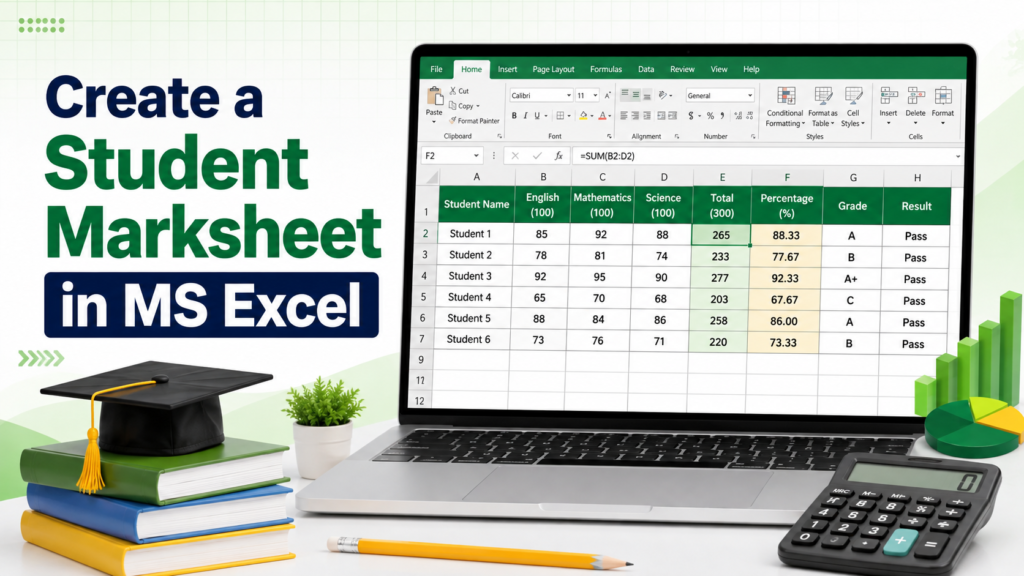
Objective
To create a marksheet that automatically calculates total marks, percentage, grade, and pass/fail result.
Steps
- Open Microsoft Excel and select Blank Workbook.
- Merge cells
A1:K1, type STUDENT MARKSHEET, and make it bold and centred. - In row 3, enter these headings:
| Column | Heading |
|---|---|
| A | Roll No. |
| B | Student Name |
| C | English |
| D | Mathematics |
| E | Science |
| F | Computer |
| G | Urdu |
| H | Total |
| I | Percentage |
| J | Grade |
| K | Result |
- Enter students’ names and marks from row 4. Assume every subject carries 100 marks, so the total is 500.
- In cell
H4, calculate total marks:
=SUM(C4:G4)- In cell
I4, calculate the percentage:
=H4/500*100- In cell
J4, calculate the grade:
=IF(I4>=80,"A+",IF(I4>=70,"A",IF(I4>=60,"B",IF(I4>=50,"C",IF(I4>=40,"D","F")))))- In cell
K4, calculate the result. A student must obtain at least 40 marks in every subject:
=IF(MIN(C4:G4)>=40,"Pass","Fail")- Select cells
H4:K4and drag the fill handle downward to apply the formulas to all students. - Format the marksheet:
- Make headings bold.
- Apply borders to the table.
- Centre the marks and results.
- Show the percentage with two decimal places.
- Use green for Pass and red for Fail.
- Check the formulas and save the workbook as:
Student_Marksheet.xlsx
Result
A student marksheet is created that automatically displays total marks, percentage, grade, and pass/fail result.