
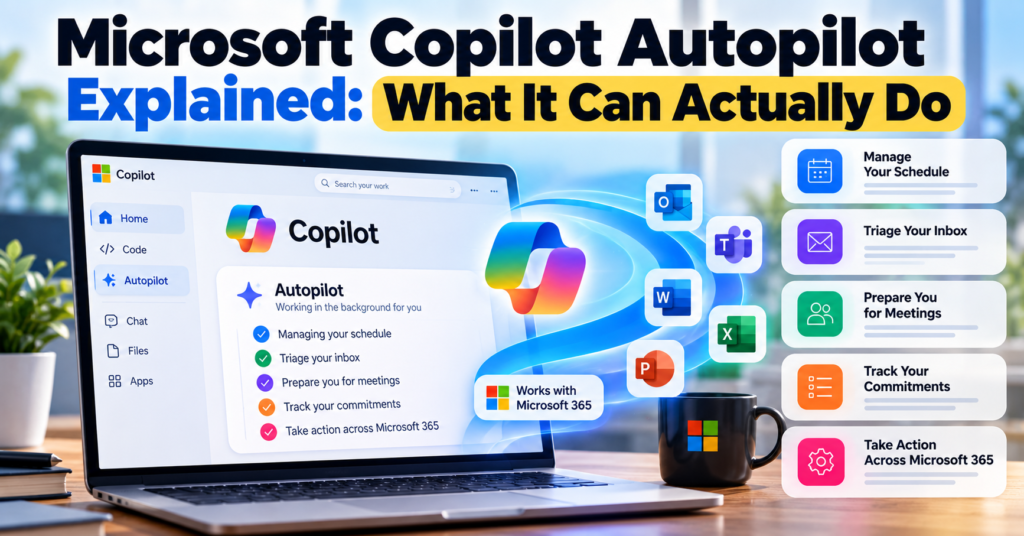
Microsoft Copilot is changing from an AI chatbot into something much more ambitious.
On September 25, 2026, Microsoft announced a major redesign of Copilot built around three experiences: Home, Code, and Autopilot.
Home brings everyday AI work into one place. Code lets users build apps and tools using natural-language instructions.
But Microsoft Copilot Autopilot is arguably the most interesting part of the announcement.
Unlike a normal AI assistant that waits for you to ask a question, Autopilot is designed to keep working in the background.
It can remember priorities, monitor work, coordinate schedules, prepare for meetings, track commitments, and take actions using Microsoft 365.
So what exactly is Microsoft Copilot Autopilot, what can it actually do, and can you use it today?
Let’s break it down.
Table of Contents
What Is Microsoft Copilot Autopilot?
Microsoft Copilot Autopilot is an always-on AI agent designed to work continuously on your behalf.
Microsoft describes Autopilot as having its own:
- Identity
- Memory
- Workspace
- Access to tools
- Persistent context
The important word here is persistent.
Most AI chatbots operate one conversation at a time.
You ask:
“Summarize these emails.”
The AI completes the request, gives you an answer, and waits for another prompt.
Autopilot is designed differently.
You can give it an ongoing responsibility, and it can continue working toward that objective without requiring you to repeatedly provide instructions.
Microsoft says Autopilot is cloud-hosted and works with Microsoft 365 and Work IQ while following the permissions and policies established by the user and organization.
This places Autopilot in the rapidly growing category of autonomous AI agents.
If you want to explore similar technology, read our 10 Best Free AI Agents You Can Use in 2026.
Microsoft Copilot Home vs Code vs Autopilot
Understanding Microsoft’s new Copilot is easier if we separate its three main experiences.
| Copilot Feature | What It Does |
|---|---|
| Home | Central workspace for Chat, Cowork, Office content and everyday AI work |
| Code | Builds apps, dashboards and tools from natural-language instructions |
| Autopilot | Persistent AI agent that can continue working in the background |
Think of them this way:
Home: “Help me work.”
Code: “Build this for me.”
Autopilot: “Take responsibility for this and keep it moving.”
That last capability is what makes Autopilot particularly interesting.
What Can Microsoft Copilot Autopilot Actually Do?
Microsoft has demonstrated several practical examples of what Autopilot is intended to handle.
1. Manage Your Schedule
Autopilot can help coordinate meetings and schedules.
Instead of manually checking everyone’s calendars, identifying available times and sending messages back and forth, an Autopilot can assist with the coordination process.
For example, you could give it an ongoing objective such as:
“Help coordinate my project meetings and make sure the necessary people are included.”
Because Autopilot can work with Microsoft 365 context and permissions, it can potentially keep handling that responsibility as your schedule changes.
This is very different from asking an ordinary chatbot for suggested meeting times.
2. Triage Your Inbox
Microsoft also lists inbox triage as one of Autopilot’s potential responsibilities.
Anyone working in an organization can receive dozens or even hundreds of emails.
An Autopilot could help identify:
- Important messages
- Messages requiring action
- Urgent requests
- Follow-ups
- Commitments
- Emails related to active projects
The key difference again is persistence.
Rather than repeatedly asking Copilot:
“What important emails did I receive?”
Autopilot is designed to keep track of what matters as work develops.
3. Prepare You for Meetings
Autopilot can help prepare meeting materials before a meeting starts.
Imagine having a meeting about a project tomorrow.
Relevant information might be scattered across:
- Outlook emails
- Teams conversations
- OneDrive files
- SharePoint documents
- Previous meetings
- Calendar events
Instead of manually collecting everything, Autopilot can use organizational context to help prepare the information you need.
Microsoft’s earlier description of this technology also included proactively identifying important meetings and preparing relevant materials.
4. Track Your Commitments
This could become one of Autopilot’s most useful productivity features.
During a normal workweek, commitments are scattered everywhere.
You might write:
“I’ll send the report Friday.”
in Teams.
Then tell someone through email:
“I’ll review the document tomorrow.”
And during another meeting, you might agree to prepare a presentation.
Keeping track of all those promises manually can be difficult.
Autopilot is designed to maintain context over time, which means it can potentially recognize and track these commitments.
5. Identify Upcoming Deadlines
Autopilot can also keep track of upcoming work.
Microsoft says its persistent agents can identify deliverables and help keep projects moving.
For example, if an important deadline is approaching, the agent could recognize that relevant work still needs attention.
This moves AI beyond simply answering:
“What is on my calendar tomorrow?”
The larger goal is for AI to understand what needs to happen next.
6. Block Time on Your Calendar
Microsoft has also described the technology as being able to automatically block time on your calendar for upcoming work.
Imagine Autopilot recognizes that you promised to finish a presentation by Friday.
Instead of simply reminding you about the deadline, it could help reserve time for completing the task.
That is a subtle but important distinction.
Traditional assistants primarily provide information.
Agentic assistants increasingly take actions.
7. Spot Work That Is Getting Stuck
Another interesting use case is identifying stalled decisions.
Projects often slow down because:
- Someone has not replied.
- Approval is still pending.
- A decision has not been made.
- A document has not been reviewed.
- An important meeting has not been scheduled.
Autopilot can potentially recognize these situations using its persistent understanding of your work.
It can then surface the issue before it becomes a larger blocker.
8. Work Across Microsoft 365
One of Microsoft’s biggest advantages in AI is its existing productivity ecosystem.
Autopilot can work across Microsoft 365 services and organizational information.
Microsoft has specifically described connections involving services such as:
- Outlook
- Teams
- OneDrive
- SharePoint
- Calendar
- Contacts
This matters because an AI agent becomes much more useful when it understands the context surrounding your work.
Instead of treating an email, meeting and document as unrelated items, it can potentially understand that they all belong to the same project.
9. Continue Working When You Are Offline
This is one of the biggest differences between Autopilot and ordinary Copilot interactions.
Autopilot is cloud-hosted.
That means its work does not necessarily stop simply because you close your laptop.
A long-running task can continue in the background.
You could potentially assign something before leaving work and return later to see what progress has been made.
This is much closer to delegating work to a digital assistant than having a conversation with a chatbot.
10. Remember Context Across Days and Weeks
Autopilot has persistent memory and context.
That means it is designed to understand work beyond a single conversation.
For example, it could potentially understand:
- Your active projects
- Important priorities
- People you work with
- Previous decisions
- Upcoming commitments
- Recurring responsibilities
Microsoft uses Work IQ to provide much of this organizational context.
Over time, the goal is for Autopilot to become increasingly useful because it understands how work gets done around you.
What Is Work IQ?
Work IQ is an important part of Microsoft’s AI strategy.
It provides Copilot with context about your organization and work.
Rather than answering only from a generic AI model, Copilot can use permitted organizational context to understand things such as:
- Your role
- Your company
- Your projects
- Your team
- Relevant documents
- Workplace relationships
- Previous work activity
This context helps Autopilot understand not only what you asked, but potentially why it matters.
Microsoft says Autopilot uses Microsoft 365 and Work IQ while operating within organizational guardrails.
Autopilot Has Its Own Identity
This is one of the most unusual aspects of Microsoft’s approach.
An Autopilot can have its own organizational identity.
Microsoft’s technical documentation describes Autopilots as persistent members of an organization rather than agents that simply impersonate an individual employee.
Depending on how an organization configures one, an Autopilot can have its own:
- Calendar
- OneDrive
- Teams presence
- Organizational identity
This makes the concept closer to a digital coworker.
For example, a team could eventually have an Autopilot responsible for coordinating a particular workflow.
Because actions are associated with the agent’s own identity, organizations can more clearly determine what the AI did instead of attributing every action to an employee.
Does Autopilot Work Without Human Approval?
Not necessarily.
“Autopilot” does not mean the AI receives unlimited control.
Organizations determine what an agent can access and what actions it can perform.
Microsoft says Autopilot operates within the guardrails established by users and organizations.
That includes controls involving:
- Permissions
- Security
- Privacy
- Governance
- Available tools
- Organizational policies
This is particularly important for companies dealing with confidential information.
The goal is not to give an AI unrestricted access to an entire organization.
Instead, Microsoft wants businesses to determine the scope within which an Autopilot can operate.
Microsoft Copilot vs Autopilot: What’s the Difference?
The easiest way to understand the difference is reactive AI vs persistent AI.
Traditional Copilot interaction:
You: “Prepare a summary of today’s meetings.”
Copilot: Creates the summary.
The task ends.
Autopilot interaction is closer to:
You: “Keep me prepared for important customer meetings.”
The Autopilot could maintain that responsibility over time.
It may use permitted context to identify relevant meetings, collect information and help prepare you without requiring the exact same instruction every day.
That is a significant shift in how people interact with AI.
Autopilot vs AI Agents
Autopilot is a type of AI agent, but Microsoft gives the term a more specific meaning.
Many AI agents can reason through tasks and perform actions.
Microsoft’s Autopilot concept emphasizes:
Persistence + Identity + Memory + Organizational permissions.
An Autopilot is intended to hold an ongoing role rather than simply complete a single task.
For example:
A normal AI agent might:
“Create a weekly sales report.”
An Autopilot could have the ongoing responsibility:
“Monitor sales performance and prepare the team for the weekly sales review.”
The second instruction represents a continuing job rather than a one-time request.
For more examples of agentic tools, visit our Best Tech Tools section.
What Happened to Microsoft Scout?
If you have previously heard about Microsoft Scout, there is an important update.
Microsoft Scout has become Microsoft Autopilot.
Microsoft originally introduced Scout in June 2026 as its always-on personal AI agent.
With the September Copilot redesign, that concept has evolved into Autopilot.
So if you encounter older articles discussing Microsoft’s Scout agent, they are describing the technology that developed into what Microsoft now calls Autopilot.
Can You Use Microsoft Copilot Autopilot Right Now?
Not everyone can use it yet.
As of September 2026, Microsoft Copilot Autopilot is in Private Preview.
That means Microsoft is expanding access gradually rather than making the feature immediately available to every Copilot user.
Meanwhile, the new Copilot Home and Code experiences are beginning to roll out through Microsoft’s Frontier program.
Microsoft describes Frontier as its early-access program for testing new AI capabilities.
So if you open Copilot today and cannot find an Autopilot button, nothing is necessarily wrong with your account.
The feature simply has not reached general availability yet.
How Much Will Copilot Autopilot Cost?
Microsoft is also changing how organizations pay for more advanced AI work.
The company has announced usage-based billing for agentic workloads.
This makes sense because an always-running agent can consume significantly more computing resources than a chatbot answering occasional questions.
Instead of thinking only about:
“How much does Copilot cost per user?”
Businesses increasingly need to think about:
“How much AI work are our agents actually performing?”
Microsoft is introducing tools designed to help organizations monitor and control that consumption.
Pricing and availability are likely to evolve as Autopilot moves beyond private preview.
For comparisons with other AI subscriptions, see our AI Tools Pricing Database 2026.
Is Microsoft Autopilot Safe?
Autopilot raises more serious security questions than an ordinary chatbot because it can potentially take actions and maintain access to organizational resources.
Microsoft’s approach relies heavily on identity and permission controls.
Each Autopilot can operate with defined access rather than receiving unrestricted access to everything inside Microsoft 365.
Organizations can determine:
- What the agent can access
- What tools it can use
- Who it can interact with
- What actions it can perform
- Who is responsible for managing it
Microsoft also states that Autopilot is subject to existing security, privacy and governance controls.
Still, organizations should carefully configure permissions before allowing autonomous AI agents to interact with sensitive information.
Who Could Benefit Most From Autopilot?
Autopilot could be particularly useful for people whose jobs involve large amounts of coordination.
Examples include:
Managers: Tracking projects, meetings, decisions and deadlines.
Executives: Preparing for meetings and managing large amounts of communication.
Project managers: Following deliverables and identifying blockers.
Sales teams: Tracking customer communication and preparing for meetings.
HR teams: Coordinating recurring administrative workflows.
Operations teams: Monitoring processes that continue throughout the day.
Knowledge workers: Managing information spread across email, documents, meetings and messaging apps.
However, its usefulness will depend heavily on how well it performs once broader real-world access becomes available.
Why Microsoft Autopilot Matters
The most important part of Autopilot is not any single feature.
It represents a change in how Microsoft thinks people will use AI at work.
The first generation of workplace AI was largely:
Ask → Answer
The next generation is becoming:
Assign → Monitor → Act → Continue
That changes AI from something you occasionally consult into something that can potentially hold ongoing responsibilities.
Microsoft already owns many of the applications where workplace activity happens: Outlook, Teams, Word, Excel, PowerPoint, OneDrive and SharePoint.
Connecting persistent AI agents across that ecosystem could make Autopilot considerably more powerful than a standalone chatbot.
Frequently Asked Questions
What is Microsoft Copilot Autopilot?
Microsoft Copilot Autopilot is an always-on AI agent designed to work continuously in the background. It has persistent context, memory, identity and access to approved tools.
Is Microsoft Autopilot the same as Windows Autopilot?
No. They are completely different products.
Windows Autopilot is Microsoft’s technology for deploying and configuring Windows devices.
Copilot Autopilot is Microsoft’s new persistent AI-agent technology.
Is Microsoft Copilot Autopilot available now?
Autopilot is currently in Private Preview as of September 2026. It has not yet been released to every Copilot user.
Can Autopilot work when my computer is turned off?
Autopilot is cloud-hosted and designed to continue background work rather than depending entirely on your local computer remaining active.
Can Autopilot read my emails?
Its access depends on the permissions and organizational policies configured for the agent. Microsoft has demonstrated Autopilot working with Microsoft 365 context, including Outlook and other workplace services.
Can Autopilot schedule meetings?
Yes. Meeting and schedule coordination is one of the use cases Microsoft has described for its persistent agent technology.
Can Autopilot send emails?
Microsoft’s Autopilot architecture can give agents their own Microsoft 365 identity, including email capabilities, subject to the permissions and policies configured by the organization.
What happened to Microsoft Scout?
Microsoft Scout has evolved into what Microsoft now calls Autopilot. Scout was originally introduced in June 2026 as Microsoft’s always-on personal agent.
Is Microsoft Autopilot an AI agent?
Yes. It belongs to Microsoft’s new category of persistent AI agents that can hold ongoing roles, maintain context and take permitted actions.
Final Thoughts
Microsoft Copilot Autopilot could be one of the biggest changes to workplace AI in 2026.
Instead of asking Copilot to complete individual tasks, Microsoft wants users to eventually give AI ongoing responsibilities.
An Autopilot could monitor commitments, coordinate meetings, prepare information, identify blockers and continue working while you focus elsewhere.
But there is an important reality check.
Autopilot is still in Private Preview.
Many of its most ambitious capabilities have therefore not yet been tested at scale by ordinary Microsoft 365 users.
The technology is promising, but we will know much more once Microsoft expands access and businesses begin using persistent agents in everyday workflows.
For now, Microsoft’s direction is clear:
Copilot is moving beyond “What can AI answer for me?”
The next question is becoming:
“What work can I hand over to AI?”
For more AI agents, productivity software and emerging technology, explore Digital Discite’s Best Tech Tools.