Productivity Tools

iLovePDF Compress PDF

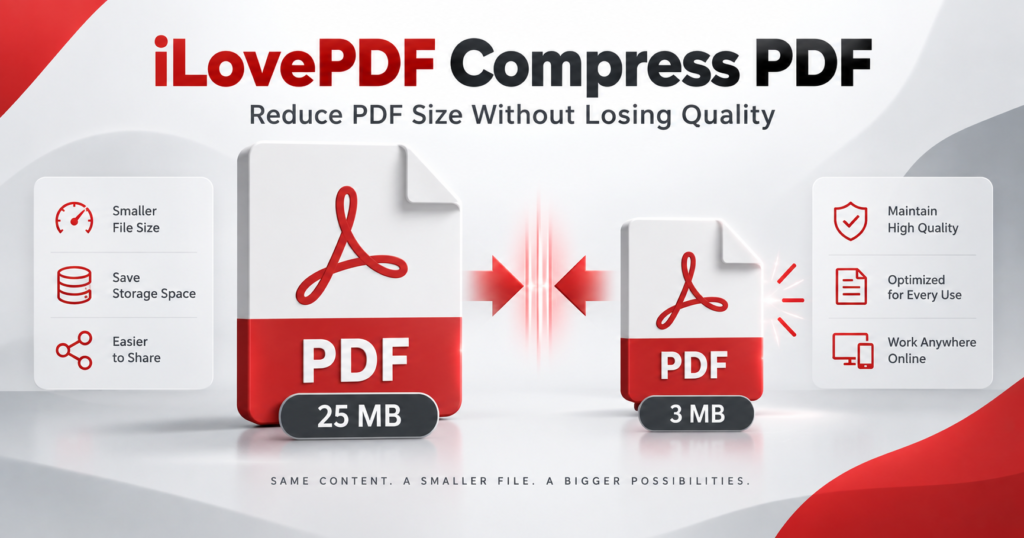
iLovePDF Compress PDF: How to Reduce PDF Size Without Losing Quality

Large PDF files are difficult to upload, email and share. They can also consume unnecessary storage space on your phone or computer. This becomes especially frustrating when an application, university or recruitment portal accepts only a small file.

The iLovePDF Compress PDF tool provides a simple way to reduce PDF size online. You upload your document, select a compression level and download the smaller version. The process works directly through a web browser, so you do not need to install complicated software.

However, selecting the correct compression level is important. Strong compression can make scanned pages, photographs and small text look blurry. This guide explains how to make a PDF smaller while keeping the document clear and readable.

Quick answer: Open the official iLovePDF Compress PDF tool, upload your PDF, select Recommended Compression, click Compress PDF, and download the result. Check the text and images before submitting or deleting the original document.

Table of Contents

What Is iLovePDF Compress PDF?

iLovePDF Compress PDF is an online tool designed to reduce the size of PDF documents. It can be used for study notes, resumes, scanned certificates, reports, presentations, invoices, ebooks and other PDF files.

You can upload a document from your device. You can also import supported files from Google Drive or Dropbox. After processing, the smaller PDF can be downloaded or saved back to connected cloud storage.

The tool currently provides three compression options:

  1. Less Compression
  2. Recommended Compression
  3. Extreme Compression

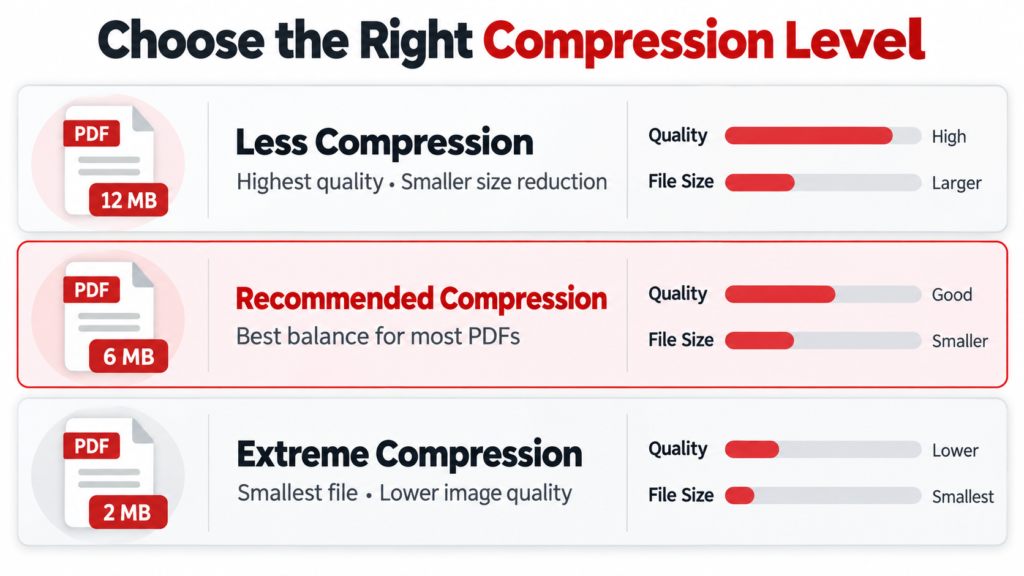
Each option creates a different balance between file size and visual quality. According to the official iLovePDF compression page, Recommended Compression provides good quality and good compression, while Extreme Compression produces a smaller file with a greater quality reduction.

Can You Compress a PDF Without Losing Quality?

It is possible to reduce a PDF without causing an obvious visual difference. However, “without losing quality” should usually be understood as without noticeable quality loss.

PDF compression may change the way images and other resources are stored. If the document contains high-resolution photographs or scanned pages, those images may be reduced in resolution. Therefore, the compressed file may not be mathematically identical to the original.

A text-based PDF normally handles compression better than a scanned PDF. Digital text, lines and vector graphics can remain sharp even when the overall file size becomes smaller. A scan, however, may contain one large image for every page. Strong compression can make those page images look soft or pixelated.

For the best balance, begin with Recommended Compression. Use Less Compression when image clarity is more important than obtaining the smallest possible file.

Why Do PDF Files Become So Large?

A PDF can contain much more than visible text. Its size may increase because of high-resolution images, scanned pages, embedded fonts, illustrations, charts, form elements and other stored information.

High-resolution photographs

A document containing multiple camera photographs can become very large. Modern phones capture images with millions of pixels. When these photographs are inserted into a document without optimization, the resulting PDF may occupy several megabytes.

Scanned pages

A scanner may save every page as a large image. A 50-page scanned book can therefore be much larger than a 50-page document created directly in Microsoft Word.

Color documents

Color scans generally require more storage than grayscale or black-and-white scans. Certificates, brochures and illustrated study notes may consequently have larger file sizes.

Embedded fonts and graphics

PDF creators may embed complete font files to ensure that the document appears correctly on different devices. Complex charts and vector illustrations can also increase the file size.

Unnecessary pages or objects

Blank pages, duplicate images and unused design elements may remain inside a PDF. Removing them before compression can produce a better result.

Three iLovePDF Compression Levels Explained

The most important step is selecting the correct level. The official iLovePDF documentation explains that higher compression produces a smaller file but can also reduce quality.

1. Less Compression

Less Compression prioritizes quality. It makes a smaller reduction in file size but helps preserve detailed images, small text and scanned pages.

Choose this option for:

  1. Scanned certificates
  2. Academic transcripts
  3. Portfolios
  4. Illustrated ebooks
  5. Professional reports
  6. Documents intended for printing
  7. PDFs containing signatures or stamps

This is the safest starting point when the original document is already close to the required upload size.

Recommended Compression provides the best general balance. It normally reduces the file size while keeping text and common images clear enough for reading, email and online submission.

Choose this option for:

  1. Resumes and CVs
  2. Assignments
  3. Application forms
  4. Invoices
  5. Business reports
  6. Presentation handouts
  7. Study notes
  8. Documents shared through email or WhatsApp

For most users, Recommended Compression should be the first choice.

3. Extreme Compression

Extreme Compression prioritizes the smallest possible file. It may noticeably reduce the quality of photographs, screenshots and scanned text.

Choose this option only when:

  1. A website has a strict upload limit
  2. Recommended Compression does not reduce the file enough
  3. The PDF will be viewed mainly on a phone
  4. The document contains large images that do not require fine detail
  5. A small email attachment is more important than print quality

Avoid using Extreme Compression for certificates, legal records, architectural drawings or documents containing very small text unless you carefully inspect the result.

iLovePDF compression levels infographic

Best Compression Level for Different PDF Types

Type of PDFBest starting optionReason
Resume or CVRecommendedReduces size while keeping text and design clear
Scanned certificateLessHelps protect small text, stamps and signatures
University assignmentRecommendedSuitable for text with a few images
Photo portfolioLessPreserves photographic detail
Invoice or receiptRecommendedUsually maintains readable text
Ebook with illustrationsLess or RecommendedDepends on image importance
Exam application documentsRecommendedGood balance for portal uploads
Large presentation PDFRecommendedReduces image-heavy slides
File far above an upload limitExtremeProduces greater size reduction
Document for professional printingLessProtects print clarity

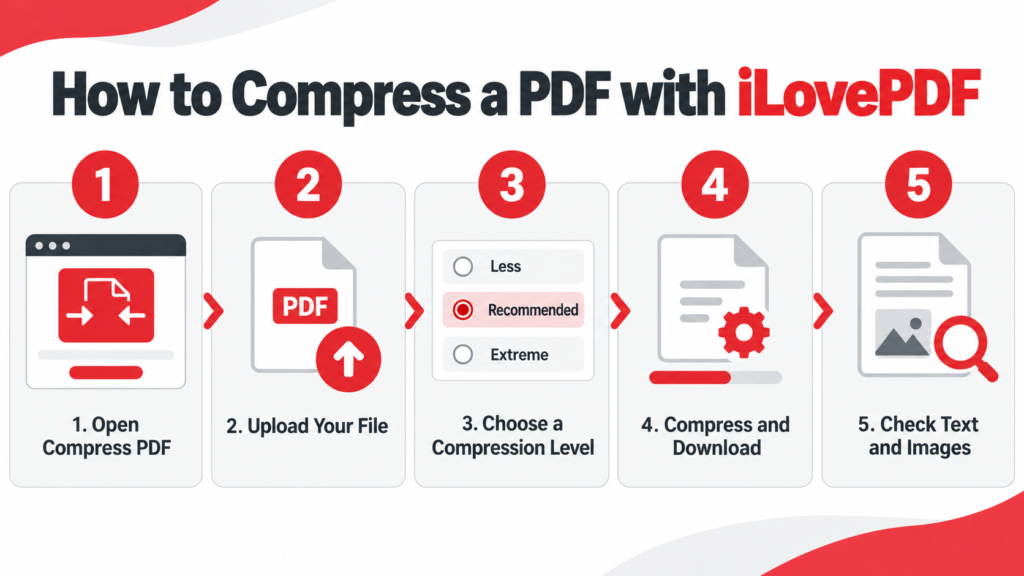
How to Compress a PDF Using iLovePDF

The web version works through common desktop and mobile browsers.

Step 1: Open the Compress PDF Tool

Visit the official iLovePDF PDF compressor.

Confirm that the address begins with https://www.ilovepdf.com/. Avoid uploading documents to an imitation website or an unknown download page.

Step 2: Select Your PDF

Click Select PDF files and choose the document from your device.

You can also drag and drop a PDF into the upload area when using a computer. Google Drive and Dropbox import options may also be available.

Keep a separate copy of the original document before continuing.

Step 3: Choose a Compression Level

Select one of the following options:

  1. Less Compression
  2. Recommended Compression
  3. Extreme Compression

Start with Recommended Compression for an ordinary document. Select Less Compression if the PDF contains detailed scans or important images.

Step 4: Click Compress PDF

Click the Compress PDF button and wait for processing to finish.

Processing time depends on the original file size, page count, internet speed and complexity of the document. Large scanned PDFs will normally take longer than short text documents.

Do not close the browser while the upload or compression is still in progress.

Step 5: Download the Compressed File

Download the processed PDF to your device. The results page may show the original size, new size and percentage reduction.

Rename the file clearly. For example:

resume-compressed.pdf

Avoid vague filenames such as document-final-new-2.pdf.

Step 6: Inspect the Result

Open the compressed document before uploading or sharing it. Check:

  1. The first and last pages
  2. Small text
  3. Photographs
  4. Tables and charts
  5. Signatures and stamps
  6. Clickable links
  7. Form fields
  8. Page order

Zoom in to approximately 150% or 200% when checking scanned text. If the document looks blurry, repeat the process using Less Compression.

How to compress PDF with iLovePDF

How to Compress a PDF on an Android Phone

You can use the website through Chrome or install the official mobile app.

Using Chrome

  1. Open Chrome on your Android phone.
  2. Visit the official Compress PDF page.
  3. Tap Select PDF files.
  4. Choose the file from your phone.
  5. Select Recommended Compression.
  6. Tap Compress PDF.
  7. Download the smaller file.
  8. Open it and check the document quality.

The downloaded file will normally appear in your browser’s Downloads section or the Downloads folder in your file manager.

Using the iLovePDF Mobile App

The official iLovePDF mobile application is available for Android and iOS. Its mobile tools include PDF compression, editing, scanning, signing and file management.

After installing the official app:

  1. Open the application.
  2. Find the Compress PDF tool.
  3. Select the PDF stored on your device.
  4. Choose a compression level.
  5. Start processing.
  6. Save or share the compressed document.

Button names and locations can change with app updates, but the main process remains similar.

How to Reduce a PDF to 1 MB or 2 MB

iLovePDF does not guarantee one exact output size because every document contains different material. A text-based PDF may shrink significantly, while an already optimized scan may show only a small reduction.

Use this process when a portal requires a specific maximum size:

  1. Check the current file size.
  2. Create a backup of the original.
  3. Try Recommended Compression.
  4. Download and check the new size.
  5. Inspect the document quality.
  6. If it is still too large, try Extreme Compression.
  7. If quality becomes unacceptable, return to the source document and optimize its images.
  8. Remove unnecessary pages if permitted.
  9. Export the document as an optimized PDF again.

Never remove pages or reduce readability merely to meet a limit. The final document should remain complete and clear.

How to Preserve Quality During PDF Compression

Keep the original file

Never overwrite or delete your original document immediately. Save the compressed version under a different name.

Recommended Compression is the most suitable first attempt for ordinary documents. It avoids the unnecessary quality reduction that can occur when users choose Extreme Compression immediately.

Use Less Compression for important scans

Certificates, transcripts, identity records and signed documents may contain fine details. Less Compression gives those details a better chance of remaining clear.

Avoid compressing the same file repeatedly

Repeated compression can gradually reduce image quality. Always compress again from the original PDF instead of compressing an already compressed copy.

Check small text carefully

A document may look fine when shown as a full page but become blurry when enlarged. Inspect footnotes, registration numbers, stamps and signatures.

Test printed documents

If the PDF will be printed, print one sample page first. A file that looks acceptable on a phone may not look equally clear on paper.

Optimize images before creating the PDF

If you control the source document, resize oversized images before exporting it. A photograph does not need to remain at full camera resolution when it will occupy only a small area on a page.

Use grayscale when color is unnecessary

A grayscale scan can be smaller than a full-color scan. Use this option only when color is not required for understanding or verification.

Is iLovePDF Compress PDF Free?

iLovePDF provides a free Basic plan with limited document processing. At the time of writing, its official plan comparison lists a maximum of two PDFs per compression task and a 200 MB task-size limit for Basic users.

Premium and Business plans provide higher limits and broader access. The same comparison currently lists up to ten files and 4 GB per compression task for those plans.

Limits and features may change. Check the official pricing page before processing an unusually large document or purchasing a subscription.

Is iLovePDF Safe for Confidential Documents?

According to the company’s security and data-protection page, iLovePDF uses HTTPS and encryption to protect documents during processing. The company also says processed files are automatically and permanently deleted within two hours. Users can manually delete files from the download screen as well.

Nevertheless, online processing requires uploading the document to a remote service. Avoid uploading highly confidential records unless you are authorized to do so and comfortable with the provider’s current privacy terms.

For sensitive business documents, consider using the desktop version. iLovePDF states that its desktop application can process files locally on the computer for greater privacy. Access to processing tools may depend on the selected plan.

Common iLovePDF Compression Problems and Solutions

The PDF did not become much smaller

The document may already be optimized. iLovePDF’s documentation notes that an already optimized PDF might not be compressed further.

Try removing unnecessary pages or optimizing the source images. You can also test a stronger compression level, but inspect the output carefully.

The compressed PDF looks blurry

You may have selected Extreme Compression, or the document may consist mainly of scanned images.

Repeat the process using Recommended or Less Compression. Always return to the original file when trying again.

The upload takes too long

Large PDFs need more time and internet bandwidth. Use a stable connection and keep the browser open. If possible, remove unnecessary pages before uploading.

The website will not accept the compressed file

Check both the file size and format. Some portals restrict page count, filename length or special characters in addition to file size.

Rename the file using simple letters and numbers. For example:

noor-fatima-resume.pdf

The PDF is password protected

You may need to provide the correct password before the service can process the document. Do not attempt to remove protection from a file you do not own or have permission to modify.

The document is damaged

A corrupted PDF may fail during upload or processing. Open the original file in another PDF reader. If it does not open correctly, repair or recreate it before compression.

The text cannot be selected after compression

The original document may be an image-based scan rather than a true text PDF. Compression does not automatically convert scanned images into selectable text. OCR is required for that purpose.

Advantages of iLovePDF Compress PDF

  1. The tool is easy to use.
  2. No advanced technical knowledge is required.
  3. It works through a browser.
  4. Multiple compression levels are available.
  5. Files can be imported from supported cloud services.
  6. Mobile and desktop applications are available.
  7. The result can be downloaded quickly.
  8. It is useful for email attachments and portal uploads.

Limitations to Consider

  1. Exact output size cannot be guaranteed.
  2. Extreme Compression may blur images and scans.
  3. Internet access is required for the web version.
  4. Free usage has processing limits.
  5. Already optimized files may not shrink significantly.
  6. Online processing may be unsuitable for highly confidential records.
  7. Compression cannot repair poor-quality source scans.

iLovePDF Compress PDF Alternatives

If iLovePDF does not provide the required result, you can consider:

  1. Adobe Acrobat Online
  2. Smallpdf
  3. PDF24 Tools
  4. Sejda PDF
  5. An offline PDF editor
  6. Re-exporting the original Word or PowerPoint document

Do not repeatedly upload a sensitive document to several websites. For confidential files, use a trusted offline application or an approved organizational system.

You can explore more useful platforms in our Best Tech Tools section. Students managing study material can also visit our collection of books and notes in PDF.

Frequently Asked Questions

What is iLovePDF Compress PDF?

iLovePDF Compress PDF is an online tool that reduces the storage size of PDF documents. Users can choose Less, Recommended or Extreme Compression according to their quality requirements.

Which compression level should I select?

Recommended Compression is the best starting option for most documents. Select Less Compression for detailed scans, certificates and print-quality PDFs. Use Extreme Compression only when obtaining the smallest possible file is essential.

Does iLovePDF reduce PDF quality?

It can reduce image quality, particularly when Extreme Compression is used. Recommended or Less Compression can often reduce file size without creating an obvious difference during normal viewing.

Can I use iLovePDF Compress PDF for free?

Yes. A free Basic plan is available with limited processing. File limits and maximum task sizes can change, so check the official pricing page for current information.

Can I compress a PDF on my phone?

Yes. You can use the tool in a mobile browser or install the official iLovePDF application for Android or iOS.

Can iLovePDF reduce a PDF to exactly 1 MB?

It may reduce a file below 1 MB, but an exact output size is not guaranteed. The result depends on the original size, images, page count and selected compression level.

Why is my compressed PDF still large?

The original may already be optimized or contain many high-resolution scanned pages. Removing unnecessary pages or optimizing source images may produce a better result.

Can I compress several PDF files together?

Yes, subject to the processing limits of your account. iLovePDF’s current plan comparison lists two PDFs per compression task for Basic users and higher limits for paid plans.

Does PDF compression change the wording of my document?

Compression should not intentionally rewrite the text. However, scan quality and image clarity can be reduced. Always open and inspect the downloaded document.

Is iLovePDF suitable for scanned certificates?

It can be used, but Less Compression is the safer starting option. Carefully inspect names, numbers, stamps and signatures before submitting the compressed certificate.

Final Verdict

The iLovePDF Compress PDF tool is a convenient solution for making large documents easier to upload, email, store and share. It provides three compression levels, allowing users to choose between higher quality and a smaller output file.

Recommended Compression is suitable for most resumes, assignments, reports and application documents. Less Compression is better for scanned certificates and image-heavy PDFs. Extreme Compression should be reserved for strict upload limits when a larger quality reduction is acceptable.

Always keep the original document and inspect the compressed version before submitting it. A smaller PDF is useful only when its text, images and important details remain clear.

Disclosure: Digital Discite is not affiliated with iLovePDF. Product names and trademarks belong to their respective owners.

iLovePDF Compress PDF: How to Reduce PDF Size Without Losing Quality Read More »

Digital Discite - Digital Tools to Boost Focus and Productivity

Digital Tools to Boost Focus and Productivity in 2025

1. Introduction

In today’s always-connected digital world, staying focused has become harder than ever. Notifications, emails, social media, and constant multitasking pull attention in every direction, making it difficult to produce meaningful work.

Many people struggle with digital distractions, burnout, scattered tasks, and information overload. Even after long working hours, output often remains low because focus is broken repeatedly throughout the day.

This is where digital tools to boost focus and productivity can make a real difference. When used intentionally, these tools help organize tasks, reduce distractions, and streamline workflows—allowing you to work smarter instead of longer.

Preview: These digital tools to boost focus and productivity are designed to help you stay focused, work efficiently, and get more done without feeling overwhelmed.

2. Why Focus and Output Matter in Today’s Work Culture

Distractions come at a high cost. Every interruption breaks concentration and drains mental energy, causing tasks to take longer and reducing the quality of work.

Deep focus leads to higher-quality output, better decision-making, and faster completion of important tasks. Instead of rushing through work, focused effort produces results that truly matter.

Using the right digital tools to boost focus and productivity also reduces stress. When work is organized and intentional, it creates a healthier work-life balance and leaves more time and energy for personal life.

3. Types of Digital Tools That Improve Focus and Output

Different digital tools to boost focus and productivity support work in different ways:

  • Task management tools help plan, prioritize, and track work clearly.
  • Focus and time-tracking tools build awareness of how time is spent and encourage deep work.
  • Distraction blockers reduce interruptions from apps, websites, and notifications.
  • AI-powered productivity tools automate repetitive tasks and speed up thinking, planning, and decision-making.

Using the right combination of these tools creates a balanced and sustainable productivity system.

4. Best Digital Tools to Boost Focus and Productivity

1. Todoist – Stay Clear on What Matters

Todoist helps organize tasks into clear lists with priorities and deadlines.
By capturing everything in one place, it reduces mental clutter and supports focus-driven daily planning—making it one of the most effective digital tools to boost focus and productivity.

2. Notion – Organize Your Work in One Place

Notion acts as a centralized workspace for tasks, notes, goals, and projects.
Custom dashboards provide clarity and help maintain focus without constantly switching between apps.

3. RescueTime – Understand Where Your Time Goes

RescueTime automatically tracks how you spend time on your devices.
Its insights highlight productive and distracting habits, helping you improve focus intentionally.

4. Forest – Build Deep Focus Habits

Forest uses gamification to encourage uninterrupted focus sessions.
By staying off your phone, you grow virtual trees—turning deep focus into a rewarding habit.

5. Clockify – Track Time and Improve Output

Clockify tracks time spent on tasks and projects.
It’s especially useful for freelancers and remote workers who want better time awareness and measurable productivity.

6. Slack (Used Mindfully) – Reduce Communication Chaos

Slack improves collaboration through organized channels.
When notifications are managed carefully, it becomes a productivity tool rather than a distraction.

7. ChatGPT – AI Assistant for Faster Work

ChatGPT helps with brainstorming, planning, summarizing, and problem-solving.
It saves time on repetitive thinking tasks, making it a powerful AI-based tool to boost focus and productivity.

5. How to Use These Tools Together for Maximum Output

A simple productivity stack works best when combining digital tools to boost focus and productivity:

  • Todoist or Notion for task planning
  • Forest or RescueTime for focus and awareness
  • ChatGPT for AI assistance

Avoid tool overload by choosing only the tools that fit your workflow. Both individuals and teams can adapt this system based on their needs.

6. Habits That Multiply the Effect of Digital Tools

Digital tools to boost focus and productivity work best when paired with strong habits:

  • Use time blocking for deep work sessions
  • Review progress weekly to stay aligned with goals
  • Manage notifications and set clear boundaries to protect focus

7. Common Mistakes to Avoid

  • Relying on digital tools without building consistent habits
  • Using too many apps at once, leading to confusion
  • Ignoring breaks, rest, and mental health while chasing productivity

8. Conclusion

The right digital tools to boost focus and productivity can dramatically improve how you work when used intentionally. They reduce distractions, organize tasks, and create space for deep, meaningful output.

Start small, stay consistent, and build a productivity system that works for you.
Call to action: Choose one or two digital tools to boost focus and productivity today and start working with clarity and purpose.

Digital Tools to Boost Focus and Productivity in 2025 Read More »

Digital Discite - Free Productivity Apps

Best Free Productivity Apps for 2025

1. Introduction

Productivity apps matter more than ever in 2025. With remote and hybrid work becoming the norm, long screen hours, and constant notifications competing for attention, staying organized is no longer optional—it’s essential. Without the right tools, even simple tasks can feel overwhelming.

Many people struggle with digital distractions, scattered to-do lists, and app overload, where too many tools create confusion instead of clarity. This often leads to missed deadlines, burnout, and reduced focus.

The good news? You don’t need expensive software to stay productive. Free productivity apps now offer powerful features that were once locked behind paid plans.

This ultimate list covers the best free productivity apps to help you stay focused, organized, and productive in 2025, whether you’re a student, freelancer, or professional.

2. What Makes a Productivity App Worth Using

Not every productivity app is worth your time. The best ones share a few key qualities that actually improve how you work.

First, look for core features such as task management, basic automation, and collaboration tools. These features help reduce manual work and keep everything organized.

Second, balance ease of use with functionality. An app should be powerful but not complicated. If it takes hours to learn, it may hurt productivity instead of helping it.

Third, consider security, cross-device syncing, and reliability. Your data should sync smoothly across desktop and mobile devices without frequent crashes or data loss.

For individuals, free versions are often more than enough. Most free plans include essential features that support daily planning, focus, and organization without forcing upgrades.

3. Best Free Productivity Apps for Task Management

1. Todoist (Free Version)

Todoist is a clean and simple task manager that helps you plan your day with ease. It allows you to create task lists, set priorities, and schedule recurring tasks using natural language.
Best for: Daily planning, personal productivity, and habit building.

2. Microsoft To Do

Microsoft To Do offers straightforward task management with strong integration into Outlook and Microsoft 365. Its “My Day” feature helps you focus on what matters most each day.
Best for: Users already in the Microsoft ecosystem.

3. ClickUp (Free Forever Plan)

ClickUp’s free plan includes tasks, documents, and limited project views, making it one of the most powerful free tools available. It works well for both individuals and teams managing complex workflows.
Best for: Teams, startups, and users who need advanced organization.

4. Best Free Productivity Apps for Notes & Organization

4. Notion (Free Plan)

Notion is an all-in-one workspace that combines notes, tasks, databases, and templates. Its free plan is highly flexible and perfect for building personalized productivity systems.
Best for: Students, creators, and knowledge workers.

5. Evernote (Free Tier)

Evernote focuses on capturing and organizing ideas. You can save notes, clip web pages, and tag content for easy retrieval later.
Best for: Research, idea collection, and long-term note storage.

5. Best Free Productivity Apps for Time Management & Focus

6. Clockify

Clockify offers unlimited time tracking for individuals and teams at no cost. It helps you understand where your time goes and improve efficiency.
Best for: Freelancers, remote workers, and agencies.

7. RescueTime (Lite)

RescueTime automatically tracks how you spend time on apps and websites, providing insights into productivity patterns.
Best for: Identifying distractions and improving focus.

8. Forest

Forest uses a gamified focus timer that encourages deep work by growing virtual trees when you stay focused.
Best for: Students and anyone struggling with phone distractions.

6. Best Free Productivity Apps for Team Collaboration

9. Slack (Free Plan)

Slack simplifies team communication through channels, direct messages, and integrations with other tools. It reduces email clutter and keeps teams aligned.
Best for: Remote and hybrid teams.

10. Trello (Free Plan)

Trello uses visual Kanban boards to manage projects and workflows. It’s easy to use and great for tracking progress at a glance.
Best for: Small teams and simple project management.

7. Best Free Productivity Apps for Automation & AI Assistance

11. Google Workspace (Free Tools)

Google Docs, Sheets, Calendar, and Drive offer real-time collaboration and smart features that boost productivity.
Best for: Teams, students, and professionals working online.

12. ChatGPT (Free Version)

ChatGPT helps with brainstorming, planning, writing, and organizing ideas. It acts as a productivity assistant rather than a traditional task manager.
Best for: Creative thinking, research, and content planning.

8. How to Choose the Right Free Productivity Apps

Start by matching apps to your workflow and goals. Choose tools that solve your biggest problems—whether that’s focus, organization, or collaboration.

Avoid app overload by starting with 2–3 tools and mastering them before adding more.

Combine tools wisely, such as:

  • Task manager + note-taking app
  • Time tracking + focus tool

9. Common Mistakes to Avoid

  • Using too many productivity apps at the same time
  • Ignoring the limitations of free plans
  • Failing to review and refine your productivity system regularly

10. Conclusion

Free productivity apps in 2025 are more powerful than ever. When used correctly, they can help you work smarter, stay organized, and reduce stress—without spending money.

Test different apps, customize your setup, and build a system that fits your lifestyle.
Start using these free productivity apps today and boost your productivity in 2025.

Best Free Productivity Apps for 2025 Read More »

Digital Discite - Plan Your Week Using Notion Templates

How to Plan Your Week Using Notion Templates

1. Introduction

In today’s busy digital lifestyle, it’s easy to feel overwhelmed by endless tasks, notifications, and deadlines. Without a clear weekly plan, work often becomes reactive instead of intentional. Weekly planning helps you stay focused, prioritize what truly matters, and manage your time more effectively.

Many people struggle with missed deadlines, scattered to-do lists, and poor focus because their tasks live across multiple apps, notebooks, or mental notes. This lack of structure leads to stress and unfinished work.

This is where Notion templates come in. Instead of starting from scratch every week, templates provide ready-made systems that help you organize tasks, goals, and schedules in one place.
This guide shows how to plan your week efficiently using ready-made Notion templates, even if you’re a complete beginner.

2. Why Use Notion for Weekly Planning

Notion is an all-in-one workspace that allows you to manage tasks, notes, goals, and calendars from a single dashboard. Instead of switching between multiple productivity apps, everything stays connected in one system.

One of Notion’s biggest strengths is its flexibility and customization. You can design your weekly planner around your personal workflow—whether you prefer checklists, time blocks, or visual boards.

Using templates saves time and effort. Rather than building layouts from scratch, templates give you a structured starting point that you can customize as needed.

Notion works well for:

  • Students managing classes, assignments, and study schedules
  • Professionals tracking work tasks and meetings
  • Freelancers balancing multiple clients and deadlines
  • Teams collaborating on shared weekly goals

3. Understanding Notion Templates

Notion templates are pre-built pages designed to help you organize information quickly. They include layouts, databases, and automation features that you can duplicate and customize.

There are two main types:

  • Built-in templates provided by Notion, ideal for beginners
  • Community-created templates, often more advanced and designed for specific use cases

You’ll find both free and paid templates. For most users, free templates are more than enough for weekly planning. Paid templates are useful if you want advanced features, detailed dashboards, or professional designs.

4. Essential Notion Templates for Weekly Planning

1. Weekly Planner Template

This template breaks your week into daily sections from Monday to Sunday, helping you clearly see what needs to be done each day.
It supports time blocking and priority labeling, making it easier to focus on high-impact tasks first.

2. To-Do List Template

A simple and effective way to track tasks using statuses like To Do, In Progress, and Completed.
It’s especially useful for recurring tasks, reminders, and quick daily checklists.

3. Habit Tracker Template

Habit tracker templates help you stay consistent by tracking daily habits throughout the week.
Visual elements like checkmarks, progress bars, or streaks make it motivating and easy to monitor progress.

4. Goal Planning Template

This template connects your weekly tasks with long-term goals, such as monthly or yearly objectives.
It helps ensure that your daily actions are aligned with what truly matters, not just urgent tasks.

5. Calendar View Template

Calendar-based templates offer a visual overview of deadlines, meetings, and events.
Some templates also allow optional Google Calendar integration, keeping everything synced.

5. Step-by-Step: How to Plan Your Week Using Notion Templates

Step 1: Choose the Right Template
Select a template that matches your workflow—simple if you’re new, detailed if you need structure.

Step 2: Set Weekly Goals and Priorities
Decide what must be completed this week and label top-priority tasks.

Step 3: Break Goals into Daily Tasks
Divide larger goals into smaller, actionable steps assigned to specific days.

Step 4: Assign Deadlines and Time Blocks
Add due dates and schedule focused work sessions to avoid last-minute rushes.

Step 5: Review and Adjust Mid-Week
Check progress mid-week and adjust tasks if priorities change.

6. Tips to Make Weekly Planning More Effective in Notion

  • Use tags and filters to organize tasks by category or urgency
  • Keep your planner simple to avoid overwhelm
  • Do a weekly review every Sunday or Monday
  • Combine Notion with proven productivity methods like Pomodoro or Getting Things Done (GTD)

7. Common Mistakes to Avoid

  • Overloading your week with unrealistic task lists
  • Using too many templates at once, causing confusion
  • Forgetting to review or update your planner regularly

8. Conclusion

Notion templates make weekly planning simpler, faster, and more consistent by giving you a ready-made system that adapts to your needs. With the right setup, you can stay focused, organized, and in control of your time.

Experiment with different templates, customize them to your workflow, and build a system that works for you.
Start planning your week with Notion templates and take control of your time today.

Top 10 Productivity Tools That Actually Work in 2025

How to Plan Your Week Using Notion Templates Read More »

Digital Discite - Productivity Tools

Top 10 Productivity Tools That Actually Work in 2025

Hey, productivity enthusiasts! In today’s fast-paced digital world of October 28, 2025, staying on top of tasks feels like a never-ending battle. With remote work still dominating (over 40% of global workers are hybrid, per a recent PCMag report), digital overload from endless notifications, and the constant juggle of personal and professional life, productivity tools have become lifelines. But here’s the problem: There are too many options out there—apps promising the moon but delivering more clutter. How do you sift through the noise to find tools that actually deliver results?

That’s where this guide comes in. We’re cutting through the hype to spotlight the top 10 productivity tools that truly make a difference. These aren’t just flashy gimmicks; they’re battle-tested solutions helping millions stay organized, focused, and efficient. From all-in-one workspaces to time trackers, we’ll dive into each one with features, tips, and why they shine in 2025. Let’s reclaim your time!

Why Productivity Tools Matter

The rise of remote and hybrid work has amplified task management challenges. A 2025 Digital Project Manager survey shows 62% of professionals struggle with “app overload,” leading to scattered focus and burnout. Digital distractions—like social media pings—eat up an average of 2 hours daily, per RescueTime data. Enter productivity tools: They streamline workflows, automate the mundane, and foster collaboration.

The right tools save time (up to 97 minutes weekly via AI features, as in Slack), reduce stress by organizing chaos, and boost performance with insights. Key benefits include:

  • Focus Enhancement: Block distractions and prioritize tasks.
  • Collaboration Boost: Real-time sharing for teams.
  • Automation Magic: Handle repetitive work like reminders or reports.
  • Goal Tracking: Monitor progress with analytics for continuous improvement.

In 2025, with AI integrations exploding (think smart suggestions in Todoist), these tools aren’t optional—they’re essential for thriving.

Top 10 Productivity Tools That Actually Work

Drawing from 2025 reviews on sites like PCMag and Reddit, here’s our curated list. Each includes key features, pricing, benefits, and pro tips.

1. Notion – All-in-One Workspace

Notion combines notes, tasks, databases, and wikis into a customizable hub. In 2025, its AI agents (coming soon) automate tasks like content summarization.

Why Use It? Benefits:

  • Versatility: Build dashboards for projects, track habits, or manage knowledge bases—ideal for students, teams, and freelancers.
  • Collaboration: Real-time editing and unified search save time; trusted by 100M+ users.
  • AI Power: Custom agents handle repetitive work, boosting efficiency by consolidating tools.
  • Cost Savings: Reduces need for multiple apps, with 62% of Fortune 100 using it.

Pricing: Free for basics; paid plans start at $8/user/month for advanced features.

Pro Tips:

  • Start with templates for quick setup.
  • Integrate with Calendar for seamless scheduling.

2. ClickUp – Ultimate Task & Project Manager

ClickUp’s 2025 update with ClickUp 4.0 brings AI agents for workflows like bug triage and content drafting.

Why Use It? Benefits:

  • All-in-One: Tasks, chat, docs, time tracking, and 15+ views—saves 2 hours daily via AI.
  • AI Agents: Automate marketing briefs or HR tasks; integrates with 50+ apps like GitHub.
  • Scalability: From individuals to enterprises (Siemens uses it); 384% ROI per studies.
  • Security: Enterprise-grade with 99.99% uptime.

Pricing: Free forever; paid from $7/user/month.

Pro Tips:

  • Use Brain AI for instant data pulls.
  • Customize views for your role (e.g., Gantt for projects).

3. Trello – Visual Project Management

Trello’s Kanban boards got an AI boost in 2025 with Atlassian Intelligence for summaries and email-to-task conversion.

Why Use It? Benefits:

  • Simplicity: Drag-and-drop boards for progress tracking; great for simple workflows.
  • Integrations: Power-Ups connect to Slack/Teams; AI turns messages into to-dos.
  • Visual Appeal: Calendar view enhances planning; used by Visa and Zoom.
  • Team Focus: 47% productivity increase reported.

Pricing: Free; premium from $5/user/month.

Pro Tips:

  • Mirror cards across boards for cross-team visibility.
  • Automate with no-code rules.

4. Todoist – Smart Task Organizer

Todoist’s 2025 Assist feature organizes tasks intelligently, with 50+ templates for quick starts.

Why Use It? Benefits:

  • Daily Planning: Natural language input, priorities, and streaks build habits.
  • Cross-Device Sync: 30M+ downloads; integrates with calendars.
  • Collaboration: Shared spaces for teams; 374K+ five-star reviews.
  • Efficiency: Reduces mental clutter, praised by PCMag.

Pricing: Free; Pro at $4/month.

Pro Tips:

  • Use filters for custom views.
  • Schedule recurring tasks easily.

5. Google Workspace – Team Collaboration Hub

In 2025, Gemini AI summarizes emails and generates insights across apps.

Why Use It? Benefits:

  • Integrated Suite: Gmail, Docs, Meet (up to 1K participants), Drive—real-time collab.
  • AI Tools: NotebookLM for research; saves time with suggestions.
  • Security: AI data protection; scales to enterprises.
  • Accessibility: From €6.80/user/month; 14-day trial.

Pricing: Starter €6.80/user/month; Enterprise custom.

Pro Tips:

  • Use e-signatures in Docs.
  • Migrate data seamlessly.

6. Evernote – Notes That Stay Organized

Evernote’s v11 in 2025 adds AI transcription and search.

Why Use It? Benefits:

  • Capture Everything: Web clips, scans, audio—smart tags for retrieval.
  • Collaboration: Real-time editing; acts as a “second brain.”
  • AI Features: Free transcription trial; 50M+ users.
  • Versatility: Sync across devices.

Pricing: Free; premium from $14.99/month.

Pro Tips:

  • Use Web Clipper for research.
  • Assign tasks in notes.

7. Microsoft To Do – Simple & Reliable Task Manager

2025 updates include Copilot AI for suggestions.

Why Use It? Benefits:

  • Ease: Subtasks, reminders, My Day planner.
  • Integration: With Outlook/Teams; gamification motivates.
  • Collaboration: Share lists; free for all.
  • Accessibility: Multi-device sync.

Pricing: Free.

Pro Tips:

  • Attach files to tasks.
  • Earn streaks for consistency.

8. Slack – Streamlined Team Communication

Slack’s 2025 Agentic Platform adds AI agents like Claude for workflows.

Why Use It? Benefits:

  • Communication: Channels reduce email; 700M daily messages.
  • Integrations: 2,600+ apps; 35% time saved.
  • AI: Summarizes threads; 47% productivity boost.
  • Connect: For external collab; 90% feel more connected.

Pricing: Free; Pro $7.25/user/month.

Pro Tips:

  • Use AI for action items.
  • Automate with bots.

9. Clockify – Time Tracking Made Easy

Clockify’s 2025 features include enhanced reporting; free for unlimited users.

Why Use It? Benefits:

  • Tracking: Timer, kiosk, timesheets; 5M+ users.
  • Insights: Reports on costs, overtime.
  • Flexibility: Multi-device; affordable upgrades.
  • Scalability: For freelancers/teams.

Pricing: Free; premium from $3.99/user/month.

Pro Tips:

  • Set budgets for projects.
  • Use auto-tracker.

10. RescueTime – Focus & Productivity Insights

RescueTime tracks 3B+ hours in 2025, with Focus Sessions blocking distractions.

Why Use It? Benefits:

  • Auto-Tracking: App usage insights; 2M+ users.
  • Goals: Alerts and reports for improvement.
  • Timesheets: Effortless project tracking.
  • Motivation: Identifies time sinks.

Pricing: Lite free; Premium $6.50/month.

Pro Tips:

  • Set daily goals.
  • Block sites during focus time.

How to Choose the Right Productivity Tool

Define your workflow: Solo? Try Todoist. Team? Slack or ClickUp. Prioritize needs—focus (RescueTime) vs. collab (Google Workspace).

Avoid overload: Start with 2-3 tools. Test free versions; Reddit users swear by trials.

Comparisons (from 2025 reviews):

Task Managers Comparison

ToolBest ForFree?RatingProsCons
TodoistDaily tasksYes4.7Natural input, streaksLimited free collab
Microsoft To DoIntegrationYes4.6Outlook sync, simpleNo advanced AI
ClickUpProjectsYes4.8AI agents, viewsSteep curve

Note-Taking Comparison

ToolBest ForFree?RatingProsCons
NotionAll-in-oneYes4.8Databases, AI agentsOverwhelming
EvernoteCaptureYes4.6Web clips, searchPremium for AI

Time Trackers Comparison

ToolBest ForFree?RatingProsCons
ClockifyBillingYes4.7Unlimited usersBasic reports free
RescueTimeInsightsLite4.7Auto-trackingPremium for blocks

Pick complements: E.g., Notion + RescueTime for notes and focus.

Tips to Boost Productivity Beyond Tools

Tools alone aren’t magic—pair with habits:

  • Focus Sessions: Use Pomodoro (25-min work, 5-min break); apps like RescueTime enforce it.
  • Breaks & Planning: Daily reviews in Todoist; unplug to avoid burnout.
  • Automation: Set Slack bots or ClickUp rules for reminders.
  • Review Systems: Weekly audits with Clockify data for tweaks.
  • Healthy Habits: Combine with non-digital: Exercise, sleep—boosts output 20%, per studies.

Conclusion

The best productivity tools simplify work, not complicate it—from Notion’s versatility to RescueTime’s insights. In 2025, they empower you to focus on what matters.

Experiment to find your setup. Start using these tools today and take control of your time and tasks.

FAQs: 20+ Questions on Top 10 Productivity Tools

1. What are the best free productivity tools in 2025?

Clockify, Microsoft To Do, and Trello’s free tier—great for basics.

2. Which tool is ideal for team collaboration?

Slack or Google Workspace for real-time chat and docs.

3. Are these tools secure?

Yes, like ClickUp’s SOC 2 compliance.

4. How do AI features help in 2025?

Summarize tasks (Notion) or suggest plans (Todoist).

5. Best for students?

Notion for notes and databases.

6. Can I integrate these tools?

Yes, e.g., Slack with Trello.

7. What’s new in productivity tools 2025?

AI agents in ClickUp and Evernote.

8. Free vs. paid—which to choose?

Free for solo; paid for teams/advanced AI.

9. Best for time tracking?

RescueTime for insights, Clockify for billing.

10. Mobile-friendly tools?

All listed sync across devices.

11. How to avoid app overload?

Pick 2-3 that fit your needs.

12. Best for visual thinkers?

Trello with boards.

13. Do they have dark mode?

Most do, like Todoist.

14. Pricing for enterprises?

Custom in Google Workspace/Slack.

15. Can they handle large teams?

ClickUp scales to thousands.

16. Alternatives to Notion?

Evernote for notes.

17. How to get started?

Sign up free and use templates.

18. Are they privacy-focused?

Yes, no data selling in Todoist.

19. Best for freelancers?

Clockify for billables.

More AI personalization.

21. Offline access?

Limited in most; plan ahead.

22. Customer support?

24/7 in Clockify.

23. Gamification features?

Streaks in Microsoft To Do.

AI Tools for Content Creation: Your 2025 Guide to Smarter, Faster Output

Top 10 Productivity Tools That Actually Work in 2025 Read More »

Scroll to Top