
Table of Contents
1. Introduction
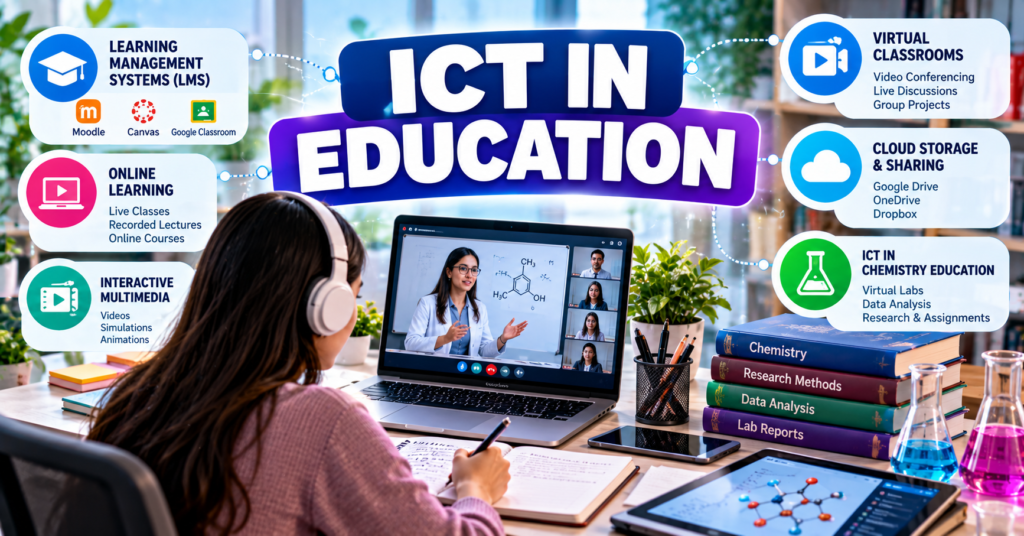
Information and Communication Technology (ICT) in education refers to the use of computers, internet services, digital platforms, multimedia and communication technologies to improve teaching and learning.
ICT allows teachers and students to:
- Access educational information
- Attend online classes
- Download course materials
- Submit assignments
- Participate in quizzes
- Communicate with one another
- Watch laboratory demonstrations
- Use educational simulations
- Work on group projects
- Receive grades and feedback
The major areas discussed in these notes are:
- Learning Management Systems
- Sources of online educational courses
- Interactive multimedia
- Virtual classrooms
For BS Chemistry students, ICT supports theoretical learning, practical preparation, scientific research, data analysis and communication.
2. Traditional Education and ICT-Based Education
Traditional education usually requires students and teachers to be present in the same classroom. Printed books, whiteboards and face-to-face lectures are the main teaching resources.
ICT-based education uses digital tools to support or deliver learning.
| Traditional education | ICT-based education |
|---|---|
| Usually takes place in a physical classroom | Can take place online or in a physical classroom |
| Mainly uses printed books and boards | Uses digital documents, videos and simulations |
| Communication occurs mostly during class | Communication can continue through email and learning platforms |
| Fixed time and location | May offer greater flexibility |
| Feedback may take more time | Digital quizzes can provide immediate feedback |
| Limited access to distant teachers | Can connect students with teachers worldwide |
ICT does not necessarily replace traditional teaching. It can strengthen it by providing additional learning resources and communication methods.
3. Modes of ICT-Based Learning
3.1 Face-to-Face Learning Supported by ICT
The teacher and students are physically present in a classroom, but digital tools are also used.
Examples include:
- PowerPoint presentations
- Educational videos
- Interactive whiteboards
- Online quizzes
- Digital laboratory demonstrations
3.2 Online Learning
All or most teaching activities are conducted through the internet.
Students may attend live classes, watch recorded lectures and submit assignments online.
3.3 Blended Learning
Blended learning combines face-to-face teaching with online learning activities.
For example, a chemistry teacher may explain chemical equilibrium in class and then provide an online simulation for further practice.
3.4 Hybrid Learning
In hybrid learning, some students may attend physically while others participate online at the same time.
3.5 Synchronous Learning
Synchronous learning takes place in real time.
Examples include:
- Live lectures
- Video meetings
- Live chat
- Online presentations
- Real-time discussions
3.6 Asynchronous Learning
Asynchronous learning does not require all participants to be online at the same time.
Examples include:
- Recorded lectures
- Discussion boards
- Uploaded notes
- Online assignments
- Self-paced courses
- Email communication
Synchronous and Asynchronous Learning
| Synchronous learning | Asynchronous learning |
|---|---|
| Takes place in real time | Can take place at any time |
| Requires scheduled participation | Offers greater time flexibility |
| Allows immediate discussion | Responses may be delayed |
| Examples include live Zoom classes | Examples include recorded lectures |
4. Learning Management Systems
4.1 Definition
A Learning Management System (LMS) is a digital platform used to create, organise, deliver and manage educational activities.
An LMS provides a central place where teachers and students can access course-related information.
Popular examples include:
- Moodle
- Canvas
- Google Classroom
- Blackboard
- Schoology
4.2 Purpose of an LMS
A Learning Management System helps institutions manage:
- Course content
- Student enrolment
- Lecture notes
- Assignments
- Quizzes
- Attendance
- Grades
- Feedback
- Announcements
- Communication
- Learning progress
5. Main Components of an LMS
5.1 Course Dashboard
The dashboard displays the courses in which a student is enrolled.
It may also show:
- Recent announcements
- Upcoming assignments
- Deadlines
- New messages
- Recent grades
5.2 Course Content
Teachers may upload:
- Lecture notes
- PDF files
- Presentation slides
- Recorded lectures
- Reading material
- Laboratory manuals
- Useful links
- Images and diagrams
5.3 Assignments
The assignment section allows teachers to:
- Give instructions
- Set deadlines
- Attach files
- Specify marks
- Receive student submissions
- Provide feedback
Students can normally upload Word documents, spreadsheets, presentations, PDF files or images.
5.4 Quizzes and Assessments
An LMS may support:
- Multiple-choice questions
- True/false questions
- Short-answer questions
- Numerical questions
- Matching questions
- Essay questions
- Time-limited tests
Some questions can be graded automatically.
5.5 Gradebook
The gradebook records students’ marks.
Students may use it to view:
- Assignment marks
- Quiz results
- Feedback
- Total course performance
5.6 Discussion Forums
A discussion forum allows students and teachers to post questions and replies.
Chemistry students may discuss:
- Difficult concepts
- Laboratory procedures
- Assignment questions
- Chemical equations
- Interpretation of experimental results
5.7 Announcements
Teachers use announcements to share:
- Class schedules
- Examination dates
- Assignment deadlines
- Course changes
- Laboratory instructions
- Important notices
5.8 Calendar
The LMS calendar displays important course dates.
It may show:
- Assignment deadlines
- Quiz dates
- Live-class timings
- Examination dates
- Laboratory sessions
5.9 Messaging
Built-in messaging allows teachers and students to communicate within the platform.
5.10 Progress Tracking
An LMS may record:
- Materials viewed
- Assignments submitted
- Quiz attempts
- Completion status
- Time spent in the course
- Learning progress
6. Basic Steps for Using an LMS
A student usually follows these steps:
- Open the LMS website or mobile application.
- Enter the username and password.
- Open the course dashboard.
- Select the required course.
- Read announcements.
- Open the required topic or module.
- Download lecture materials.
- Watch assigned videos.
- Complete quizzes and activities.
- Prepare the assignment.
- Upload the correct file.
- Confirm the submission.
- Check grades and feedback.
- Log out when using a shared device.
7. Moodle
7.1 Introduction
Moodle is a widely used Learning Management System. It is open-source software, which means institutions can install and customise it according to their needs.
7.2 Main Features
Moodle may provide:
- Course pages
- Lecture materials
- Assignments
- Quizzes
- Discussion forums
- Gradebook
- Attendance activities
- Calendars
- Messaging
- Completion tracking
7.3 Moodle Activities
Teachers can create different activities, including:
- Assignments
- Quizzes
- Forums
- Lessons
- Surveys
- Workshops
- Glossaries
7.4 Application in Chemistry
A chemistry course on Moodle may include:
- Weekly lecture notes
- Periodic-table resources
- Laboratory-safety instructions
- Video demonstrations
- Chemical calculations
- Online quizzes
- Practical report submissions
- Discussion forums
7.5 Advantages of Moodle
- Highly customisable
- Supports many types of activities
- Suitable for schools and universities
- Can organise large courses
- Provides student-progress records
7.6 Limitations
- Initial setup requires technical knowledge.
- The interface may differ between institutions.
- Its effectiveness depends on course design.
- Students require internet and digital skills.
8. Canvas
8.1 Introduction
Canvas is a Learning Management System used by educational institutions to manage online and blended courses.
8.2 Main Features
Canvas may provide:
- Course modules
- Assignments
- Quizzes
- Discussions
- Announcements
- Calendar
- Gradebook
- Messages
- Learning analytics
- Mobile access
8.3 Modules
Teachers can organise course content into modules.
For example:
- Module 1: Introduction to ICT
- Module 2: ICT Components
- Module 3: ICT in Education
- Module 4: Productivity Tools
- Module 5: Emerging Technologies
Modules help students follow content in a logical order.
8.4 Application in Chemistry
A chemistry teacher may use Canvas to:
- Upload lecture presentations
- Share laboratory manuals
- Create pre-laboratory quizzes
- Collect practical reports
- Provide marks
- Share feedback
- Organise content by week or topic
8.5 Advantages
- Clear course organisation
- Supports communication and assessment
- Provides calendar and deadline management
- Supports multimedia resources
- Can integrate with other educational tools
9. Google Classroom
9.1 Introduction
Google Classroom is an online learning platform developed by Google. It helps teachers organise classes, distribute assignments and communicate with students.
It integrates with:
- Google Drive
- Google Docs
- Google Sheets
- Google Slides
- Google Forms
- Google Meet
- Gmail
- Google Calendar
9.2 Main Sections
Stream
The Stream displays class announcements and recent activity.
Classwork
The Classwork section contains:
- Assignments
- Questions
- Materials
- Quizzes
- Topics
People
The People section displays teachers and enrolled students.
Grades
The Grades section helps teachers record and manage marks.
9.3 Basic Steps for Joining a Class
- Sign in with a Google account.
- Open Google Classroom.
- Select “Join class.”
- Enter the class code provided by the teacher.
- Open the class.
- Review Stream and Classwork.
9.4 Submitting an Assignment
- Open the class.
- Select Classwork.
- Open the assignment.
- Read all instructions.
- Attach or create the required file.
- Check the work carefully.
- Select “Turn in.”
- Confirm the submission.
Students should ensure that they submit the correct file before the deadline.
9.5 Application in Chemistry
A teacher may use Google Classroom to:
- Share laboratory instructions
- Upload lecture slides
- Conduct quizzes through Google Forms
- Assign group work
- Collect laboratory reports
- Share Google Meet links
- Provide comments and grades
9.6 Advantages
- Easy to use
- Integrates with Google Workspace
- Supports paperless assignments
- Provides online communication
- Automatically organises class files in Google Drive
9.7 Limitations
- Requires a suitable Google account.
- Some activities depend on internet access.
- It offers fewer advanced LMS functions than some complete institutional systems.
- Poor organisation by users can create confusion.
10. Comparison of Moodle, Canvas and Google Classroom
| Feature | Moodle | Canvas | Google Classroom |
|---|---|---|---|
| Type | Open-source LMS | Institutional LMS | Online classroom platform |
| Course materials | Yes | Yes | Yes |
| Assignments | Yes | Yes | Yes |
| Quizzes | Yes | Yes | Usually through built-in tools or Google Forms |
| Discussion forums | Strong support | Strong support | Limited discussion through posts and comments |
| Grade management | Yes | Yes | Yes |
| Customisation | High | Institution-based | Relatively simple |
| Main integration | Various plugins | Various educational tools | Google Workspace |
| Suitable for | Detailed online courses | Institutional course management | Simple class and assignment management |
11. Benefits of Learning Management Systems
Learning Management Systems provide the following benefits:
- Course materials are available in one place.
- Students can access content from different locations.
- Assignment deadlines are clearly displayed.
- Teachers can provide feedback online.
- Quizzes can be graded automatically.
- Students can monitor their performance.
- Paper use is reduced.
- Communication becomes easier.
- Course progress can be tracked.
- Multimedia content can be included.
12. Limitations of Learning Management Systems
The limitations include:
- Need for internet access
- Dependence on electricity and devices
- Need for digital literacy
- Possibility of technical problems
- Reduced face-to-face communication
- Risk of missed notifications
- Security and privacy concerns
- Difficulty performing some practical activities online
Chemistry requires physical laboratory experience. An LMS can support laboratory learning, but it cannot fully replace actual laboratory work.
13. Good Practices for Using an LMS
Students should:
- Check the LMS regularly.
- Read announcements carefully.
- Follow assignment instructions.
- Submit work before the deadline.
- Give files clear names.
- Verify that the file has uploaded.
- Participate respectfully in discussions.
- Protect their password.
- Avoid sharing course material without permission.
- Check teachers’ feedback.
- Keep backup copies of submitted work.
14. Online Educational Courses
14.1 Definition
An online course is a structured learning programme delivered completely or partly through the internet.
It may contain:
- Video lectures
- Reading materials
- Quizzes
- Assignments
- Discussion forums
- Practical demonstrations
- Projects
- Certificates
14.2 Massive Open Online Course
A Massive Open Online Course (MOOC) is an online course designed for a large number of learners.
MOOCs may be:
- Free to access
- Paid
- Self-paced
- Instructor-led
- Certificate-based
- Non-certificate-based
Popular online-course platforms include:
- Coursera
- edX
- Udemy
- Khan Academy
15. Coursera
15.1 Introduction
Coursera is an online-learning platform that provides courses and programmes from universities, companies and educational organisations.
15.2 Types of Learning Opportunities
Depending on availability, Coursera may offer:
- Individual courses
- Guided projects
- Professional certificates
- Specialisations
- Degree-related programmes
15.3 Course Components
A course may contain:
- Recorded lectures
- Reading material
- Quizzes
- Assignments
- Discussion forums
- Projects
- Certificates
15.4 Uses for Chemistry Students
Students may find courses related to:
- General chemistry
- Organic chemistry
- Biochemistry
- Data analysis
- Programming
- Environmental science
- Laboratory safety
- Scientific writing
- Research methods
15.5 Advantages
- Access to courses from different institutions
- Flexible learning
- Structured course content
- Opportunities for skill development
- Certificates may be available
15.6 Limitations
- Some content or certificates may require payment.
- Course quality may vary.
- Students need self-discipline.
- Online courses cannot replace all laboratory practice.
16. edX
16.1 Introduction
edX is an online educational platform that offers courses and learning programmes from universities and organisations.
16.2 Course Areas
Courses may cover:
- Chemistry
- Biology
- Physics
- Computer science
- Engineering
- Data science
- Business
- Humanities
16.3 Learning Features
An edX course may include:
- Video lectures
- Reading material
- Interactive activities
- Quizzes
- Assignments
- Discussion forums
- Certificates
16.4 Benefits for Chemistry Students
Students can use edX to:
- Review basic concepts
- Study advanced topics
- Learn data-analysis skills
- Improve scientific writing
- explore interdisciplinary subjects
17. Udemy
17.1 Introduction
Udemy is an online-learning platform where individual instructors and organisations publish courses.
17.2 Course Format
Udemy courses commonly contain:
- Pre-recorded videos
- Downloadable material
- Practice activities
- Quizzes
- Instructor announcements
- Certificates of completion
17.3 Uses for Students
Students may use Udemy to learn:
- Microsoft Excel
- PowerPoint
- Data analysis
- Python programming
- Scientific writing
- Research skills
- Presentation skills
17.4 Advantages and Limitations
Advantages
- Large variety of practical courses
- Self-paced learning
- Access through computers and mobile devices
- Courses may provide lifetime or extended access depending on their terms
Limitations
- Course quality depends on the instructor.
- Courses may not carry formal university credit.
- Students should check ratings, curriculum and instructor qualifications.
18. Khan Academy
18.1 Introduction
Khan Academy is a nonprofit educational platform that provides learning resources, including video lessons and practice activities.
18.2 Learning Resources
Khan Academy is known for:
- Short educational videos
- Step-by-step explanations
- Practice exercises
- Progress tracking
- Foundational learning resources
18.3 Uses for Chemistry Students
Students may use it to review:
- Atomic structure
- Periodic trends
- Chemical bonding
- Stoichiometry
- Acids and bases
- Thermodynamics
- Mathematics needed in chemistry
- Basic physics and biology
18.4 Advantages
- Suitable for basic concept revision
- Supports self-paced learning
- Provides practice activities
- Explains many topics in simple steps
19. Comparison of Online-Course Platforms
| Platform | Main characteristic | Suitable uses |
|---|---|---|
| Coursera | Courses from universities and organisations | Structured courses and professional skills |
| edX | Academic and university-based learning | Academic and interdisciplinary study |
| Udemy | Courses created by different instructors | Practical and technical skills |
| Khan Academy | Foundational lessons and practice | Basic concepts and revision |
Course availability, prices and certificate conditions may change. Students should check the current course information before enrolment.
20. Selecting a Suitable Online Course
Before selecting an online course, students should check:
20.1 Learning Objectives
The course objectives should match the student’s needs.
20.2 Course Outline
The student should review the list of topics before enrolling.
20.3 Instructor
Check the instructor’s qualifications and experience.
20.4 Difficulty Level
A course may be:
- Beginner
- Intermediate
- Advanced
First-semester students should normally begin with introductory courses.
20.5 Duration
Check the number of weeks and estimated weekly study time.
20.6 Cost
Some courses are free, while others require payment for full access or certificates.
20.7 Certificate
Students should check whether the certificate is included, paid separately or recognised by the relevant institution.
20.8 Reviews and Ratings
Reviews can help students understand the quality of a course, but they should not be the only factor considered.
20.9 Assessment Method
Check whether the course contains quizzes, assignments, projects or final examinations.
20.10 Technical Requirements
Some courses may require special software, a strong internet connection or previous knowledge.
21. Effective Online Learning Practices
Students should:
- Set a regular study schedule.
- Create a quiet study environment.
- Take notes during lectures.
- Complete practice exercises.
- Participate in discussion forums.
- Ask questions when confused.
- Avoid watching videos passively.
- Revise important concepts.
- Complete assignments honestly.
- Monitor their progress.
- Apply newly learned skills.
- Keep backup copies of certificates.
22. Interactive Multimedia
22.1 Definition
Multimedia is the combination of different forms of digital content.
It may include:
- Text
- Images
- Audio
- Video
- Animation
- Graphics
- Simulations
Interactive multimedia allows the user to actively control or respond to the content.
The student may:
- Click buttons
- Select options
- Move objects
- Change values
- Answer questions
- Observe results
- Repeat activities
22.2 Multimedia and Interactive Multimedia
| Multimedia | Interactive multimedia |
|---|---|
| Presents information using different media | Allows active user participation |
| User may only watch or listen | User can make choices and receive responses |
| Example: recorded lecture | Example: chemical-reaction simulation |
23. Types of Interactive Multimedia
23.1 Educational Videos
Videos can demonstrate:
- Laboratory procedures
- Chemical reactions
- Instrument operation
- Safety precautions
- Industrial processes
23.2 Animations
Animations can show processes that are too small, fast or abstract to observe directly.
Examples include:
- Movement of electrons
- Formation of chemical bonds
- Collision of molecules
- Changes in atomic orbitals
- Reaction mechanisms
23.3 Simulations
A simulation is a computer-based representation of a real process or system.
Students may change variables and observe the results.
For example, students can change:
- Temperature
- Pressure
- Concentration
- Volume
- Reaction time
- pH
23.4 Interactive Diagrams
Interactive diagrams allow students to select different parts of a figure and receive further information.
23.5 Educational Games
Educational games teach concepts through challenges, rewards and problem-solving activities.
23.6 Online Quizzes
Interactive quizzes may provide:
- Immediate results
- Correct answers
- Explanations
- Multiple attempts
- Progress records
23.7 Virtual Models
Three-dimensional digital models can help students examine:
- Molecular geometry
- Crystal structures
- Atomic orbitals
- Protein structures
- Laboratory equipment
24. Interactive Multimedia in Chemistry
Chemistry contains many abstract concepts that are difficult to understand from text alone.
Interactive multimedia can explain:
- Atomic structure
- Chemical bonding
- Molecular geometry
- Periodic trends
- Stoichiometry
- Acids and bases
- Chemical equilibrium
- Thermodynamics
- Electrochemistry
- Organic reaction mechanisms
Example: Chemical Equilibrium Simulation
A simulation may allow students to change concentration, temperature or pressure. Students can observe how the equilibrium position changes.
Example: Molecular Geometry
A three-dimensional model can show the shape and bond angles of molecules such as:
- CH₄
- NH₃
- H₂O
- CO₂
Example: Titration Simulation
A virtual titration may allow students to:
- Select an acid and base.
- Add an indicator.
- Fill a virtual burette.
- Add the titrant.
- Observe the colour change.
- Record the endpoint.
- Calculate concentration.
25. Advantages of Interactive Multimedia
- Makes learning more interesting
- Improves understanding of abstract concepts
- Combines visual and auditory learning
- Encourages active participation
- Provides immediate feedback
- Allows repeated practice
- Supports self-paced learning
- Demonstrates dangerous processes safely
- Helps visualise molecular-level processes
- Can improve memory and attention
26. Limitations of Interactive Multimedia
- Requires suitable devices
- May require a strong internet connection
- High-quality content may be expensive
- Poor design can distract students
- Simulations may simplify real situations
- Technical problems can interrupt learning
- Students may focus on visual effects instead of concepts
Interactive multimedia should support textbooks, lectures and practical work rather than replace scientific understanding.
27. Virtual Classrooms
27.1 Definition
A virtual classroom is an online learning environment in which teachers and students communicate and participate in educational activities through the internet.
A virtual classroom may be:
- Live
- Recorded
- Fully online
- Part of blended learning
- Part of hybrid learning
Popular platforms include:
- Google Meet
- Microsoft Teams
- Zoom
- LMS-based live-class tools
28. Components of a Virtual Classroom
28.1 Audio and Video
Teachers and students can communicate through microphones and cameras.
28.2 Screen Sharing
The teacher can display:
- PowerPoint slides
- Documents
- Graphs
- Simulations
- Websites
- Laboratory videos
28.3 Chat
The chat feature allows participants to ask questions and share short messages.
28.4 Digital Whiteboard
A digital whiteboard can be used to:
- Draw diagrams
- Write equations
- Solve calculations
- Explain molecular structures
- Record student ideas
28.5 File Sharing
Teachers can share lecture notes, assignments and reading materials.
28.6 Polls and Quizzes
Teachers can use polls to check understanding during a live class.
28.7 Breakout Rooms
Breakout rooms divide students into smaller groups for discussion or group work.
28.8 Recording
A class may be recorded when institutional rules and participant consent allow it. Recordings help students revise lessons later.
28.9 Captions
Captions display spoken words as text and may improve accessibility.
29. Virtual Classroom Tools
Google Meet
Google Meet supports online classes and integrates with Google Classroom, Gmail and Google Calendar.
It can be used for:
- Live lectures
- Group discussions
- Presentations
- Teacher consultations
Microsoft Teams
Microsoft Teams combines:
- Video meetings
- Chat
- Team channels
- File sharing
- Assignments
- Microsoft Office integration
It can support both live classes and continuous course communication.
Zoom
Zoom is used for:
- Online meetings
- Classes
- Webinars
- Screen sharing
- Breakout-room discussions
- Virtual presentations
The exact features available may depend on the user’s account and institutional plan.
30. Virtual Classroom Etiquette
Students should:
- Join on time.
- Use their correct name.
- Test the microphone and camera beforehand.
- Keep the microphone muted when not speaking.
- Select a quiet location.
- Wear appropriate clothing.
- Use a suitable background.
- Pay attention to the lecture.
- Avoid interrupting others.
- Use the raise-hand feature.
- Ask relevant questions.
- Use chat respectfully.
- Avoid sharing the class link publicly.
- Do not record without permission.
- Leave the meeting properly when the class ends.
31. Advantages of Virtual Classrooms
Virtual classrooms provide:
- Access from different locations
- Reduced travel time and cost
- Flexible participation
- Screen sharing
- Recorded lectures
- Online discussion
- Access to distant experts
- Easy sharing of digital resources
- Support for students unable to attend physically
- Opportunities for international collaboration
32. Limitations of Virtual Classrooms
The limitations include:
- Weak internet connections
- Electricity problems
- Limited access to devices
- Reduced physical interaction
- Difficulty maintaining student attention
- Technical problems
- Background noise
- Privacy concerns
- Screen fatigue
- Difficulty conducting practical laboratory work
33. ICT in Chemistry Education
ICT has several important applications in chemistry education.
33.1 Access to Scientific Information
Students can access:
- Electronic textbooks
- Research papers
- Chemical databases
- Online notes
- Laboratory manuals
- Educational videos
33.2 Virtual Laboratory Preparation
Before entering a physical laboratory, students can watch demonstrations or perform a simulation to understand:
- Apparatus
- Procedure
- Safety requirements
- Expected observations
33.3 Molecular Visualisation
Digital models help students understand molecular shape, bonding and structure.
33.4 Data Analysis
Spreadsheet and statistical tools help students:
- Enter readings
- Perform calculations
- Create graphs
- Compare results
33.5 Assessment
Teachers can conduct online quizzes, assignments and discussions.
33.6 Communication
Students can communicate with teachers through:
- LMS messages
- Discussion forums
- Video meetings
33.7 Collaboration
Students can work together on reports, presentations and research projects using shared online tools.
34. Example of an ICT-Supported Chemistry Lesson
A lesson on acid-base titration may be organised as follows:
- The teacher uploads introductory notes to the LMS.
- Students watch a titration demonstration.
- They complete a pre-laboratory quiz.
- The teacher explains the procedure in a virtual classroom.
- Students perform the actual experiment in the laboratory.
- They enter readings in a spreadsheet.
- They prepare the report using a word processor.
- They submit the report through the LMS.
- The teacher provides digital feedback.
- Students review their marks in the gradebook.
This example shows that ICT can support learning before, during and after laboratory work.
35. Role of Teachers in ICT-Based Education
Teachers remain essential in ICT-supported education.
Their responsibilities include:
- Selecting reliable resources
- Organising course content
- Explaining difficult concepts
- Designing meaningful activities
- Guiding online discussions
- Assessing student performance
- Giving feedback
- Protecting student privacy
- Teaching responsible technology use
- Combining digital and practical learning
Technology is a tool; it does not replace the knowledge, guidance and judgment of a teacher.
36. Role of Students in ICT-Based Education
Students should:
- Participate actively.
- Manage their time.
- Check the LMS regularly.
- Complete assignments honestly.
- Communicate respectfully.
- Verify online information.
- Protect passwords.
- Follow copyright rules.
- Develop independent learning skills.
- Ask for assistance when required.
Online learning requires greater self-discipline because the student must take responsibility for completing activities on time.
37. Digital Citizenship and Academic Integrity
37.1 Digital Citizenship
Digital citizenship means using technology safely, responsibly, ethically and respectfully.
37.2 Academic Integrity
Students should:
- Submit their own work.
- Cite sources correctly.
- Avoid plagiarism.
- Avoid sharing quiz answers.
- Do not impersonate another student.
- Follow examination rules.
- Respect intellectual property.
- Use AI tools according to institutional policies.
37.3 Copyright
Copyright protects original works such as:
- Books
- Videos
- Images
- Presentations
- Research articles
- Software
Students should not distribute paid course content or copyrighted material without permission.
38. Online Learning Safety
Students should:
- Use strong passwords.
- Enable multi-factor authentication.
- Avoid suspicious links.
- Protect meeting passwords.
- Do not share personal details publicly.
- Use approved learning platforms.
- Check file-sharing permissions.
- Log out of shared devices.
- Report harassment or suspicious behaviour.
- Keep devices and software updated.
39. Accessibility in Online Education
Accessibility means designing digital education so that it can be used by learners with different needs.
Accessibility features may include:
- Captions
- Screen-reader compatibility
- Keyboard navigation
- Adjustable text size
- High colour contrast
- Audio descriptions
- Recorded lectures
- Downloadable transcripts
- Flexible completion time
Accessible education allows more students to participate effectively.
40. Benefits of ICT in Education
The major benefits are:
- Easy access to educational resources
- Flexible learning
- Online communication
- Interactive learning
- Immediate assessment feedback
- Global educational opportunities
- Improved collaboration
- Support for different learning styles
- Reduced use of paper
- Better course organisation
- Progress tracking
- Access to experts and institutions worldwide
41. Challenges of ICT in Education
The major challenges include:
- Digital divide
- Limited internet access
- Lack of devices
- Electricity interruptions
- Inadequate digital skills
- Cybersecurity risks
- Privacy concerns
- Online distractions
- Misinformation
- Reduced social interaction
- Screen fatigue
- Difficulty teaching practical skills
- Plagiarism and misuse of AI
The digital divide is the gap between individuals who have access to digital technologies and those who do not.
42. Important Differences
LMS and Online-Course Platform
| Learning Management System | Online-course platform |
|---|---|
| Usually used by an institution or teacher | Provides courses to a wider online audience |
| Manages enrolled classes | Allows users to select available courses |
| Includes assignments and institutional grades | May provide quizzes and certificates |
| Examples: Moodle, Canvas and Google Classroom | Examples: Coursera, edX and Udemy |
LMS and Virtual Classroom
| Learning Management System | Virtual classroom |
|---|---|
| Manages the complete course | Mainly supports live online teaching |
| Stores materials and grades | Supports real-time audio and video |
| Can be used asynchronously | Usually used synchronously |
| Example: Moodle | Example: Zoom |
Online Course and Virtual Classroom
| Online course | Virtual classroom |
|---|---|
| May be self-paced | Usually follows a scheduled time |
| Often contains recorded content | Mainly provides live interaction |
| Can be completed independently | Teacher and students participate together |
43. Important Terms
ICT in education: Use of digital technologies to support teaching and learning.
LMS: A platform used to create, deliver and manage courses.
Moodle: A customisable open-source Learning Management System.
Canvas: An institutional Learning Management System.
Google Classroom: A platform for organising digital classes and assignments.
Online course: A structured learning programme delivered through the internet.
MOOC: A Massive Open Online Course designed for many learners.
Blended learning: Combination of classroom and online learning.
Hybrid learning: Learning in which physical and online participation may occur together.
Synchronous learning: Learning that takes place in real time.
Asynchronous learning: Learning that can take place at different times.
Interactive multimedia: Digital content that combines different media and allows user participation.
Simulation: A computer-based representation of a real system or process.
Virtual classroom: An online environment for live teaching and learning.
Discussion forum: An online area where users post questions and replies.
Gradebook: An LMS feature used to record students’ marks.
Digital citizenship: Safe, responsible and ethical use of technology.
Digital divide: Inequality in access to digital technologies and internet services.
44. Short Questions for Examination Preparation
- Define ICT in education.
- What is a Learning Management System?
- List five functions of an LMS.
- What is Moodle?
- What is Canvas?
- Explain Google Classroom.
- Name the main sections of Google Classroom.
- What is an online course?
- Define MOOC.
- Name four online-course platforms.
- What is Coursera?
- What is edX?
- What is Udemy?
- What is Khan Academy?
- How should a student select an online course?
- Define interactive multimedia.
- What is a simulation?
- Define a virtual classroom.
- Differentiate between synchronous and asynchronous learning.
- Differentiate between an LMS and virtual classroom.
- What is blended learning?
- State four benefits of ICT in chemistry education.
- State four rules of virtual-classroom etiquette.
- What is digital citizenship?
- Define the digital divide.
45. Possible Long Questions
- Explain Learning Management Systems with their major features and applications.
- Compare Moodle, Canvas and Google Classroom.
- Discuss Coursera, edX, Udemy and Khan Academy as sources of online education.
- Explain how students should select and complete an online course.
- Discuss interactive multimedia and its applications in chemistry.
- Explain virtual classrooms, their features, advantages and limitations.
- Discuss the applications of ICT in chemistry education.
- Compare synchronous, asynchronous, blended and hybrid learning.
- Discuss the advantages and challenges of ICT in education.
- Explain digital citizenship, academic integrity and online safety.
46. Summary
ICT has transformed education by making learning more accessible, flexible and interactive. Learning Management Systems such as Moodle, Canvas and Google Classroom help teachers organise courses, distribute materials, collect assignments, conduct quizzes and provide feedback.
Online-course platforms such as Coursera, edX, Udemy and Khan Academy allow students to learn academic and professional skills beyond the traditional classroom. Interactive multimedia combines text, images, audio, video, animation and simulation to improve understanding. Virtual classrooms use platforms such as Google Meet, Microsoft Teams and Zoom to support live online teaching.
For BS Chemistry students, ICT provides access to scientific resources, molecular models, virtual experiments, laboratory demonstrations and digital assessments. However, physical laboratory practice, teacher guidance, academic honesty and responsible technology use remain essential.