
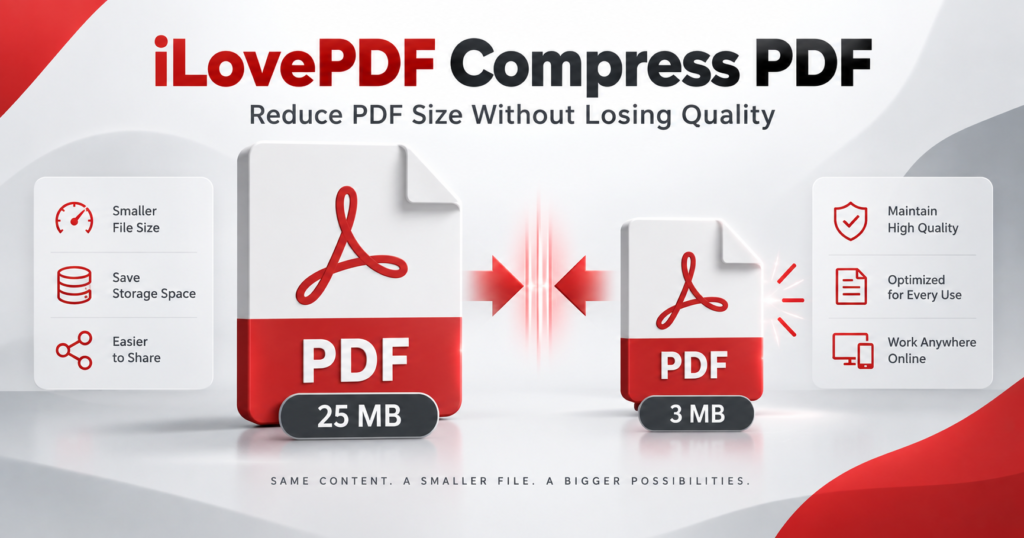
Large PDF files are difficult to upload, email and share. They can also consume unnecessary storage space on your phone or computer. This becomes especially frustrating when an application, university or recruitment portal accepts only a small file.
The iLovePDF Compress PDF tool provides a simple way to reduce PDF size online. You upload your document, select a compression level and download the smaller version. The process works directly through a web browser, so you do not need to install complicated software.
However, selecting the correct compression level is important. Strong compression can make scanned pages, photographs and small text look blurry. This guide explains how to make a PDF smaller while keeping the document clear and readable.
Quick answer: Open the official iLovePDF Compress PDF tool, upload your PDF, select Recommended Compression, click Compress PDF, and download the result. Check the text and images before submitting or deleting the original document.
Table of Contents
What Is iLovePDF Compress PDF?
iLovePDF Compress PDF is an online tool designed to reduce the size of PDF documents. It can be used for study notes, resumes, scanned certificates, reports, presentations, invoices, ebooks and other PDF files.
You can upload a document from your device. You can also import supported files from Google Drive or Dropbox. After processing, the smaller PDF can be downloaded or saved back to connected cloud storage.
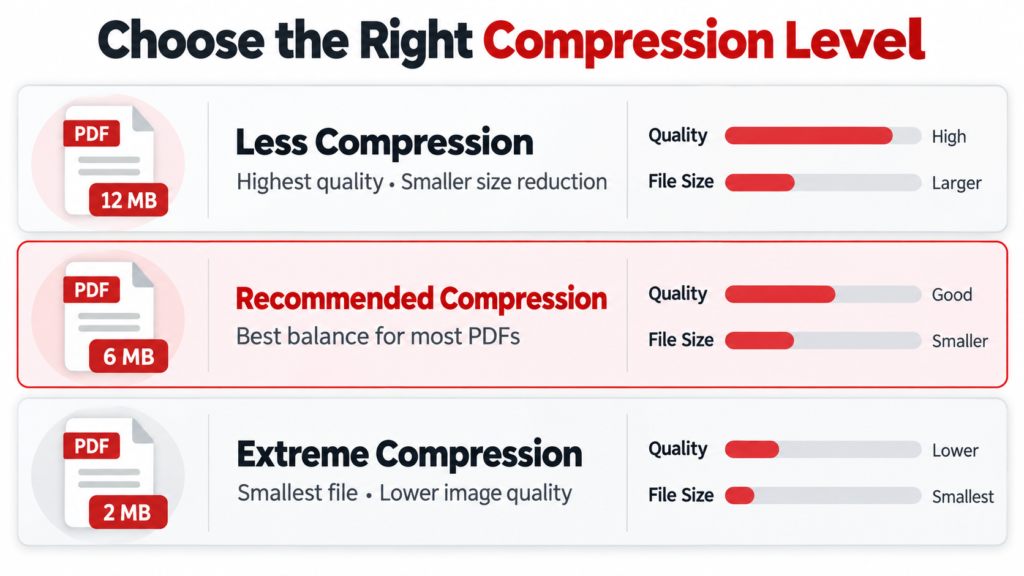
The tool currently provides three compression options:
- Less Compression
- Recommended Compression
- Extreme Compression
Each option creates a different balance between file size and visual quality. According to the official iLovePDF compression page, Recommended Compression provides good quality and good compression, while Extreme Compression produces a smaller file with a greater quality reduction.
Can You Compress a PDF Without Losing Quality?
It is possible to reduce a PDF without causing an obvious visual difference. However, “without losing quality” should usually be understood as without noticeable quality loss.
PDF compression may change the way images and other resources are stored. If the document contains high-resolution photographs or scanned pages, those images may be reduced in resolution. Therefore, the compressed file may not be mathematically identical to the original.
A text-based PDF normally handles compression better than a scanned PDF. Digital text, lines and vector graphics can remain sharp even when the overall file size becomes smaller. A scan, however, may contain one large image for every page. Strong compression can make those page images look soft or pixelated.
For the best balance, begin with Recommended Compression. Use Less Compression when image clarity is more important than obtaining the smallest possible file.
Why Do PDF Files Become So Large?
A PDF can contain much more than visible text. Its size may increase because of high-resolution images, scanned pages, embedded fonts, illustrations, charts, form elements and other stored information.
High-resolution photographs
A document containing multiple camera photographs can become very large. Modern phones capture images with millions of pixels. When these photographs are inserted into a document without optimization, the resulting PDF may occupy several megabytes.
Scanned pages
A scanner may save every page as a large image. A 50-page scanned book can therefore be much larger than a 50-page document created directly in Microsoft Word.
Color documents
Color scans generally require more storage than grayscale or black-and-white scans. Certificates, brochures and illustrated study notes may consequently have larger file sizes.
Embedded fonts and graphics
PDF creators may embed complete font files to ensure that the document appears correctly on different devices. Complex charts and vector illustrations can also increase the file size.
Unnecessary pages or objects
Blank pages, duplicate images and unused design elements may remain inside a PDF. Removing them before compression can produce a better result.
Three iLovePDF Compression Levels Explained
The most important step is selecting the correct level. The official iLovePDF documentation explains that higher compression produces a smaller file but can also reduce quality.
1. Less Compression
Less Compression prioritizes quality. It makes a smaller reduction in file size but helps preserve detailed images, small text and scanned pages.
Choose this option for:
- Scanned certificates
- Academic transcripts
- Portfolios
- Illustrated ebooks
- Professional reports
- Documents intended for printing
- PDFs containing signatures or stamps
This is the safest starting point when the original document is already close to the required upload size.
2. Recommended Compression
Recommended Compression provides the best general balance. It normally reduces the file size while keeping text and common images clear enough for reading, email and online submission.
Choose this option for:
- Resumes and CVs
- Assignments
- Application forms
- Invoices
- Business reports
- Presentation handouts
- Study notes
- Documents shared through email or WhatsApp
For most users, Recommended Compression should be the first choice.
3. Extreme Compression
Extreme Compression prioritizes the smallest possible file. It may noticeably reduce the quality of photographs, screenshots and scanned text.
Choose this option only when:
- A website has a strict upload limit
- Recommended Compression does not reduce the file enough
- The PDF will be viewed mainly on a phone
- The document contains large images that do not require fine detail
- A small email attachment is more important than print quality
Avoid using Extreme Compression for certificates, legal records, architectural drawings or documents containing very small text unless you carefully inspect the result.
Best Compression Level for Different PDF Types
| Type of PDF | Best starting option | Reason |
|---|---|---|
| Resume or CV | Recommended | Reduces size while keeping text and design clear |
| Scanned certificate | Less | Helps protect small text, stamps and signatures |
| University assignment | Recommended | Suitable for text with a few images |
| Photo portfolio | Less | Preserves photographic detail |
| Invoice or receipt | Recommended | Usually maintains readable text |
| Ebook with illustrations | Less or Recommended | Depends on image importance |
| Exam application documents | Recommended | Good balance for portal uploads |
| Large presentation PDF | Recommended | Reduces image-heavy slides |
| File far above an upload limit | Extreme | Produces greater size reduction |
| Document for professional printing | Less | Protects print clarity |
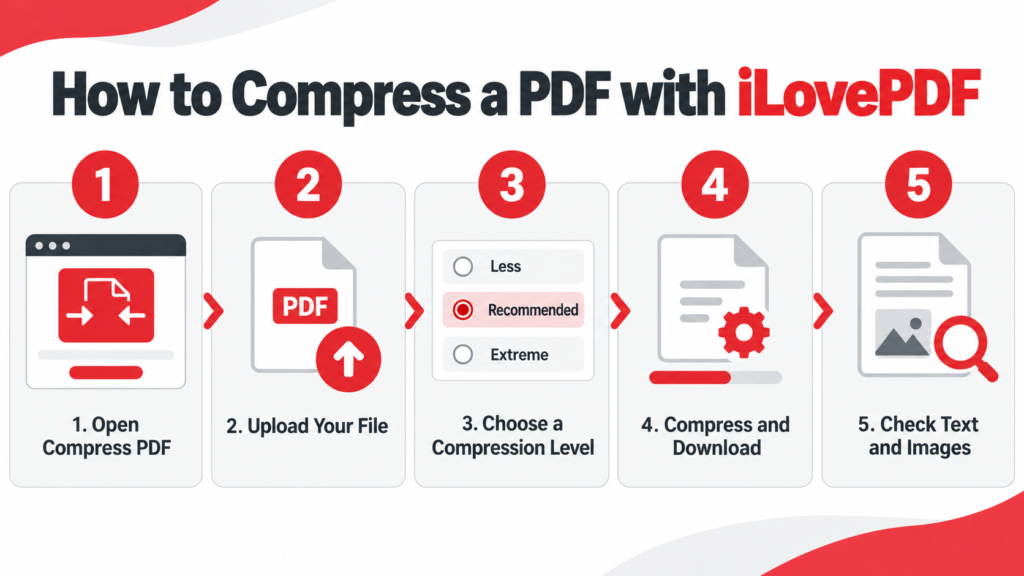
How to Compress a PDF Using iLovePDF
The web version works through common desktop and mobile browsers.
Step 1: Open the Compress PDF Tool
Visit the official iLovePDF PDF compressor.
Confirm that the address begins with https://www.ilovepdf.com/. Avoid uploading documents to an imitation website or an unknown download page.
Step 2: Select Your PDF
Click Select PDF files and choose the document from your device.
You can also drag and drop a PDF into the upload area when using a computer. Google Drive and Dropbox import options may also be available.
Keep a separate copy of the original document before continuing.
Step 3: Choose a Compression Level
Select one of the following options:
- Less Compression
- Recommended Compression
- Extreme Compression
Start with Recommended Compression for an ordinary document. Select Less Compression if the PDF contains detailed scans or important images.
Step 4: Click Compress PDF
Click the Compress PDF button and wait for processing to finish.
Processing time depends on the original file size, page count, internet speed and complexity of the document. Large scanned PDFs will normally take longer than short text documents.
Do not close the browser while the upload or compression is still in progress.
Step 5: Download the Compressed File
Download the processed PDF to your device. The results page may show the original size, new size and percentage reduction.
Rename the file clearly. For example:
resume-compressed.pdf
Avoid vague filenames such as document-final-new-2.pdf.
Step 6: Inspect the Result
Open the compressed document before uploading or sharing it. Check:
- The first and last pages
- Small text
- Photographs
- Tables and charts
- Signatures and stamps
- Clickable links
- Form fields
- Page order
Zoom in to approximately 150% or 200% when checking scanned text. If the document looks blurry, repeat the process using Less Compression.
How to Compress a PDF on an Android Phone
You can use the website through Chrome or install the official mobile app.
Using Chrome
- Open Chrome on your Android phone.
- Visit the official Compress PDF page.
- Tap Select PDF files.
- Choose the file from your phone.
- Select Recommended Compression.
- Tap Compress PDF.
- Download the smaller file.
- Open it and check the document quality.
The downloaded file will normally appear in your browser’s Downloads section or the Downloads folder in your file manager.
Using the iLovePDF Mobile App
The official iLovePDF mobile application is available for Android and iOS. Its mobile tools include PDF compression, editing, scanning, signing and file management.
After installing the official app:
- Open the application.
- Find the Compress PDF tool.
- Select the PDF stored on your device.
- Choose a compression level.
- Start processing.
- Save or share the compressed document.
Button names and locations can change with app updates, but the main process remains similar.
How to Reduce a PDF to 1 MB or 2 MB
iLovePDF does not guarantee one exact output size because every document contains different material. A text-based PDF may shrink significantly, while an already optimized scan may show only a small reduction.
Use this process when a portal requires a specific maximum size:
- Check the current file size.
- Create a backup of the original.
- Try Recommended Compression.
- Download and check the new size.
- Inspect the document quality.
- If it is still too large, try Extreme Compression.
- If quality becomes unacceptable, return to the source document and optimize its images.
- Remove unnecessary pages if permitted.
- Export the document as an optimized PDF again.
Never remove pages or reduce readability merely to meet a limit. The final document should remain complete and clear.
How to Preserve Quality During PDF Compression
Keep the original file
Never overwrite or delete your original document immediately. Save the compressed version under a different name.
Start with Recommended Compression
Recommended Compression is the most suitable first attempt for ordinary documents. It avoids the unnecessary quality reduction that can occur when users choose Extreme Compression immediately.
Use Less Compression for important scans
Certificates, transcripts, identity records and signed documents may contain fine details. Less Compression gives those details a better chance of remaining clear.
Avoid compressing the same file repeatedly
Repeated compression can gradually reduce image quality. Always compress again from the original PDF instead of compressing an already compressed copy.
Check small text carefully
A document may look fine when shown as a full page but become blurry when enlarged. Inspect footnotes, registration numbers, stamps and signatures.
Test printed documents
If the PDF will be printed, print one sample page first. A file that looks acceptable on a phone may not look equally clear on paper.
Optimize images before creating the PDF
If you control the source document, resize oversized images before exporting it. A photograph does not need to remain at full camera resolution when it will occupy only a small area on a page.
Use grayscale when color is unnecessary
A grayscale scan can be smaller than a full-color scan. Use this option only when color is not required for understanding or verification.
Is iLovePDF Compress PDF Free?
iLovePDF provides a free Basic plan with limited document processing. At the time of writing, its official plan comparison lists a maximum of two PDFs per compression task and a 200 MB task-size limit for Basic users.
Premium and Business plans provide higher limits and broader access. The same comparison currently lists up to ten files and 4 GB per compression task for those plans.
Limits and features may change. Check the official pricing page before processing an unusually large document or purchasing a subscription.
Is iLovePDF Safe for Confidential Documents?
According to the company’s security and data-protection page, iLovePDF uses HTTPS and encryption to protect documents during processing. The company also says processed files are automatically and permanently deleted within two hours. Users can manually delete files from the download screen as well.
Nevertheless, online processing requires uploading the document to a remote service. Avoid uploading highly confidential records unless you are authorized to do so and comfortable with the provider’s current privacy terms.
For sensitive business documents, consider using the desktop version. iLovePDF states that its desktop application can process files locally on the computer for greater privacy. Access to processing tools may depend on the selected plan.
Common iLovePDF Compression Problems and Solutions
The PDF did not become much smaller
The document may already be optimized. iLovePDF’s documentation notes that an already optimized PDF might not be compressed further.
Try removing unnecessary pages or optimizing the source images. You can also test a stronger compression level, but inspect the output carefully.
The compressed PDF looks blurry
You may have selected Extreme Compression, or the document may consist mainly of scanned images.
Repeat the process using Recommended or Less Compression. Always return to the original file when trying again.
The upload takes too long
Large PDFs need more time and internet bandwidth. Use a stable connection and keep the browser open. If possible, remove unnecessary pages before uploading.
The website will not accept the compressed file
Check both the file size and format. Some portals restrict page count, filename length or special characters in addition to file size.
Rename the file using simple letters and numbers. For example:
noor-fatima-resume.pdf
The PDF is password protected
You may need to provide the correct password before the service can process the document. Do not attempt to remove protection from a file you do not own or have permission to modify.
The document is damaged
A corrupted PDF may fail during upload or processing. Open the original file in another PDF reader. If it does not open correctly, repair or recreate it before compression.
The text cannot be selected after compression
The original document may be an image-based scan rather than a true text PDF. Compression does not automatically convert scanned images into selectable text. OCR is required for that purpose.
Advantages of iLovePDF Compress PDF
- The tool is easy to use.
- No advanced technical knowledge is required.
- It works through a browser.
- Multiple compression levels are available.
- Files can be imported from supported cloud services.
- Mobile and desktop applications are available.
- The result can be downloaded quickly.
- It is useful for email attachments and portal uploads.
Limitations to Consider
- Exact output size cannot be guaranteed.
- Extreme Compression may blur images and scans.
- Internet access is required for the web version.
- Free usage has processing limits.
- Already optimized files may not shrink significantly.
- Online processing may be unsuitable for highly confidential records.
- Compression cannot repair poor-quality source scans.
iLovePDF Compress PDF Alternatives
If iLovePDF does not provide the required result, you can consider:
- Adobe Acrobat Online
- Smallpdf
- PDF24 Tools
- Sejda PDF
- An offline PDF editor
- Re-exporting the original Word or PowerPoint document
Do not repeatedly upload a sensitive document to several websites. For confidential files, use a trusted offline application or an approved organizational system.
You can explore more useful platforms in our Best Tech Tools section. Students managing study material can also visit our collection of books and notes in PDF.
Frequently Asked Questions
What is iLovePDF Compress PDF?
iLovePDF Compress PDF is an online tool that reduces the storage size of PDF documents. Users can choose Less, Recommended or Extreme Compression according to their quality requirements.
Which compression level should I select?
Recommended Compression is the best starting option for most documents. Select Less Compression for detailed scans, certificates and print-quality PDFs. Use Extreme Compression only when obtaining the smallest possible file is essential.
Does iLovePDF reduce PDF quality?
It can reduce image quality, particularly when Extreme Compression is used. Recommended or Less Compression can often reduce file size without creating an obvious difference during normal viewing.
Can I use iLovePDF Compress PDF for free?
Yes. A free Basic plan is available with limited processing. File limits and maximum task sizes can change, so check the official pricing page for current information.
Can I compress a PDF on my phone?
Yes. You can use the tool in a mobile browser or install the official iLovePDF application for Android or iOS.
Can iLovePDF reduce a PDF to exactly 1 MB?
It may reduce a file below 1 MB, but an exact output size is not guaranteed. The result depends on the original size, images, page count and selected compression level.
Why is my compressed PDF still large?
The original may already be optimized or contain many high-resolution scanned pages. Removing unnecessary pages or optimizing source images may produce a better result.
Can I compress several PDF files together?
Yes, subject to the processing limits of your account. iLovePDF’s current plan comparison lists two PDFs per compression task for Basic users and higher limits for paid plans.
Does PDF compression change the wording of my document?
Compression should not intentionally rewrite the text. However, scan quality and image clarity can be reduced. Always open and inspect the downloaded document.
Is iLovePDF suitable for scanned certificates?
It can be used, but Less Compression is the safer starting option. Carefully inspect names, numbers, stamps and signatures before submitting the compressed certificate.
Final Verdict
The iLovePDF Compress PDF tool is a convenient solution for making large documents easier to upload, email, store and share. It provides three compression levels, allowing users to choose between higher quality and a smaller output file.
Recommended Compression is suitable for most resumes, assignments, reports and application documents. Less Compression is better for scanned certificates and image-heavy PDFs. Extreme Compression should be reserved for strict upload limits when a larger quality reduction is acceptable.
Always keep the original document and inspect the compressed version before submitting it. A smaller PDF is useful only when its text, images and important details remain clear.
Disclosure: Digital Discite is not affiliated with iLovePDF. Product names and trademarks belong to their respective owners.