
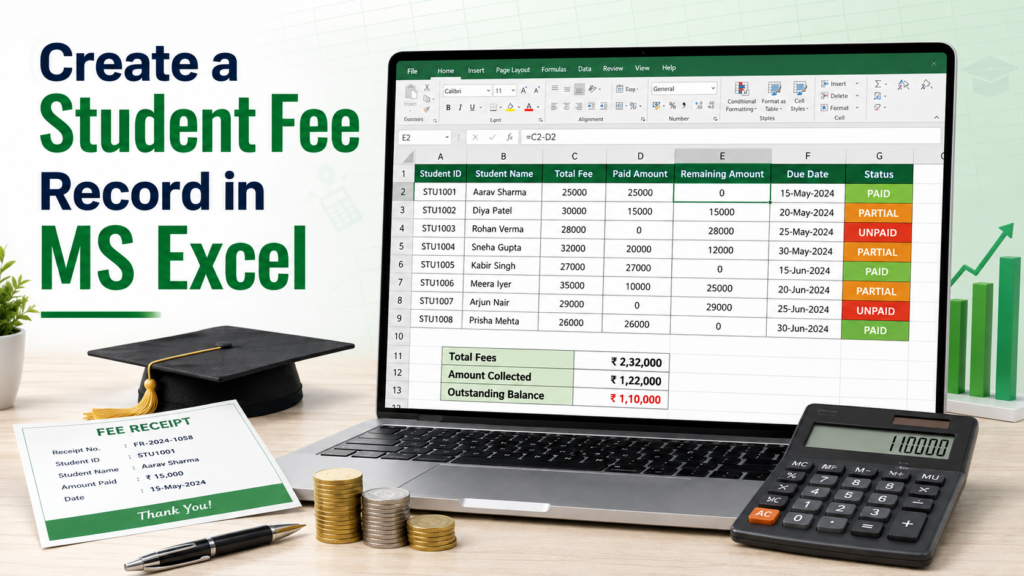
Objective
To create a fee record that automatically calculates students’ remaining fees and displays their payment status.
Steps
- Open Microsoft Excel and select Blank Workbook.
- Merge cells
A1:F1and type STUDENT FEE RECORD. Make it bold and centre-aligned. - In row 3, enter these headings:
| Column | Heading |
|---|---|
| A | Roll No. |
| B | Student Name |
| C | Total Fee |
| D | Paid Amount |
| E | Remaining Amount |
| F | Fee Status |
- Enter the students’ roll numbers, names, total fees, and paid amounts from row 4.
- In cell
E4, calculate the remaining amount:
=C4-D4- In cell
F4, display the fee status:
=IF(E4=0,"Paid",IF(D4=0,"Unpaid","Partially Paid"))- Select cells
E4:F4and drag the fill handle downward to apply the formulas to all students. - At the bottom of the record, calculate the totals:
=SUM(C4:C13)Use the same formula for the Paid Amount and Remaining Amount columns by changing the column letters.
- Format the fee columns as currency through Home → Number → Currency.
- Apply borders, bold headings, and suitable column widths.
- Use Conditional Formatting to display:
- Paid in green
- Partially Paid in yellow
- Unpaid in red
- Check all formulas and save the workbook as:
Student_Fee_Record.xlsx
Result
A student fee record is created that automatically displays paid, partially paid, unpaid, and remaining fee information.