
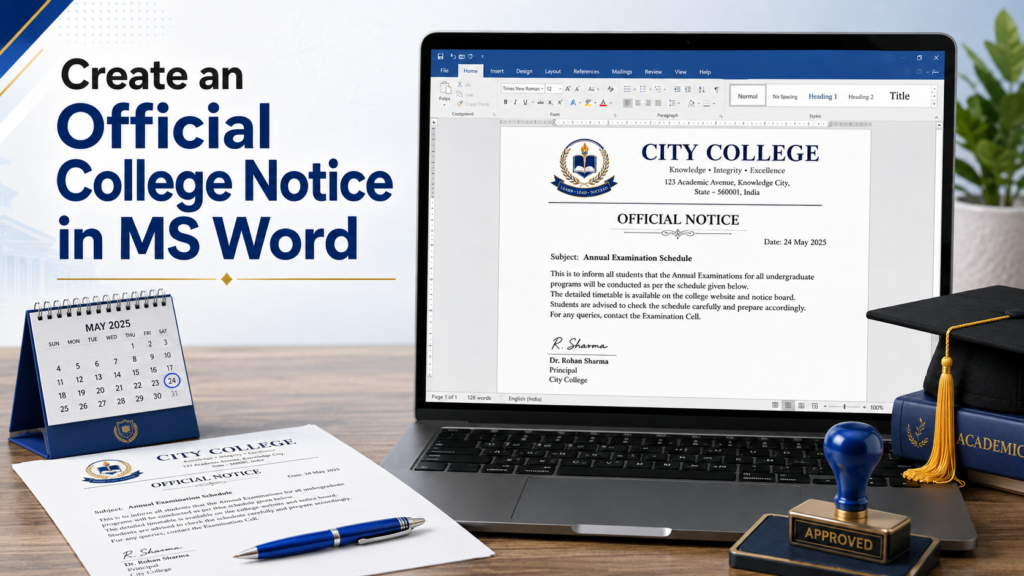
Objective
To create a properly formatted official notice for communicating important information to college students and staff.
Steps
- Open Microsoft Word and select Blank Document.
- Go to Layout and select:
- Size: A4
- Orientation: Portrait
- Margins: Normal
- At the top of the page, type the college name, address, and contact details. Make the college name bold, larger, and centre-aligned.
- Add the college logo through Insert → Pictures, if available.
- Below the college information, type NOTICE or CIRCULAR in bold, capital letters, and centre it.
- Add the following information:
- Reference number
- Date
- Subject of the notice
- Write the notice body in clear and formal language. Mention the purpose, date, time, venue, and necessary instructions.
Example:
All students are informed that a Cyber Safety Awareness Seminar will be held on Monday, 14 September 2026, at 10:00 a.m. in the college auditorium. Students must reach the venue by 9:45 a.m. Attendance is compulsory.
- Add a closing instruction if required, such as: For further information, contact the Department of Computer Science.
- At the bottom, add:
- Signature line
- Name of issuing authority
- Designation, such as Principal or Head of Department
- Add a Copy to section if the notice must be sent to different departments.
- Use a professional font such as Times New Roman, Arial, or Calibri, with size 11 or 12.
- Make the college name, notice title, and subject bold. Keep the remaining text properly aligned.
- Go to Review → Spelling & Grammar and correct any mistakes.
- Check the document through File → Print Preview.
- Save the notice as:
College_Notice.docxCollege_Notice.pdf
Result
A properly formatted official college notice or circular is created successfully in Microsoft Word.