
1. Introduction
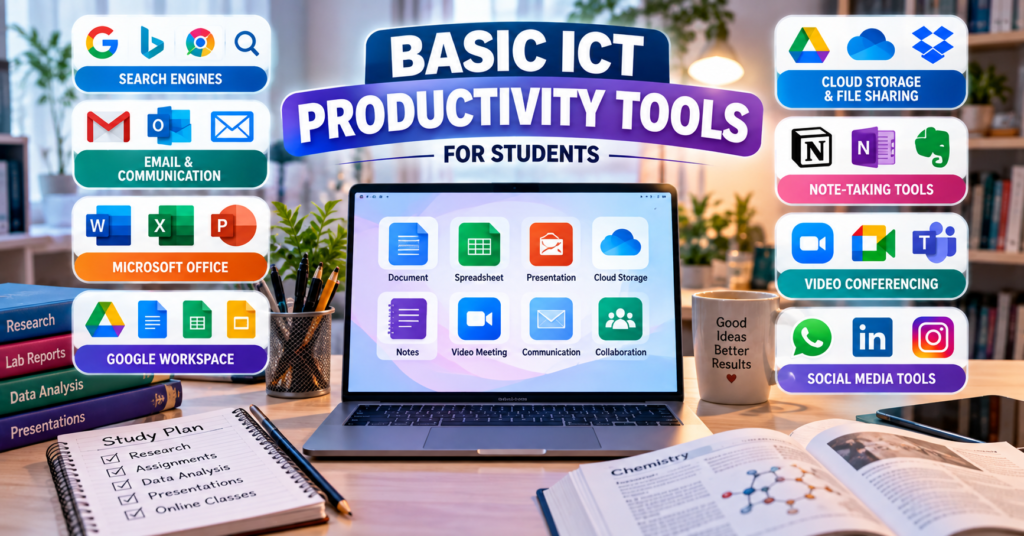
ICT productivity tools are computer programs, online platforms and digital services that help users find information, communicate, create documents, analyse data, prepare presentations, store files and collaborate with others.
For BS Chemistry students, these tools are useful for:
- Searching for scientific information
- Preparing assignments and laboratory reports
- Recording and analysing experimental data
- Creating charts and graphs
- Preparing class presentations
- Communicating formally with teachers
- Attending online classes
- Taking and organising notes
- Storing and sharing files
- Building professional connections
The basic ICT productivity tools discussed in these notes are:
- Search engines
- Formal communication tools and email etiquette
- Microsoft Office
- Google Workspace
- Cloud-storage and file-sharing services
- Digital note-taking applications
- Video-conferencing platforms
- Social-media applications
2. Search Engines and the World Wide Web
2.1 World Wide Web
The World Wide Web (WWW) is a system of interconnected webpages and digital resources available through the internet.
These resources may include:
- Text
- Images
- Videos
- Research articles
- Electronic books
- Educational websites
- Online databases
- News
- Government information
The internet and the World Wide Web are related, but they are not exactly the same.
The internet is the worldwide network connecting computers and digital devices. The World Wide Web is one of the services available through the internet.
2.2 Web Browser
A web browser is software used to open and view websites.
Popular web browsers include:
- Google Chrome
- Microsoft Edge
- Mozilla Firefox
- Safari
- Opera
2.3 Search Engine
A search engine is an online service that helps users find information available on the World Wide Web.
Popular search engines include:
- Bing
- Yahoo
- DuckDuckGo
- Google Scholar
A search engine collects and indexes information from webpages. When a user enters words or a question, the search engine displays related results.
2.4 Search Query
A search query is the word, phrase or question entered into a search engine.
A broad search query may produce too many unrelated results.
For example:
chemistryA more specific search query produces better results:
applications of ICT in analytical chemistryAn even more specific query may be:
use of spreadsheet software in chemistry laboratory data analysis3. Effective Use of Search Engines
3.1 Use Specific Keywords
Keywords are the main terms that describe the information required.
Instead of searching:
water experimentUse:
determination of water hardness using EDTA titrationThe second query is more specific and is likely to produce more useful results.
3.2 Avoid Unnecessary Words
Search engines usually work better with clear keywords than with long, unclear sentences.
Less effective:
Please tell me all the information that is available about how chemistry students can use ExcelMore effective:
Excel applications for chemistry students3.3 Use Quotation Marks
Quotation marks search for an exact phrase.
Example:
"applications of ICT in chemistry"The search engine will look for pages containing that exact phrase.
3.4 Use the Minus Sign
The minus sign excludes unwanted terms.
Example:
mercury chemistry -planetThis search attempts to find information about mercury as a chemical element while excluding results about the planet Mercury.
3.5 Search Within a Particular Website
The site: operator limits results to a particular website or domain.
Example:
acid-base titration site:eduThis searches educational websites.
Another example:
chemical safety site:govThis searches government websites for information about chemical safety.
3.6 Search for a Particular File Type
The filetype: operator helps find documents in a particular format.
Example:
analytical chemistry notes filetype:pdfThis search looks for PDF documents related to analytical chemistry.
3.7 Use OR for Alternative Terms
The word OR searches for either of two terms.
Example:
spectrophotometry OR colorimetry3.8 Search by Date
Students can use search filters to find recently published information. This is useful when studying emerging technologies, current scientific research or recent discoveries.
However, the newest source is not always the most reliable. Students should consider both quality and publication date.
3.9 Use Google Scholar
Google Scholar is a search service designed for academic and scientific literature.
It can help students find:
- Research articles
- Conference papers
- Theses
- Books
- Academic reports
- Citations
Google Scholar is more suitable for academic research than a general web search. However, students must still evaluate the quality of each source.
4. Evaluating Search Results
Information found online is not always accurate. Students should evaluate every source before using it.
4.1 Authority
Check who wrote or published the information.
Reliable sources may include:
- Universities
- Government institutions
- Scientific organisations
- Recognised publishers
- Peer-reviewed journals
- Qualified researchers
4.2 Accuracy
Check whether the information:
- Contains scientific evidence
- Provides references
- Agrees with reliable textbooks
- Uses correct terminology
- Includes verifiable data
4.3 Currency
Check the publication or update date. Recent sources are important for rapidly changing topics.
4.4 Relevance
The source should directly answer the research question and be suitable for the student’s academic level.
4.5 Purpose
Identify why the information was published. A webpage may be created to:
- Educate
- Advertise
- Entertain
- Persuade
- Express an opinion
An advertisement should not be treated as independent scientific evidence.
4.6 Domain Names
Common domain extensions include:
| Domain | General meaning |
|---|---|
.edu | Educational institution |
.gov | Government institution |
.org | Organisation |
.com | Commercial organisation |
.pk | Pakistan-based domain |
.ac | Academic institution in some countries |
A domain name alone does not guarantee accuracy. The complete source must still be evaluated.
5. Safe Use of Search Engines
Students should:
- Avoid suspicious websites.
- Do not download unknown files.
- Check website addresses carefully.
- Avoid entering personal information on untrusted websites.
- Use secure websites beginning with
https. - Scan downloaded files for malware.
- Avoid copying information without citation.
- Verify important scientific facts from multiple sources.
6. Formal Communication Tools
Digital communication tools allow students, teachers and professionals to exchange information.
Formal communication tools include:
- Gmail
- Microsoft Outlook
- Institutional email
- Microsoft Teams
- Google Meet
- Zoom
Email is one of the most important tools for formal academic communication.
7. Gmail
7.1 Introduction
Gmail is an email service provided by Google. It can be accessed through a web browser or mobile application.
A Gmail account also provides access to other Google services, including:
- Google Drive
- Google Docs
- Google Sheets
- Google Slides
- Google Meet
- Google Calendar
- Google Forms
7.2 Main Features
Gmail allows users to:
- Send and receive messages
- Attach files
- Organise messages using labels
- Search old messages
- Mark important emails
- Report spam
- Schedule messages
- Create an email signature
- Join Google Meet meetings
- Store attachments in Google Drive
7.3 Inbox Organisation
Gmail users can organise messages through:
- Labels
- Categories
- Stars
- Filters
- Archive
- Spam folder
- Trash folder
A filter can automatically move certain emails into a selected label or folder.
8. Microsoft Outlook
8.1 Introduction
Microsoft Outlook is an email and personal-information management application developed by Microsoft.
It is available as part of Microsoft 365 and can integrate with:
- Microsoft Word
- Microsoft Excel
- Microsoft PowerPoint
- Microsoft Teams
- Microsoft OneDrive
- Microsoft Calendar
8.2 Main Features
Outlook can be used for:
- Sending and receiving emails
- Managing contacts
- Scheduling meetings
- Maintaining a calendar
- Creating tasks
- Setting reminders
- Organising email folders
- Sharing files through OneDrive
- Joining Microsoft Teams meetings
8.3 Gmail and Outlook
| Gmail | Microsoft Outlook |
|---|---|
| Developed by Google | Developed by Microsoft |
| Integrates with Google Workspace | Integrates with Microsoft 365 |
| Uses labels and categories | Commonly uses folders and categories |
| Connects directly with Google Drive | Connects directly with OneDrive |
| Integrates with Google Meet | Integrates with Microsoft Teams |
Both services are suitable for academic and professional communication.
9. Parts of an Email
9.1 To
The To field contains the email address of the main recipient.
9.2 Carbon Copy
CC, or Carbon Copy, sends a visible copy of the email to another person.
Use CC when another person should be informed but is not the main recipient.
9.3 Blind Carbon Copy
BCC, or Blind Carbon Copy, sends a copy without showing the recipient’s address to other recipients.
BCC is useful when sending the same message to many people while protecting their email addresses.
9.4 Subject
The subject line briefly explains the purpose of the email.
Good subject:
Submission of Acid-Base Titration Laboratory ReportPoor subject:
Hello9.5 Greeting
A formal email should begin with a respectful greeting.
Examples:
- Dear Sir,
- Dear Madam,
- Dear Professor Ahmed,
- Respected Sir/Madam,
9.6 Message Body
The body contains the main message. It should be clear, brief and respectful.
9.7 Closing
Suitable formal closings include:
- Regards,
- Kind regards,
- Sincerely,
9.8 Signature
The signature may contain:
- Full name
- Degree programme
- Semester
- Roll number
- Department
- University
9.9 Attachment
An attachment is a file included with an email.
Examples include:
- Word documents
- PDF reports
- Excel files
- Presentations
- Images
Students should mention the attachment in the message and confirm that the correct file has been attached before sending.
10. Email Etiquette
Email etiquette refers to the rules of polite and professional email communication.
Students should follow these rules:
- Use a professional email address.
- Write a clear subject line.
- Begin with a respectful greeting.
- State the purpose early.
- Keep the message concise.
- Use correct grammar and spelling.
- Avoid informal abbreviations.
- Do not write the entire email in capital letters.
- Attach the correct file.
- Give the file a meaningful name.
- Avoid sending unnecessary large files.
- Check the recipient’s address.
- End with a formal closing.
- Include name, programme and roll number.
- Reply within a reasonable time.
- Protect confidential information.
Example of a Formal Academic Email
Subject: Submission of Chemistry Laboratory Report
Dear Sir,
Please find attached my laboratory report on the determination of water hardness using EDTA titration. The report includes the procedure, observations, calculations, results and conclusion.
Kindly confirm receipt of the report.
Regards,
Student Name
BS Chemistry, First Semester
Roll Number: 25
11. Email Safety
Students should:
- Never share their email password.
- Enable multi-factor authentication.
- Avoid opening suspicious attachments.
- Do not click unknown links.
- Check the sender’s complete email address.
- Report phishing and spam.
- Log out when using a public computer.
- Avoid sharing verification codes.
- Do not send confidential research data through unapproved services.
Phishing is an attempt to steal personal information by pretending to be a trustworthy person or organisation.
12. Microsoft Office Suite
12.1 Introduction
Microsoft Office, now commonly provided through Microsoft 365, is a group of productivity applications developed by Microsoft.
Major applications include:
- Microsoft Word
- Microsoft Excel
- Microsoft PowerPoint
- Microsoft Outlook
- Microsoft OneNote
The three most important applications for students are Word, Excel and PowerPoint.
13. Microsoft Word
13.1 Definition
Microsoft Word is a word-processing application used to create, edit, format and print documents.
13.2 Uses in Chemistry
Students can use Word to prepare:
- Assignments
- Laboratory reports
- Research summaries
- Project reports
- Question papers
- Curriculum vitae
- Formal letters
13.3 Important Features
Microsoft Word provides:
- Text formatting
- Paragraph formatting
- Tables
- Pictures
- Page numbers
- Headers and footers
- Mathematical equations
- Symbols
- Footnotes
- Citations
- Bibliographies
- Table of contents
- Track Changes
- Comments
- Spelling and grammar checking
- PDF export
13.4 Chemical Formatting
Word allows students to use superscript and subscript.
Examples:
- H₂O
- H₂SO₄
- Ca²⁺
- SO₄²⁻
- ¹⁴C
Students can also use the equation editor to enter mathematical and scientific equations.
13.5 Chemistry Laboratory Report in Word
A report may contain:
- Experiment title
- Objective
- Theory
- Apparatus
- Chemicals
- Procedure
- Observations
- Calculations
- Results
- Discussion
- Conclusion
- References
14. Microsoft Excel
14.1 Definition
Microsoft Excel is spreadsheet software used to organise data, perform calculations and create graphs.
14.2 Basic Structure
An Excel file is called a workbook. It contains one or more worksheets.
A worksheet contains:
- Rows
- Columns
- Cells
- Cell ranges
A cell is identified by its column letter and row number, such as B4.
14.3 Common Functions
SUM
=SUM(B2:B10)Adds the values in cells B2 to B10.
AVERAGE
=AVERAGE(B2:B10)Calculates the average.
MAX
=MAX(B2:B10)Returns the largest value.
MIN
=MIN(B2:B10)Returns the smallest value.
COUNT
=COUNT(B2:B10)Counts the cells containing numbers.
14.4 Applications in Chemistry
Excel can be used to:
- Record laboratory readings
- Calculate averages
- Determine concentrations
- Calculate percentage yield
- Analyse titration results
- Prepare calibration curves
- Create charts
- Compare experimental values
- Maintain chemical inventories
14.5 Example: Percentage Yield
\[ \text{Percentage Yield} = \frac{\text{Actual Yield}}{\text{Theoretical Yield}}\times100 \]
If actual yield is in cell B2 and theoretical yield is in C2:
=(B2/C2)*10014.6 Graphs in Excel
Excel can create:
- Column charts
- Bar charts
- Line graphs
- Pie charts
- Scatter plots
- Histograms
Scatter plots are especially useful in chemistry for relationships such as concentration versus absorbance.
15. Microsoft PowerPoint
15.1 Definition
Microsoft PowerPoint is presentation software used to organise and display information through slides.
15.2 Slide Content
Slides may contain:
- Titles
- Text
- Pictures
- Tables
- Charts
- Diagrams
- Chemical structures
- Audio
- Videos
- Animations
15.3 Applications in Chemistry
PowerPoint can be used to present:
- Laboratory experiments
- Chemical reactions
- Molecular structures
- Periodic trends
- Research results
- Industrial chemical processes
- Environmental issues
15.4 Effective Presentation Guidelines
- Use a clear title.
- Keep text short.
- Use readable fonts.
- Maintain suitable colour contrast.
- Avoid overcrowding slides.
- Use relevant graphs and diagrams.
- Maintain a consistent design.
- Use limited animations.
- Check scientific information carefully.
- Mention references.
16. Google Workspace
16.1 Introduction
Google Workspace is a collection of cloud-based productivity and collaboration tools developed by Google.
Important tools include:
- Google Docs
- Google Sheets
- Google Slides
- Google Drive
- Gmail
- Google Meet
- Google Forms
- Google Calendar
Its major advantage is online collaboration. Multiple users can work on the same file at the same time.
17. Google Docs
17.1 Definition
Google Docs is an online word-processing application.
It can be used to:
- Create documents
- Format text
- Insert images and tables
- Add comments
- Suggest edits
- Share documents
- Collaborate in real time
- Review version history
- Download documents in different formats
17.2 Applications in Chemistry
Students can use Google Docs to:
- Prepare group assignments
- Write laboratory reports
- Review each other’s work
- Receive comments from teachers
- Access documents from different devices
17.3 Sharing Permissions
A document owner may provide three common access levels:
- Viewer: Can only view.
- Commenter: Can view and comment.
- Editor: Can modify the document.
18. Google Sheets
18.1 Definition
Google Sheets is an online spreadsheet application.
It provides many features similar to Microsoft Excel, including:
- Formulas
- Functions
- Tables
- Sorting
- Filtering
- Charts
- Conditional formatting
18.2 Applications in Chemistry
Google Sheets can be used to:
- Record group experimental data
- Perform calculations
- Prepare shared chemical inventories
- Analyse survey responses
- Create graphs
- Compare results in real time
18.3 Collaboration
Several group members can enter and analyse data in the same sheet. Their changes can be seen in real time.
19. Google Slides
19.1 Definition
Google Slides is an online presentation application.
It allows users to:
- Create slides
- Insert text and images
- Add charts and videos
- Apply themes
- Share presentations
- Work collaboratively
- Present through the internet
19.2 Application in Chemistry
Group members can prepare different sections of one chemistry presentation without sending separate files.
For example:
- Student 1 prepares the introduction.
- Student 2 adds the experimental method.
- Student 3 prepares graphs.
- Student 4 adds discussion and conclusion.
20. Microsoft Office and Google Workspace Comparison
| Feature | Microsoft Office | Google Workspace |
|---|---|---|
| Word processing | Microsoft Word | Google Docs |
| Spreadsheet | Microsoft Excel | Google Sheets |
| Presentation | Microsoft PowerPoint | Google Slides |
| Outlook | Gmail | |
| Cloud storage | OneDrive | Google Drive |
| Video meetings | Microsoft Teams | Google Meet |
| Strong desktop applications | Yes | Mainly cloud-based |
| Real-time collaboration | Available | A major built-in feature |
| Offline use | Strong support | Available with preparation |
| Automatic online saving | Available with OneDrive | Built into online files |
Both suites are useful. The best choice depends on the task, available internet connection and institutional requirements.
21. Cloud Storage and File Sharing
21.1 Definition
Cloud storage means storing files on remote servers that can be accessed through the internet.
Cloud storage allows users to:
- Upload files
- Download files
- Organise folders
- Share files
- Access files from different devices
- Collaborate on documents
- Maintain backup copies
The major services discussed here are:
- Dropbox
- Google Drive
- Microsoft OneDrive
22. Dropbox
22.1 Definition
Dropbox is a cloud-storage and file-sharing service.
It can be used to:
- Store files online
- Synchronise files between devices
- Share files through links
- Organise files in folders
- Back up selected files
- Collaborate with other users
22.2 Application for Chemistry Students
Students may use Dropbox to store:
- Laboratory reports
- Research articles
- Experimental photographs
- Presentations
- Project documents
- Large files
22.3 File Synchronisation
When synchronisation is enabled, a change made to a file on one device can appear on other connected devices.
23. Google Drive
23.1 Definition
Google Drive is Google’s cloud-storage and file-sharing service.
It is closely integrated with:
- Google Docs
- Google Sheets
- Google Slides
- Google Forms
- Gmail
23.2 Main Features
Google Drive allows users to:
- Upload files and folders
- Create Google Workspace files
- Share documents
- Control access permissions
- Search stored files
- View recent activity
- Recover deleted items from the trash
- Review file versions
23.3 Application for Chemistry Students
A student can:
- Create an experimental-data table in Google Sheets.
- Save it automatically in Google Drive.
- Share it with group members.
- Prepare a report in Google Docs.
- Add the graph from Google Sheets.
- Submit the sharing link to the teacher.
24. Microsoft OneDrive
24.1 Definition
Microsoft OneDrive is Microsoft’s cloud-storage and file-sharing service.
It integrates with:
- Microsoft Word
- Microsoft Excel
- Microsoft PowerPoint
- Microsoft Outlook
- Microsoft Teams
- Microsoft OneNote
24.2 Main Features
OneDrive allows users to:
- Store files online
- Automatically save Office documents
- Share files
- Collaborate on Microsoft Office files
- Synchronise folders
- Access files from different devices
- Review previous file versions
24.3 Application for Chemistry Students
Students can create a laboratory report in Word, save it in OneDrive and share it with their teacher without sending a large attachment.
25. Comparison of Cloud-Storage Services
| Feature | Dropbox | Google Drive | Microsoft OneDrive |
|---|---|---|---|
| Main purpose | Cloud storage and file sharing | Storage with Google Workspace integration | Storage with Microsoft integration |
| Document integration | Supports common file types | Docs, Sheets and Slides | Word, Excel and PowerPoint |
| File sharing | Through links and permissions | Through links and permissions | Through links and permissions |
| Collaboration | Available | Strong Google collaboration | Strong Microsoft collaboration |
| Suitable for | General file sharing | Google Workspace users | Microsoft 365 users |
Important Note
The amount of free storage and specific features may change. Students should check the current terms of each service.
26. Safe Cloud-Storage Practices
Students should:
- Use strong passwords.
- Enable multi-factor authentication.
- Check sharing permissions.
- Avoid public links for confidential files.
- Remove access when it is no longer required.
- Keep important files in more than one location.
- Avoid uploading sensitive research data without approval.
- Give files meaningful names.
- Organise files into folders.
- Log out of shared computers.
27. Evernote
27.1 Definition
Evernote is a note-taking and organisation application.
It allows users to create and manage digital notes.
27.2 Features
Notes may contain:
- Typed text
- Images
- Web links
- Checklists
- Scanned documents
- Attachments
- Audio
- Reminders
Evernote can organise notes using:
- Notebooks
- Tags
- Search
- Categories
27.3 Application for Chemistry Students
Students can use Evernote to:
- Save lecture notes
- Create revision lists
- Store laboratory instructions
- Collect research links
- Save photographs of the whiteboard
- Maintain assignment checklists
- Organise notes by subject
28. Microsoft OneNote
28.1 Definition
Microsoft OneNote is Microsoft’s digital notebook for capturing and organising ideas.
It can be accessed on computers, tablets and smartphones.
28.2 Structure of OneNote
OneNote organises information into:
- Notebooks
- Sections
- Pages
For example:
- Notebook: BS Chemistry Semester 1
- Section: Organic Chemistry
- Page: Introduction to Hydrocarbons
28.3 Features
OneNote allows users to:
- Type notes
- Draw diagrams
- Write by hand
- Insert pictures
- Record audio
- Create tables
- Add links
- Attach files
- Create task lists
- Search notes
- Synchronise notes through OneDrive
28.4 Application in Chemistry
Students can use OneNote to:
- Draw chemical structures
- Organise lecture notes
- Record laboratory observations
- Insert experimental photographs
- Maintain a formula collection
- Store links to scientific resources
- Create examination revision notes
29. Evernote and OneNote Comparison
| Evernote | OneNote |
|---|---|
| Focuses on note-taking and organisation | Works like a digital notebook |
| Uses notebooks and tags | Uses notebooks, sections and pages |
| Useful for collecting web content | Useful for structured academic notes |
| Supports attachments and checklists | Supports handwriting, drawing and attachments |
| Works across different platforms | Closely integrated with Microsoft 365 |
Both tools help students organise academic information. The best choice depends on personal preference and the software already being used.
30. Video Conferencing
30.1 Definition
Video conferencing is live communication between people in different locations through audio, video and the internet.
Popular video-conferencing tools include:
- Google Meet
- Microsoft Teams
- Zoom
30.2 Common Features
Video-conferencing platforms may provide:
- Audio and video calls
- Screen sharing
- Text chat
- File sharing
- Meeting links
- Participant lists
- Background effects
- Captions
- Recording
- Breakout rooms
- Virtual hand raising
- Meeting scheduling
The availability of some features depends on the account type and meeting settings.
31. Google Meet
Google Meet is Google’s video-conferencing service.
It integrates with:
- Gmail
- Google Calendar
- Google Classroom
- Google Workspace
Students can use Google Meet for:
- Online lectures
- Group discussions
- Teacher consultations
- Research meetings
- Presentation practice
32. Microsoft Teams
Microsoft Teams is a communication and collaboration platform developed by Microsoft.
It provides:
- Video meetings
- Team channels
- Text chat
- File sharing
- Screen sharing
- Meeting scheduling
- Integration with OneDrive
- Integration with Word, Excel and PowerPoint
Microsoft Teams may be used as a complete digital classroom or workplace.
33. Zoom
Zoom is a video-conferencing platform used for online meetings, classes, webinars and training sessions.
Its features may include:
- Meeting links
- Screen sharing
- Virtual backgrounds
- Chat
- Recording
- Breakout rooms
- Polls
- Reactions
Zoom is commonly used when participants belong to different institutions or organisations.
34. Educational Uses of Video Conferencing
BS Chemistry students may use video conferencing for:
- Attending online lectures
- Watching laboratory demonstrations
- Participating in seminars
- Presenting research
- Discussing assignments
- Meeting group members
- Communicating with researchers
- Receiving academic guidance
A teacher may share the screen to explain a graph, chemical structure or experimental procedure.
35. Video-Conferencing Etiquette
Students should:
- Join the meeting on time.
- Use their real and recognisable name.
- Check the microphone and camera beforehand.
- Keep the microphone muted when not speaking.
- Select a quiet location.
- Wear appropriate clothing.
- Use a suitable background.
- Avoid interrupting others.
- Use the raise-hand feature where appropriate.
- Do not record without permission.
- Avoid sharing the meeting link publicly.
- Pay attention during the meeting.
- Use chat respectfully.
- Leave the meeting properly when it ends.
36. Social-Media Applications
36.1 Definition
Social media consists of digital platforms that allow users to create, share and discuss content and build online connections.
Examples include:
- YouTube
- X
- Research-oriented online communities
Social media can support education, professional networking and public communication. However, it must be used responsibly.
37. LinkedIn
37.1 Definition
LinkedIn is a professional networking platform.
It is mainly used for:
- Professional profiles
- Employment opportunities
- Academic achievements
- Industry news
- Professional networking
- Skills and certifications
37.2 Uses for Chemistry Students
Students can use LinkedIn to:
- Create a professional profile
- Follow chemical companies
- Connect with teachers and researchers
- Find internships
- Explore career opportunities
- Share certificates
- Learn about scientific events
- Join professional discussions
37.3 Professional Profile Content
A LinkedIn profile may contain:
- Professional photograph
- Full name
- Academic programme
- Educational institution
- Skills
- Certifications
- Projects
- Laboratory experience
- Contact details
Students should avoid exaggerating their qualifications or adding false experience.
38. Facebook
38.1 Definition
Facebook is a social-networking platform used for communication, groups, pages, events and content sharing.
38.2 Academic Uses
Students may use Facebook to:
- Join educational groups
- Follow university pages
- Receive event announcements
- Participate in class communities
- Watch educational videos
- Share academic information
38.3 Limitations
Information shared in public groups may be inaccurate. Students should verify academic claims before using them.
39. Instagram
39.1 Definition
Instagram is a visual social-media platform mainly used to share photographs, videos, stories and short-form content.
39.2 Educational Uses
Chemistry students may use Instagram to:
- Follow educational pages
- View short scientific explanations
- Learn laboratory-safety tips
- Follow universities and research institutions
- Share science-communication content
- Promote academic events
39.3 Limitations
Short videos may oversimplify scientific concepts. A visually attractive post should not automatically be treated as reliable scientific information.
40. Responsible Use of Social Media
Students should:
- Protect personal information.
- Use strong passwords.
- Check privacy settings.
- Avoid sharing confidential academic data.
- Verify information before sharing.
- Communicate respectfully.
- Avoid cyberbullying.
- Respect copyright.
- Do not post laboratory content without permission.
- Separate professional and highly personal content where appropriate.
- Think about long-term effects before posting.
Digital Footprint
A digital footprint is the record of a person’s online activities.
It may include:
- Posts
- Comments
- Photographs
- Likes
- Shared content
- Profile information
Future employers and educational institutions may view publicly available online content. Therefore, students should maintain a responsible digital presence.
41. Social Media in Science Communication
Science communication means explaining scientific information to the public in an understandable form.
Chemistry students and professionals can use social media to share:
- Laboratory-safety awareness
- Environmental information
- Chemistry facts
- Research summaries
- Career guidance
- Educational diagrams
- Public-health information
Scientific communication should be:
- Accurate
- Clear
- Evidence-based
- Properly referenced
- Free from misleading claims
42. Integration of ICT Productivity Tools
These productivity tools often work together.
Example: Completing a Chemistry Group Assignment
- Students search Google and Google Scholar for information.
- They save research notes in OneNote or Evernote.
- They store research articles in Google Drive, Dropbox or OneDrive.
- Group members meet through Google Meet, Teams or Zoom.
- They prepare the report in Word or Google Docs.
- They analyse experimental data in Excel or Google Sheets.
- They create graphs from the results.
- They prepare slides in PowerPoint or Google Slides.
- They email the final report to the teacher through Gmail or Outlook.
- They may share their academic achievement professionally on LinkedIn.
43. Microsoft and Google Ecosystems
An ICT ecosystem is a group of connected applications that work together.
Microsoft Ecosystem
Outlook → OneDrive → Word/Excel/PowerPoint → Teams → OneNoteExample: A student receives an assignment through Outlook, saves it in OneDrive, prepares it in Word, discusses it through Teams and records notes in OneNote.
Google Ecosystem
Gmail → Google Drive → Docs/Sheets/Slides → Google MeetExample: A student receives instructions through Gmail, saves files in Drive, prepares a report in Docs, analyses data in Sheets and joins a class through Meet.
44. File Management Practices
Students should give files clear names.
Poor file name:
document1.docxBetter file name:
Acid_Base_Titration_Report.docxEven better:
Acid_Base_Titration_Report_Roll25_2026.docxFiles should be organised into folders.
Example:
- BS Chemistry
- Semester 1
- ICT
- Organic Chemistry
- Inorganic Chemistry
- Physical Chemistry
- Laboratory Reports
- Semester 1
45. Data Backup
A backup is an additional copy of data kept for recovery.
Important academic documents should not be stored in only one place.
A student may keep:
- One copy on a laptop
- One copy on a USB or external drive
- One copy in secure cloud storage
The 3-2-1 backup rule recommends:
- Keep three copies of important data.
- Use two different storage media.
- Keep one copy in another location or cloud service.
46. Advantages of ICT Productivity Tools
These tools provide several benefits:
- Fast access to information
- Professional document preparation
- Accurate calculations
- Easy data organisation
- Effective presentations
- Formal communication
- Online collaboration
- Remote learning
- File backup and sharing
- Professional networking
- Reduced paper use
- Access from different devices
47. Limitations and Challenges
The limitations include:
- Dependence on electricity
- Need for an internet connection
- Software and subscription costs
- Risk of data loss
- Privacy concerns
- Cybersecurity threats
- False online information
- Digital distraction
- Lack of technical skills
- Compatibility problems
- Excessive dependence on technology
Technology improves productivity only when it is used correctly and responsibly.
48. Comparison of Basic ICT Productivity Tools
| Tool | Main purpose | Example use for chemistry students |
|---|---|---|
| Google/Bing | Search online information | Find material about chemical reactions |
| Gmail/Outlook | Formal email communication | Submit a laboratory report |
| Microsoft Word | Document preparation | Write an assignment |
| Microsoft Excel | Calculation and data analysis | Calculate percentage yield |
| Microsoft PowerPoint | Slide presentations | Present experimental findings |
| Google Docs | Online document creation | Prepare a group report |
| Google Sheets | Collaborative spreadsheets | Record shared experimental readings |
| Google Slides | Online presentations | Prepare group slides |
| Dropbox | Cloud storage and sharing | Share research files |
| Google Drive | Storage with Google integration | Store Docs, Sheets and Slides |
| OneDrive | Storage with Microsoft integration | Save Word and Excel files |
| Evernote | Note-taking and organisation | Save research notes |
| OneNote | Structured digital notebook | Organise notes by chemistry subject |
| Google Meet | Online meetings | Attend an online lecture |
| Microsoft Teams | Meetings and collaboration | Manage a class group |
| Zoom | Video conferencing | Attend a scientific webinar |
| Professional networking | Find internships | |
| Groups and public communication | Join an academic group | |
| Visual content sharing | Follow science-education pages |
49. Important Terms
World Wide Web: A system of interconnected webpages accessed through the internet.
Web browser: Software used to open and view websites.
Search engine: An online service used to find information on the web.
Search query: Words or phrases entered into a search engine.
Email etiquette: Rules of professional and respectful email communication.
Attachment: A file sent with an email.
CC: A visible copy of an email sent to another recipient.
BCC: A hidden copy of an email sent to another recipient.
Microsoft Office: A collection of Microsoft productivity applications.
Google Workspace: A collection of cloud-based Google productivity tools.
Cloud storage: Storage of files on remote internet servers.
File sharing: Providing other users with access to a file.
Synchronisation: Keeping the same updated files on different devices.
Real-time collaboration: Several users working on the same file simultaneously.
Video conferencing: Live audio and video communication through the internet.
Digital notebook: An application used to record and organise notes.
Social media: Online platforms used to create, share and discuss content.
Digital footprint: The record of a person’s activities on the internet.
Phishing: A fraudulent attempt to steal personal or account information.
50. Short Questions for Examination Preparation
- Define the World Wide Web.
- What is a search engine?
- Differentiate between a browser and a search engine.
- What is a search query?
- State four methods for improving a web search.
- What is Google Scholar?
- How can students evaluate an online source?
- What is email etiquette?
- Differentiate between CC and BCC.
- What is phishing?
- State four uses of Microsoft Word.
- What is Microsoft Excel?
- Write any four Excel functions.
- State four uses of Microsoft PowerPoint.
- What is Google Workspace?
- Differentiate between Google Docs and Microsoft Word.
- Define cloud storage.
- Compare Google Drive and OneDrive.
- What is Dropbox?
- What is Evernote?
- Explain the structure of OneNote.
- Define video conferencing.
- State four rules of video-conferencing etiquette.
- What is LinkedIn used for?
- What is a digital footprint?
51. Possible Long Questions
- Explain the effective use of search engines for academic research.
- Discuss formal email communication and important email etiquettes.
- Explain Microsoft Word, Excel and PowerPoint with their applications in chemistry.
- Discuss Google Docs, Sheets and Slides as collaborative productivity tools.
- Compare Microsoft Office and Google Workspace.
- Explain Dropbox, Google Drive and Microsoft OneDrive.
- Discuss the features and uses of Evernote and OneNote.
- Explain video-conferencing tools and their educational applications.
- Discuss the academic and professional uses of social-media applications.
- Explain how ICT productivity tools can be integrated to complete a chemistry project.
52. Summary
Basic ICT productivity tools help students search for information, communicate formally, create documents, analyse data, prepare presentations, store files and collaborate online.
Google, Bing and Google Scholar help students explore the World Wide Web. Gmail and Outlook support formal academic communication. Microsoft Word, Excel and PowerPoint are used for reports, calculations and presentations, while Google Docs, Sheets and Slides provide similar functions with strong online collaboration.
Dropbox, Google Drive and OneDrive provide cloud storage and file sharing. Evernote and OneNote help students organise digital notes. Google Meet, Microsoft Teams and Zoom support online classes and meetings. LinkedIn, Facebook and Instagram can support professional networking, education and science communication when used responsibly.
For BS Chemistry students, effective use of these tools improves academic performance, scientific communication, data analysis, teamwork and professional development.